
Connecting App Store Connect on Clarisights
App Store Connect is Apple's portal for apps published on the App Store, and its Analytics Reports give you daily App Store downloads, installs, deletes and app sessions for each of your apps. Connecting App Store Connect to Clarisights lets you report on organic app acquisition and engagement (by territory, device, OS version, source type and more) side by side with your paid channels, and adds day 1 to day 30 retention for every download cohort.
At a glance
| Authentication | App Store Connect API key: Issuer ID, Key ID and the .p8 private key (Vendor Number optional) |
| Permissions needed | An App Store Connect API key with Admin access, on an Apple Developer account whose agreements are signed and current |
| Account discovery | Automatic: every app under the Apple Developer account is listed, then you choose which apps and which report types to sync |
| Data freshness | Daily (once per day), as soon as Apple publishes each day's report |
| Lookback window | Every run picks up all new daily reports Apple has published since the last run; recent days are updated as Apple revises them (about 2 days for App Downloads, about 6 days for Installs & Deletes and Sessions, 40 days for Retention) |
| Backfill on connect | Yes: Clarisights requests Apple's one-time historical report for each app and loads it automatically once Apple has prepared it (usually 24 to 48 hours) |
| Timezone | Report dates exactly as provided by Apple (not shifted) |
| Currency | Not applicable (App Store analytics data is non-monetary) |
| Levels supported | Account (App) only, with breakdown dimensions |
| Limited rollout | No |
Prerequisites
An Apple Developer account with at least one app on the App Store.
An App Store Connect API key with Admin access, generated in App Store Connect under Users and Access → Integrations. You need its Issuer ID, its Key ID and the .p8 private key file. Apple lets you download the .p8 file only once, when the key is created, so store it safely. See Apple's guide Creating API keys for App Store Connect API.
All required agreements signed and current in App Store Connect under Business (Agreements, Tax, and Banking). While an agreement is missing or expired, Apple rejects every API request for the account.
Optional: your Vendor Number (about 8 digits, shown in Payments and Financial Reports). It is stored for future use and is not needed for the reports described here.
Access to the Clarisights Integrations page.
Steps to Connect
Step 1: Create an API key in App Store Connect
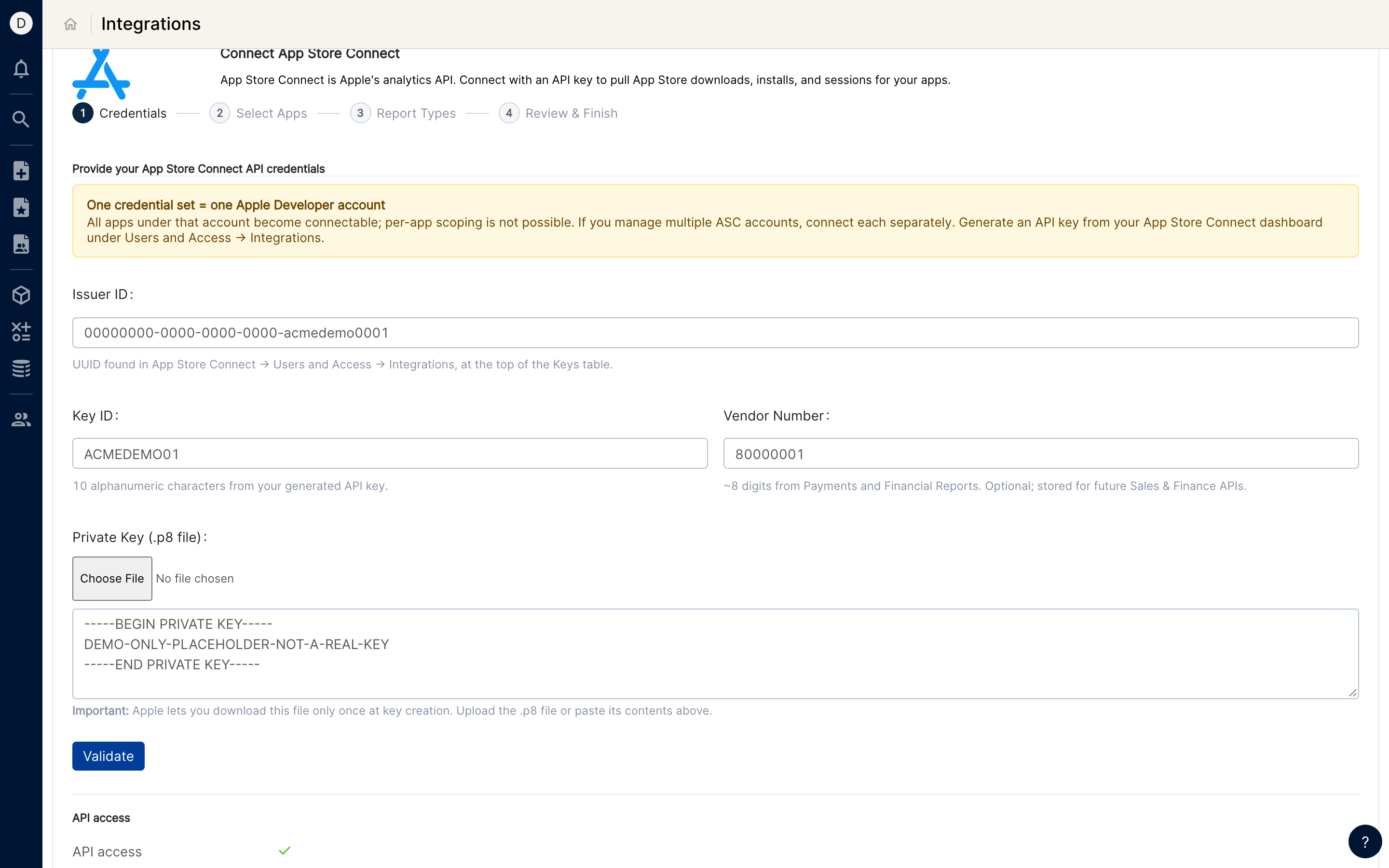
In App Store Connect, open Users and Access → Integrations and generate an API key with Admin access (or use an existing one). Note the Issuer ID shown at the top of the keys table and the 10-character Key ID, and download the .p8 private key file. If you cannot create keys, ask the Account Holder or an Admin of your Apple Developer account.
One credential set covers one Apple Developer account. All apps under that account become connectable; access cannot be scoped to individual apps on Apple's side. If you manage several Apple Developer accounts, connect each one separately.
Step 2: Add App Store Connect in Clarisights
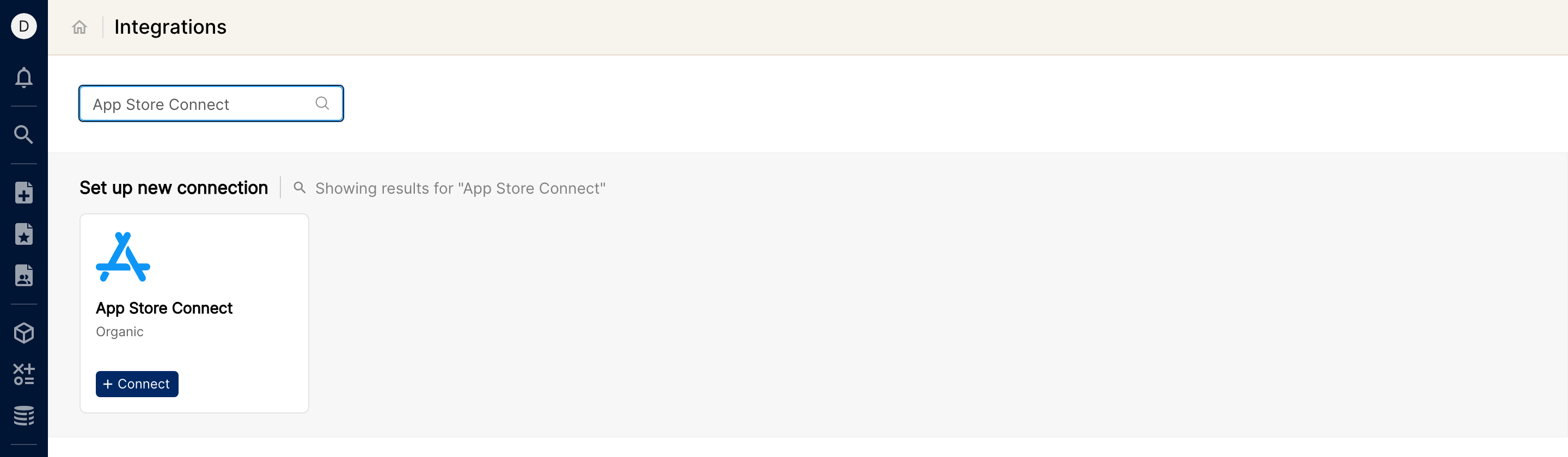
In Clarisights, click the Integrations icon in the left sidebar. Under Set up new connection, search for "App Store Connect" (or click See All and find it under Organic), then click + Connect on the App Store Connect card.
Step 3: Enter your API credentials
On the Credentials step, fill in Issuer ID, Key ID and, optionally, Vendor Number. Under Private Key (.p8 file), upload the .p8 file or paste its contents into the text box. Click Validate. Clarisights signs in to App Store Connect with your key and lists the apps in your account. When the API access row shows a green check, click Continue.
⚠ "Issuer ID, Key ID and the .p8 private key are all required." → One of the required fields is empty. Fill in all three (Vendor Number is optional) and click Validate again.
⚠ "Invalid App Store Connect .p8 private key" → The private key could not be read. Upload the original .p8 file, or paste its full contents including the BEGIN PRIVATE KEY and END PRIVATE KEY lines.
⚠ "App Store Connect agreement missing or expired" → Apple is rejecting requests because an agreement on the account is unsigned or expired. Sign the required agreement in App Store Connect under Business (Agreements, Tax, and Banking), then click Validate again.
⚠ "Validation failed. Please check your App Store Connect credentials." or an authentication error from Apple → The Issuer ID, Key ID and private key do not match, or the key has been revoked. Check that the Key ID belongs to the uploaded .p8 file and that the key is still active in Users and Access → Integrations.
Step 4: Select apps
The Select Apps step lists every app found under the account, with its Bundle ID and Apple Identifier. Use Search by app name to filter, tick the apps you want in Clarisights, and click Continue. Each selected app becomes one Account in Clarisights.
Step 5: Choose report types
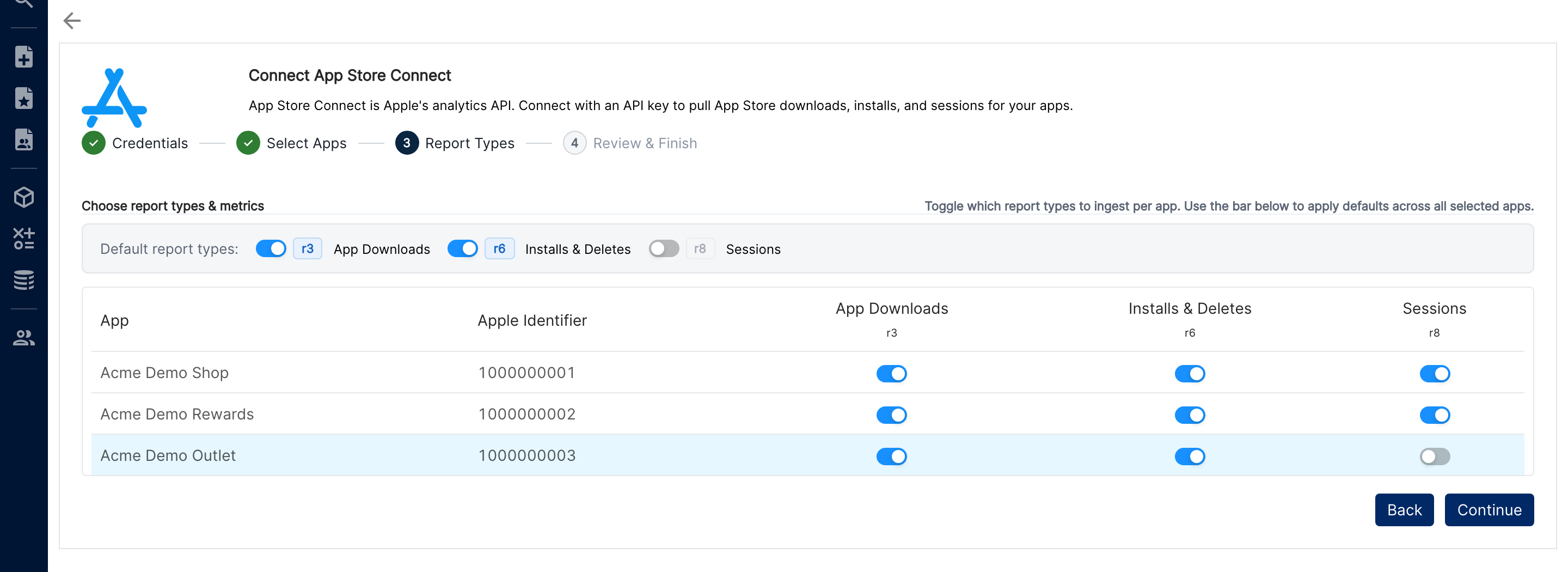
On the Report Types step, toggle which reports to sync for each app: App Downloads, Installs & Deletes and Sessions. Use the Default report types bar to switch a report type on or off for all selected apps at once. Turning on Sessions also adds the Retention report for that app automatically. Click Continue.
⚠ "Enable at least one report type for the selected apps." → Every toggle is off. Switch on at least one report type for at least one app.
Step 6: Review and finish
The Review & Finish step shows each app with the reports it will sync. Nothing is sent to Apple until you click Finish. You will see "App Store Connect integration connected successfully" when the setup is saved.
⚠ "The '...' report is being archived; please retry in a moment." → A report type you just switched off is still being cleaned up. Wait a minute, then click Finish again.
Verify the connection
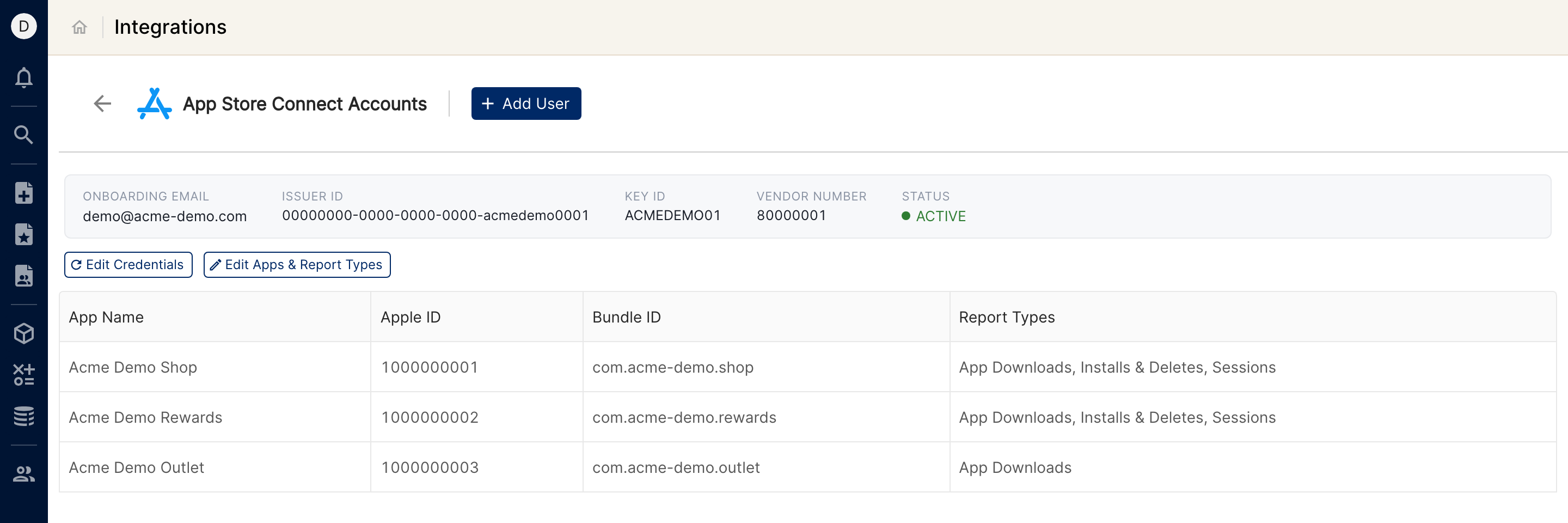
Go to Integrations and open App Store Connect under Manage connected channels. The connected Apple account shows its Onboarding Email, Issuer ID, Key ID, Vendor Number and Status, and the table lists each app with its Apple ID, Bundle ID and Report Types.
Apple starts preparing reports when Clarisights first requests them, so the first data usually appears within 1 to 2 days of connecting. Historical data follows once Apple has prepared the one-time historical report.
Each report type appears as its own App Store Connect data source (App Downloads, Installs & Deletes, Sessions, Retention).
Quick start: create a new report, add the App Store Connect App Downloads data source, and add Account · Territory · Source Type · Count.
Data available
Hierarchy
App Store Connect is a single-level integration: each app is an Account. There are no Campaigns, Ad Groups or Ads. Territory, Device, Source Type and the other fields below are breakdown dimensions on each app's data.
Native level (App Store Connect) | Clarisights level |
App | Account |
Dimensions
Dimension | Level | Description |
Account / Account ID | Account | App name and Apple ID |
App Store Report Type | Account | Which report the row comes from: App Downloads, Installs & Deletes, Sessions or Retention |
Download Type | Breakdown | Type of download as reported by Apple (App Downloads, Installs & Deletes) |
App Version | Breakdown | Version of the app |
Device | Breakdown | Device type |
OS Version | Breakdown | Operating system version of the device |
Source Type | Breakdown | How the user found the app, as classified by Apple |
Page Type | Breakdown | Type of App Store page involved, as classified by Apple |
Territory | Breakdown | App Store country or region |
Pre-Order | Breakdown | Whether the download came from a pre-order (App Downloads only) |
App Download Date | Breakdown | Date the app was originally downloaded (Installs & Deletes, Sessions). In the Retention report this is the cohort date and is used as the row date |
Days Since App Download | Breakdown | Number of days between the session date and the App Download Date (Sessions only) |
Metrics
Metric | Description |
Count | App Downloads: total downloads, matching Apple's "Total Downloads" (manual updates and rows with no download type are excluded) |
Installs | Installs & Deletes: app installs, excluding manual updates |
Deletes | Installs & Deletes: app deletions |
Install Unique Devices | Installs & Deletes: unique devices that installed the app (excluding manual updates) |
Delete Unique Devices | Installs & Deletes: unique devices that deleted the app |
Sessions | Sessions: number of app sessions |
Total Session Duration | Sessions: combined length of all sessions |
Unique Devices | Sessions: unique devices with at least one session |
Retention Rate D1 to Retention Rate D30 | Retention: for a download cohort, the devices active N days after download as a percentage of that cohort's total active devices across days 0 to 30 (see Limitations) |
unique_devices_d0 to unique_devices_d30, cohort_devices | Retention: the underlying device counts per day since download, and their total for days 0 to 30, used to calculate the Retention Rate metrics |
Limitations & known constraints
One Apple Developer account per connection: a credential set covers every app under one Apple Developer account. To add apps from another Apple account, use Add User and connect it separately.
First data takes time: Apple only begins generating analytics reports after Clarisights first requests them, and the one-time historical report usually takes 24 to 48 hours to prepare. Expect a delay of a day or two before data appears.
Historical backfill runs once: the historical report is loaded once per app and report type. Ongoing daily data then takes over. Contact support if you need historical data reloaded.
Recent days change: Apple keeps revising recent days (about 2 days for App Downloads, about 6 days for Installs & Deletes and Sessions). Clarisights always keeps Apple's newest values, so recent totals can move slightly.
Unique device counts add up across rows: Apple provides unique device counts per day and per breakdown. When you total them across several days or breakdown values, the same device can be counted more than once.
Retention is an approximation: Apple does not share device identifiers, so Retention Rate is calculated from summed Unique Devices. Retention Rate DN divides day N devices by the cohort's total devices across days 0 to 30, so it is lower than a classic "day N versus day 0" retention figure and is best used to compare cohorts, territories or devices with each other. Cohorts are recalculated for 40 days after download, after which they stop changing.
Days since download is bounded: Apple reports app download dates for roughly the last 30 days, so Retention covers day 0 to day 30 only.
Agreements must stay current: if an agreement in App Store Connect expires, Apple blocks all API access for the account and syncing stops until it is signed again.
No sales or revenue data: this integration uses Apple's analytics reports only. Proceeds and sales reports are not included.
Operating notes
Refresh schedule: daily.
Lookback: each run loads every new daily report from Apple since the last run, so short outages catch up automatically.
Multi-app: each app is its own Account, keyed by its Apple ID. One failing app does not stop the others from syncing.
Adding or removing apps and report types: open Integrations → App Store Connect → Edit Apps & Report Types. Deselecting an app or report type stops its sync.
Credential rotation: if you create a new key for the same Apple Developer account, update it from Integrations → App Store Connect → Edit Credentials (enter the Issuer ID, new Key ID and new .p8 file, then click Update Credentials). To connect a different Apple Developer account, use Add User instead.
Need help?
When contacting support from the in-app messenger, please include:
The integration name and the Apple ID of the affected app (Integrations → App Store Connect)
The report type affected (App Downloads, Installs & Deletes, Sessions or Retention)
The exact error message or screenshot
The step where the issue occurred
When the issue started