
Connecting Glami on Clarisights
Glami is a fashion marketplace and price-comparison platform operating in several Central and Eastern European markets. Connecting Glami to Clarisights brings each market's Performance Report (exit clicks, spend, orders and GMV by Brand, Category and Device) into your cross-channel reporting, side-by-side with your other paid channels.
At a glance
| Authentication | Performance Report API key issued by Glami, one key per market |
| Permissions needed | Access to your shop's Glami Administration to copy the Performance Report API key for each market you want to connect |
| Account discovery | Manual. You pick the market on the connect form; each market becomes one account in Clarisights |
| Data freshness | Daily (once per day) |
| Lookback window | Today plus the last 30 days on every scheduled run |
| Backfill on connect | Last 30 days, pulled on the first scheduled run after you connect |
| Timezone | Your Clarisights company timezone (the Glami report carries dates only, no times) |
| Currency | Chosen per market on connect (pre-filled with the market's usual currency) |
| Levels supported | Account (Market) · Campaign (optional label) · Ad Group (Brand) · Ad (Category by Device) |
| Limited rollout | No |
Prerequisites
An active Glami shop in at least one of the supported markets: Czechia (cz), Slovakia (sk), Hungary (hu), Romania (ro), Greece (gr), Bulgaria (bg) or Croatia (hr)
The Performance Report API key for each market you want to connect. You can find it in Glami Administration under Shop Settings → API Keys. If you cannot find it, contact your Glami account manager
The currency your Glami account reports in for each market
Access to the Clarisights Integrations page
Steps to Connect
Step 1: Copy your Performance Report API key from Glami
Sign in to Glami Administration, open Shop Settings → API Keys and copy the Performance Report API key for the market you want to connect. Each market (for example Czechia and Slovakia) has its own key and is connected separately.
Treat your API key like a password. It grants read access to your Glami performance data for that market.
Step 2: Open Glami in Clarisights
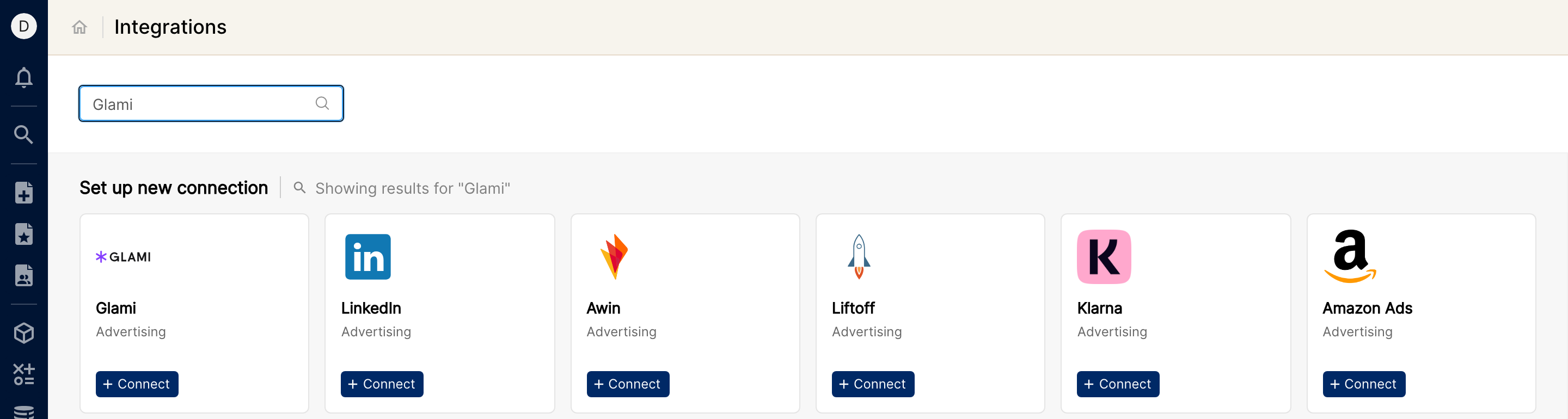
In Clarisights, click the Integrations icon in the left sidebar. Under Set up new connection, search for Glami (or click See All) and click + Connect on the Glami card.
Step 3: Choose the market and enter the API key
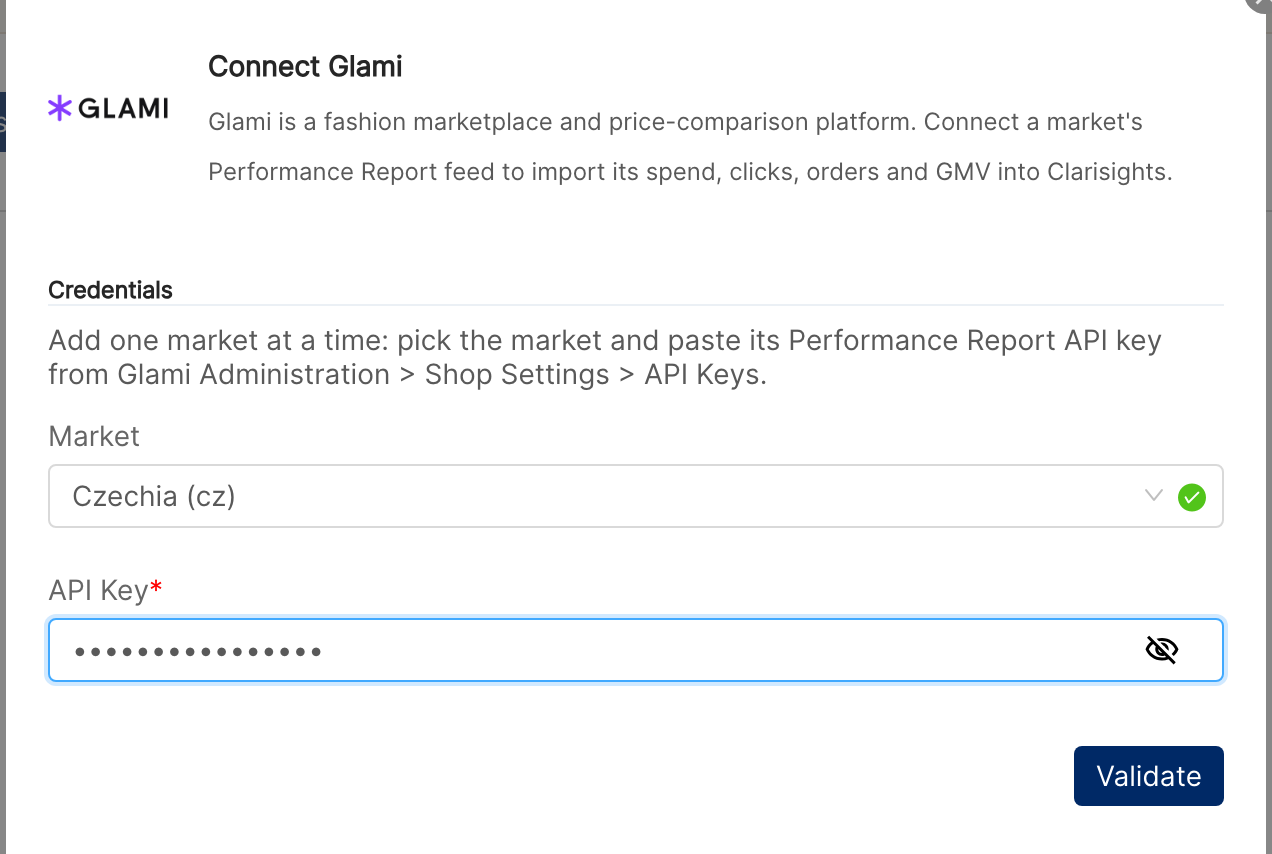
In the Connect Glami dialog, under Credentials:
Market: pick the Glami market this key belongs to, for example Czechia (cz)
API Key: paste the Performance Report API key for that market
Click Validate. Clarisights makes a short test request to Glami for that market to confirm the key works.
⚠ "Invalid Glami token or country code. Please verify the API key and market." → Glami rejected the key for the selected market. Check that you copied the full Performance Report API key and that it belongs to the market you selected (a Czech key will not work for Slovakia), then retry.
⚠ "Glami API is unavailable" or "Glami API is unreachable" → Glami did not respond or returned an error while generating the test report. This is usually temporary. Wait a few minutes and click Validate again. If it keeps failing, contact support.
Step 4: Set the market's currency and campaign, then save
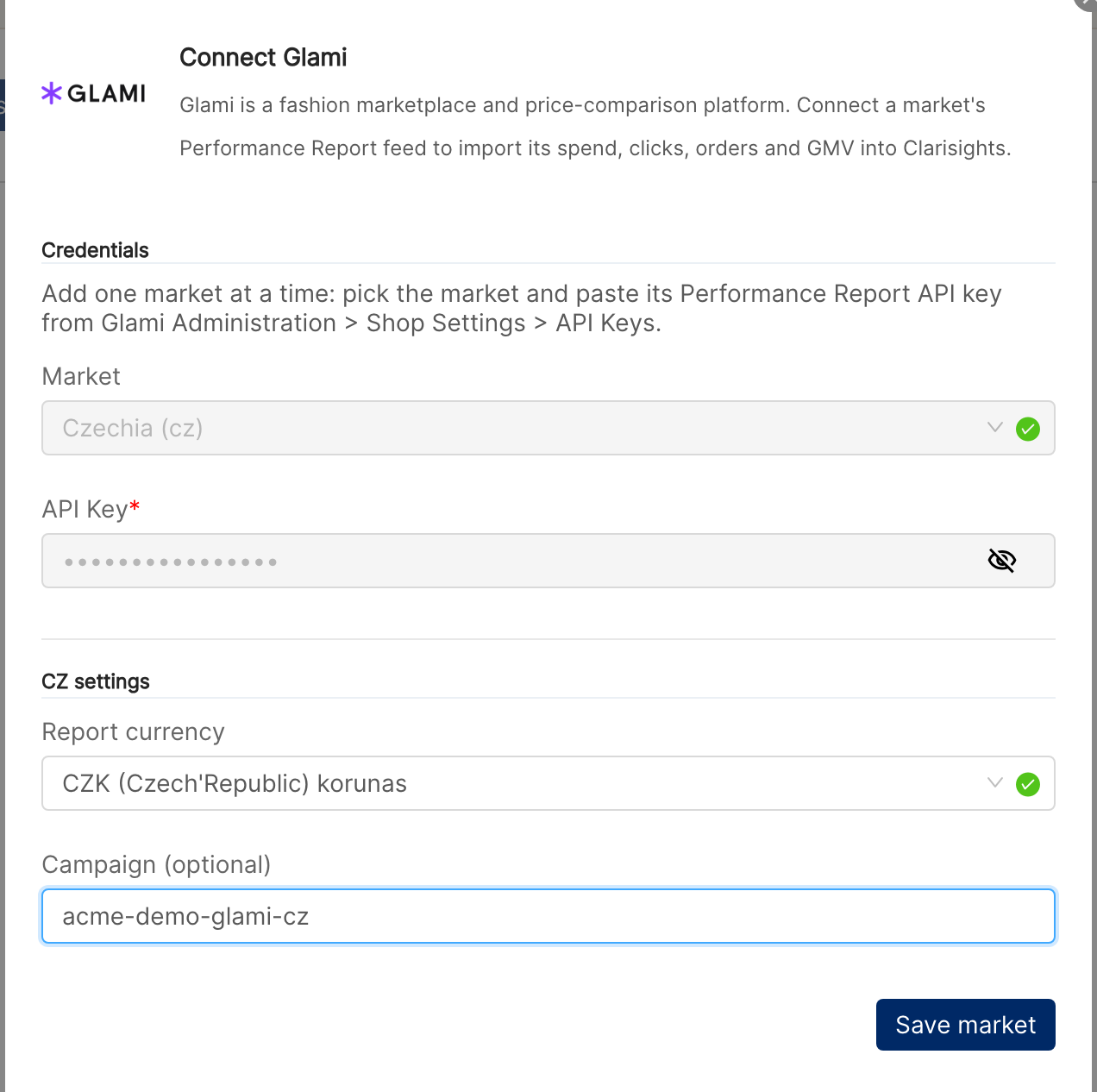
Once the key is verified, the credentials are locked and a settings section for the market appears below them:
Report currency (required): pre-filled with the market's usual currency (for example CZK for Czechia, HUF for Hungary, EUR for Slovakia). Change it if your Glami account reports this market in a different currency
Campaign (optional): a campaign name to attach to all Glami data, for example the campaign name you use for Glami traffic in your web analytics. If left blank, Glami data is grouped under a Non-Attributed campaign
Click Save market. The market is added as an account and starts ingesting on the next scheduled run.
⚠ "Currency is required." or "currency is not a supported currency" → Pick a currency from the Report currency list before saving.
Step 5: Add more markets (optional)
Repeat the steps for each additional market. From the Glami Accounts page, click + Add User to connect another market with its own API key. Different team members can connect and own different markets.
Verify the connection
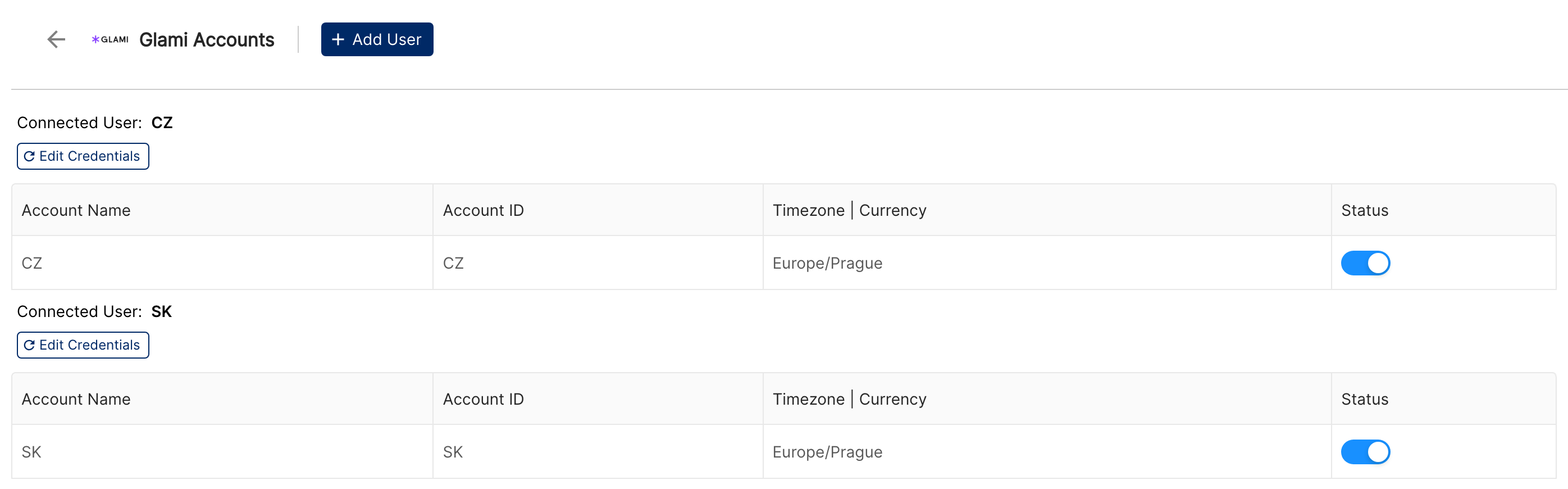
Go to Integrations → Glami. Each market you connected appears as its own connected user (for example CZ) with one account of the same name.
First data appears within ~24 hours (Glami data syncs once per day on a 30-day lookback).
Quick start: create a new report, add Glami as the data source, and add Account · Brand · Category · Device · Exit Clicks · Spend · Orders · GMV.
Data available
Hierarchy
Glami's Performance Report has no campaigns or ad groups of its own. It reports one row per day for each Device, Brand and Category. Clarisights maps it to the standard levels as follows:
Native level (Glami) | Clarisights level |
Market (for example CZ) | Account |
Campaign name you enter on connect (Non-Attributed if blank) | Campaign |
Brand | Ad Group |
Category, split by Device | Ad |
Dimensions
Dimension | Level | Description |
Account / Account ID | Account | Market code, for example CZ |
Campaign | Campaign | The campaign name you entered on connect, or Non-Attributed |
Adgroup | Ad Group | Brand name from the Glami report |
Ad / Ad ID | Ad | Ad is the Glami category; Ad ID combines category and device (joined by |
Brand | Ad | Brand name, available for grouping and filtering |
Category | Ad | Glami product category. Rows without a category show as Other |
Device | Ad | Device type reported by Glami. Rows without a device show as Other |
Metrics
Metric | Description |
Exit Clicks | Clicks from Glami through to your shop (Glami's "Exit clicks") |
Spend | Cost of those clicks (Glami's "Costs"), in the market's report currency |
Orders | Orders attributed to Glami traffic |
GMV | Gross merchandise value of those orders, in the market's report currency |
Limitations & known constraints
One market per API key: each Glami market has its own Performance Report key and is connected separately. A market can be connected once per company; adding the same market again updates that market's connection rather than creating a second one.
Supported markets: Czechia, Slovakia, Hungary, Romania, Greece, Bulgaria and Croatia. Other Glami markets (including Turkey) are not currently supported.
Ratio metrics are not imported: Glami's Average CPC, conversion rate, average order value and COS columns are not ingested. Calculate them in Clarisights from Spend, Exit Clicks, Orders and GMV (for example as custom metrics), so they stay correct when you aggregate across days, brands or markets.
No impressions: the Glami Performance Report does not include impressions.
One campaign name for all markets: the campaign name is stored for the Glami connection as a whole, so the most recently saved name is applied to every connected market. Leaving the field blank when adding another market keeps the existing name.
30-day lookback per run: each daily run pulls today plus the last 30 days. Older history requires a one-off backfill by support.
Currency is user-declared: Clarisights uses the Report currency you choose for each market to interpret Spend and GMV. Double-check it matches the currency shown in your Glami account.
Dates only: Glami reports daily totals without times, so data is attributed to dates in your Clarisights company timezone.
Operating notes
Refresh schedule: daily.
Lookback: today plus the last 30 days re-pulled on every refresh, so late Glami updates (for example orders that arrive after the click) are picked up automatically.
Multi-market: each market is a separate connected user and account under the same Glami channel, keyed by market code. If one market's key stops working, the other markets keep syncing.
All-or-nothing per market: if Glami returns an error or an incomplete report for any part of a market's date range, that market is skipped for the run and retried on the next one, rather than loading a partial range.
Currency conversion: Spend and GMV are stored in each market's report currency and converted by Clarisights to your reporting currency, so markets with different currencies can be added together.
Credential rotation: if Glami issues a new API key, update it from Integrations → Glami → Edit Credentials next to the market. The market itself cannot be changed there; to connect a different market, use + Add User.
Changing a market's currency: connect the same market again with + Add User (same market and API key), then choose the new Report currency and click Save market.
Need help?
When contacting support from the in-app messenger, please include:
The integration name and market code (Integrations → Glami)
The exact error message or screenshot
The step where the issue occurred
When the issue started