
Connecting Klarna on Clarisights
Klarna's price comparison service (PriceRunner) lets merchants list their products and pay for the clicks those listings receive. Connecting Klarna to Clarisights imports your daily merchant click and cost data, broken down by market and product category and split into normal and sponsored placements, so you can analyze Klarna clicks and spend side by side with your other paid channels.
At a glance
| Authentication | Klarna API token (entered once in Clarisights) |
| Permissions needed | An API token with access to your merchant click and cost reporting |
| Account discovery | Automatic: the merchant linked to the token is detected and added as one account |
| Data freshness | Daily (once per day) |
| Lookback window | 30 days on each scheduled run |
| Backfill on connect | Last 30 days, on the first scheduled run after you connect |
| Timezone | UTC |
| Currency | Merchant currency reported by Klarna; defaults to EUR if missing |
| Levels supported | Account (Merchant) · Campaign (optional label you set) · Ad Group (Market) · Ad (Product Category) |
| Limited rollout | No |
Prerequisites
An active Klarna merchant account on Klarna's price comparison service with click and cost reporting
A Klarna API token for that merchant. If you do not have one, contact your Klarna account manager
Access to the Clarisights Integrations page
Steps to Connect
Step 1: Get your Klarna API token
Obtain the API token for the merchant you want to bring into Clarisights. Each token gives access to one merchant. If you are not sure where to find it, contact your Klarna account manager.
Step 2: Open Klarna in Clarisights
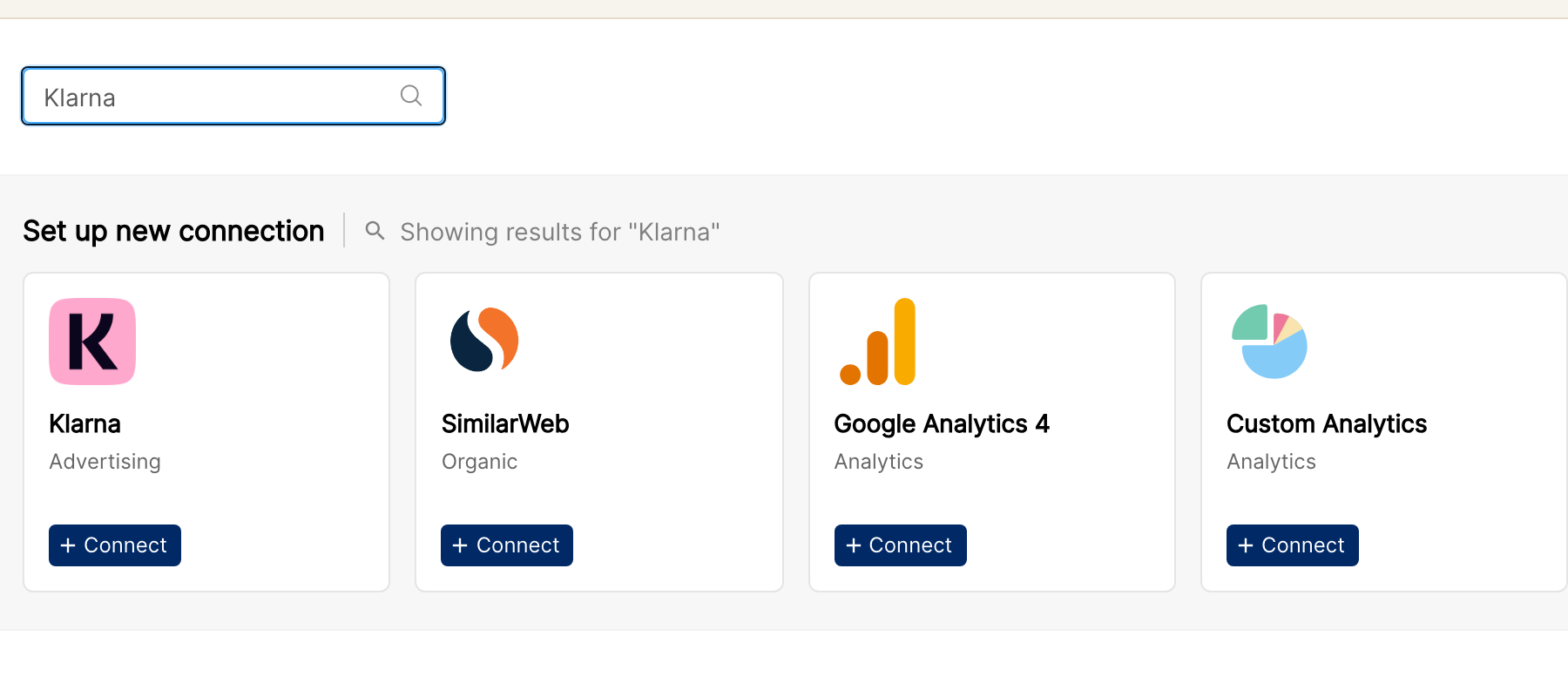
In Clarisights, click the Integrations icon in the left sidebar. Search for Klarna (or click See All under Set up new connection), then click + Connect on the Klarna card.
Step 3: Enter your API token
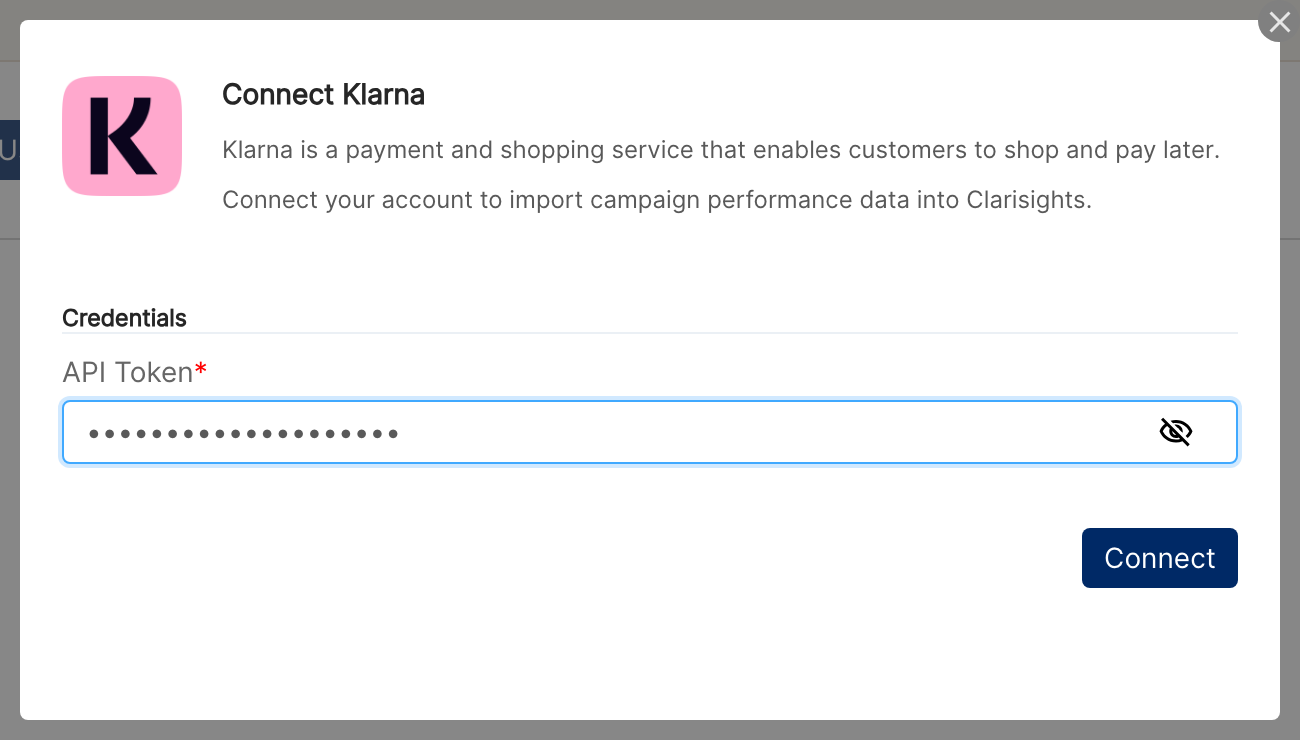
In the Connect Klarna window, paste your token into the API Token field and click Connect. Clarisights checks the token with Klarna and adds the merchant it belongs to as an account.
⚠ “Invalid token. Please verify your API credentials.” → Klarna rejected the token. Check that you copied the full token with no extra spaces, and that it has not been revoked. If it still fails, ask your Klarna account manager for a new token.
⚠ “Klarna API is unavailable (HTTP …). Please try again later.” → Klarna's API returned an error while Clarisights was checking the token. Wait a few minutes and try again. If the error persists, contact support.
⚠ “Klarna token is valid but returned no merchant account. Please verify the token has access to merchant data and try again.” → The token works, but Klarna did not return a merchant for it. Confirm with your Klarna account manager that the token is linked to your merchant's click and cost reporting. Nothing is saved in Clarisights when this happens, so you can retry with a different token.
Step 4: Set a campaign name (optional)
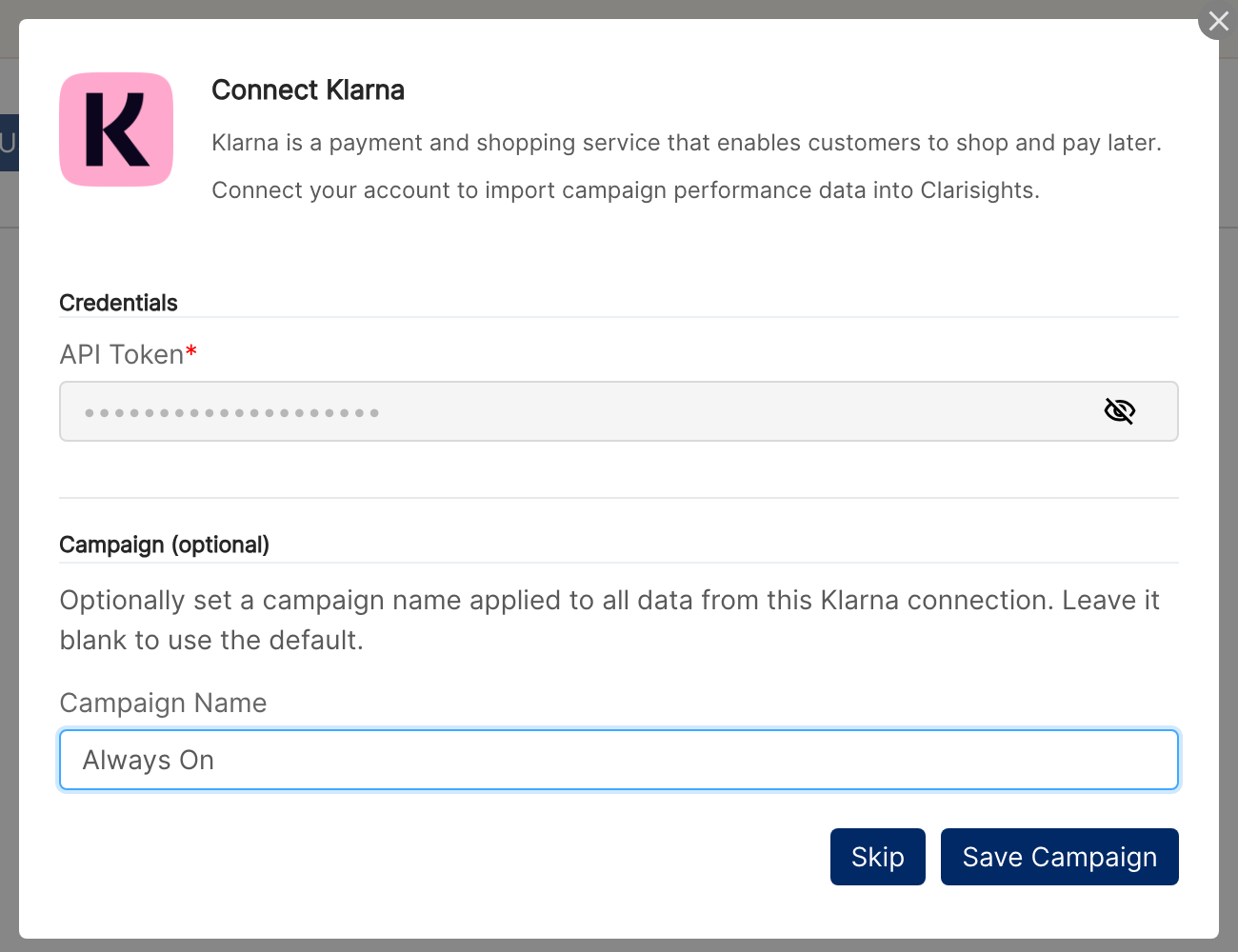
Klarna does not have campaigns, so once the token is accepted the window shows an optional Campaign Name field. Whatever you enter here is used as the Campaign for all Klarna data in Clarisights (for example Always On). Click Save Campaign to keep it, or Skip to leave it blank. If you skip, your Klarna data is grouped under a default “Non-Attributed” campaign.
Verify the connection
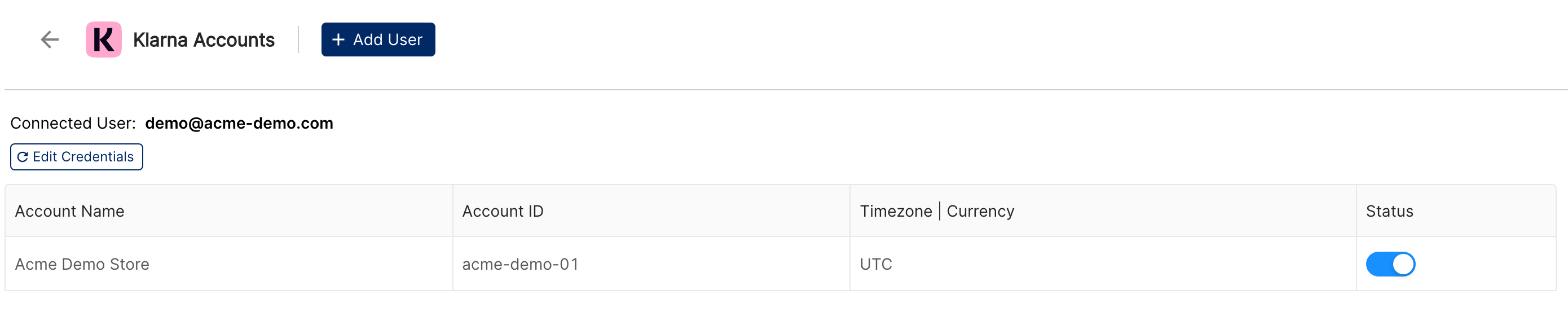
Go to Integrations → Klarna. Your merchant should appear on the Klarna Accounts page with its Account Name and Account ID, under the user who connected it.
First data appears within about 24 hours (Klarna data syncs once per day on a 30-day lookback).
Quick start: create a new report, add Klarna as the data source, and add Account · Ad Group · Ad · Normal Clicks · Normal Spend · Sponsored Clicks · Sponsored Spend.
Data available
Hierarchy
How Klarna's reporting maps to the standard Clarisights levels:
Native level (Klarna) | Clarisights level |
Merchant | Account |
None (the optional campaign name you set when connecting) | Campaign |
Market | Ad Group |
Product Category | Ad |
Dimensions
Dimension | Level | Description |
Account / Account ID | Account | Merchant name and merchant ID |
Campaign | Campaign | The campaign name you set when connecting, or “Non-Attributed” if you skipped it |
Adgroup | Ad Group | The market the data belongs to (for example DE) |
Ad / Ad ID | Ad | Product category name and category ID |
Metrics
Metric | Description |
Normal Clicks | Clicks on your normal (non-sponsored) listings |
Normal Spend | Cost of normal listing clicks, in the merchant currency |
Sponsored Clicks | Clicks on your sponsored listings |
Sponsored Spend | Cost of sponsored listing clicks, in the merchant currency |
Data is reported per day, per product category. To see total clicks or total spend, add the normal and sponsored metrics together, for example with a custom metric.
Limitations & known constraints
Clicks and cost only: Klarna's merchant reporting provides clicks and cost. Impressions, conversions and revenue are not available from this integration.
No native campaigns: Klarna has no campaign level. The Campaign in Clarisights is the single name you set when connecting (or “Non-Attributed”). It applies to all Klarna data in your workspace and cannot be changed from the connect window afterwards; contact support if you need to change it.
One merchant per token: each API token covers one merchant. A single Clarisights user can hold only one Klarna token: if the same user connects a second token, it replaces the first and the first merchant stops updating. To connect several merchants, have a different Clarisights user connect each token, or contact support.
Market as Ad Group: the market is shown at the Ad Group level. A token normally reports a single market, so all of its rows share the same Ad Group.
30-day lookback per run: each daily run pulls the last 30 days. Older history is not loaded automatically; longer backfills require a manual one-off pull from support.
UTC dates: Klarna data is stored in UTC, which may differ from your workspace timezone by a few hours around midnight.
Operating notes
Refresh schedule: daily.
Lookback: 30 days per run, so late corrections from Klarna within that window are picked up automatically.
Currency conversion: the merchant currency is preserved on ingest and converted to your reporting currency by Clarisights.
Credential rotation: if your token changes, go to Integrations → Klarna → Edit Credentials and enter the new API Token for the same merchant. Ask the user who originally connected Klarna to do this, so the existing connection is updated.
Need help?
When contacting support from the in-app messenger, please include:
The integration name and Account ID (Integrations → Klarna)
The exact error message or screenshot
The step where the issue occurred
When the issue started