
Connecting Partnerize on Clarisights
Partnerize is a partnership management platform for affiliate and partner marketing programs. Connecting Partnerize to Clarisights imports your advertiser's conversion data (conversion value, commission, publisher commission, items and conversion counts) by campaign and publisher, so you can analyze your affiliate program side-by-side with your other paid channels.
At a glance
| Authentication | Partnerize User application key and User API key |
| Permissions needed | A Partnerize user with API access to the advertiser you want to ingest |
| Account discovery | Automatic: the advertiser linked to your API keys is detected when you validate them (one advertiser per set of keys) |
| Data freshness | Daily (once per day) |
| Lookback window | 45 days on each scheduled run |
| Backfill on connect | Last 45 days, pulled on the first scheduled run after you connect |
| Timezone | Chosen by you when connecting (Reporting timezone); defaults to UTC |
| Currency | The advertiser's default currency in Partnerize |
| Levels supported | Account (Advertiser) · Campaign · Ad Group (Publisher) |
| Limited rollout | No |
Prerequisites
An active Partnerize advertiser account
The User application key and User API key of a Partnerize user with access to that advertiser. If you cannot see your API keys, contact your Partnerize account manager
Access to the Clarisights Integrations page
Steps to Connect
Step 1: Get your Partnerize API keys
Sign in to the Partnerize console and open your Account settings. Your User application key and User API key are listed there; use the eye icons to reveal them. Each set of keys connects one Partnerize advertiser.
Step 2: Add Partnerize in Clarisights
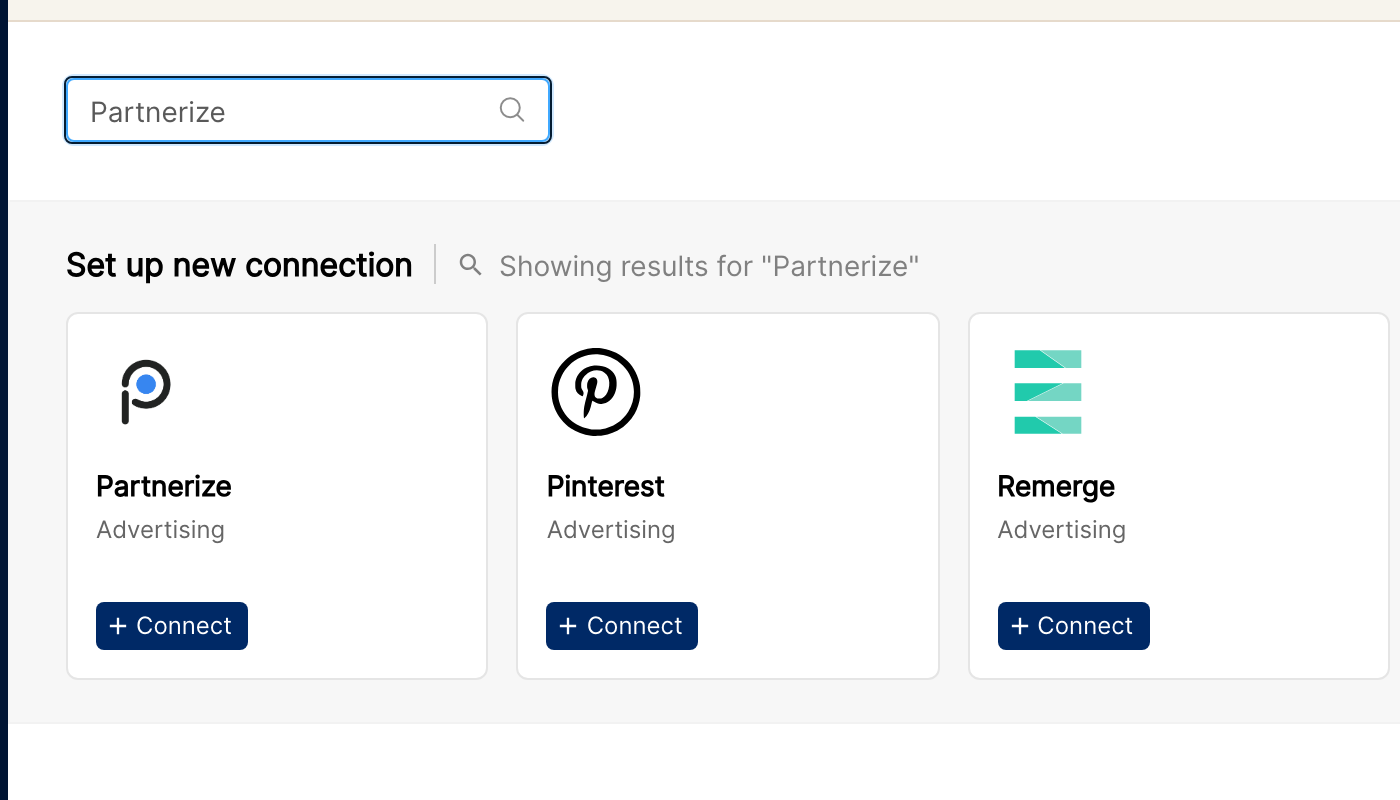
In Clarisights, click the Integrations icon in the left sidebar. Under Set up new connection, search for "Partnerize" (or click See All) and click + Connect on the Partnerize card.
Step 3: Enter and validate your API keys
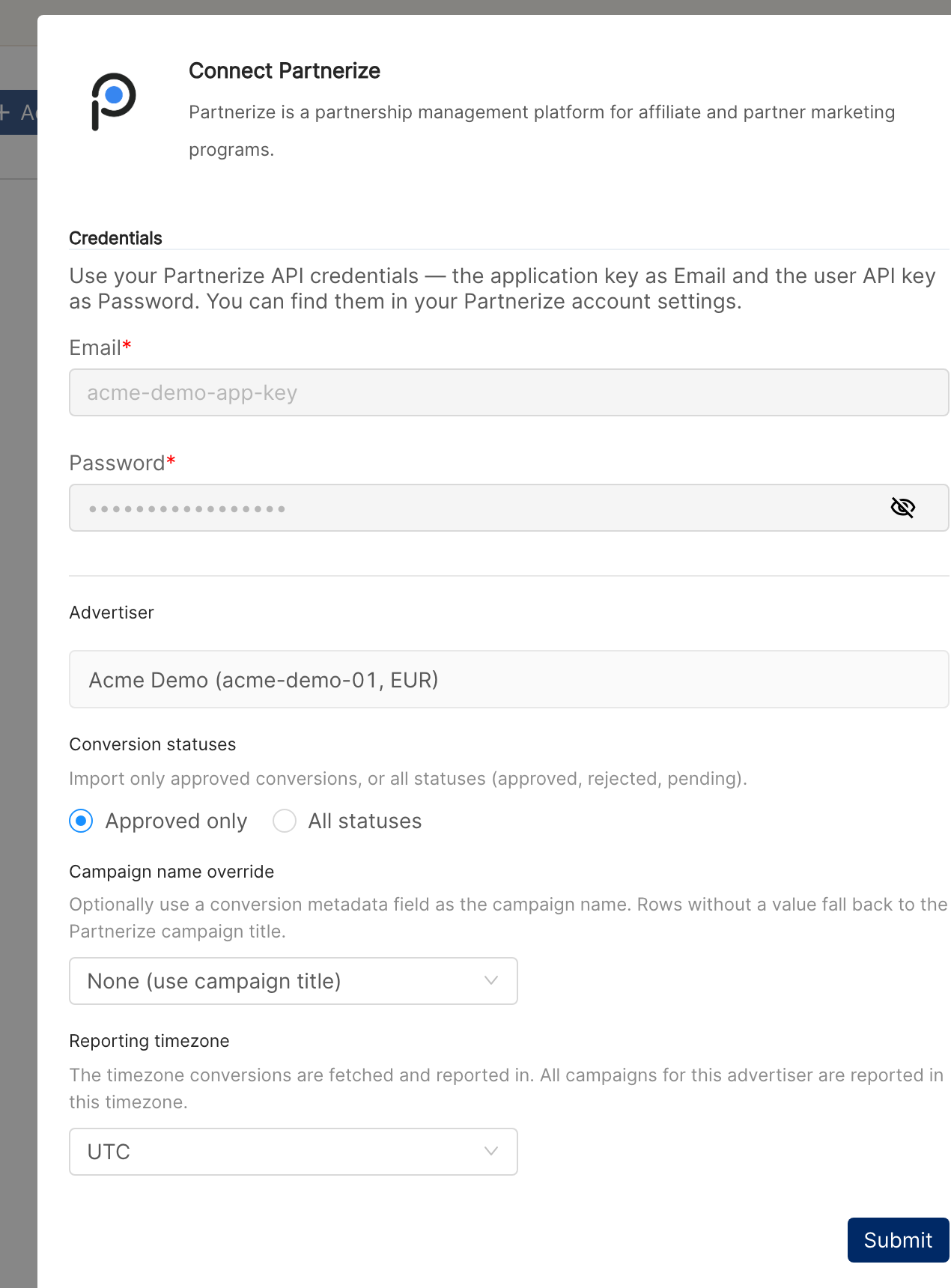
In the Connect Partnerize window, enter your User application key in the Email field and your User API key in the Password field, then click Validate Credentials. Clarisights checks the keys with Partnerize and shows the advertiser they belong to, with its ID and currency.
⚠ "HTTP 401" on validate → Partnerize rejected the keys. Check that the User application key is in the Email field and the User API key is in the Password field, with no extra spaces, then retry. If the keys were regenerated in Partnerize, copy the new ones.
⚠ "HTTP 403" on validate → The keys are valid but the Partnerize user does not have API access. Contact your Partnerize account manager to enable it.
⚠ "No advertiser found for the given credentials" → The keys are not linked to an advertiser account. Make sure you are using the keys of an advertiser user, not a publisher (partner) user.
Step 4: Choose your import options and submit
After validation, choose how the advertiser's data should be imported:
Conversion statuses: Approved only (default) imports only approved conversions. All statuses imports every conversion and splits each metric into Approved, Rejected and Other (for example, pending).
Campaign name override: optionally use a conversion metadata field as the campaign name instead of the Partnerize campaign title. Conversions without a value for that field keep the campaign title. Leave it on None (use campaign title) to use campaign titles.
Reporting timezone: the timezone conversions are fetched and dated in. All campaigns for this advertiser are reported in this timezone. Defaults to UTC.
Click Submit. You will see "Partnerize integration connected successfully" and the advertiser starts ingesting on the next scheduled run.
Verify the connection
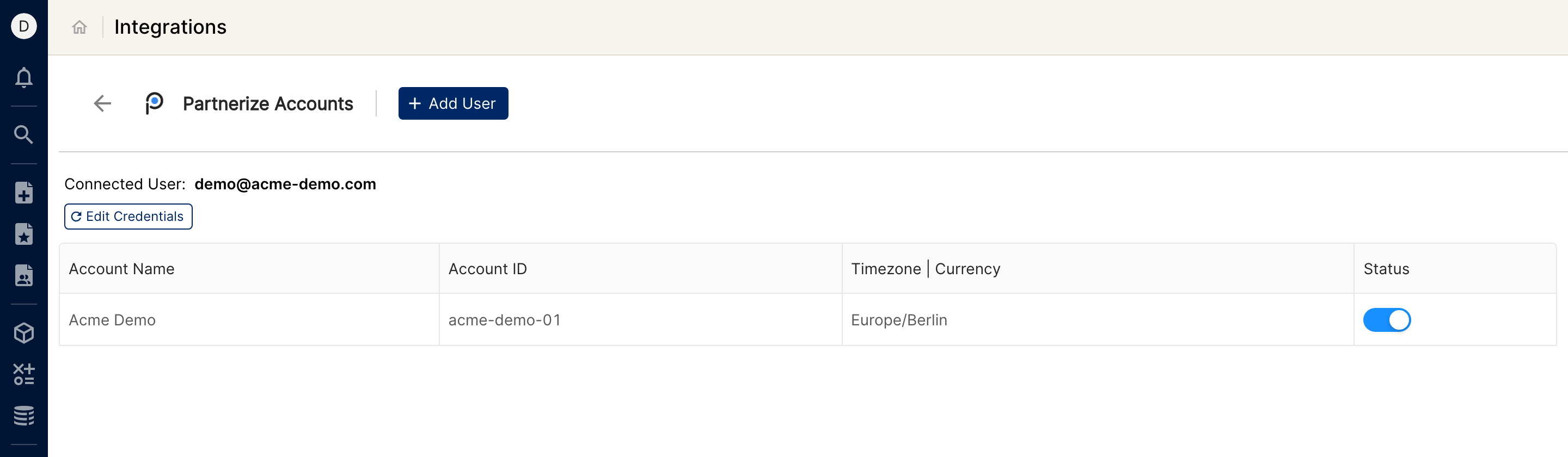
Go to Integrations → Partnerize. The advertiser should be listed under Partnerize Accounts with its Account ID, timezone and the user that connected it.
First data appears within ~24 hours (Partnerize data syncs once per day on a 45-day lookback).
Quick start: create a new report, add Partnerize as the data source, and add Campaign · Adgroup · Conversion Count (Approved) · Conversion Value (Approved) · Commission (Approved).
Data available
Hierarchy
How Partnerize's native levels map to the standard Clarisights levels:
Native level (Partnerize) | Clarisights level |
Advertiser | Account |
Campaign | Campaign |
Publisher (partner) | Ad Group |
Dimensions
Dimension | Level | Description |
Account / Account ID | Account | Advertiser name and ID |
Campaign / Campaign ID | Campaign | Campaign title and ID. With a campaign name override, Campaign holds the chosen metadata value and Campaign ID is not populated |
Campaign Status | Campaign | Campaign status in Partnerize (for example, active or paused) |
Adgroup / Adgroup ID | Ad Group | Publisher name and ID |
Metrics
Each metric comes in three versions: (Approved), (Rejected) and (Other). Other covers every status that is not approved or rejected, such as pending. With Approved only selected, the Rejected and Other versions are always zero.
Metric | Description |
Conversion Value (Approved / Rejected / Other) | Sale value of the conversions, in account currency |
Commission (Approved / Rejected / Other) | Commission on the conversions as reported by Partnerize, in account currency |
Publisher Commission (Approved / Rejected / Other) | Commission paid to the publisher for the conversions, in account currency |
Items (Approved / Rejected / Other) | Total item quantity across the conversions |
Conversion Count (Approved / Rejected / Other) | Number of conversions |
Limitations & known constraints
Conversion data only: Partnerize provides conversion and commission data. There are no impressions, clicks or ad-level data.
Dated by conversion time: conversions are dated by when the conversion happened, in your chosen reporting timezone, not by click or approval date.
45-day lookback per run: each daily run re-pulls the last 45 days, so status changes (for example, pending to approved) within that window are picked up. Changes to older conversions are not; longer historical backfills require a manual one-off pull from support.
One advertiser per set of keys: each User application key and User API key pair connects a single advertiser. To connect another advertiser, click + Add User on the Partnerize Accounts page and enter that advertiser's keys.
Campaign name override suggestions are sampled: the list of metadata fields is built from a sample of recent conversions. If the field you need is not listed, contact support.
No Campaign ID with an override: when a campaign name override is set, Campaign ID is not populated, because one override value can span several Partnerize campaigns.
Options are set at connect time: Conversion statuses, Campaign name override and Reporting timezone are chosen when connecting. To change them, contact support.
Operating notes
Refresh schedule: daily.
Lookback: 45 days per run.
All campaigns included: every campaign of the advertiser is imported, including paused ones, so historical conversions stay complete.
Currency conversion: the advertiser's currency is preserved on ingest and converted to your reporting currency by Clarisights.
Credential rotation: update the keys from Integrations → Partnerize → Edit Credentials, enter the new User application key and User API key, and click Update Credentials. Use keys for the same advertiser.
Need help?
When contacting support from the in-app messenger, please include:
The integration name and Advertiser ID (Integrations → Partnerize)
The exact error message or screenshot
The step where the issue occurred
When the issue started