
Connecting Sovendus on Clarisights
Sovendus is a voucher network: shoppers who complete a purchase on a partner site are offered vouchers for your shop. Connecting Sovendus to Clarisights imports each shop's daily voucher requests, redemptions, cost and order value, so you can compare Sovendus with your other paid channels in the same reports.
At a glance
Authentication | Sovendus Dashboard Partner API key (entered once per shop in Clarisights) |
Permissions needed | A Dashboard Partner API key for each shop (market). Each key belongs to one shop |
Account discovery | Manual: you enter the shop's 2-letter market code, and each market becomes one account |
Data freshness | Daily (once per day) |
Lookback window | 30 days on each scheduled run, up to yesterday |
Backfill on connect | Last 30 days, on the first scheduled run after you connect |
Timezone | Your Clarisights workspace timezone |
Currency | Your Clarisights workspace currency. Sovendus reports each amount with its own currency, and Clarisights converts it at that day's exchange rate |
Levels supported | Account (Market) · Campaign (optional label you set) |
Limited rollout | No |
Prerequisites
An active Sovendus partnership for the shop you want to connect.
A Sovendus Dashboard Partner API key for each shop. If you don't have one, contact your Sovendus account manager.
The 2-letter market code of each shop, such as DE or AT.
A Clarisights role that can add integrations.
Steps to Connect
Step 1: Get your Sovendus API key
Get the Dashboard Partner API key for the shop you want to bring into Clarisights. Each key gives access to one shop. If you're not sure where to find it, contact your Sovendus account manager.
Step 2: Open Sovendus in Clarisights
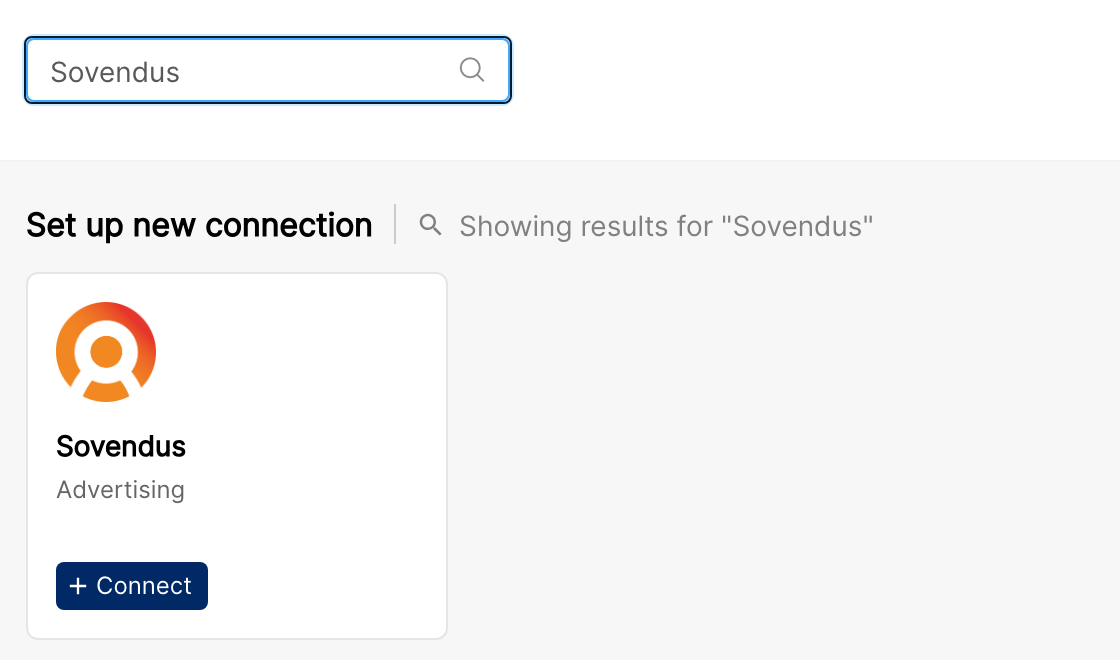
In Clarisights, click the Integrations icon in the left sidebar. Search for Sovendus (or click See All under Set up new connection), then click + Connect on the Sovendus card.
Step 3: Enter the market, API key and campaign, then connect
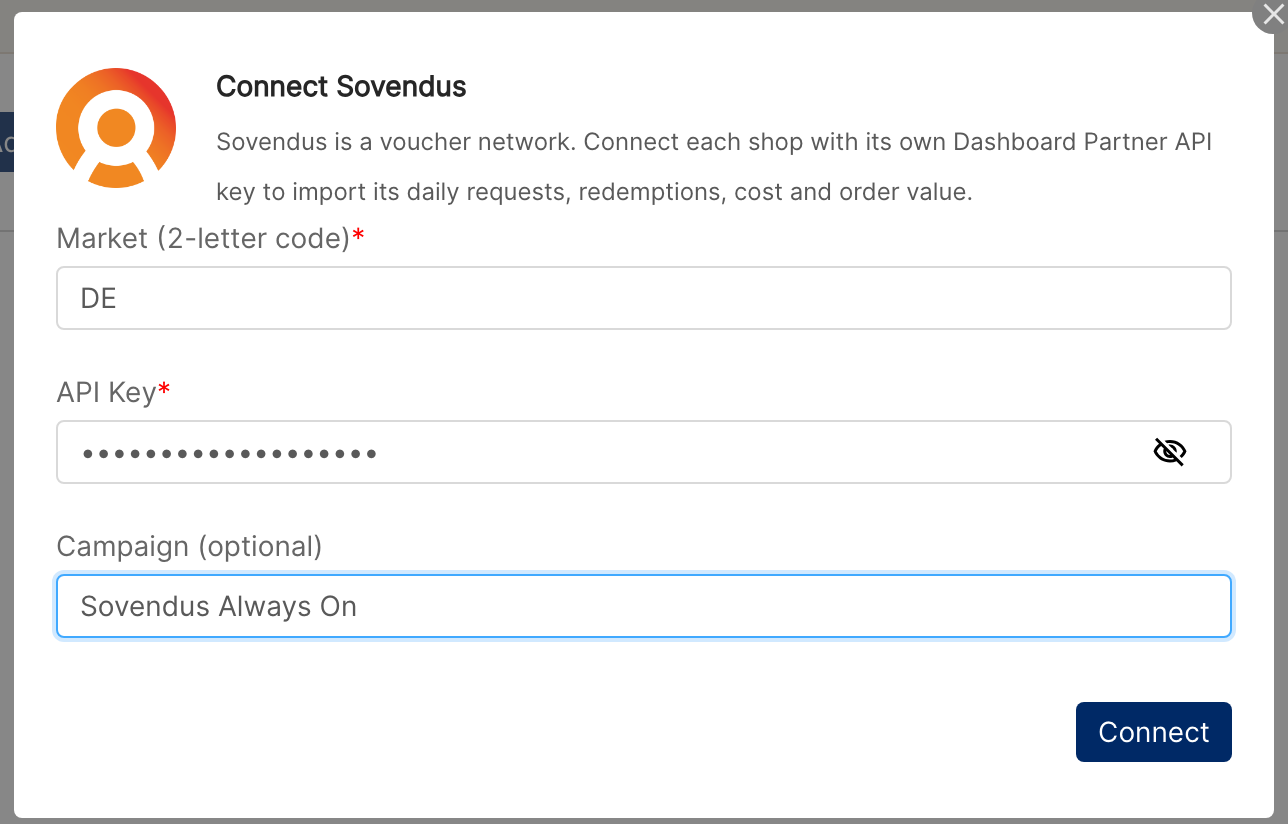
In the Connect Sovendus window, fill in:
Market (2-letter code): the shop's market, such as DE.
API Key: the shop's Dashboard Partner API key.
Campaign (optional): Sovendus has no campaigns, so whatever you enter here is used as the Campaign for this market's data (for example Sovendus Always On). If you leave it blank, the data is grouped under a “Non-Attributed” campaign.
Then click Connect. Clarisights checks the key with Sovendus and adds the market as an account.
⚠ “Invalid Sovendus API key. Please verify the key for this shop.” → Sovendus rejected the key. Check that you copied the full key with no extra spaces and that it hasn't been revoked. If it still fails, ask your Sovendus account manager for a new key.
⚠ “… is not a valid 2-letter market code” → Enter the market as two letters, such as DE.
⚠ “DE is already connected. Use Edit Credentials to update its key.” (with your market code) → This market is already connected. To replace its key, use Edit Credentials (see Operating notes).
⚠ “This API key is already connected for …” → The same key is already used for another market. Each shop has its own key: check that you have the right key for this market.
⚠ “… was archived on this channel and can't be reconnected. Contact support to restore it.” → This market was connected before and has been archived. Contact support to restore it.
⚠ “Sovendus API rate limit reached. Please try again later.” or “Sovendus API is unavailable (HTTP …). Please try again later.” → Sovendus couldn't check the key just now. Wait a few minutes and try again. If it keeps happening, contact support.
Step 4: Add more markets (optional)
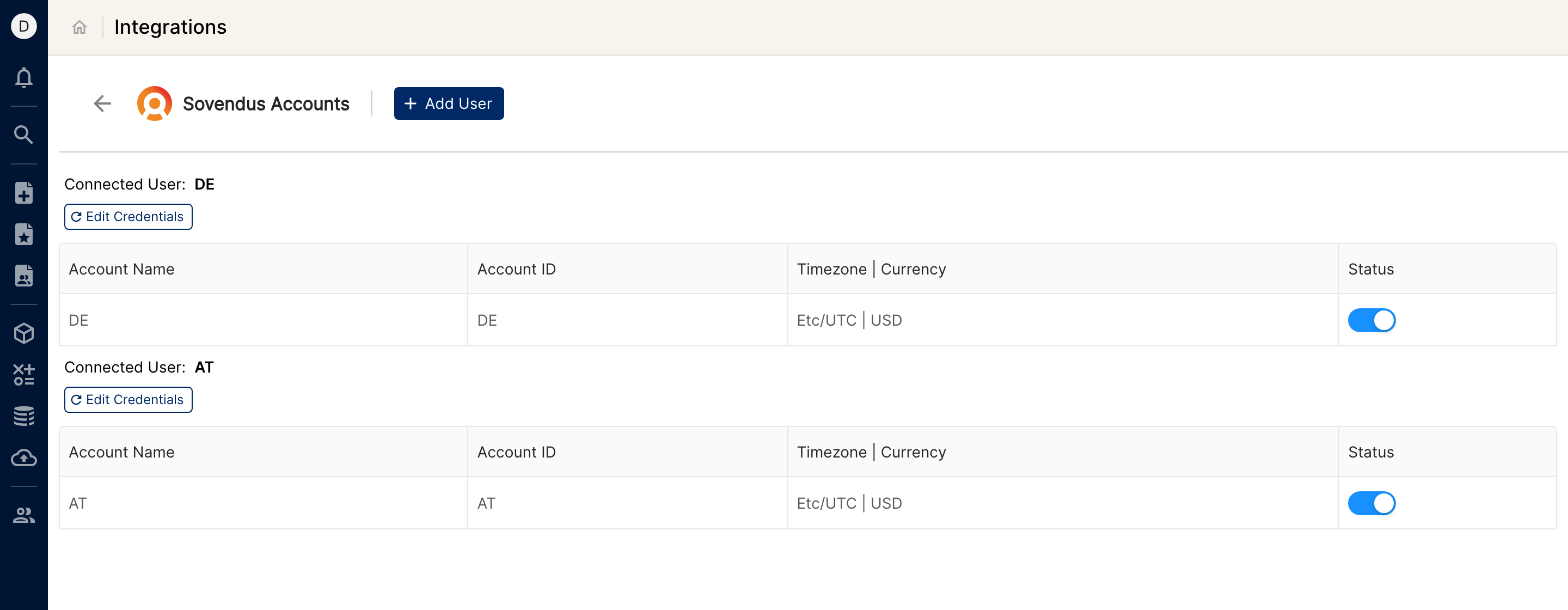
To connect another shop, click + Add User on the Sovendus Accounts page and repeat step 3 with that market's code and API key.
Verify the connection
Go to Integrations → Sovendus. Each market appears on the Sovendus Accounts page under its own connected user, with its account name and ID (the market code), timezone and currency.
First data appears within about 24 hours: the first scheduled run imports the last 30 days.
Quick start: create a new report, add Sovendus as the data source, and add Account · Campaign · Requests · Redemptions · Spend · Revenue.
Data available
Hierarchy
How Sovendus maps to the standard Clarisights levels:
Native level (Sovendus) | Clarisights level |
Shop (market) | Account |
None (the optional campaign label you set when connecting) | Campaign |
Dimensions
Dimension | Level | Description |
Account / Account ID | Account | The market code, such as DE |
Campaign | Campaign | The campaign label you set for the market, or “Non-Attributed” if you left it blank |
Metrics
Metric | Description |
Requests | Voucher requests, as reported by Sovendus |
Redemptions | Voucher redemptions, as reported by Sovendus |
Spend | Total cost reported by Sovendus, in your workspace currency |
Revenue | Total order value reported by Sovendus, in your workspace currency |
Data is reported per day, per market. For the exact definition of each metric, contact your Sovendus account manager. Rates such as cost per redemption or ROAS aren't imported: build them from these metrics with custom metrics.
Limitations & known constraints
One key per shop: each API key covers one shop, and the same key can't be used for two markets.
No native campaigns: Sovendus has no campaign level. The Campaign in Clarisights is the label you set for each market, or “Non-Attributed”.
Data up to yesterday: Sovendus doesn't report the current day, so each run imports up to yesterday.
Currency conversion: amounts are converted to your workspace currency at each day's exchange rate, so they can differ slightly from the Sovendus dashboard.
Older history: each run covers the last 30 days. To load older data, contact your Clarisights CSM.
Operating notes
Refresh schedule: data is imported once a day, and each run re-imports the last 30 days, so late corrections from Sovendus within that window are picked up automatically.
Credential rotation: if a shop's key changes, go to Integrations → Sovendus and click Edit Credentials next to that market. Enter the new API Key and click Update Credentials. The market can't be changed here.
Changing the campaign label: use Edit Credentials for the market. Enter the new label in Campaign (leave blank to keep the current one). You also need to enter the market's API key again.
Need help?
To contact support, click ? at the bottom right of Clarisights and choose Send us a message, or email support@clarisights.com. Include:
The integration name and Account ID (Integrations → Sovendus)
The exact error message or screenshot
The step where the issue occurred
When the issue started