
Creating and using custom metrics
Custom metrics let you define your own metrics with simple arithmetic on regular metrics. You can also combine metrics from different ad channels and analytics sources. Users with the Admin or Editor role can create and edit custom metrics; everyone else can view and use them.
Creating a custom metric
In this example, we create a custom metric that calculates Net ROI by combining Revenue with Cost from Google Ads and Spend from Facebook.
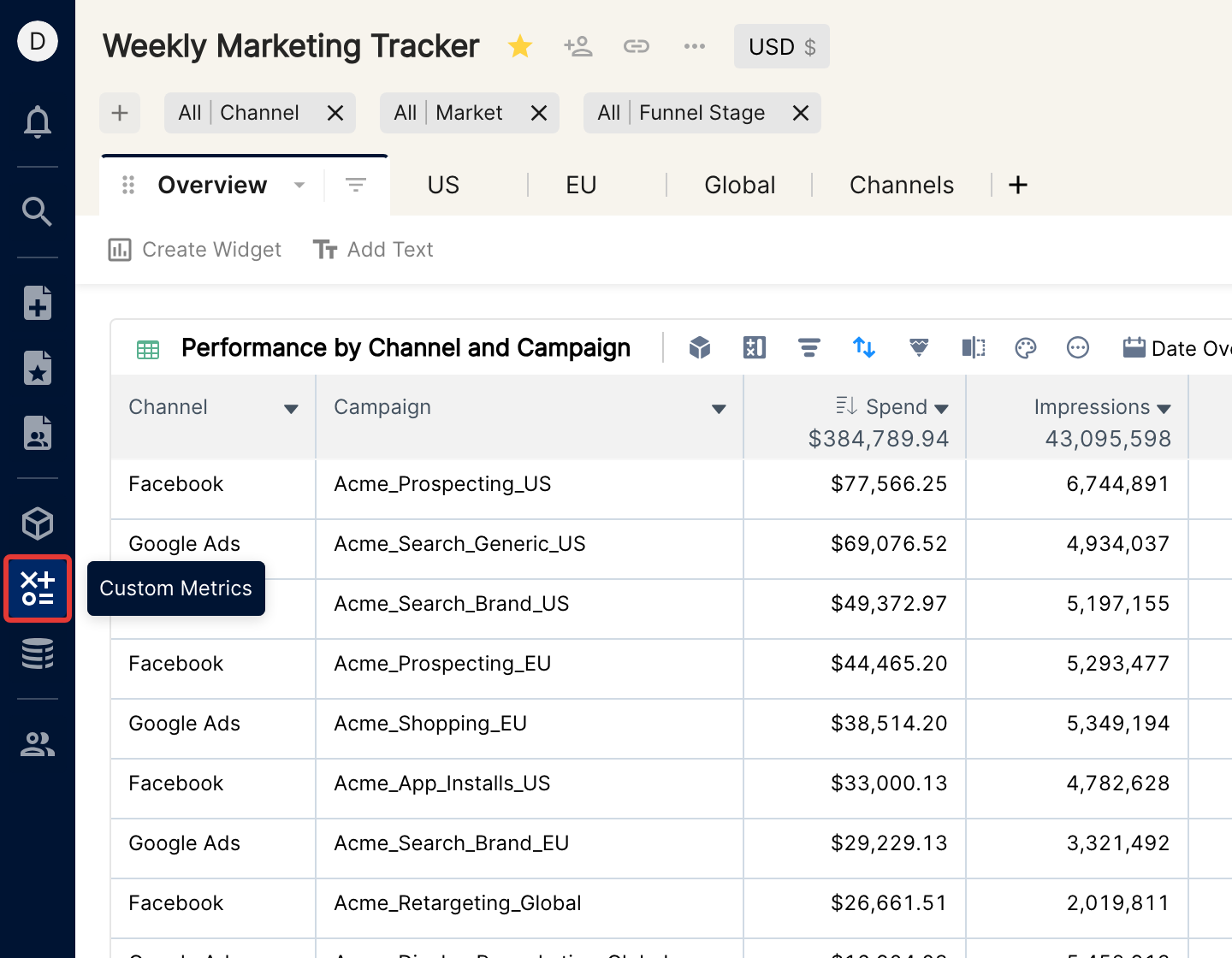
Click the Custom Metrics icon in the left sidebar.
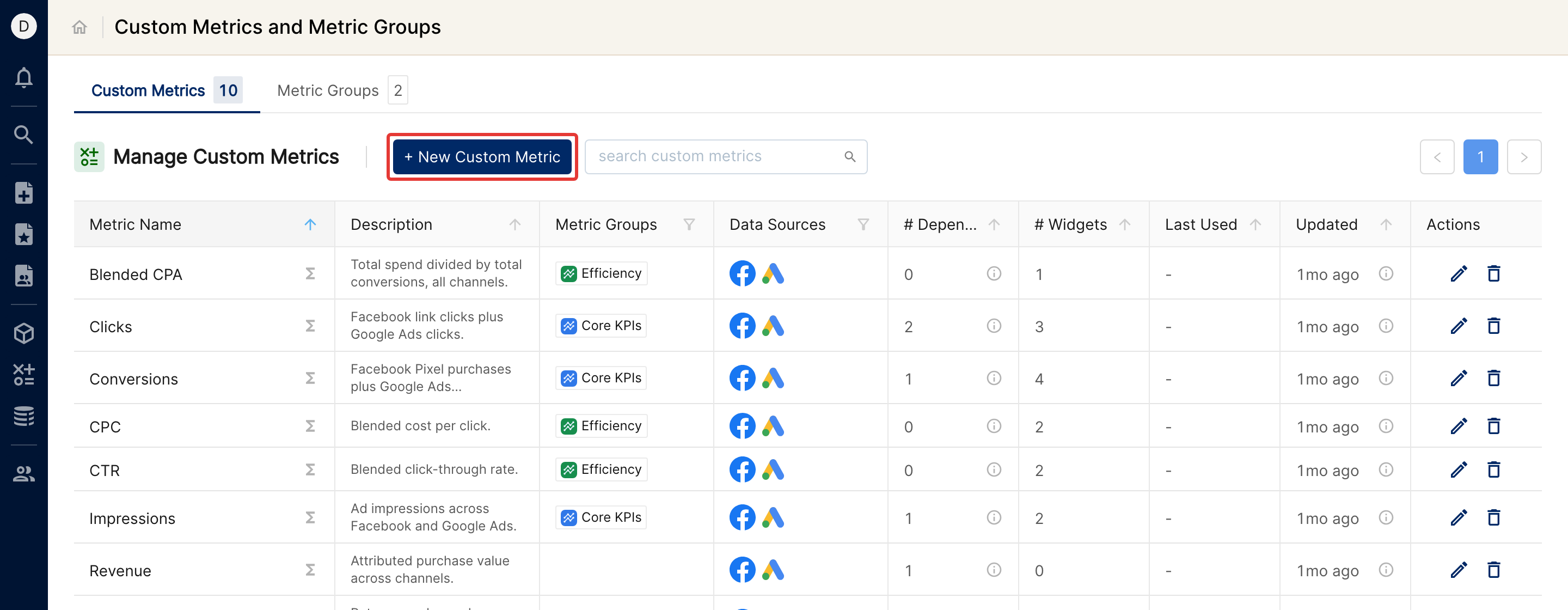
The Custom Metrics tab lists the custom metrics already created in your company. Click + New Custom Metric to open the creation window.
Fill in the two sections of the creation window:
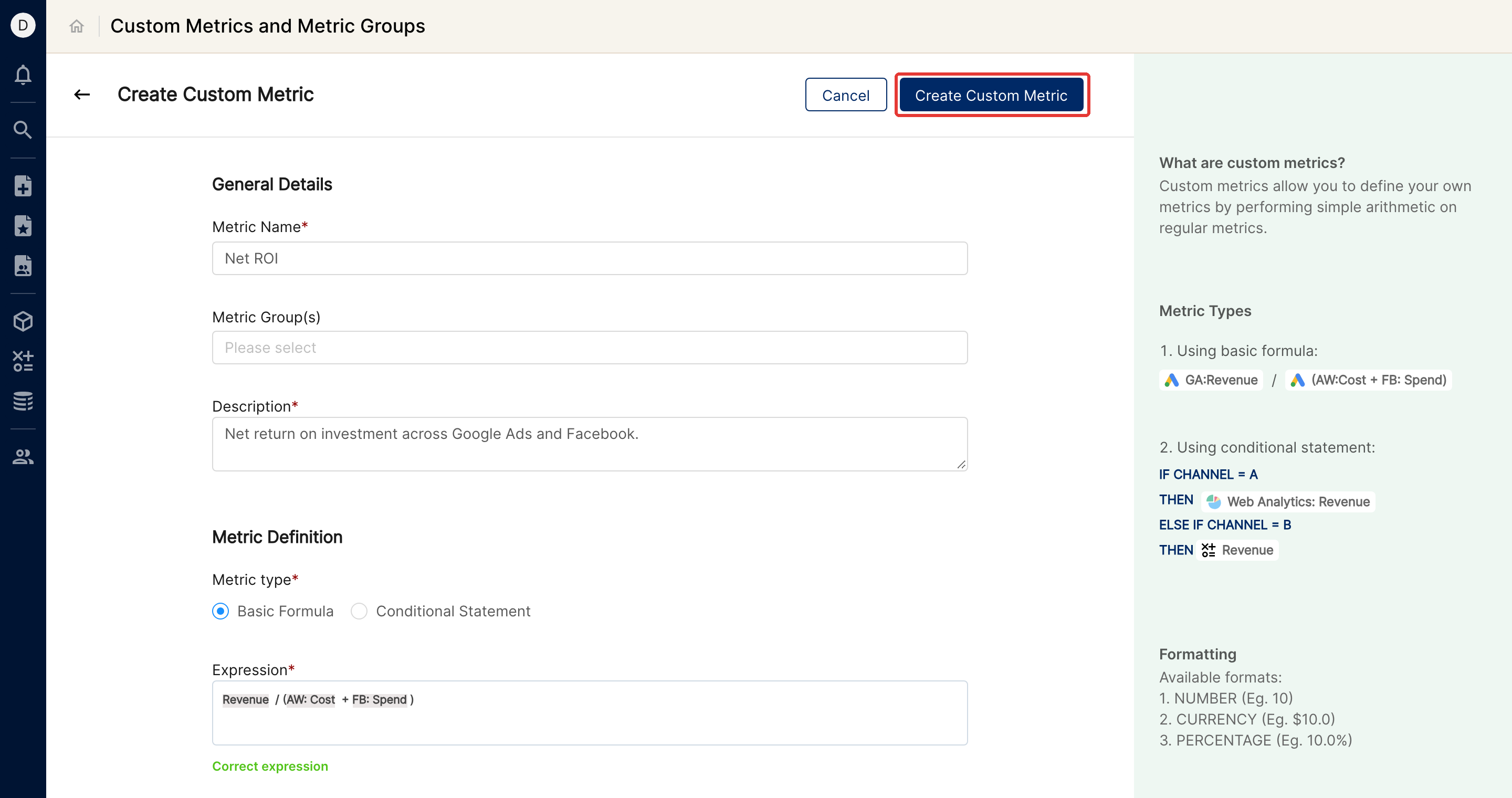
General Details: enter the Metric Name, optionally add the metric to one or more Metric Group(s), and enter a Description (required) of how the metric is meant to be used.
Metric Definition: choose the Metric type, enter the Expression and choose the Metric Formatting. If the metric has inverse behavior (an increase in value is a negative outcome), also check the box next to negative metric.
For this example:
Metric Name: "Net ROI"
Description: "Net return on investment across Google Ads and Facebook"
Metric type: "Basic Formula"
Expression: "Revenue / (AW: Cost + FB: Spend)"
Metric Formatting: "Number"; "0.00" (two decimal points)
Negative metric: Not checked
For ratio metrics (an expression of the form A / B), you can also check Enable Marginal Comparison. Read more about Marginal Comparison.
When you enter the expression, Clarisights checks that it is valid and shows Correct expression. Then click Create Custom Metric at the top right.
Conditional Calculated Metric
Conditional metrics are useful when the metric formula should depend on the value of a chosen dimension.
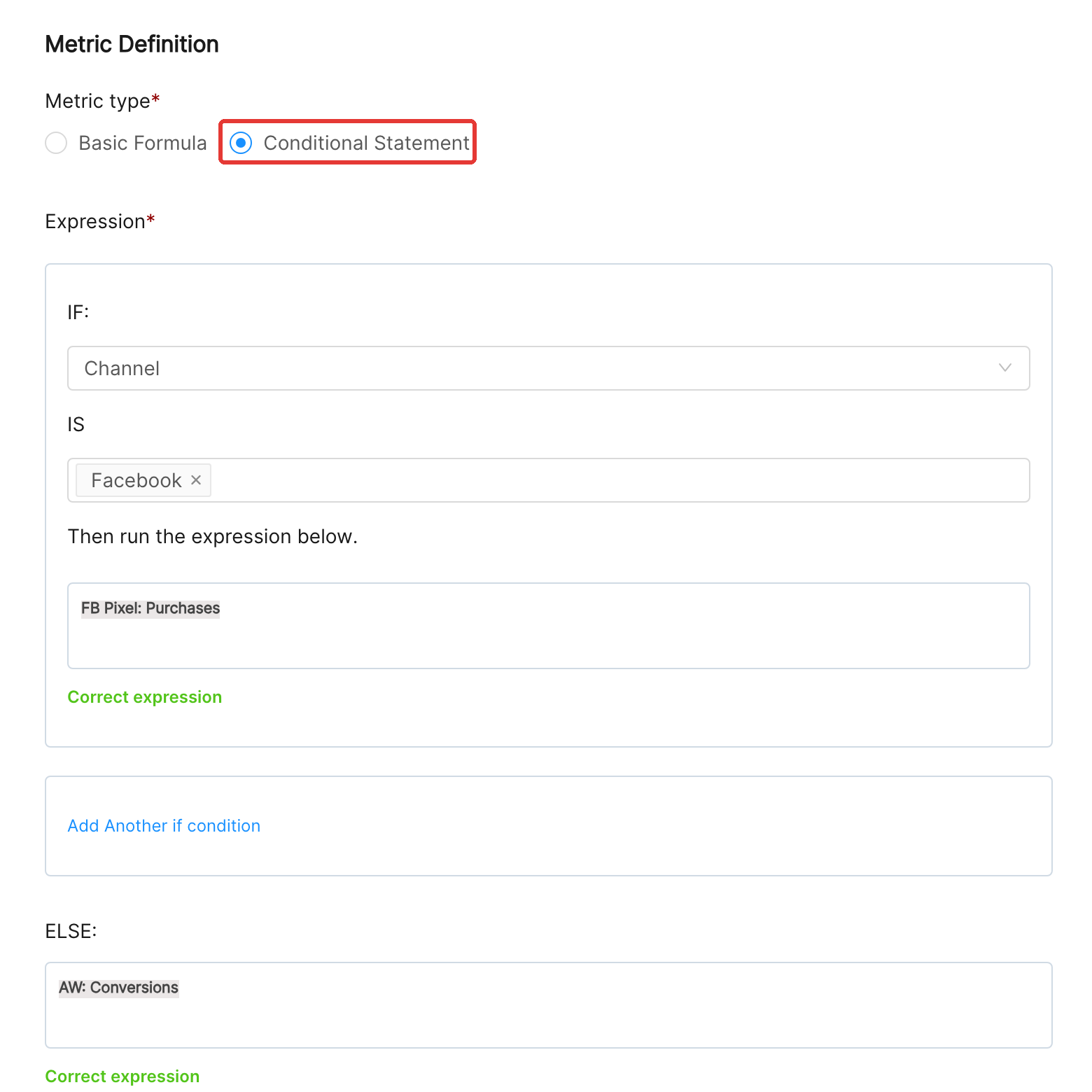
For example, say you want a custom metric for conversions that uses Facebook Pixel purchases when the Channel is Facebook, and Google Ads conversions in all other cases. In the creation window:
Choose Conditional Statement as the Metric type.
Pick the dimension under IF and its value under IS, then enter the expression to use when the condition is met.
Enter the expression for all other cases under ELSE.
To add more conditions, use Add Another if condition.
Your formula would look like this:
Note: conditional calculated metrics are always summable, and division is not allowed in them.
Using custom metrics
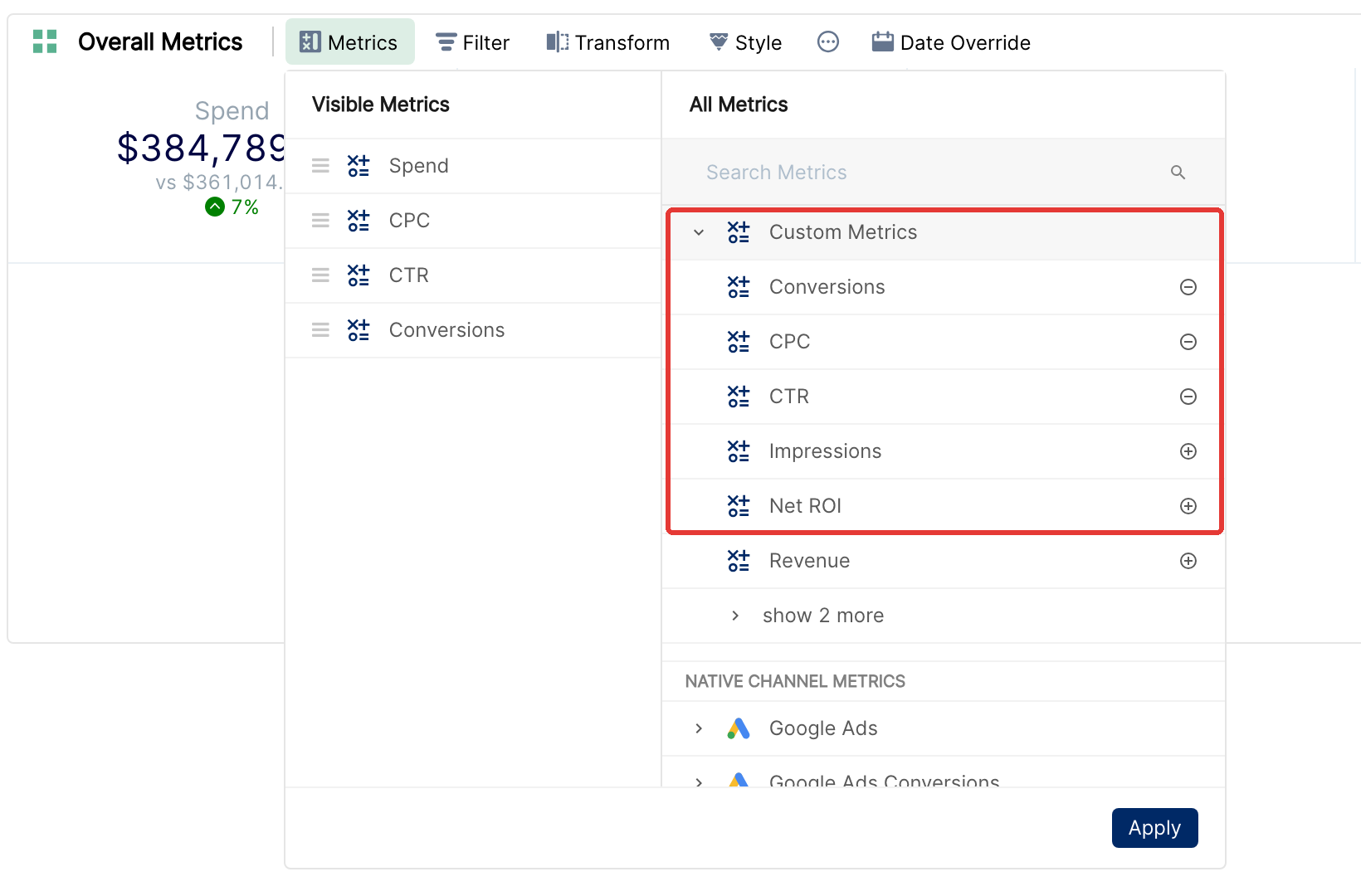
Once created, custom metrics are available in widgets. Add them by choosing them under the Custom Metrics group in the metric selector.
To learn how to create a custom dimension, see Creating and using custom dimensions.