
Importing Custom Dimension Values in Bulk
Bulk Custom Dimension Value Import is currently in Beta. ⚠️ We're continuously refining it. Before using this feature, consult your Clarisights Customer Success Manager for guidance and best practices.
Custom Dimensions are central to data analysis: 85% of all data queries on Clarisights use at least one Custom Dimension.
Setting up a Custom Dimension takes three steps:
Create a Custom Dimension and give it a name.
Create a Custom Dimension Value.
Write rules that determine its value.
If you need many values in a Custom Dimension, this gets repetitive: 5 or 10 values are quick to set up, but 50 values take a lot of effort.
With the Bulk Custom Dimension Value Importer, you can import dozens or even hundreds of Custom Dimension Values directly from Google Sheets in a few clicks.
Importing values
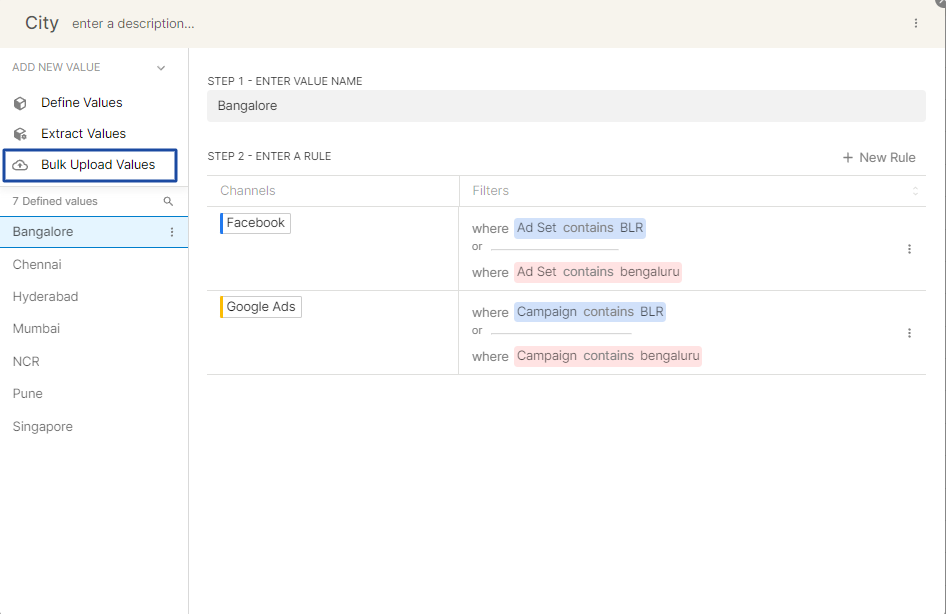
Open the custom dimension, click + New Value and then select Bulk Upload Values.
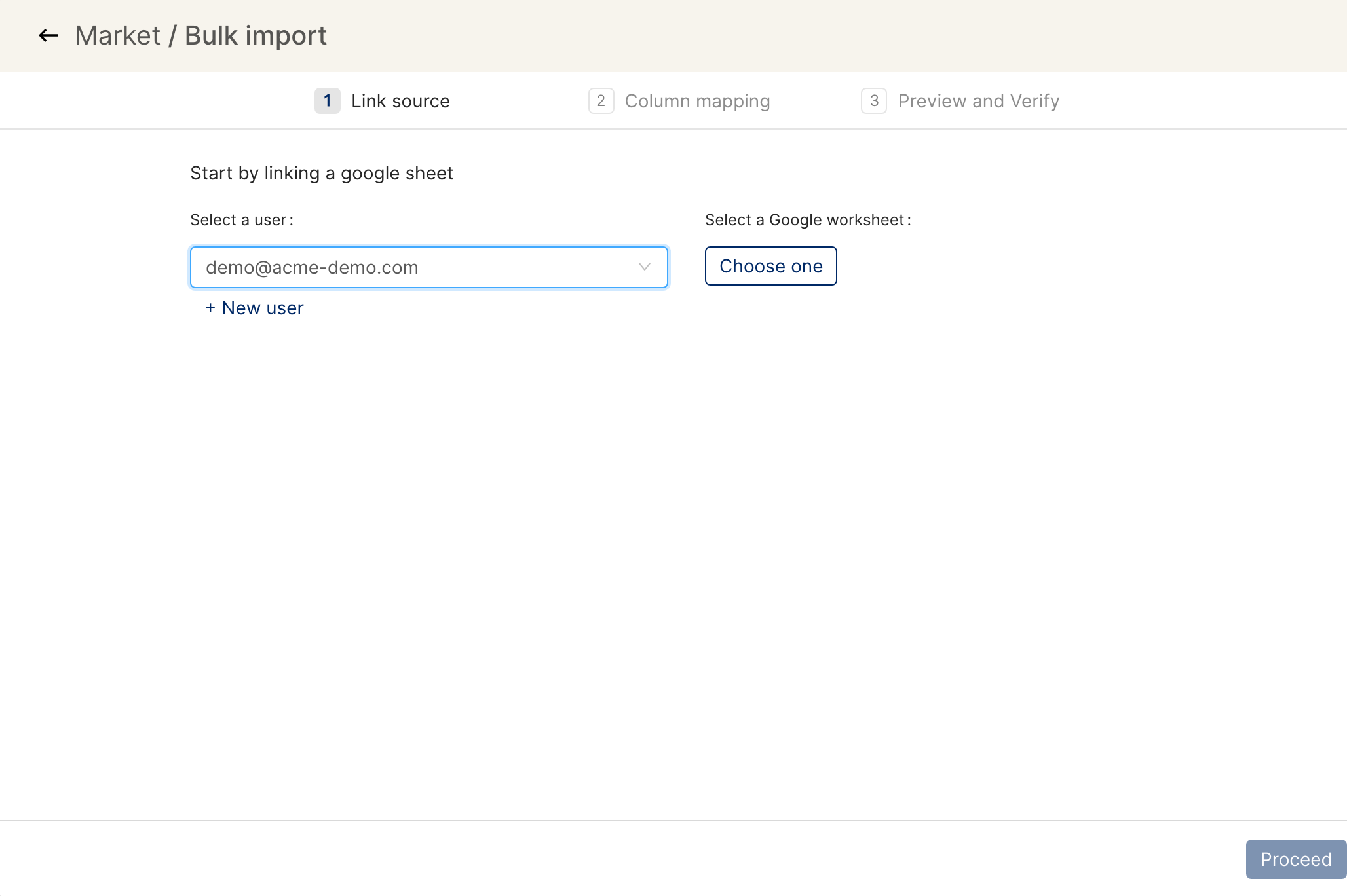
Link the Google Sheet that holds the data for the custom dimension values:
Under Select a user, choose the Google account that can access the sheet (or click + New user to connect one).
Choose the worksheet under Select a Google worksheet.
Click Proceed.
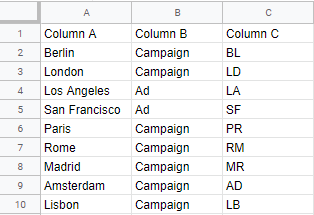
For reference, this is the sample spreadsheet used in this example:
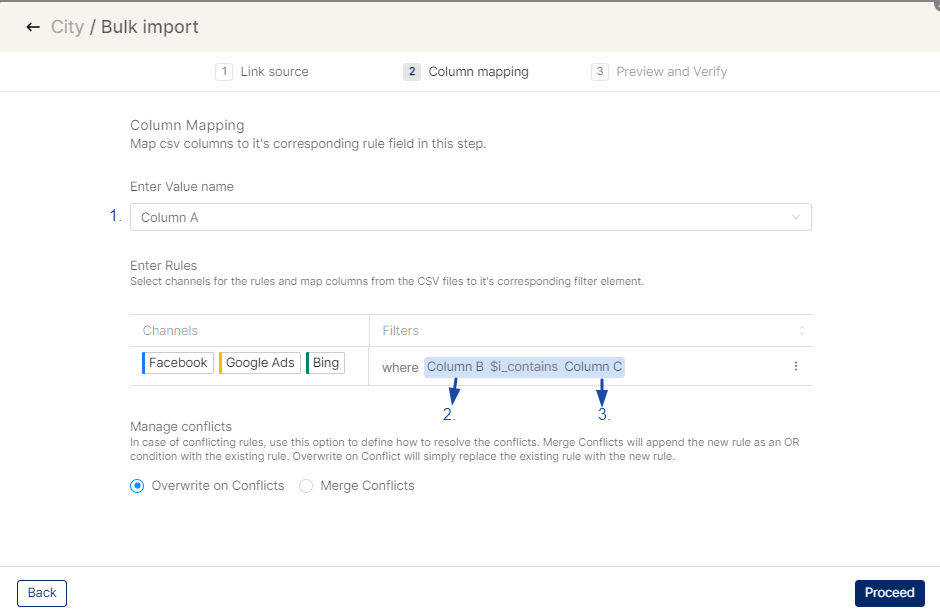
Map the columns of your Google Sheet to the Custom Dimension value and its attributes.
Assign one of the columns to Value Name. In this example, we use Column A, which contains the names of the cities we want to add as values.
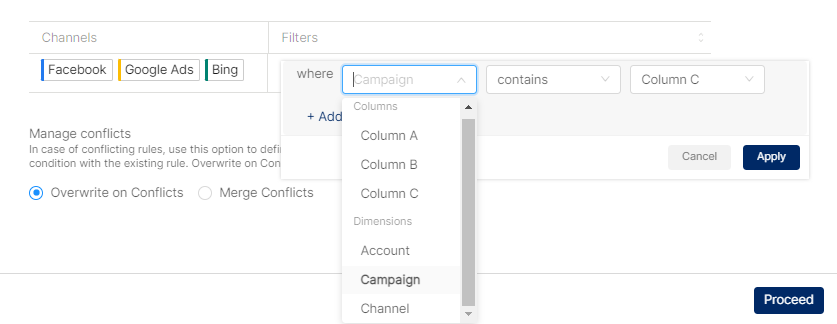
In the Enter Rules section, select the channels you want to create rules for, then map columns to the rest of the fields in the filters section.
You don't have to map every field to a column from your sheet. You can also select any of the values available in the dropdown:
Combining filters
To use multiple filters, combine them with the AND or OR operator:
AND: click the +Add button, then map columns for the second (or next) filter.
OR: add multiple rows with the same value in your Google Sheet. The imported filters are combined with OR.
Manage conflicts
This option decides what happens when there is a conflict, for example when your Google Sheet has a value "Berlin" that already exists in your Custom Dimension:
Overwrite on Conflicts: the existing value's rule is replaced by the one imported from your Google Sheet.
Merge Conflicts: the rule imported from your Google Sheet is merged with the existing rule using the OR operator.
Review the values and rules created from the data in your Google Sheet.
Important: review the imported values carefully in this step. Once you click Publish, all of the values are created and this can't be undone.

Limitations
As a rule of thumb, don't import more than 200 values in one run.
Only one bulk import can run at a time for a custom dimension.
Operators
You can also use operators in your Google Sheet, and they are imported into the filters.
Operator (Condition) | Operator to use in the Google Sheet (Taxonomy) |
is |
|
is not |
|
contains |
|
contains (case-sensitive) |
|
does not contain |
|
does not contain (case-sensitive) |
|
starts with |
|
starts with (case-sensitive) |
|