
Metrics Group and Metrics Group Search
Metric Groups let you organize your metrics in Clarisights. You can categorize and group metrics to suit your needs, which makes them easier to access, search and manage. This article shows how Metric Groups help you find the right metrics for your reports, and how to create them.
Use Cases: Basic Metric Group
Your team most likely has a few strategic KPIs that you always want to report on. Without a Metric Group, you have to find these metrics again every time you create a report.
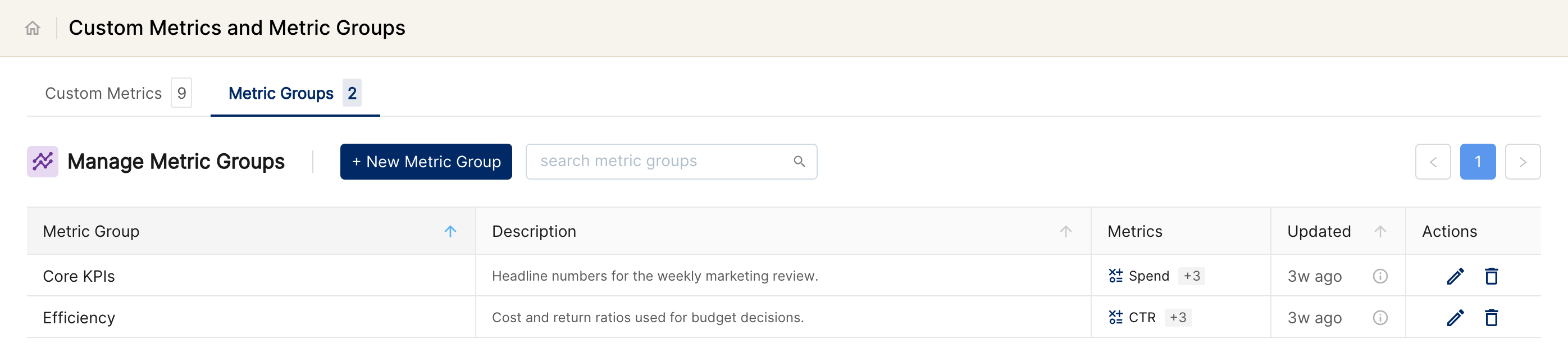
In the example below, we created a Metric Group called "Core KPIs". It includes fundamental metrics such as Clicks, Conversions, Impressions and Spend. This group is a starting point for general performance analysis and gives a quick overview of your most important KPIs.
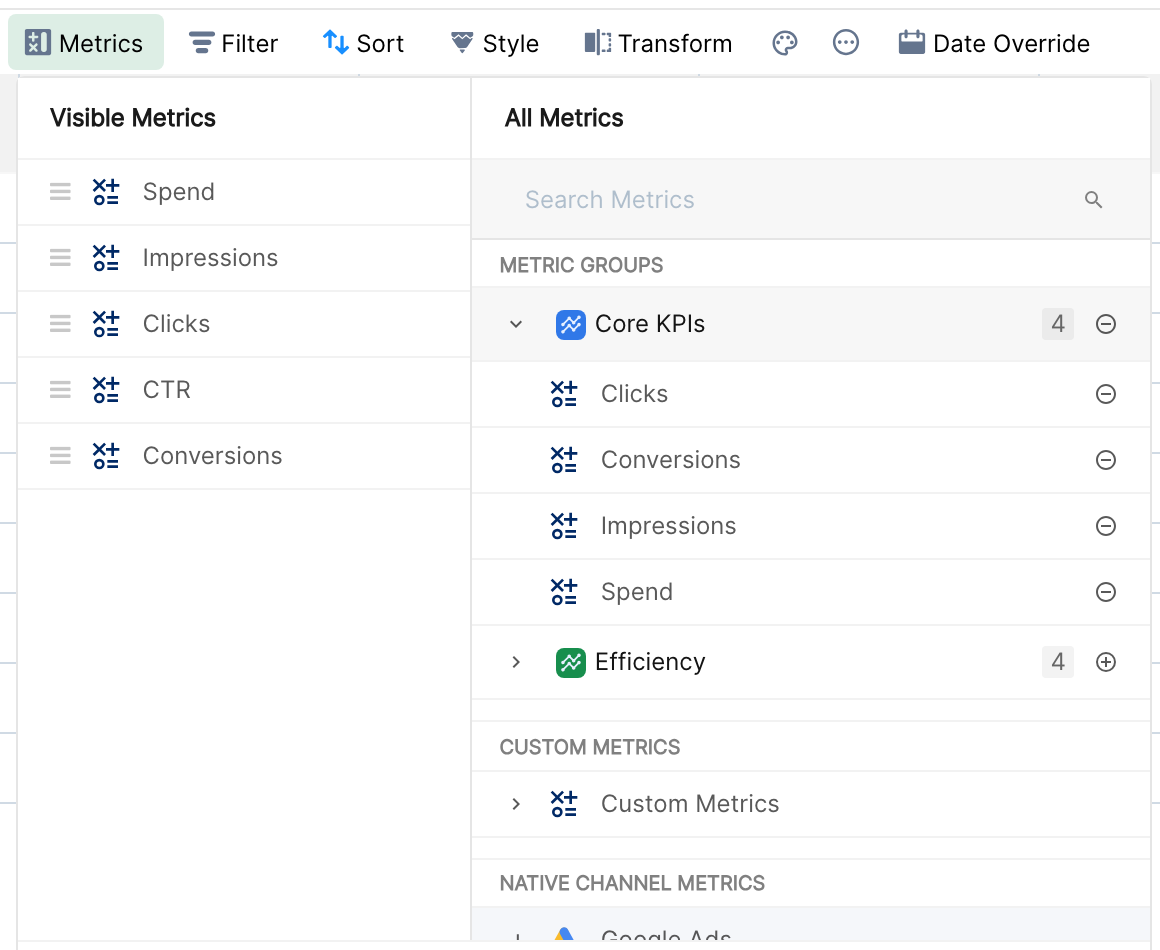
When you edit the metrics of any visualization, the metrics search lists metrics in this order:
Metric Groups
Custom Metrics
Native Channel metrics
Metric Groups appear at the top, under METRIC GROUPS, so your most important metrics are always easy to find.
Metrics Search
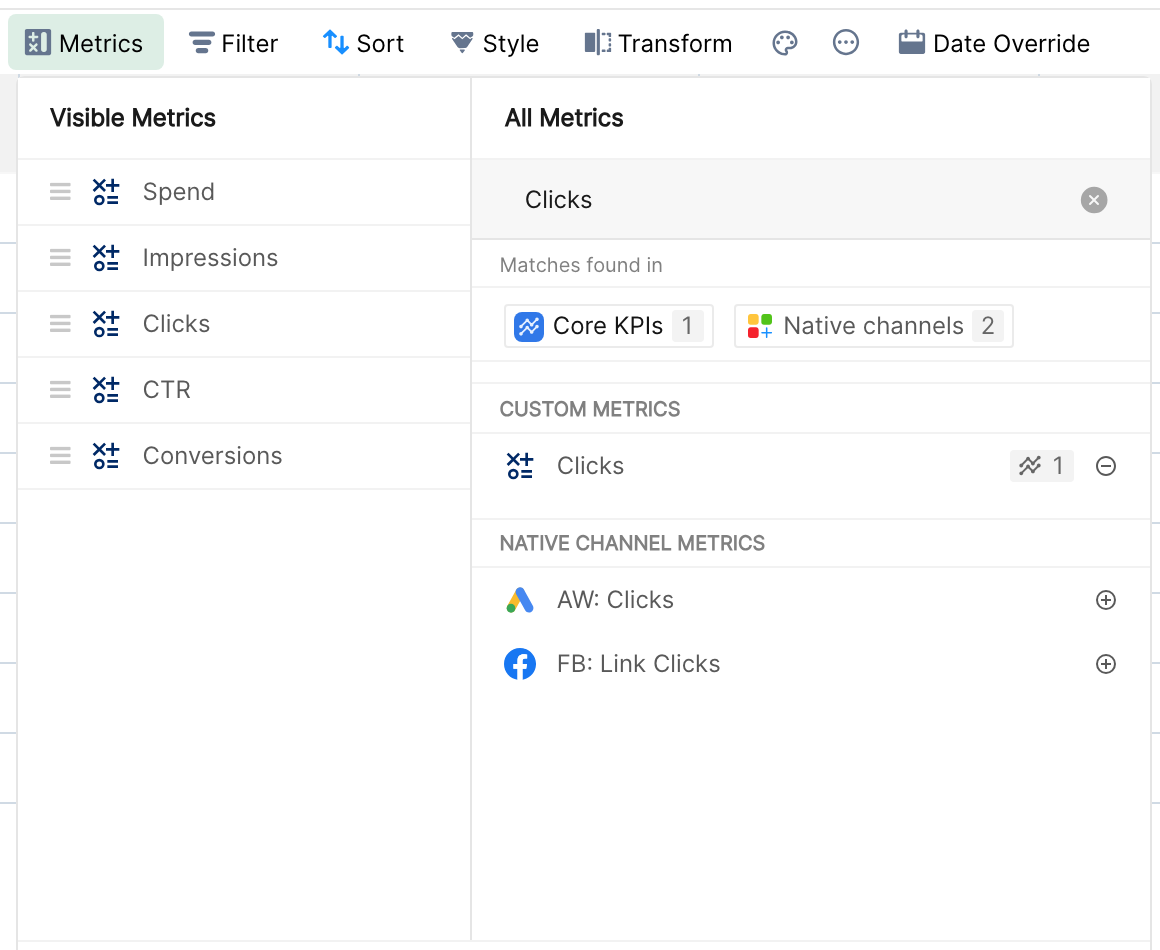
The same order applies when you type to search for a metric. For example, if you search for "Clicks", all groups that contain a "Clicks" metric are shown at the top. Here, "Clicks" is in the "Core KPIs" Metric Group and also in 2 native channels, as shown under Matches found in.
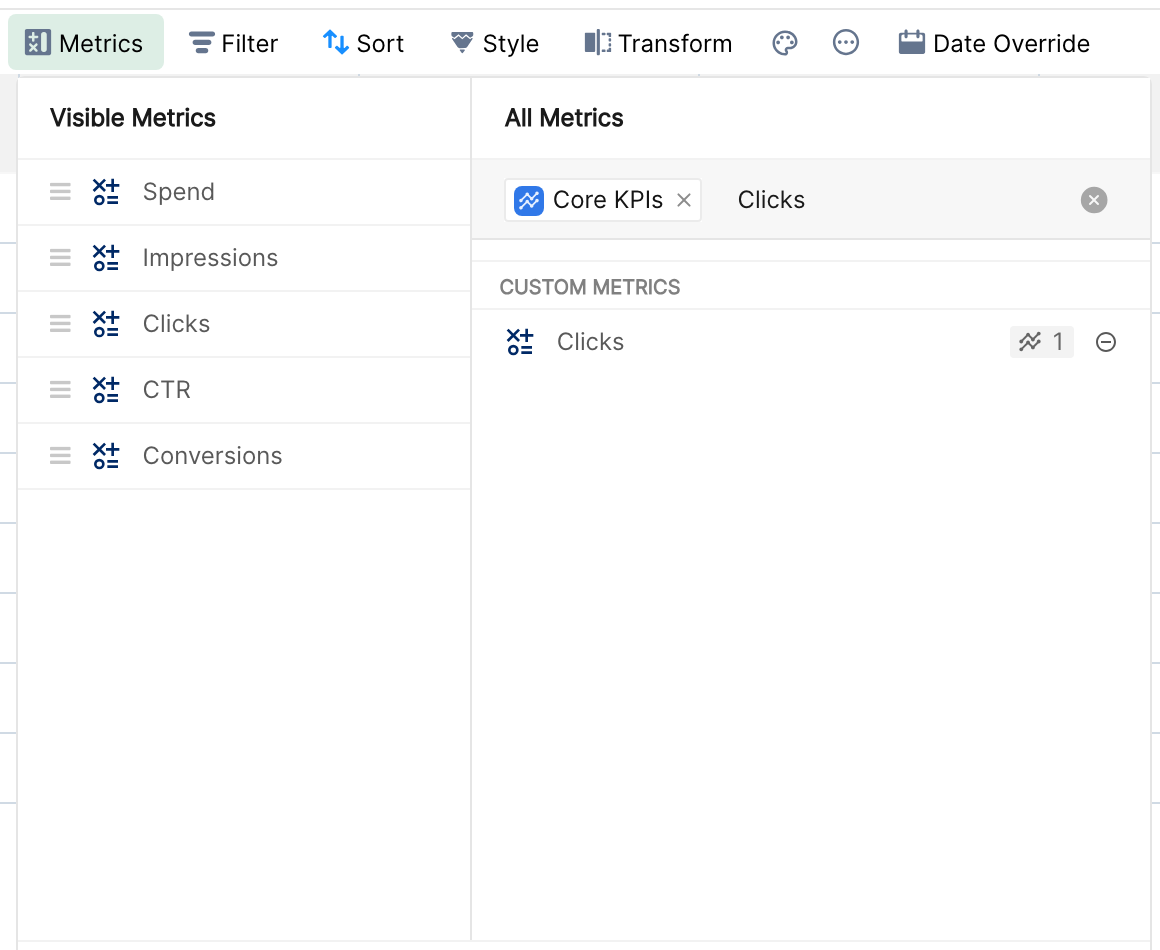
Since "Core KPIs" holds the most important metrics, click that group. The results are filtered to the metrics in this group, so you know exactly which "Clicks" to use in your report.
This is just one example. You could also organize metrics by:
Team, such as Paid Social metrics or Paid Search metrics.
Source of attribution, such as Platform-reported, Google Analytics or Internal Attribution model.
How to create a Metric Group on Clarisights?
Only users with the Admin or Editor role can create and edit Metric Groups.
Role | Can View | Can Edit |
Viewer | No | No |
Team Member | Yes | No |
User | Yes | No |
Editor | Yes | Yes |
User Manager | Yes | No |
Data Manager | Yes | No |
Admin | Yes | Yes |
Step 1: Open Metric Groups
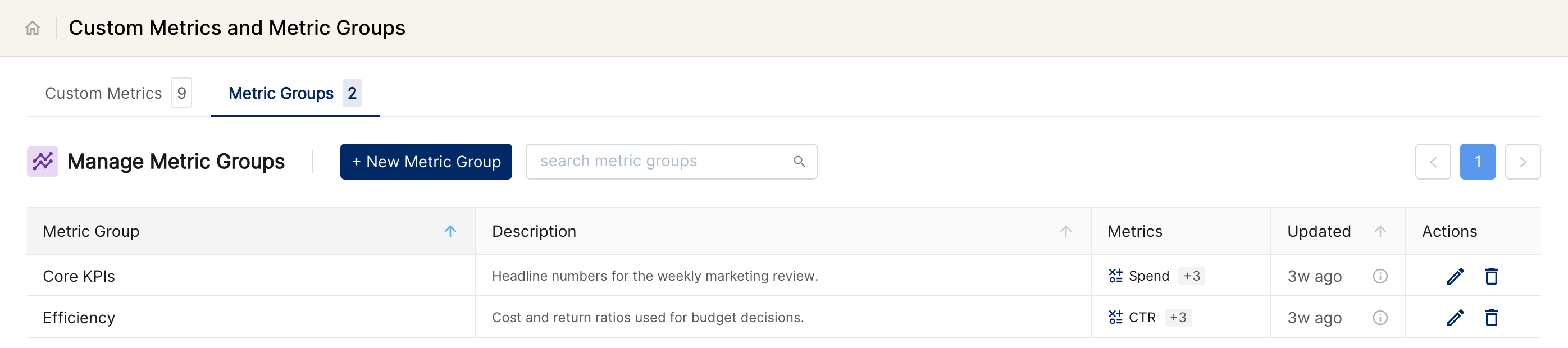
Click the Custom Metrics icon in the left sidebar, or open Metric Groups directly.
Open the Metric Groups tab, next to the Custom Metrics tab.
Click + New Metric Group to open the page where you configure the new group.
Step 2: Configure the group
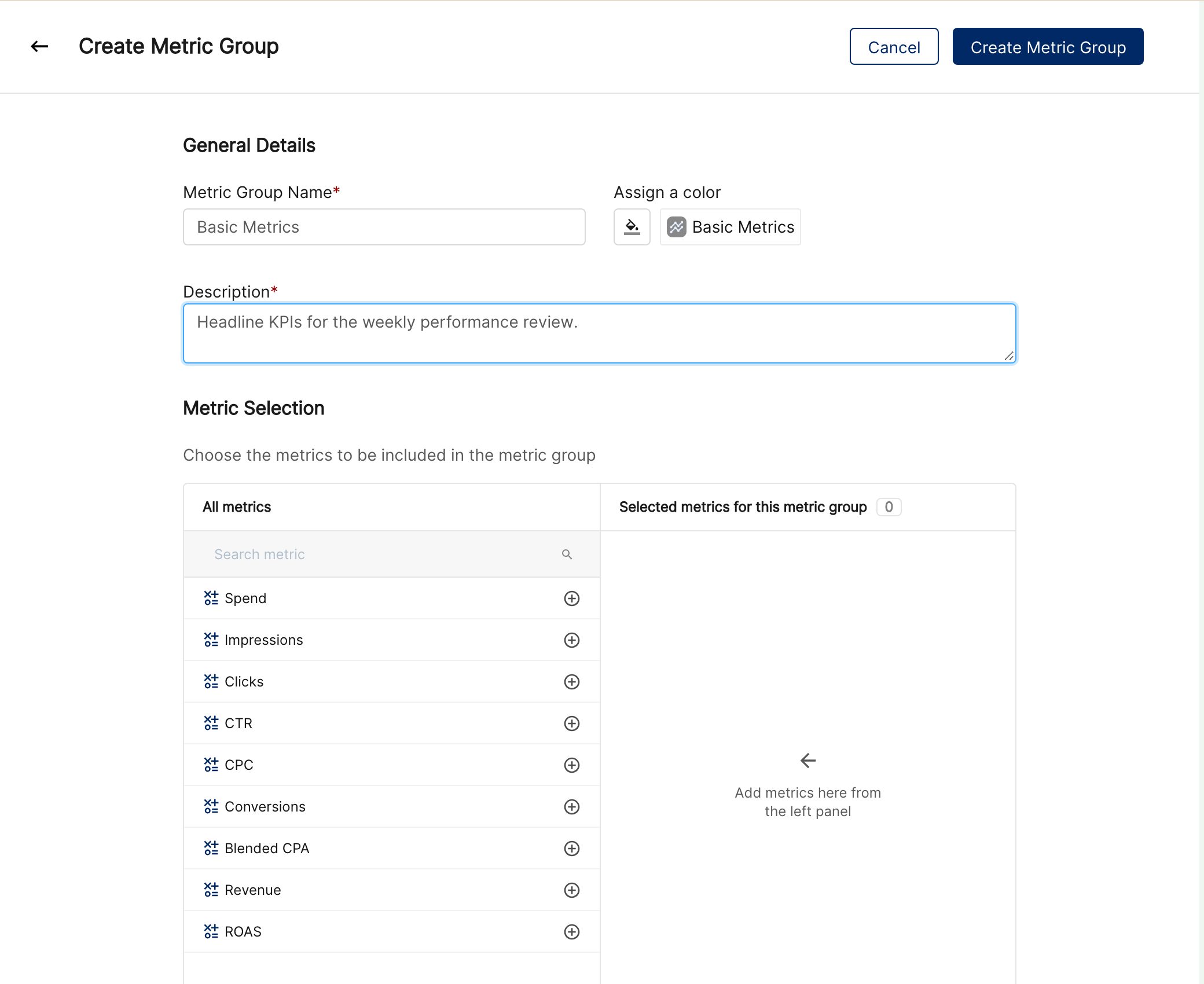
Enter a Metric Group Name and Description (both required) that clearly describe the group. You can also assign a color, which helps with navigation and management later.
Under Metric Selection, click the + icon next to each metric that belongs to this group (use the search box to find metrics). The selected metrics appear in the right panel.
Click Create Metric Group.
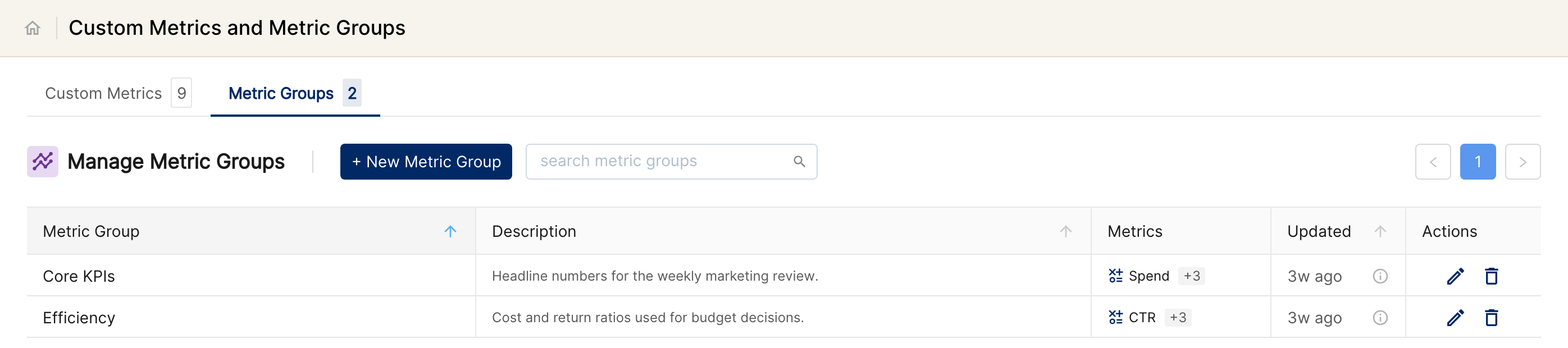
The new group now appears under the Metric Groups tab.
Step 3: Edit a group
To edit a group later, for example to add metrics or change the description, click the pencil icon under Actions.
If you have further questions, reach out to support@clarisights.com.