
Adding a VLOOKUP Source on Clarisights
A lookup source lets you bring your own mapping table into Clarisights and use it to fill a custom dimension automatically. It works like VLOOKUP in a spreadsheet: Clarisights takes a value from your data (for example a campaign ID), finds the matching row in your table, and returns a value from another column (for example the business line).
Use a lookup source when the information you want to report on does not exist in your ad platforms, but you already keep it in a spreadsheet. Typical examples are business lines, markets, owners, targets or cleaned-up names.
Before you start
Availability: lookup sources are enabled per workspace. If you do not see Lookup Sources on the Integrations page, or Lookup when you add a value to a custom dimension, contact your Clarisights account manager to enable it.
Permissions: you need access to the Integrations page to create and manage lookup sources, and permission to edit custom dimensions to use them.
Source: lookup sources are created from a Google Sheet. You need a Google account that can open the sheet. If your mapping lives in a cloud storage bucket instead, contact your account manager.
Custom dimension: the output of a lookup is used inside a custom dimension. If you are new to them, read Creating and using custom dimensions first.
Key concepts
Term | What it means | Example |
Lookup source | A Google Sheet tab that Clarisights reads on a schedule. | Tab business_lines in the sheet Acme Demo Mapping |
Lookup dimension | The Clarisights dimension whose value is looked up in your sheet. | Campaign ID |
Source column (key) | The column in your sheet that holds the values to match against the lookup dimension. Each key must appear only once. | campaign_id |
Value columns | The columns you want to return. Each one can feed a custom dimension. | business_line, region, owner |
Mapping type | Whether every row applies to all selected channels (Global Map) or rows are split by channel (Channel Specific Map). | Global for campaign IDs, channel specific for account names |
How matching works
Matching is exact and not case sensitive. DEMO-CMP-0001 in your data matches demo-cmp-0001 in the sheet.
There is no partial or wildcard matching. Spaces count, so remove leading or trailing spaces from the key column.
If a value in your data has no matching row, the lookup returns nothing for it. Those rows are not assigned a value by the lookup.
Empty cells in value columns are allowed. Empty or duplicate keys are not (see Limits and troubleshooting).
Prepare your Google Sheet
Put the mapping in its own tab, with column names in the first row.
Add one key column whose values exactly match the dimension you will look up, for example campaign IDs as they appear in Clarisights.
Add one column for each value you want to return.
For a channel specific map, add a column that says which channel each row belongs to, for example channel with values Meta and Google.
Make sure each key appears only once (per channel, for a channel specific map) and that no key cell is empty.
campaign_id | business_line | region | owner |
demo-cmp-0001 | Footwear | EMEA | Team Alpha |
demo-cmp-0003 | Apparel | EMEA | Team Beta |
demo-cmp-0005 | Accessories | NA | Team Gamma |
Create a lookup source
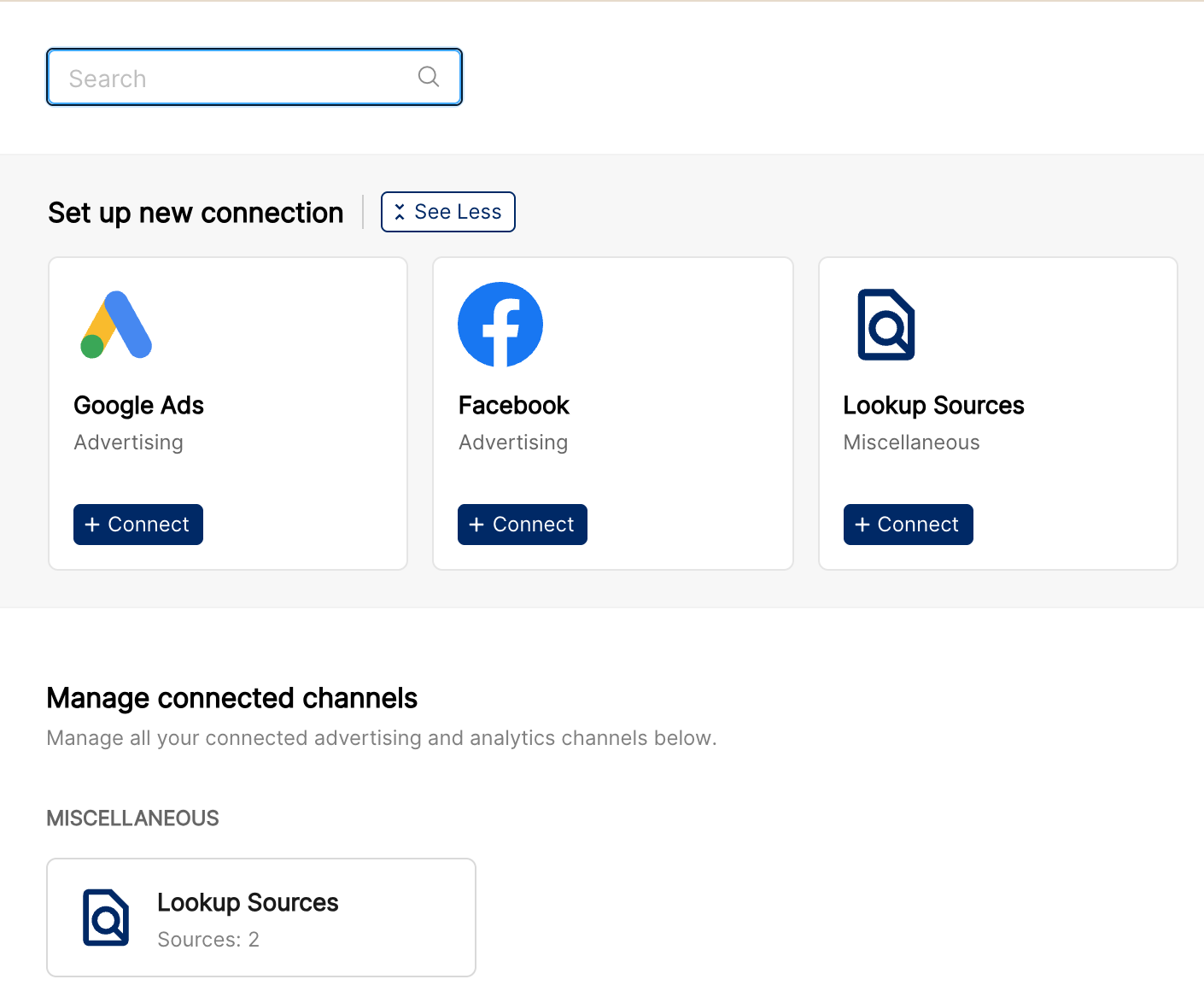
Go to Integrations. Under Set up new connection, click Connect on the Lookup Sources card. If you already have sources, open Lookup Sources under Manage connected channels and click Add Source.
The setup has four steps: Connect Source, Channel Mapping, Lookup Definition and Summary.
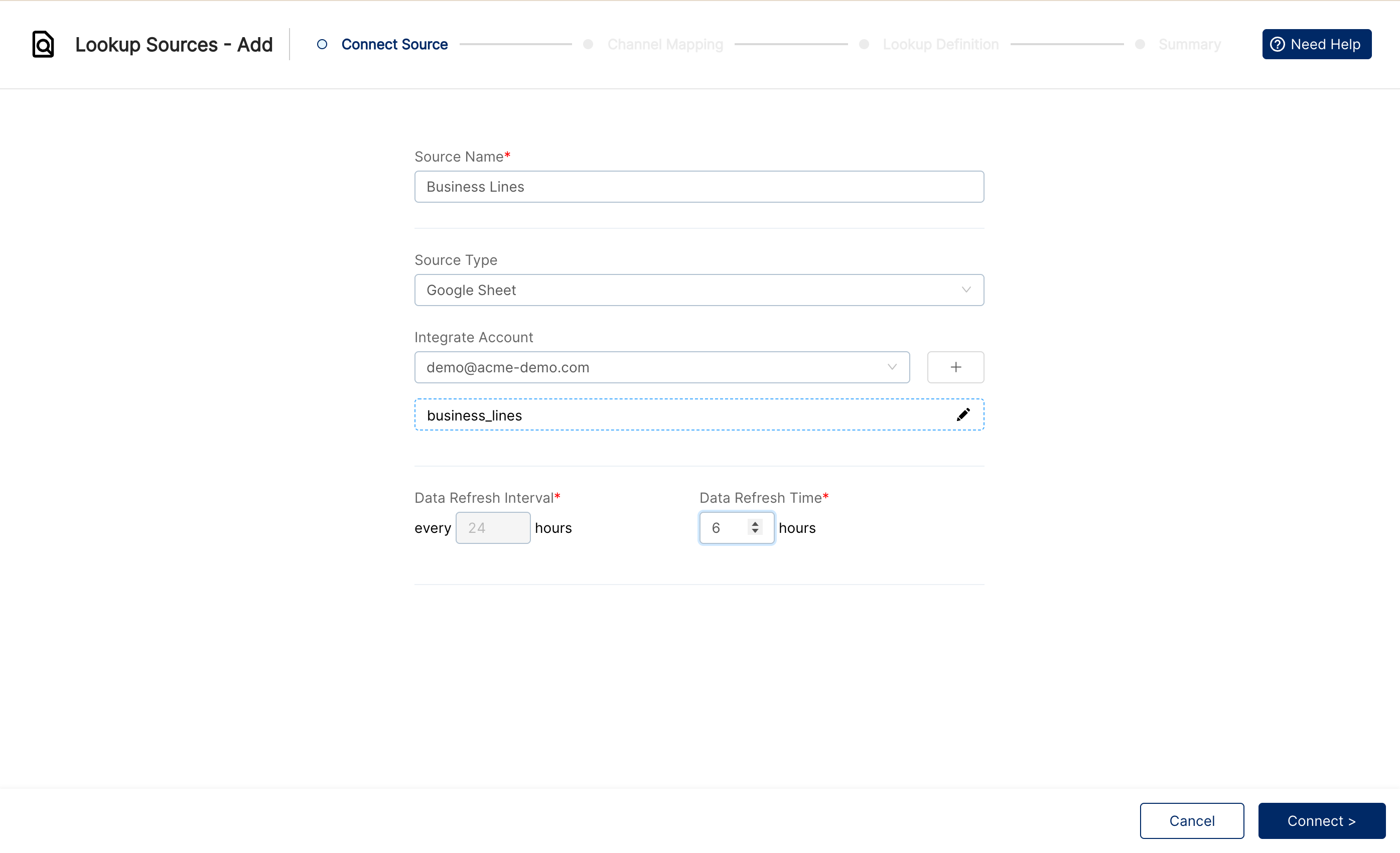
Step 1: Connect Source
Enter a Source Name. It must be unique across your lookup sources.
Leave Source Type as Google Sheet.
Under Integrate Account, choose the Google account that can open the sheet, or click + to connect a new one. Allow pop-ups if the Google sign-in window does not open.
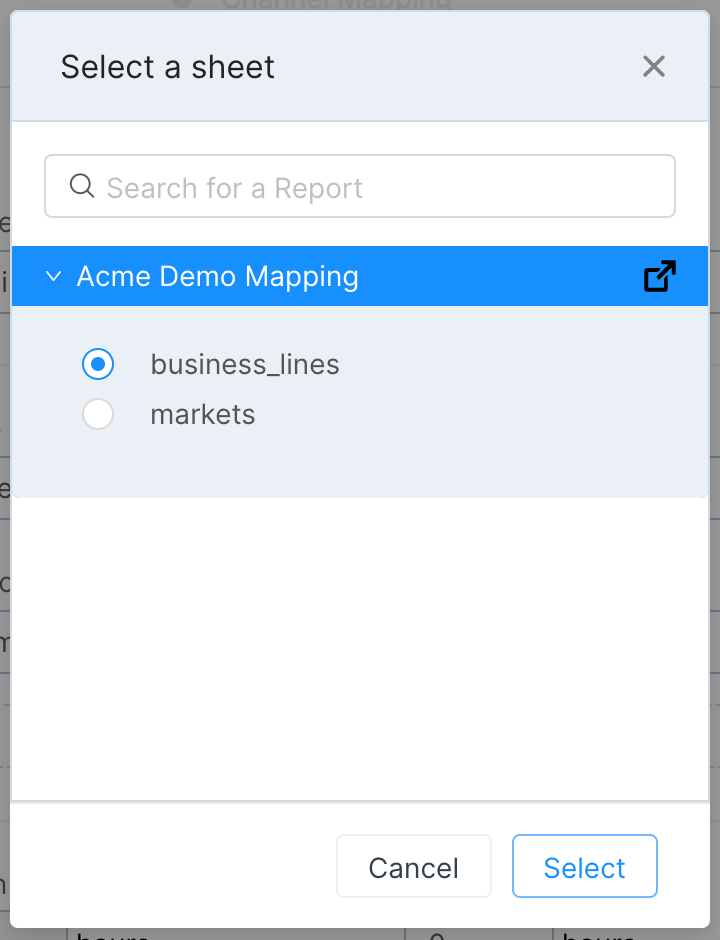
Click Select a Google Worksheet, expand your spreadsheet, choose the tab and click Select.
Set Data Refresh Time, the hour of the day (0 to 23, in your workspace time zone) when the sheet is read. The Data Refresh Interval is fixed at every 24 hours.
Click Connect >.
Step 2: Channel Mapping
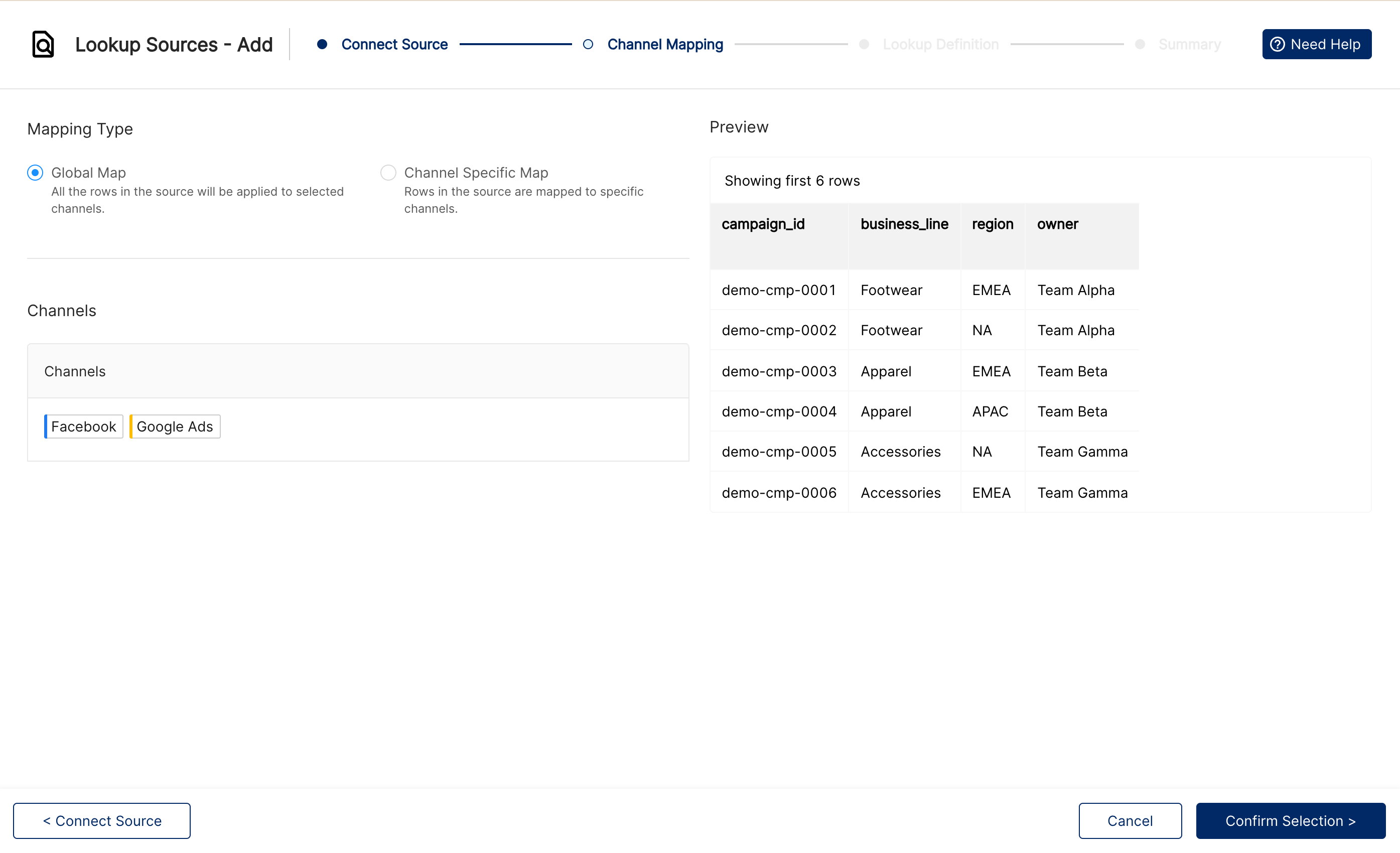
A Preview of the first rows of your tab is shown on the right. Choose a Mapping Type:
Global Map: all rows in the sheet apply to every channel you select. Under Channels, click Choose channels and pick the channels.
Channel Specific Map: each row applies only to certain channels. Under Map Channels to Source Column, choose the column that identifies the channel. Then click New Rule, pick one or more channels and add a filter on that column, for example channel is Meta for Facebook. Add one rule per channel or group of channels.
Click Confirm Selection >.
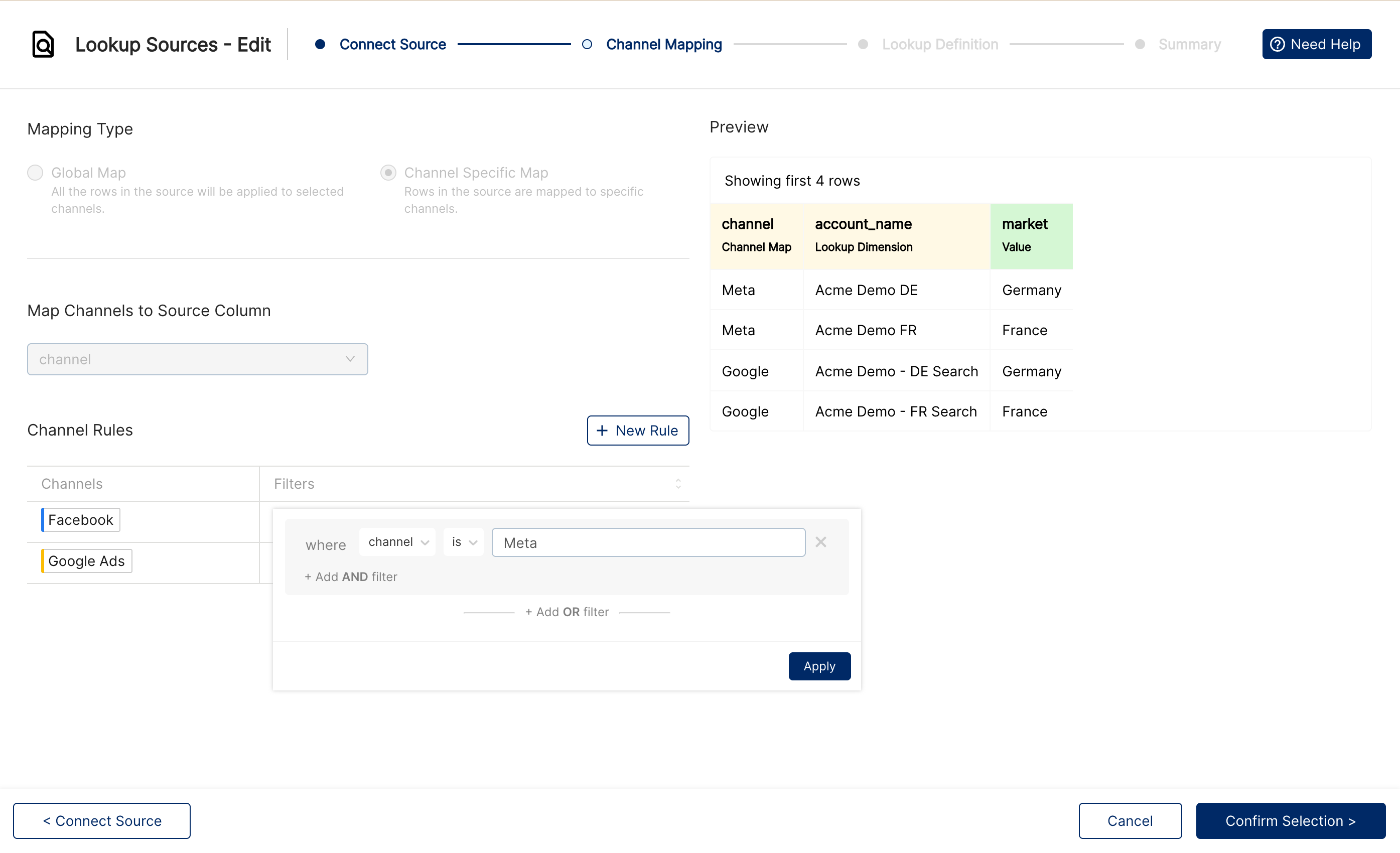
Note: a channel specific map lets the same key return different values on different channels. Keys only need to be unique within each channel's rows.
Step 3: Lookup Definition
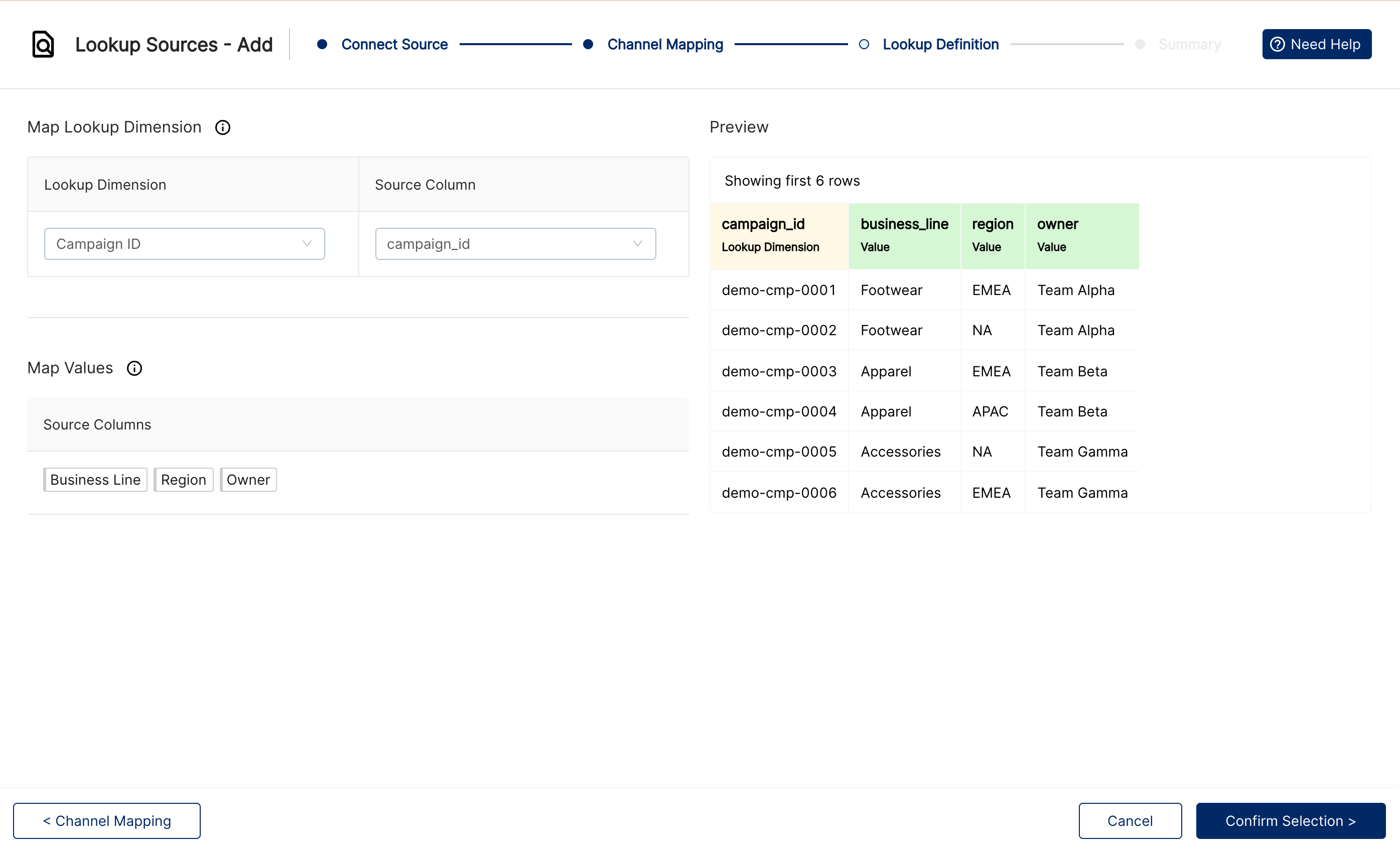
Under Map Lookup Dimension, choose the Lookup Dimension. Only dimensions available on all selected channels are listed, including existing custom dimensions.
Choose the Source Column that holds the matching keys.
Under Map Values, click Choose columns and pick every column you want to use as an output.
Check the Preview: the key column is labelled Lookup Dimension and the outputs are labelled Value.
Click Confirm Selection >.
Step 4: Summary
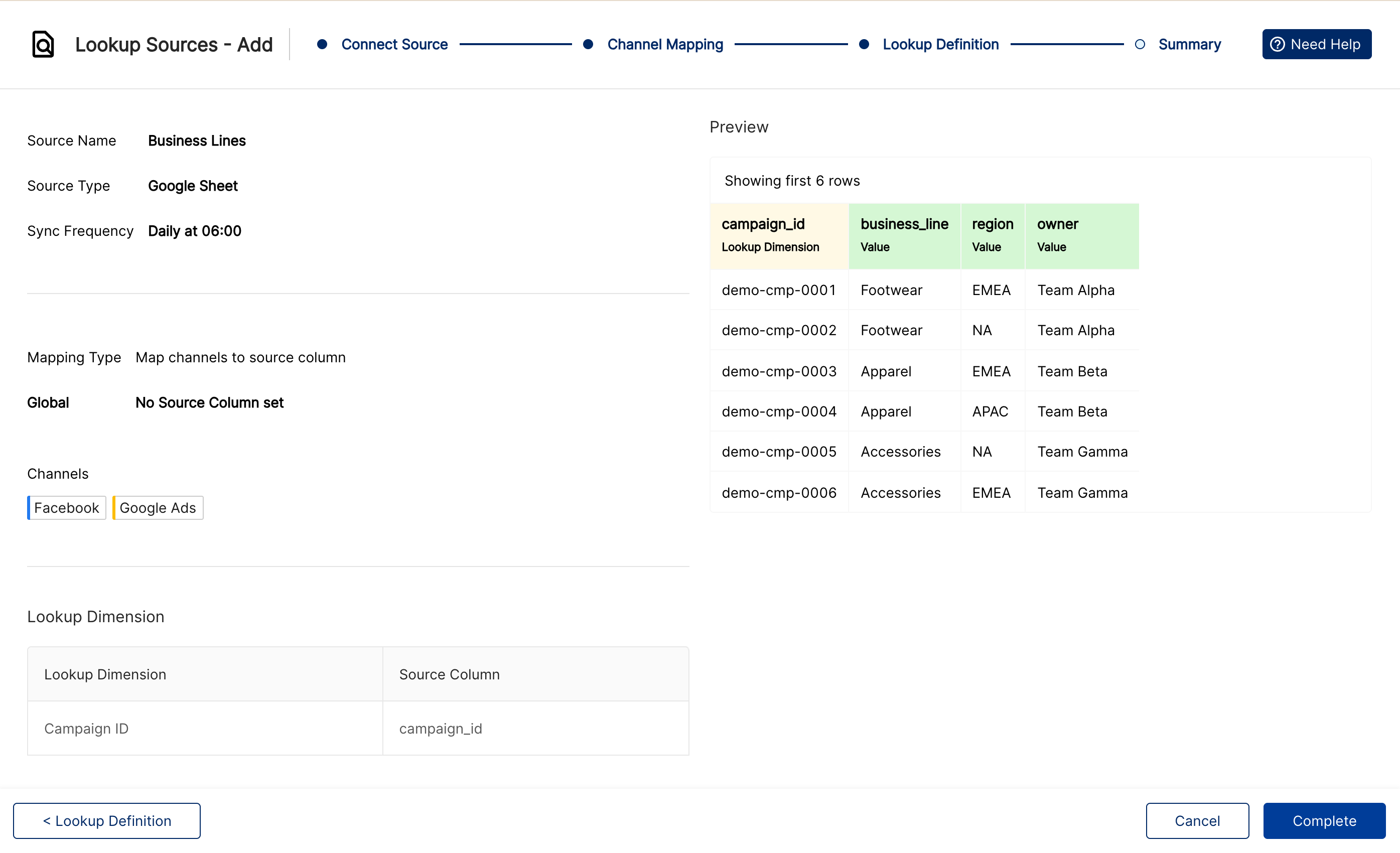
Review the source name, sync frequency, mapping and columns, then click Complete. You will see Lookup source configured successfully! and return to the list. The first import runs at the next scheduled time; click Fetch Now in the list to import straight away.
Important: after a source is created you cannot change its source type, mapping type, lookup dimension or key column. To change these, create a new lookup source.
Use a lookup in a custom dimension
Go to Custom Dimensions and create a custom dimension or open an existing one. See Creating and using custom dimensions.
Click + New Value and choose Lookup.
In Step 1 - Enter the lookup expression, open the first field and pick the lookup dimension and lookup source, for example Campaign ID | Business Lines. In the second field, pick the value column to return, for example business_line. The expression reads #VLOOKUP ( Campaign ID | Business Lines, business_line ).
In Step 2 - Enter a rule, click New Rule and choose the channels (and optional filters) the lookup applies to. Only channels connected to the lookup source can be used.
Save the custom dimension. Each row gets the value from the matching row of your sheet.
The custom dimension can then be used in reports as a dimension, for grouping and in filters, like any other custom dimension. To return several columns (for example business line and owner), create one custom dimension per value column.
Note: lookups fill custom dimensions only. To use lookup results in calculations, break down or filter custom metrics by the custom dimension in your report.
If you see No Lookup Sources defined! in the editor, create a lookup source first on the Integrations page.
Use cases
Map campaigns to business lines
Your campaign names do not say which product line they belong to, but finance keeps a sheet of campaign IDs per business line.
Source: Global Map on Facebook and Google Ads, lookup dimension Campaign ID, key campaign_id, value business_line.
Custom dimension: Business Line with #VLOOKUP ( Campaign ID | Business Lines, business_line ).
Campaign ID in Clarisights | Business Line |
demo-cmp-0001 | Footwear |
DEMO-CMP-0003 | Apparel |
demo-cmp-0099 (not in sheet) | No value from the lookup |
Assign owners and regions from the same sheet
Use the same source and add more value columns, then create one custom dimension per column: Region from region and Campaign Owner from owner. A report grouped by Campaign Owner shows spend per team, with no naming conventions needed.
Normalise account names into markets per channel
Your Meta and Google accounts use different naming, and you want one Market dimension across both.
Source: Channel Specific Map using the channel column, with rules channel is Meta for Facebook and channel is Google for Google Ads. Lookup dimension Account Name, key account_name, value market.
channel | account_name | market |
Meta | Acme Demo DE | Germany |
Acme Demo - DE Search | Germany | |
Meta | Acme Demo FR | France |
Acme Demo - FR Search | France |
Result: a Market custom dimension that groups Facebook and Google Ads spend by country.
Tag campaigns with budget tiers or targets
Add a column such as budget_tier (Tier 1, Tier 2) or target_cpa_band to your sheet and look it up by campaign ID. Filter a report on Budget Tier is Tier 1 to review only your largest campaigns. Lookup values are text, so store targets as labels or bands rather than numbers to calculate with.
Enrich an existing custom dimension
The lookup dimension can itself be a custom dimension. For example, if a custom dimension Product is extracted from campaign names (see Extractor in custom dimensions), a lookup source keyed on Product can return the Category for each product.
Updating and refreshing
Automatic refresh: Clarisights reads the sheet once a day at the Data Refresh Time. Edit the sheet as usual; changes are picked up at the next refresh.
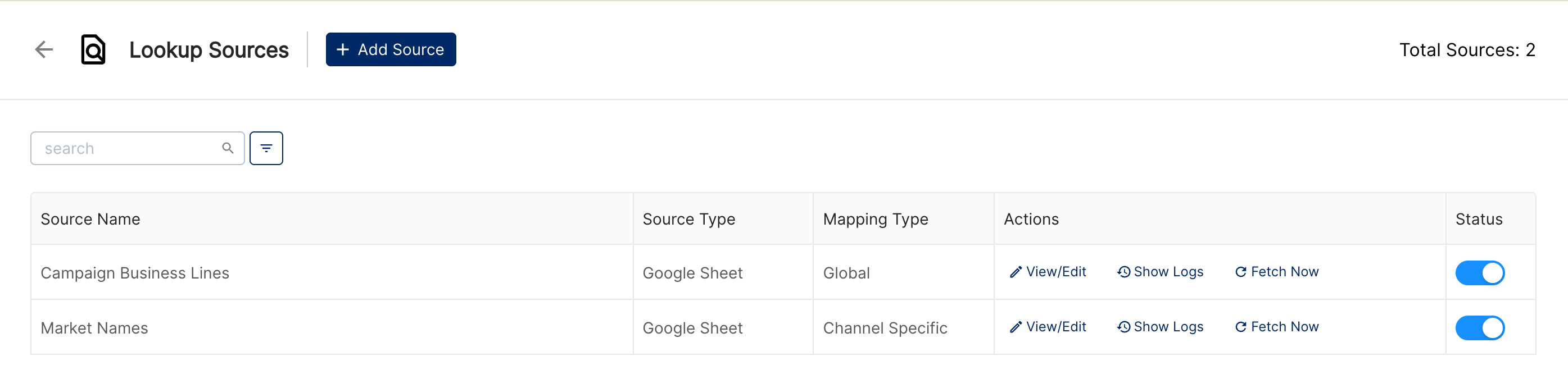
Fetch Now: on the Lookup Sources list, click Fetch Now to import immediately. It is available only for active sources.
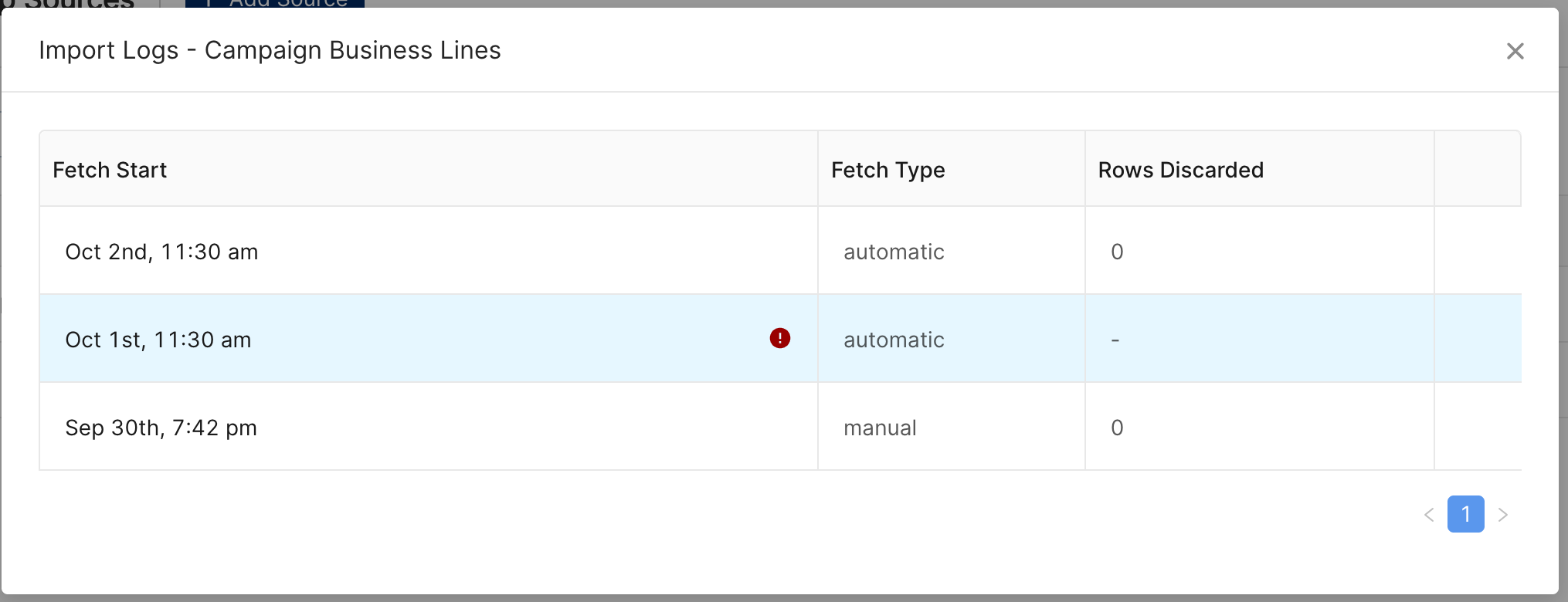
Show Logs: click Show Logs to see recent imports with Fetch Start, Fetch Type (automatic or manual) and Rows Discarded. Hover over the red icon to read the error. Expand a row to see results per channel; for a Global Map you can download the import report, which lists every row with its status.
View/Edit: opens the source summary. Click Edit to change the name, Google account, worksheet, refresh time, channels or value columns.
Status: the toggle pauses or resumes a source. A source that is used by a custom dimension cannot be switched off.
You can also add values to custom dimensions from a file instead; see Importing custom dimension values in bulk.
Limits and troubleshooting
Message or symptom | What to do |
This name is already taken by another lookup source | Choose a different source name. |
Source sheet is empty | Check that the selected tab has a header row and data. |
Columns (...) were not found in the integrated source | A mapped column was renamed or deleted in the sheet. Restore the column name, or edit the source and remove it from the values. |
We found duplicate values for the lookup column. Please check the import logs to inspect the rows | The key column has the same key more than once (matching ignores case). Remove the duplicates and click Fetch Now. The whole import is rejected until this is fixed. |
We found empty values for the lookup column. Please check the import logs to inspect the rows | Fill in or delete rows with an empty key. |
The source faced an authorization error. Please re-authenticate to proceed | The Google account lost access. Edit the source and reconnect the account, or share the sheet with it again. |
The configured sheet was not found at the source. Please re-configure the source to proceed | The tab was deleted or the sheet moved. Edit the source and select the worksheet again. |
... cannot be removed from the map since it is actively used in custom dimensions | Delete the custom dimension rules that use this channel or value column first, then edit the source. |
Cannot be marked inactive as it's used in custom dimensions | Remove the lookup values that use this source before switching it off. |
Can't change lookup dimension once set | Create a new lookup source with the new dimension. |
Some rows get no value | The key is missing from the sheet or differs slightly (extra spaces, different ID format). Compare the values in a report with the key column. |
We faced an error while processing this file. Please reach out to our team for further support | Contact Clarisights support with the source name and the time of the failed import. |
Other limits to keep in mind:
Each source has one key column and one lookup dimension.
The lookup dimension must be available on every channel the source is mapped to.
Lookup values are returned as text.
Lookup sources refresh at most once a day automatically; use Fetch Now for urgent changes.