
How to share a report with a team?
You can share a report with a whole team in one click. The advantage over sharing with individual users: anyone added to the team later gets access to the report automatically, while a report shared individually has to be shared again with every new user.
Teams can be based on marketing domains (SEA, Paid Social, Brand) or on geos. Sharing a report with the team makes sure every member of the team has access to it.
If Teams are not set up in your Clarisights workspace yet, see Creating and Managing Teams.
To share a report with individual users instead, see How to Share Reports.
Share a report with a team
To get started, click the Share Report icon next to the report name.

The Share Report window opens. Click the Enter team/user name box to see the list of users, followed by the list of Teams (Americas and EMEA in the image below).
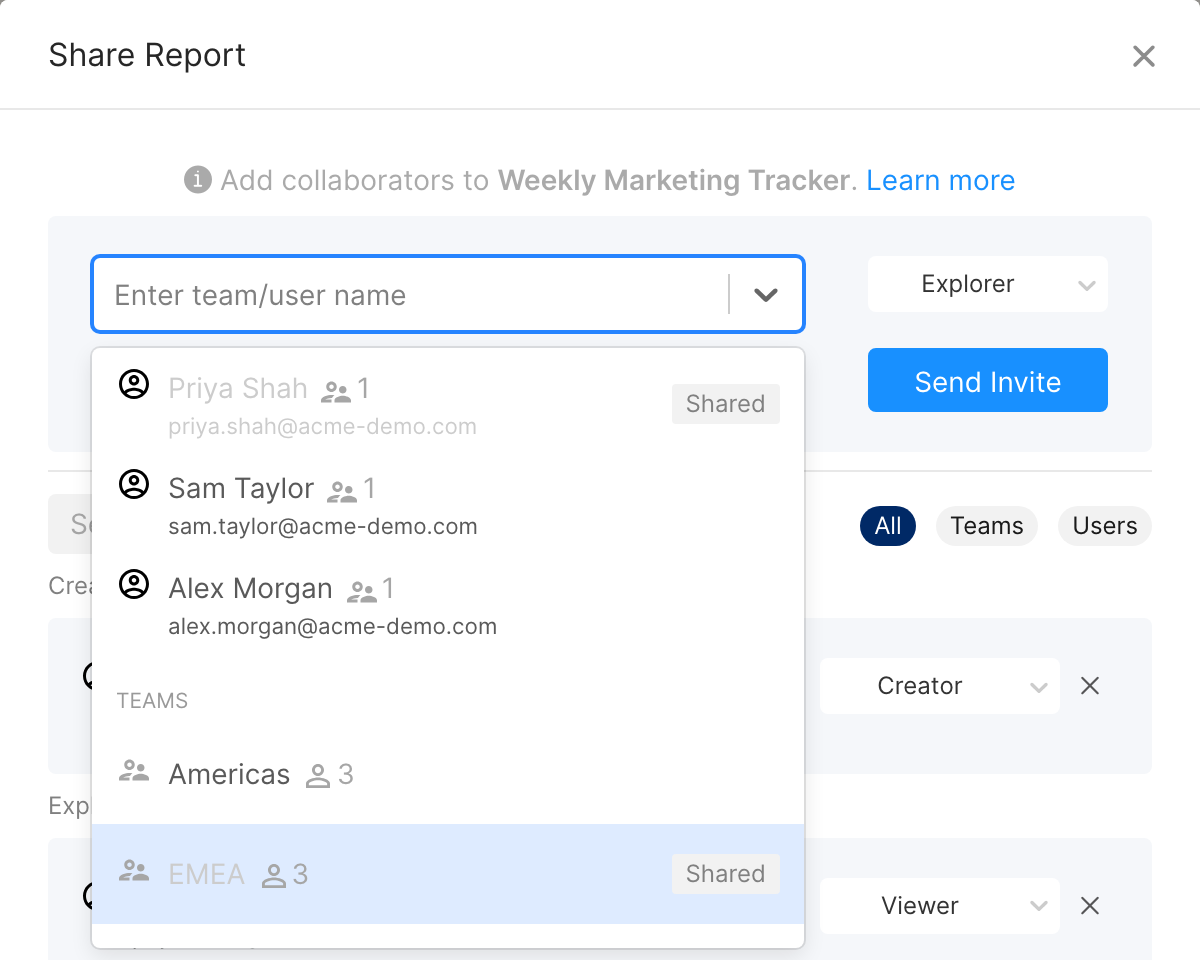
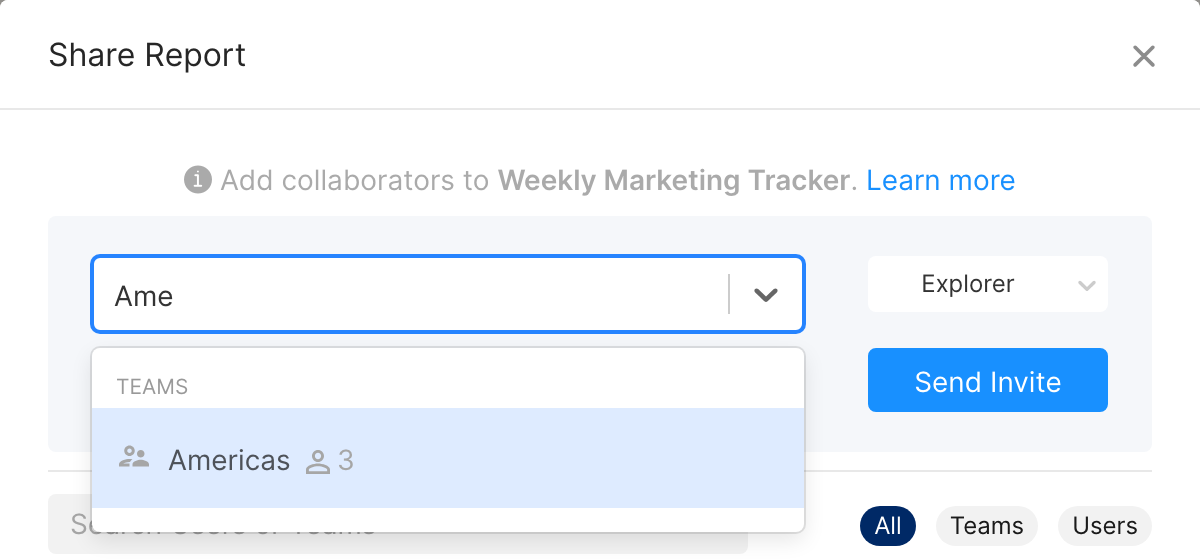
You can search for the team and see the number of users who are part of it. Hover over the number to see the list of team members.
Report permissions
A report can be shared with individual users in any role: Creator, Editor, Explorer or Viewer. A Team can only be given the Explorer or Viewer role, because it is not good practice to have a lot of users editing the same report.
Difference between Explorer and Viewer
Explorer
If you are an explorer, you:
can invite new collaborators and assign them to explorer or viewer roles
can temporarily edit widgets by adding metrics/dimensions/filters (changes will not be saved when you exit the report)
can generate snapshots of the report
cannot edit the report settings
Viewer
If you are a viewer, you:
cannot invite new collaborators to the report
cannot make any changes to the report except for the date filter
can download widgets as CSV
cannot generate snapshots or schedule email updates
Note: report permissions are set per report, so a user can be the Editor of one report and an Explorer in another. They are separate from the user roles you choose when inviting a user to your Clarisights workspace.
To share view-only, real-time reports through a link, see Sharing a Snapshot of a report.