
How to Share Reports?
You can share a report with your teammates and ask them to collaborate with you on building it. You can also share a report with external teams and give them view-only access.
There are two ways of sharing a report:
Sharing it with individual users
Sharing it with a team (provided teams are set up in your Clarisights account). See How to share a report with a team.
Share a report with users
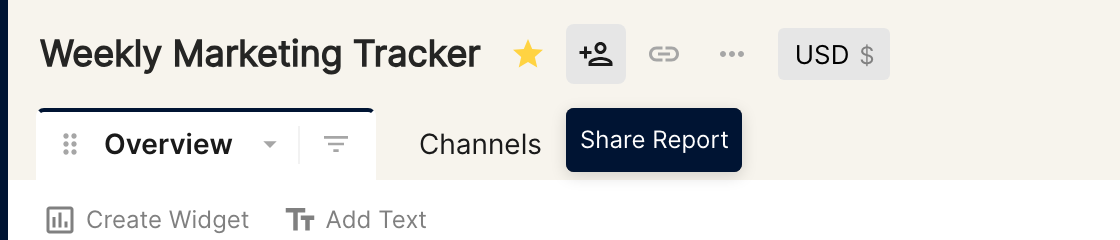
Click the Share Report icon next to the report name.
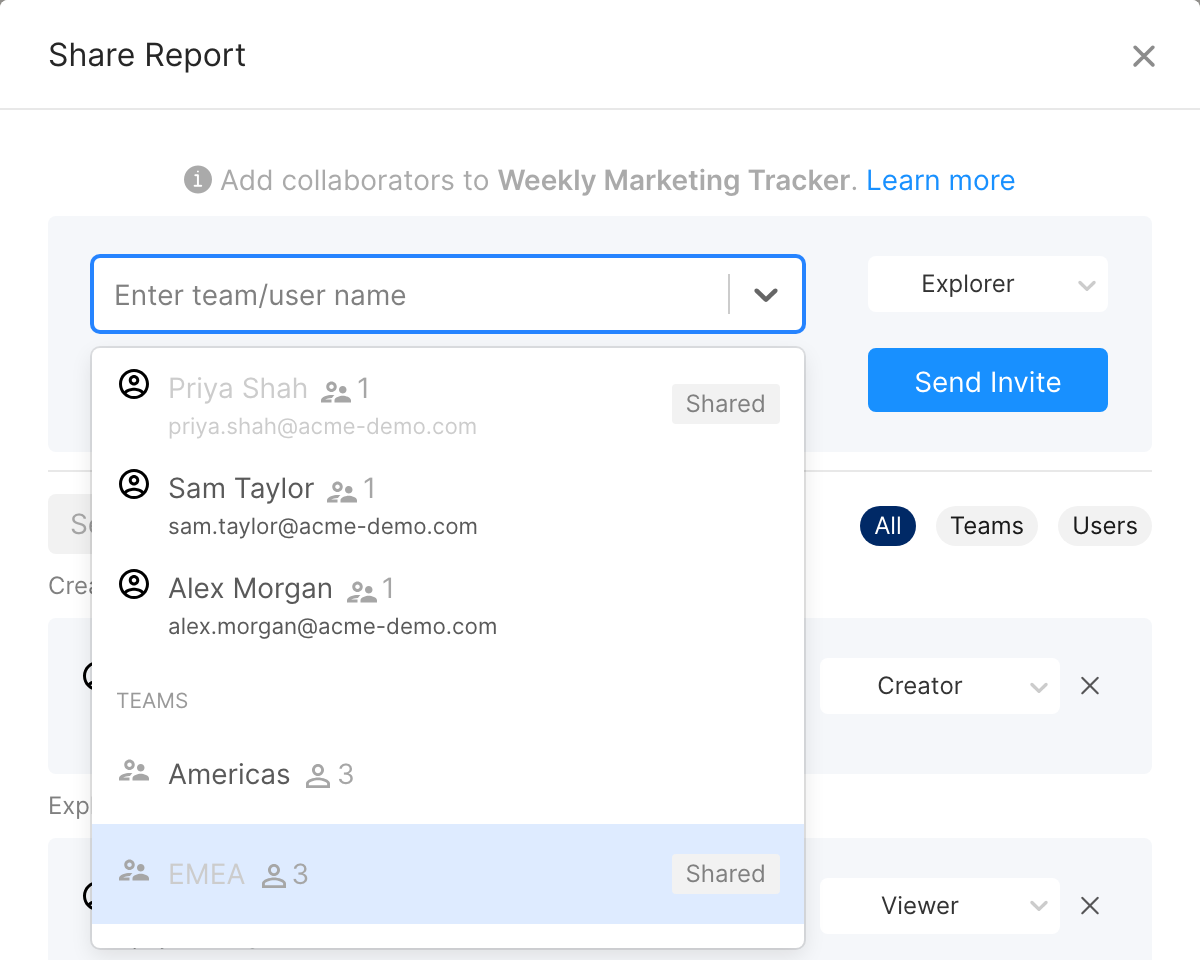
In the Share Report window, search for the user in the Enter team/user name box.
Select the permission level (Explorer by default).
Optionally, add a message. The invited user will see it in the invite email.
Click Send Invite.
Permission levels
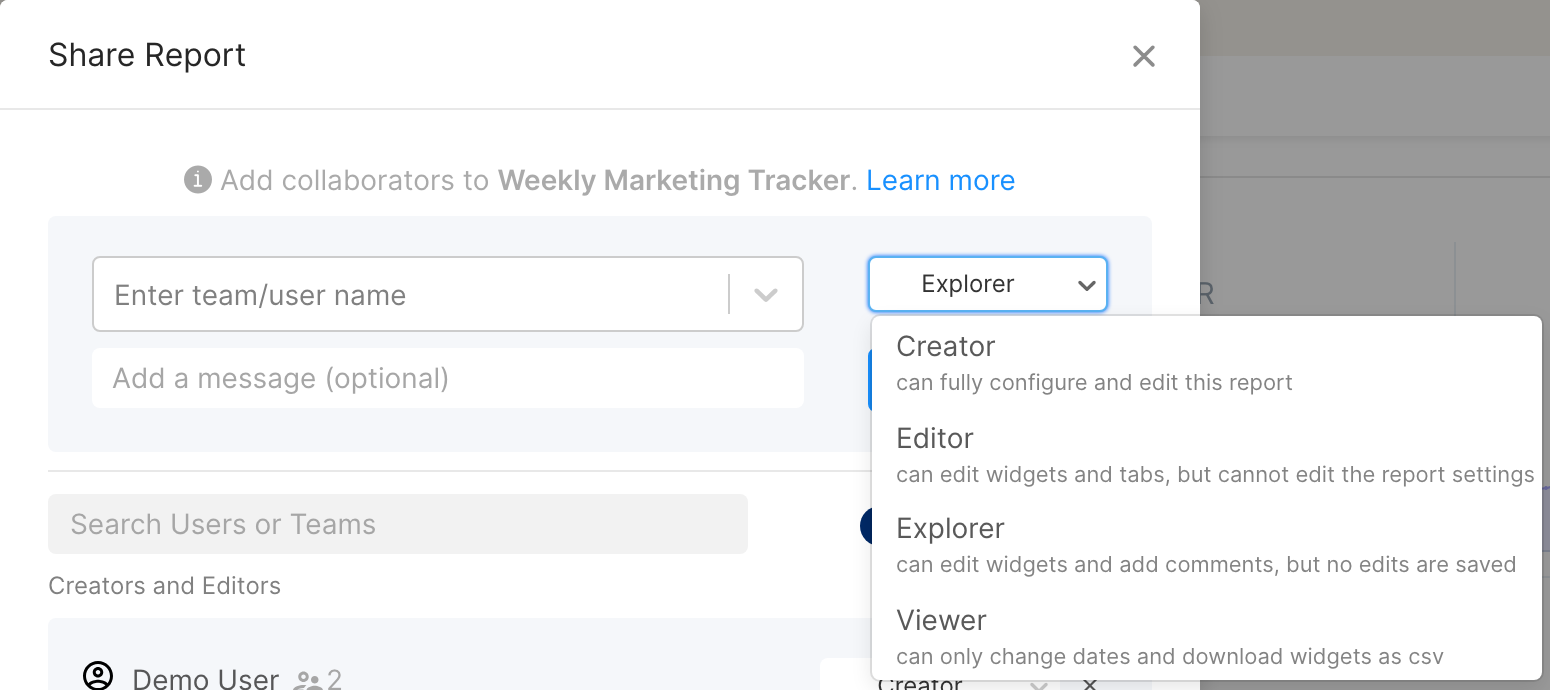
Anyone can be given one of four permission levels, whatever their role in the company: Creator, Editor, Explorer and Viewer. You can only give a permission level that is the same as or lower than your own.
Creator
If you are a creator, you have complete report-level access and you:
can invite new collaborators and assign them to creator, editor, explorer or viewer roles
can fully configure and edit/delete reports
can change the name of the report, modify data sources and choose metrics and dimensions
Note: a creator can only remove themselves from the report if at least one other creator remains.
Editor
If you are an editor, you have widget-level access and you:
can invite new collaborators and assign them to editor, explorer or viewer roles
can edit the tabs and widgets
cannot edit the report settings (name, data sources, metrics & dimensions)
Explorer
If you are an explorer, you:
can invite new collaborators and assign them to explorer or viewer roles
can temporarily edit widgets (changes will not be saved when you exit the report)
can generate snapshots of the report
cannot edit the report settings
Viewer
If you are a viewer, you:
cannot invite new collaborators to the report
cannot make any changes to the report except for the date filter
can download widgets as CSV
cannot generate snapshots or schedule email updates
To invite users from your advertising partners, such as Google Ads or Facebook, you would usually share the report with them as a Viewer.
Users whose company role is Viewer can only be added to a report as an Explorer or Viewer.
Share within the company
Enabling this shares the report with all users in the company, who can all access it with explorer permissions. If a user has access to the report as an editor or creator, that permission overrides the company-wide sharing. Only creators can switch on company-wide sharing.
Note: report permissions are set per report, so a user can be the Editor of one report and an Explorer in another. They are separate from the user roles you choose when inviting a user to your Clarisights workspace.
To share view-only, real-time reports through a link, see Sharing a Snapshot of a report.