
Sharing a Snapshot of a report
Snapshots share view-only access to a report without the viewers having to log in to Clarisights. Creators, Editors and Explorers of a report can generate snapshots; Viewers cannot.
Generate a snapshot
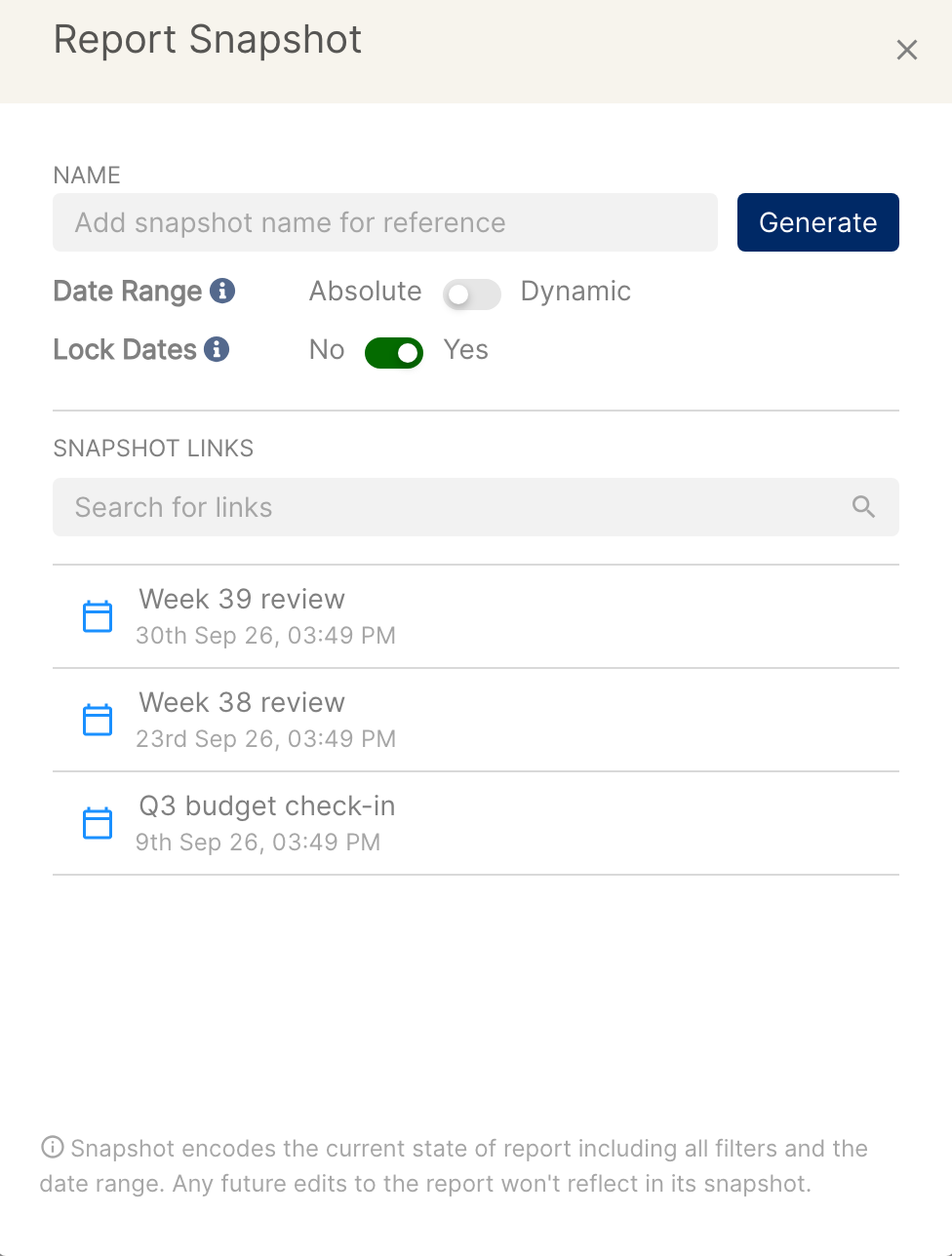
Click the Report Snapshots icon (the link icon next to the Share Report icon in the report header). The Report Snapshot window opens. Here you can generate a new snapshot or browse the snapshots previously created for this report.
Name the snapshot, or keep the auto-generated name. A name helps you track what the snapshot is for, for example "Snapshot shared with Google POC".
Choose the Date Range and Lock Dates options (explained below).
Click Generate to create the snapshot.
All active snapshots are listed in the Snapshot Links section, where you can also search for a link by name. Hover over a snapshot to open it in a new window, copy the link, email the link or delete it.
Note: a snapshot captures the current state of the report, including all filters and the date range. Changes made to the report after you generate the link are not reflected in the snapshot.
Snapshot links stay active until you delete them from the Snapshot Links section.
Date Range: Absolute or Dynamic
Absolute (default): the snapshot shows the exact dates that were selected in the report when you generated it.
Dynamic: if the report uses a date preset (for example, Last 7 Days), the snapshot keeps that preset and moves it forward over time, so it always reflects the latest data.
Lock Dates
A snapshot is a read-only version of your report. Anyone opening it can only view the data in the report and cannot change the dimensions, metrics and so on.
Yes (default): viewers of the snapshot cannot change the date in the date picker.
No: viewers of the snapshot can change the date range and view data for different time periods.
If the report has quick filters, they are added to the snapshot as tab filters.