
Scheduling your Reports
Scheduled email updates keep your leadership or clients up to date on marketing performance. A scheduled report is sent automatically to the recipients' inboxes at the times and frequency you choose, with the latest data. Each email contains a link to a snapshot of the report.
Schedule a report
Open the report you want to share.
Click the ... icon next to the report name and choose Report Scheduler.
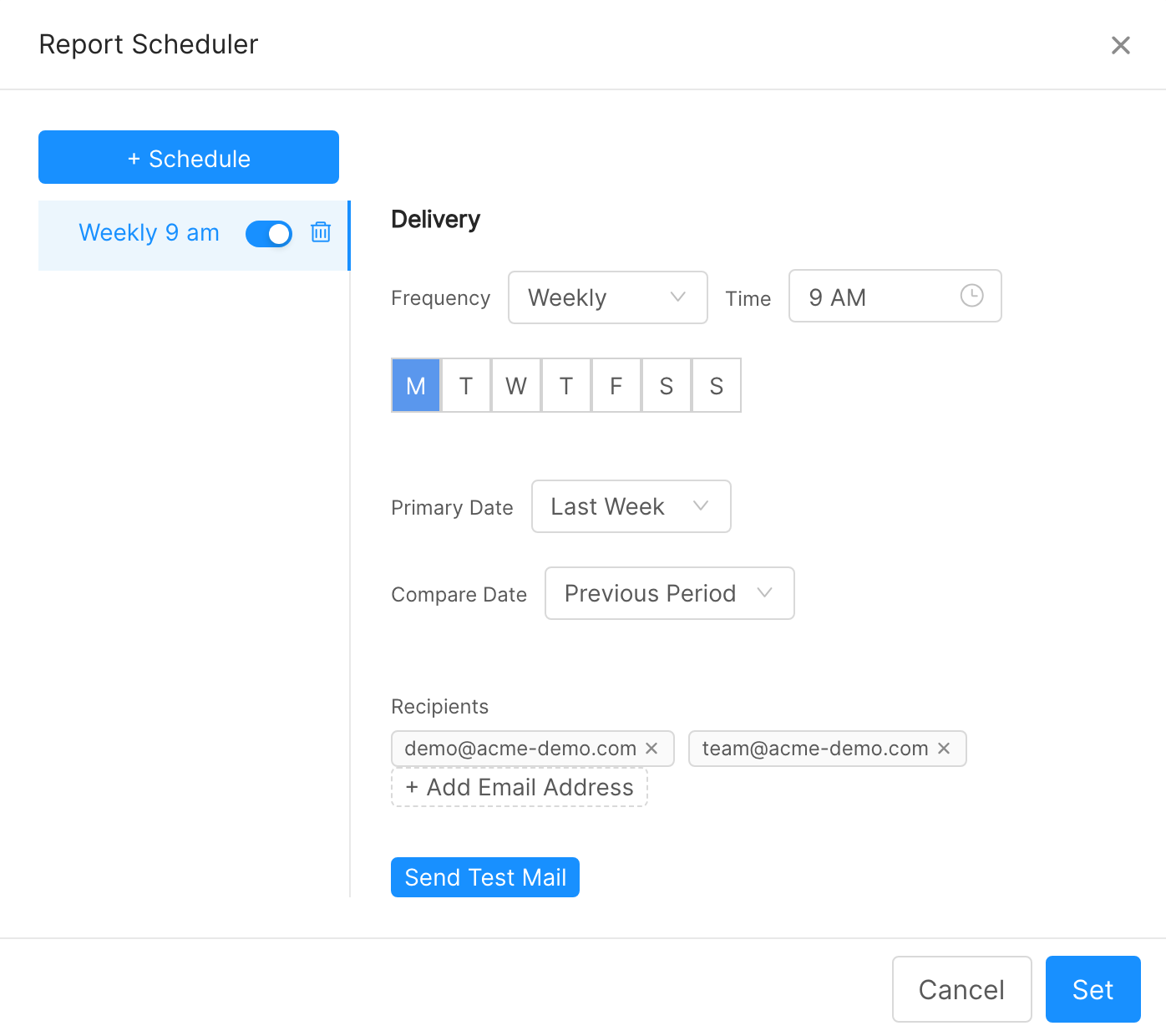
In the Report Scheduler window, click + Schedule and set:
Frequency: Daily or Weekly. For weekly updates, pick the days of the week.
Time: the hour at which the email is sent.
Primary Date and Compare Date: the date ranges shown in the scheduled report, for example Last Week compared with Previous Period. These are rolling, based on the time the report is delivered each time.
Recipients: click + Add Email Address to add each recipient.
Click Send Test Mail to check what recipients will receive, then click Set to save the schedule.
The report is then updated and sent to the recipients at the chosen frequency.
Manage schedules
A report can have several schedules. Use the toggle next to a schedule to pause or resume it, and the bin icon to delete it. Viewers of a report cannot schedule email updates.