
Managing Metrics and Dimensions in Clarisights
When building reports, you'll come across a lot of metrics and dimensions. Clarisights pulls most, if not all, of the metrics and dimensions for every channel to support every possible use case, but your team probably uses only a few of them.
We recommend disabling the metrics and dimensions your workspace doesn't use. This declutters the list of metrics and dimensions when you build a widget, a Custom Dimension or a Custom Metric.
Disable metrics and dimensions
You manage dimensions and metrics one channel at a time.
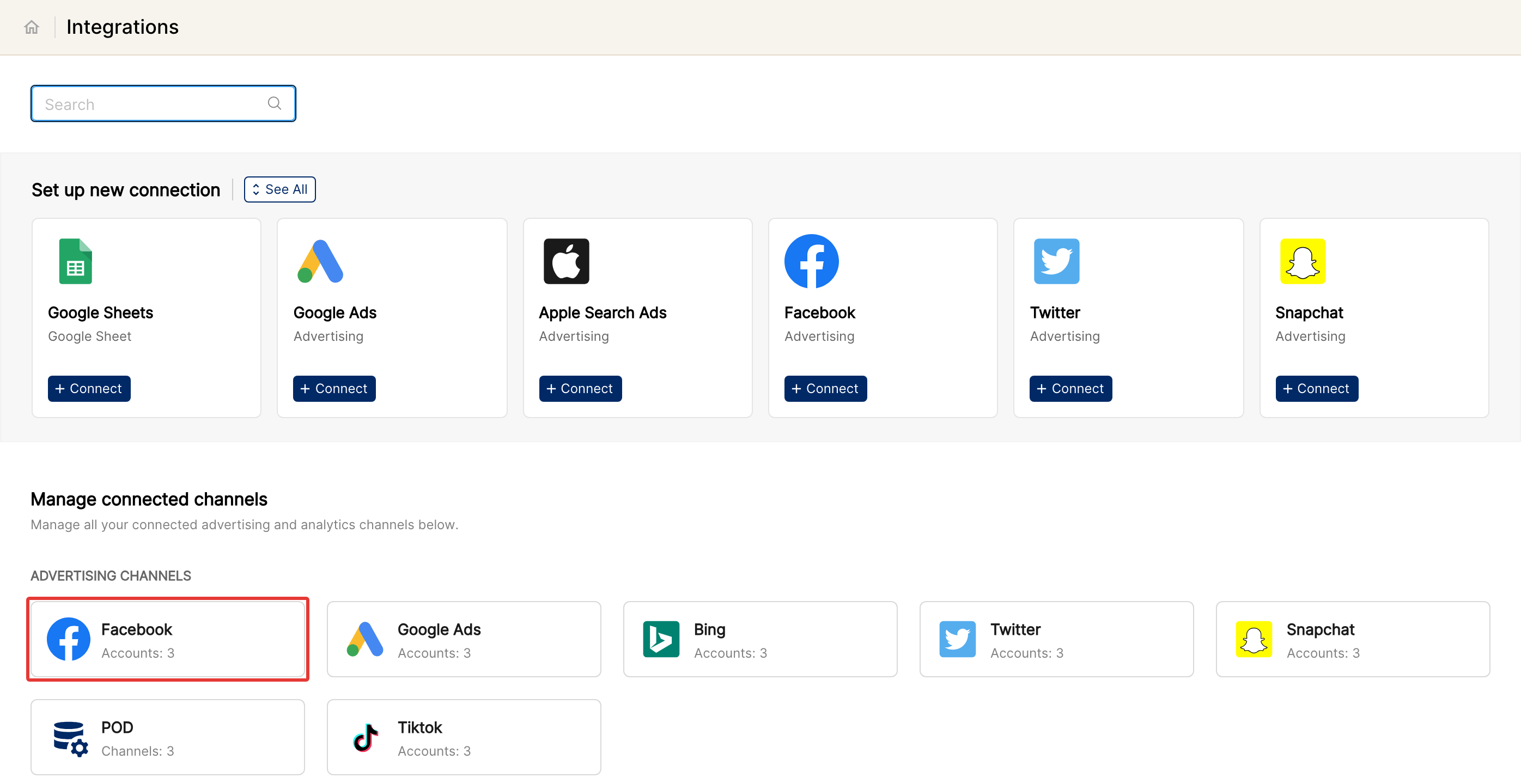
Go to the Integrations page (the database-stack icon in the left sidebar). The channels already integrated in your workspace are listed under Manage connected channels.
Click the card of the channel you want to start with. Above the list of connected accounts are two buttons: Manage Dimensions and Manage Metrics. Analytics channels such as Google Analytics only have the Manage Metrics button. Guide to POD Data Source explains why.
Both sections are almost identical. Each has a table of all the available dimensions or metrics for the selected channel, with the name, the date it was last used and the number of times it has been used in a widget or custom dimension or metric.
Select one or more dimensions or metrics that aren't used anywhere in your workspace, and click Disable Selected at the top right.
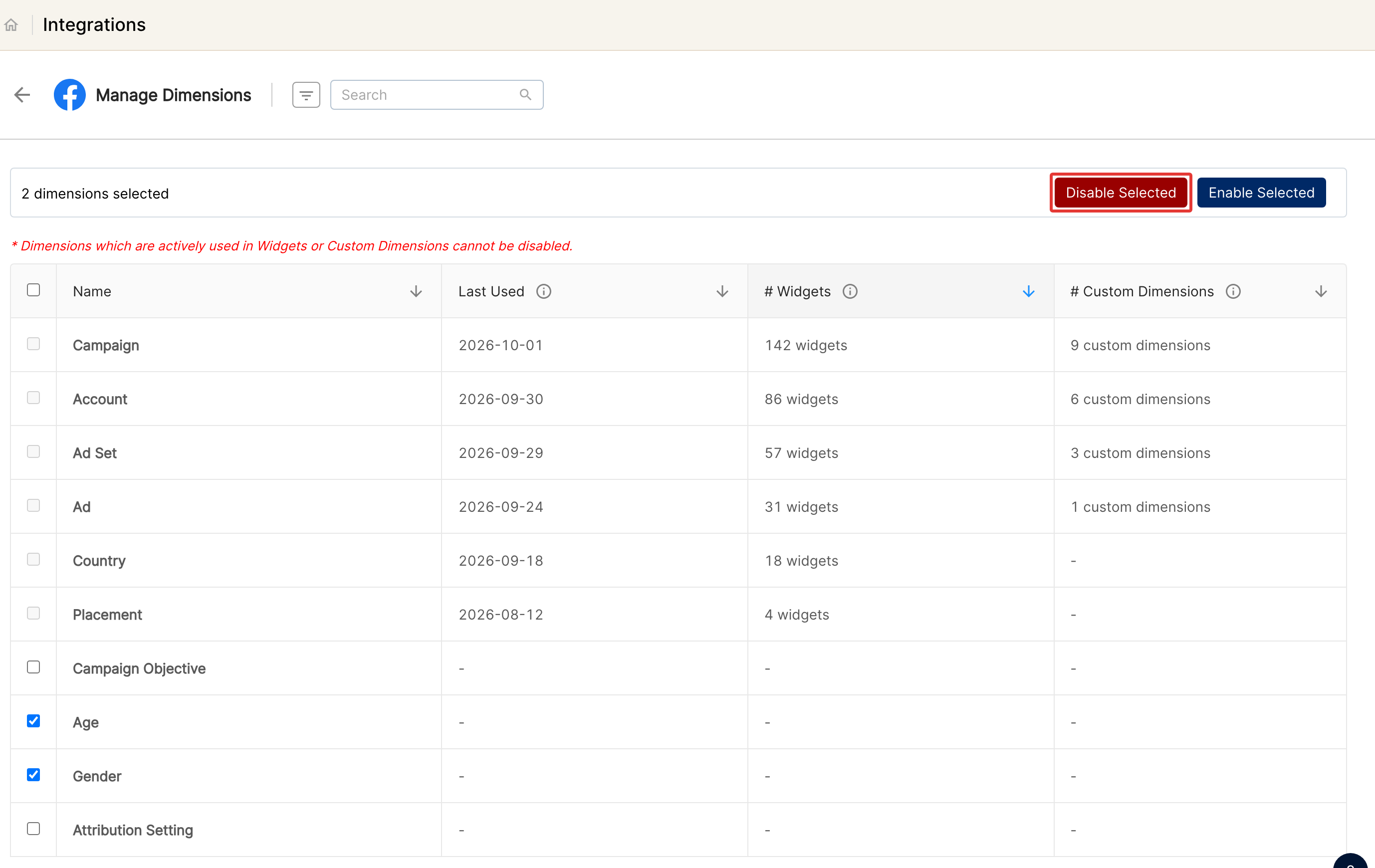
Disabled metrics and dimensions are no longer visible in your Clarisights workspace. You can re-enable them at any time by selecting them and clicking Enable Selected.
Note: you can't disable dimensions or metrics that are used in any report, Custom Dimension or Custom Metric in your workspace.