
Integrating Google Ads on Clarisights
Connect your Google Ads accounts to monitor campaign performance, keywords, search terms, and creative assets across every campaign type (including Performance Max) alongside the rest of your marketing stack. This article covers the full integration: connection steps, hierarchy, dimensions, metrics, segments and breakdowns, PMax-specific behavior, and asset reporting.
At a glance
Authentication | OAuth 2.0 (Google) |
Permissions needed | Read access on each Google Ads customer account or on the parent Manager (MCC) account |
Account discovery | Automatic: Clarisights walks every MCC tree the authenticating user can access |
Data freshness | Hourly |
Lookback window | Rolling, refreshed daily |
Backfill on connect | Last 30 days |
Timezone | Each account's configured timezone (preserved as-is) |
Currency | Account native currency (auto-converted via Currency Conversion) |
Levels supported | Account · Campaign · Ad Group · Ad · Keyword · Asset · Search Term |
Limited rollout | No |
Prerequisites
An active Google account that has access to the Google Ads customer accounts you want to connect, either as a direct user on each account or as a user on a Manager (MCC) account that owns them
Permission to authorize third-party apps with your Google account (no domain-level OAuth restrictions blocking the
https://www.googleapis.com/auth/adwordsscope)Pop-up blocker disabled for
app.clarisights.comfor the duration of the OAuth flow
Steps to Connect
Step 1: Start the connection from Clarisights
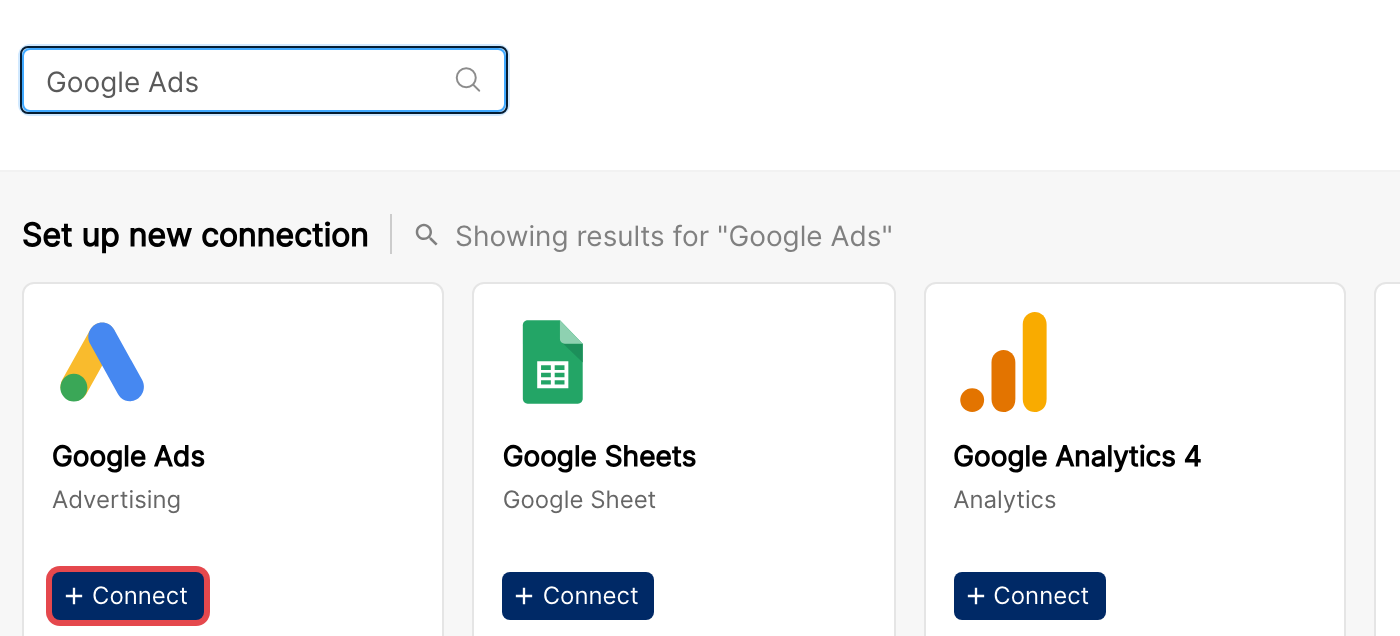
In Clarisights, go to Integrations and click + Connect under the Google Ads tile.
Step 2: Sign in with Google and authorize Clarisights
A pop-up will open Google's sign-in screen. Sign in with the account that has access to your Google Ads customer accounts (or to the parent MCC) and grant Clarisights the requested permissions.
⚠ Common error: The pop-up never appears or closes immediately. → A pop-up blocker is preventing the OAuth window. Allow pop-ups for
app.clarisights.comand click + Connect again.
⚠ Common error: "This app is blocked" / "Access blocked: authorization error". → Your Google Workspace admin has restricted third-party app access to the
adwordsscope. Ask your admin to allowlist Clarisights or use a Google account without the restriction.
Step 3: Pick the accounts to connect
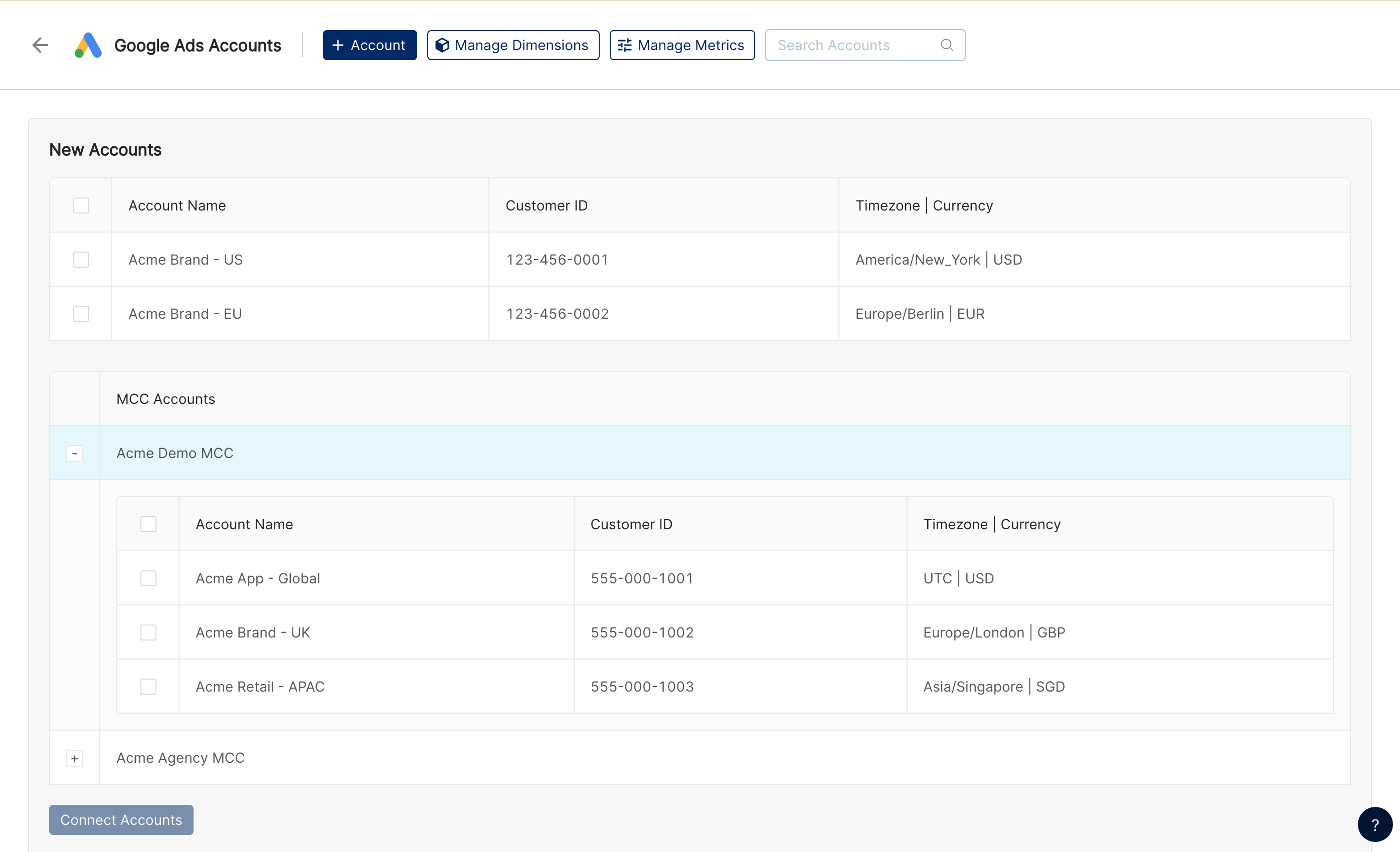
After authentication, Clarisights crawls every Manager (MCC) tree the user can access and shows two lists:
New Accounts: individual customer accounts the user has direct access to (not via an MCC).
MCC Accounts: Manager accounts the user has access to. Click the + next to an MCC to expand it and reveal the customer accounts inside.
Tick the customer accounts you want to bring into Clarisights. You can tick accounts in the New Accounts list and inside as many MCCs as you need before you confirm.
⚠ Common error: An expected MCC or customer account is missing from the list. → The Google user you authenticated with doesn't have access to that account. Either add the user to the account in Google Ads (Tools & settings → Access and security) or re-authenticate with a different Google account.
Step 4: Confirm
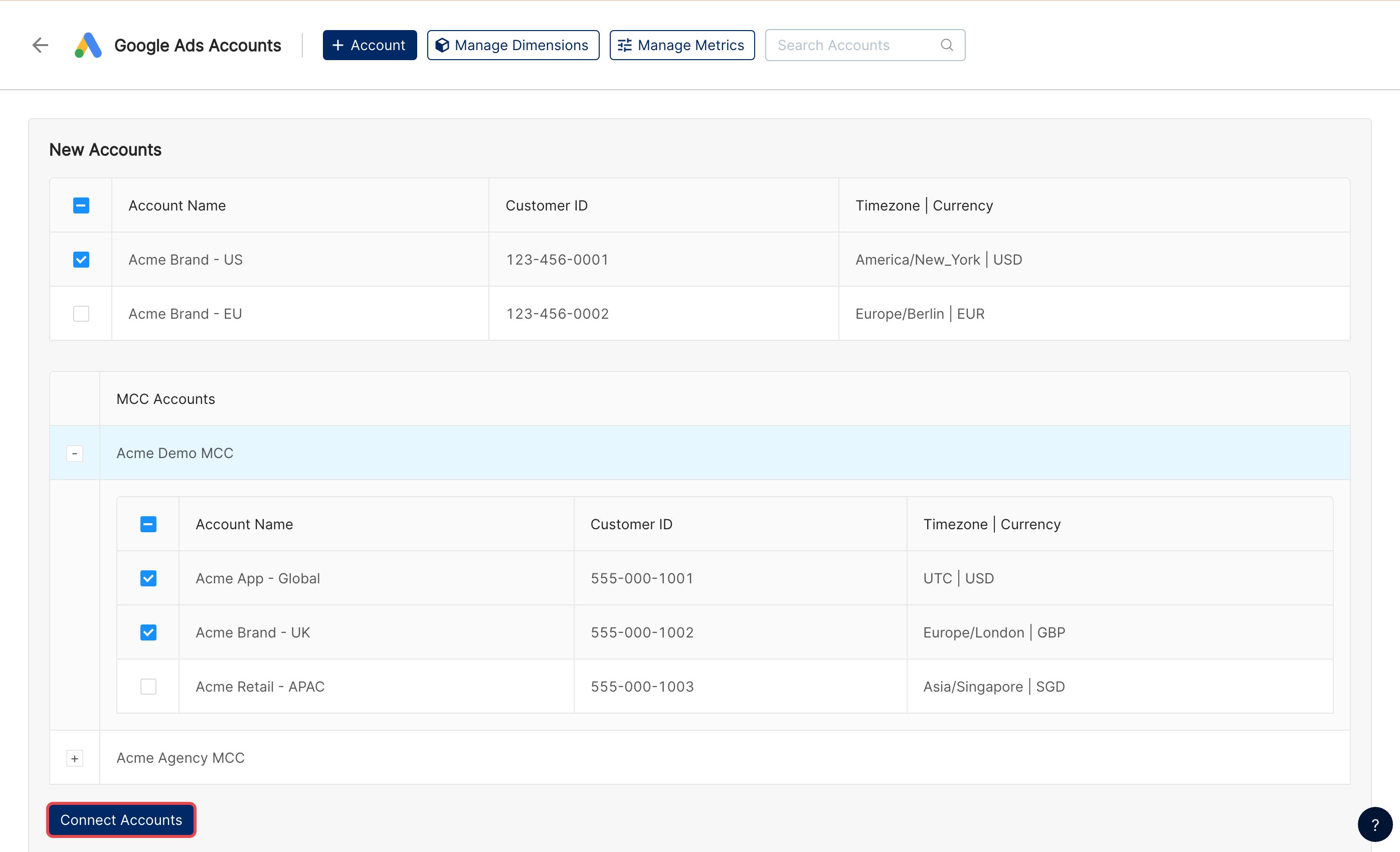
When your selection is complete, click Connect Accounts. Clarisights will register every account you selected and start the initial 30-day backfill.
Verify the connection
Go to Integrations → Google Ads. Each connected account should show a "Connected" status, and you can enable, disable, or refresh the OAuth token from the same row.
You'll get an in-app notification once the 30-day backfill finishes (typically within a few hours, depending on account size).
Quick start: create a new report, add Google Ads as the data source, and add Account · Campaign · Impressions · Clicks · Cost.
Data available
Hierarchy
How Google Ads' native levels map to the standard Clarisights levels:
Google Ads native | Clarisights level |
Customer (Account) | Account |
Campaign | Campaign |
Ad Group | Ad Group |
Ad | Ad |
Keyword | Keyword (sub-level under Ad Group) |
Asset | Asset (cross-cuts Ads; see PMax & RSA below) |
Search Term | Segment of Ad Group |
Audience targeting | Super-dimension on Campaign + Ad Group |
Location targeting | Super-dimension on Campaign |
Manager (MCC) accounts are not their own reporting level; they're surfaced as the Linked Manager Accounts attribute on the Account level. If a customer account sits inside a chain of MCCs (e.g. MCC-1 → MCC-2 → Account), all parents are stored as a comma-separated list.
Dimensions
Account
Dimension | Description |
Linked Manager Accounts (MCC) | Comma-separated list of every MCC in the customer's parent chain. Use the "Contains" filter (not "Is") when filtering by a specific MCC. |
Campaign
Dimension | Description |
Campaign Status | Current status of the campaign. |
Campaign Type | Where the campaign serves and which settings are available (Search, Display, Performance Max, Universal App, Video, Shopping, etc.). |
Campaign Labels | Comma-separated list of labels applied to the campaign. Use "Contains" for filtering when multiple labels are present. |
Daily Budget | Campaign's daily budget. Reflects the entire shared budget if the campaign uses one. |
Bidding Strategy Type | Manual or automated bidding strategy assigned to the campaign. |
Locations (Super Dimension) | Targeted locations from the campaign's location settings. |
Campaign Audiences (Super Dimension) | Audiences targeted from the campaign's audience settings. |
Campaign Start Date | The campaign's start date. |
Ad Group
Dimension | Description |
Ad Group Status | Current status of the ad group. |
Ad Group Bid | Default Max CPC or Target CPA, depending on the ad group's bidding strategy. |
Ad Group Labels | Comma-separated list of labels applied to the ad group. Use "Contains" for filtering. |
Ad Group Audiences (Super Dimension) | Audiences targeted from the ad group's audience settings. |
Targeting Types (Super Dimension) | Targeting methods applied to the ad group (Keyword, Demographic, Placement, etc.). Multiple values shown when several targeting types are used together. |
Ad Group Type | Determines which ad formats are allowed (e.g., in-stream, video discovery). |
Ad
Dimension | Description |
Ad Status | Current status of the ad. |
Ad Labels | Comma-separated list of labels applied to the ad. Use "Contains" for filtering. |
Landing Pages | Final URL configured in the ad's settings. For Performance Max, the asset group's final URLs. |
Ad Type | Type of the ad (Expanded Text Ad, Responsive Search Ad, HTML5, Performance Max, App, etc.). |
Ad Strength | Google's quality rating for the ad (Excellent, Good, Average, Poor). Available for Responsive Search Ads, Performance Max, and other supported ad formats. |
Images (Super Dimension) | Display ad imagery. Identical images shared across multiple ads are rolled up into a single image. |
Headline 1 to Headline 15 | Headline text fields on the ad (Responsive Search Ads can have up to 15). |
Description 1 to Description 4 | Description text fields on the ad. |
Display URL | Display URL configured for the ad. |
Keyword
Dimension | Description |
Keyword Status | Current status of the keyword. |
Quality Score | Google's quality score for the keyword. |
Keyword Labels | Labels applied to the keyword. |
Keyword Match Type | Broad, Phrase, or Exact. |
Est Top of Page Bid / Est First Position Bid / Est First Page Bid | Google's bid estimates for landing in each position. |
Keyword Final URL | Final URL configured on the keyword. |
Max CPC | Maximum CPC bid set on the keyword. |
Unique Keyword | Deduplicated keyword identity across the account. |
Word count in Keyword | Number of words in the keyword phrase. |
Landing Page Experience / Expected CTR / Ad Relevance | Quality Score component scores reported by Google. |
Creative Asset
Creative Assets are creative elements (images, videos, headlines, descriptions, CTAs, sitelinks, structured snippets, etc.) attached to ads. They sit just below the Ad level and cross-cut Ads: the same asset can serve in multiple ads.
Dimension | Description |
Creative Asset ID | Unique numeric identifier for the asset. |
Creative Asset Type | Image, Video, Text, Call to Action, Structured Snippet, Sitelink, Demand Gen Carousel Card, etc. |
Creative Asset Field Type | The role the asset plays in the ad (e.g., Headline, Long Headline, Description, Marketing Image). |
Creative Asset Preview | Preview of the asset: the text, the image, or the video. |
Creative Asset Image Width / Height | Image dimensions for image assets. |
Creative Asset Source | Whether the asset was advertiser-provided or generated by Google AI. |
Creative Asset Pinned Field | The position the asset is pinned to (e.g., Headline 1, Description 2). |
Creative Asset Enabled | Whether the asset is currently enabled for serving. |
Creative Asset Status | Status of the asset link on the ad. |
Creative Asset Primary Status / Primary Status Reasons | Google's primary serving status for the asset and the reasons behind it. |
Creative Asset Performance Label | Google's relative-effectiveness rating for the asset (Best, Good, Low) in eligible ad types. |
Dimensions marked (Super Dimension) are computed by Clarisights and are not directly available in the Google Ads UI.
Segments & breakdowns
Segments are breakdown dimensions Google Ads exposes for slicing campaign data along orthogonal axes (geography, device, time of day, etc.). They appear in the dimension list with a breakdown suffix, for example Device (Breakdown) or Search Term (Ad Group Breakdown).
Segment | Level | Description |
Geographic | ||
Country | Campaign | Country where the impression / click was served. |
Region | Campaign or Ad Group | Geographic region where the impression / click was served. |
Metro Area | Campaign or Ad Group | US Designated Market Area (Nielsen DMA) where the impression / click was served, for example "New York". Uses the same Metro Area names as the Bing and other channel breakdowns, so you can compare markets across channels. Older setups show this breakdown as Metro. |
City | Campaign or Ad Group | City of the impression / click. |
Landing Page | Campaign | Final URL the click landed on. |
Audience demographics | ||
Age Range | Ad Group | Reported age bucket of the user (18-24, 25-34, etc.). |
Gender | Ad Group | Reported gender of the user. |
Engagement context | ||
Device | Campaign | Device type the ad served on (mobile, desktop, tablet, connected TV). |
Network | Campaign | Network the ad served on (Search, Display, Search Partners, YouTube). |
Top vs Other | Campaign | Whether the ad served at the top-of-page position or elsewhere. |
Click Type | Campaign | Type of click (organic, cross-device, headline, sitelink, etc.). |
Hour | Campaign | Hour the impression / click occurred (0 to 23, in account time). |
Conversion attribution | ||
Conversion category | Campaign | Google's conversion category (Purchase, Sign-up, Lead, etc.). |
Conversion Tracker Id | Campaign | Identifier for the conversion action. |
Conversion action | Campaign | Specific configured conversion action attributed to the click. |
Days to conversion | Campaign | Time between the ad interaction and the conversion, in Google's day buckets. |
Conversion Source | Campaign | Source of the conversion (website, app, phone calls, store visits). |
Shopping | ||
Product Channel | Campaign | Whether the product was sold online or in a local store (Online / Local). |
Product Custom Attribute 0 to Product Custom Attribute 4 | Campaign | The Merchant Center custom labels (custom_label_0 to custom_label_4) of the advertised products, for example season or margin band. Products without a label show as Unknown. |
Search behavior | ||
Search Terms | Ad Group | Actual user queries that triggered ads. Performance Max campaigns supported as of February 2026. |
Most segments are stored at Campaign level. Search Terms, Age Range, and Gender are stored at Ad Group level; Region, Metro Area, and City can be enabled at either level.
The Shopping breakdowns only cover Shopping campaigns (Search, Display, and Video campaigns are not included), so their totals will not match account-level totals, and View-through conv. is not available for them.
Segments cannot be joined with Analytics channel data (Google Analytics, Custom Analytics, Adobe); they pair only with Google Ads metrics on the same widget.
Segment, Location, and Audience reports require manual enablement (contact your Clarisights CSM).
Metrics
Core delivery
Metric | Description |
Impressions | Total ad displays. |
Clicks | Total clicks on the ad. |
CTR | Click-through rate (Clicks / Impressions). |
Cost | Total spend in the account's native currency (auto-converted to your reporting currency). |
Avg. CPC | Average cost per click. |
Avg. CPM | Average cost per thousand impressions. |
Cost (Local currency) | Spend in the account's own currency, before conversion. |
Avg. Position | Average ad position (legacy metric). |
Conversions
Metric | Description |
Conversions | Counted conversions. |
Conv. rate | Conversions / Clicks. |
Cost / conv. | Cost per conversion. |
All Conversions | All conversions including those configured outside the "Include in Conversions" setting. |
Conv. value / All conv. value | Total monetary value of conversions (and of all conversions). Local-currency variants are also available. |
Click-Assisted conv. / Impression-Assisted conv. | Conversions where the ad assisted but didn't get last-touch credit. |
Cross-Device conv. | Conversions completed on a different device than the ad interaction. |
View-through conv. | Conversions following an ad impression without a click. |
Installs / In-app actions | App install and in-app conversions for App campaigns. |
Quality, impression share & engagement
Metric | Description |
Quality Score | Historical Quality Score trend for the keyword in the chosen period (impression-weighted average). |
Search Impression Share | Impressions received divided by the impressions you were eligible for on the Search Network. |
Search lost IS (rank) / Search lost IS (budget) | Share of eligible impressions lost because of Ad Rank or budget. |
Search top impression share / Search absolute top impression share | Share of eligible top and absolute top impressions you received. |
Search top impression rate / Search absolute top impression rate | Share of your impressions shown above the organic results, or as the very first ad. |
Interactions / Interaction rate | Main user actions associated with the ad format (clicks, video views, engagements). |
Video Views / Video View rate | Video views and views divided by video impressions. |
Video Quartile 25% / 50% / 75% / 100% rate | Share of video impressions where the video played to each quartile. |
Viewable Impressions / Viewable rate | Impressions considered viewable, and their share of measurable impressions. |
Asset-level metrics
Asset-level metrics are available for Responsive Search Ads (RSA), Performance Max, Discovery Carousel / Multi-Asset / Video Responsive ads, and App Ads. Availability of individual metrics varies by ad type. For example, RSA exposes Impressions only, while PMax and Discovery formats expose the full set.
Metric | Description |
Impressions | Times the asset was served. |
Clicks | Clicks attributed to the asset. |
Cost | Spend attributed to the asset. |
Conversions | Conversions attributed to the asset. |
Conversion Value | Monetary value of asset-attributed conversions. |
All Conversions | All conversions (including non-"Include in Conversions" actions) attributed to the asset. |
All Conversion Value | Total value of all conversions attributed to the asset. |
CTR | Asset-level click-through rate. |
Avg. CPC | Average cost per click at asset level. |
Cost / conv. | Cost per conversion at asset level. |
View-through conv. | View-through conversions attributed to the asset. |
Installs | App install conversions for App Ads and Demand Gen formats. |
In-app actions | Post-install conversions for App Ads and Demand Gen formats. |
Custom conversions
Every conversion action you've defined in Google Ads is fetched automatically and becomes its own set of metrics, named after the conversion action: AW Conv, AW All Conv, AW Conv Val, AW All Conv Val, and AW VT Conv (view-through), followed by the conversion action name. They are grouped under metric groups such as Adwords Conversions and Adwords All Conversions. Conversion actions with the same name across multiple ad accounts are also rolled up into a single aggregated metric, which is handy when accounts are split by geo or product line.
Conversions by conversion date (available on request)
By default, Google Ads reports a conversion on the date of the ad interaction that led to it. On request, Clarisights can also bring in each conversion action reported on the date the conversion happened, as AW Conv (by Conv. time), AW All Conv (by Conv. time), AW Conv Val (by Conv. time), and AW All Conv Val (by Conv. time), followed by the conversion action name. Same-named conversion actions are also aggregated across accounts, like the default conversion metrics.
These metrics are available at the account, campaign, ad group, ad, and keyword levels and for most breakdowns, but not at asset level or for the Top vs Other, Ad Destination Type, Age Range, Gender, Landing Page, and Search Term breakdowns. Contact your Clarisights CSM to enable them.
Performance Max (PMax)
Full PMax support (added February 2026): ad-group and ad-level hierarchy for Performance Max campaigns.
Asset-level performance for PMax creative assets: images, videos, headlines, descriptions, long headlines, and CTAs.
Search Terms segment at the Ad Group level for PMax campaigns.
Ad-group stats are rolled up to ads to keep widgets readable. PMax doesn't expose ads natively, so Clarisights synthesizes a "dummy ad" record so the campaign hierarchy stays consistent across PMax, Search, Display, and other campaign types.
Asset Performance Label (Best / Good / Low) is surfaced as a dimension on the Asset level.
Landing Pages and Display URL on PMax ads are filled from the asset group's final URLs.
Special reports
Three reports require manual enablement. Contact your Clarisights CSM to turn them on:
Audience Report: campaign- and ad-group-level audience-targeting performance.
Location Report: campaign-level location-targeting performance.
Segment-driven reports: Search Terms, Country, Region, Metro Area, City, Device, Network, Top vs Other, Click Type, Hour, Landing Page, and the Shopping breakdowns (Product Channel, Product Custom Attribute 0 to 4). Once enabled, available as breakdowns on any widget.
Limitations & known constraints
Ad Name not available for: Responsive Display Ads (RDA), App Ads, App Engagement Ads, App Pre-Registration Ads, and Shopping Product Ads. Google's API does not expose ad-level names for these campaign types.
Segment, Location, and Audience reports require manual enablement: not on by default; ask your CSM to turn them on.
MCC tree access required: customer accounts must remain within the MCC tree the integration is bound to. Accounts moved outside the tree stop syncing.
Token revocation stops sync: re-authenticate via Integrations → Google Ads.
Auction Insights not supported (Google API limitation).
Operating notes
Refresh schedule: hourly with daily reconciliation against Google's finalized reporting numbers.
Backfill: 30 days of historical data on first connect; you'll get an in-app notification once it completes.
MCC traversal: full tree walk under the authenticating user. Multi-MCC customer chains are stored once with all parents listed in the comma-separated Linked Manager Accounts dimension on the Account level.
Currency: amounts are pulled in the account's native currency and converted to your reporting currency. Both converted and local-currency variants of cost metrics are available.
Adding new customer accounts: when you create or gain access to a new Google Ads customer or MCC, re-open Integrations → Google Ads to refresh the account picker and add it.
Credential rotation: OAuth tokens auto-refresh. Re-auth is needed only on Google password change, access revocation, or a Workspace policy update.
Need help?
When contacting support from the in-app messenger, please include:
The integration name and customer ID (Integrations → Google Ads)
The exact error message or screenshot
The step where the issue occurred (OAuth pop-up, account picker, post-connect data)
When the issue started, and whether it affects all accounts or a specific MCC / customer