
Integrating Bing Ads on Clarisights
Connect your Microsoft Advertising accounts (formerly Bing Ads) to Clarisights to track campaign, ad group, ad, and keyword performance across Microsoft Search alongside the rest of your marketing stack.
At a glance
| Authentication | OAuth 2.0 (Microsoft sign-in) |
| Permissions needed | Super Admin, Standard User, Advertiser Campaign Manager, or Viewer role on each ad account |
| Account discovery | Automatic after you sign in with Microsoft |
| Data freshness | Hourly account-object updates; performance reports refreshed daily |
| Lookback window | Rolling daily window with conversion-attribution backfill |
| Backfill on connect | Last 30 days |
| Timezone | Account timezone (configured in Microsoft Advertising; mapped to IANA timezones by Clarisights) |
| Currency | Account native currency (auto-converted via Currency Conversion) |
| Levels supported | Account · Campaign · Ad Group · Ad · Keyword (plus ad group breakdowns) |
| Limited rollout | Yes (beta) |
Prerequisites
An active Microsoft Advertising account
A Microsoft user role on the ad account: Super Admin, Standard User, Advertiser Campaign Manager, or Viewer
Permission to authorize third-party apps on your Microsoft account
You don't need your own Microsoft Advertising Developer Token: Clarisights uses its own.
Steps to Connect
Step 1: Start the connection from Clarisights
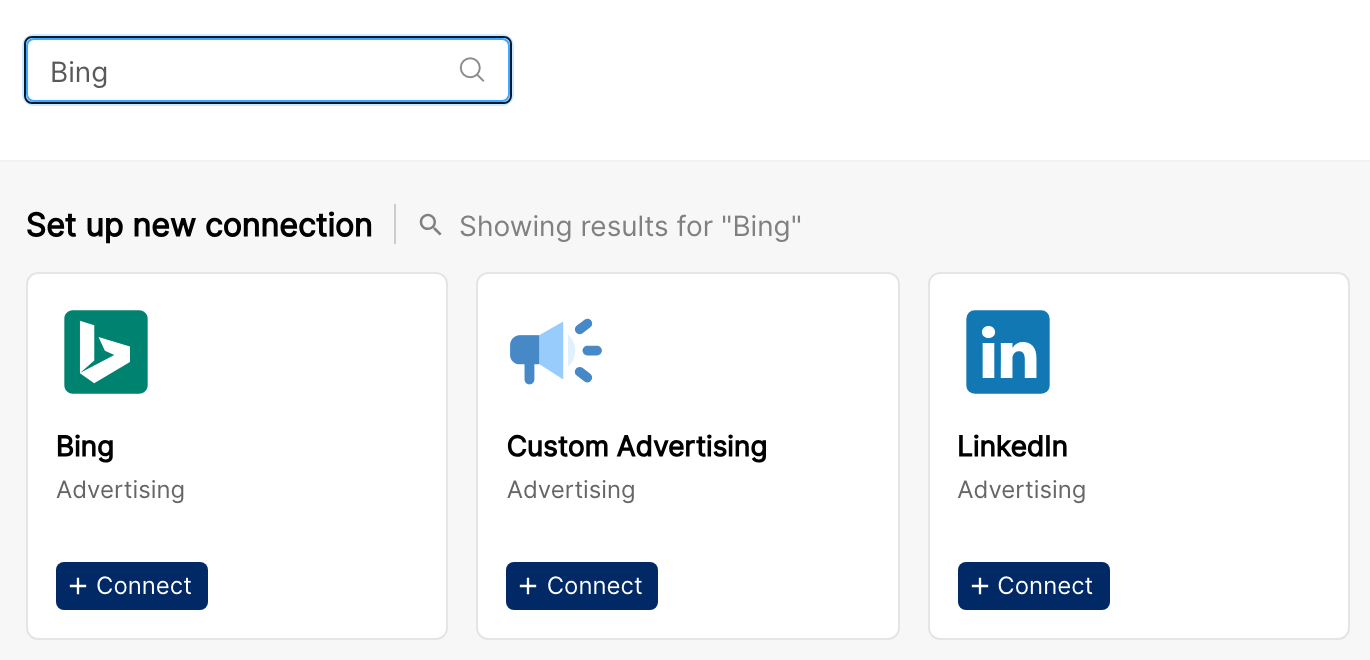
In Clarisights, go to Integrations, find the Bing tile, and click + Connect.
Step 2: Sign in to Microsoft and authorize Clarisights
You'll be redirected to Microsoft's sign-in page. Sign in with the Microsoft account that has access to the ad accounts you want to connect, and approve the requested permissions (read & manage scope on Microsoft Advertising). Verify the password if prompted.
Common error: "AADSTS50020: User account does not exist in tenant" → You signed in with a Microsoft account that isn't a user on this Microsoft Advertising account. Sign out, sign back in with the correct account, and retry.
Common error: The connection fails or stops syncing after your personal Microsoft account was migrated to a work account → The personal account can no longer access Microsoft Advertising. Reconnect Bing and sign in with the work account.
Step 3: Select ad accounts
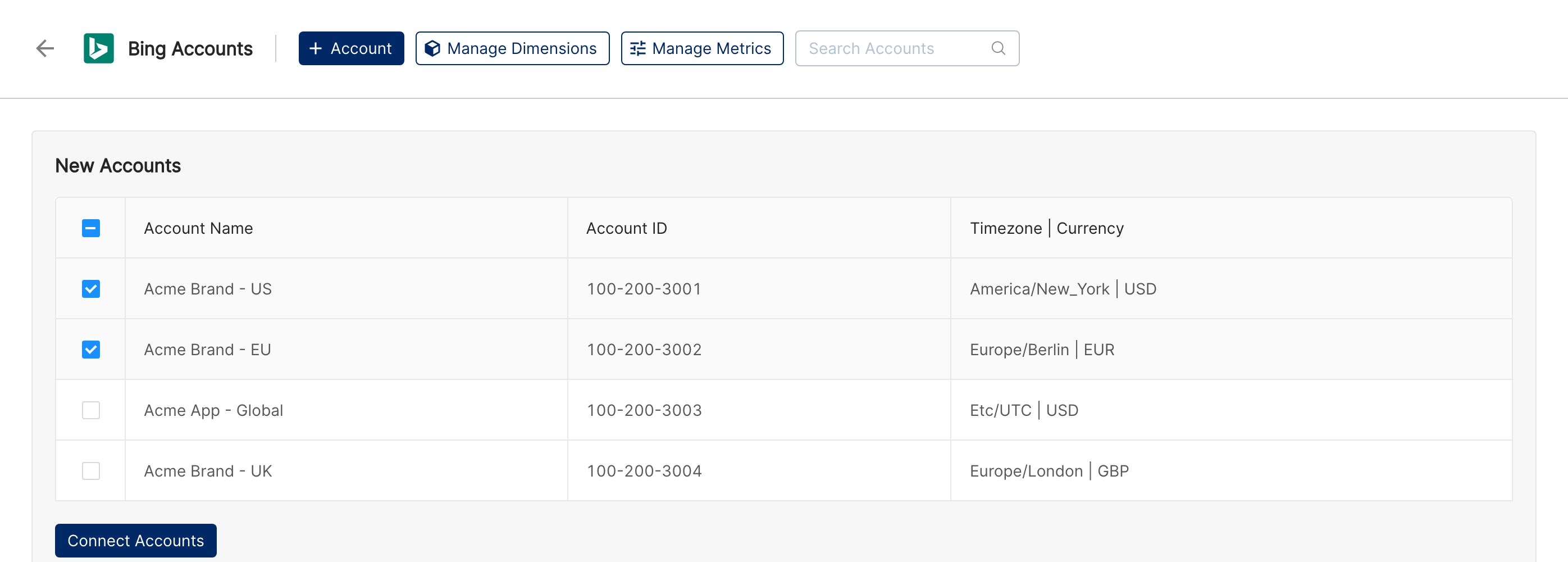
After authorization, Clarisights automatically lists every Microsoft Advertising account your user has access to under New Accounts. Tick the accounts you want to connect and click Connect Accounts.
Step 4: Confirm
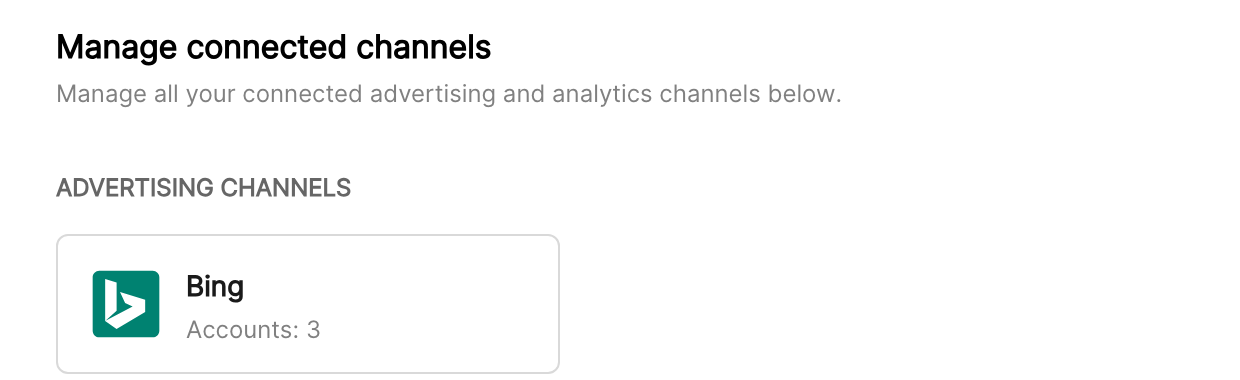
You'll land on the integrations page with each connected account listed. From here you can enable / disable accounts and refresh the OAuth token.
Verify the connection
Go to Integrations → Bing. Each connected account should show as Active.
Account-level objects (campaigns, ad groups, ads, keywords) start syncing within an hour. Performance reports populate within 24 hours.
Quick start: create a report, add Bing as the data source, and add Account · Campaign · Impressions · Clicks · Spend.
Data available
Hierarchy
How Microsoft Advertising's native levels map to standard Clarisights levels:
Native level (Microsoft Advertising) | Clarisights level |
Account (Customer / Customer Account) | Account |
Campaign | Campaign |
Ad Group | Ad Group |
Ad | Ad |
Keyword | Keyword (under the Ad Group it belongs to) |
Performance Max asset groups are mapped into the standard Ad Group level for unified reporting, with Ad Group Type set to Performance Max.
Dimensions
Account
Dimension | Description |
Account | Microsoft Advertising account name |
Account ID | Microsoft Advertising account ID |
Campaign
Dimension | Description |
Campaign Status | Active, Paused, Deleted, Suspended |
Campaign Type | Search, Audience, Shopping, Performance Max, etc. |
Campaign Labels | Labels applied to the campaign |
Budget Name | Name of the shared budget the campaign uses |
Campaign Tracking Template / Campaign URL Custom Parameters | Tracking template and custom URL parameters set on the campaign |
Ad Group
Dimension | Description |
Ad Group Status | Active, Paused, Deleted |
Ad Group Type | Type of ad group, for example Performance Max for asset groups |
Ad Group Labels | Labels applied to the ad group |
Ad Group Tracking Template / Ad Group URL Custom Parameters | Tracking template and custom URL parameters set on the ad group |
Ad
Dimension | Description |
Ad Status | Active, Paused, Disapproved, etc. |
Ad Type | Expanded Text Ad, Responsive Search Ad, Product Ad, etc. |
Headline / Long Headline / Ad Title | Headline text of the ad (all headlines of a Responsive Search Ad are listed together) |
Ad Description | Ad description copy |
Display URL | Display URL shown on the ad |
Ad Strength / Ad Strength Action Items | Microsoft's rating of the ad and its suggestions for improving it |
Ad Labels | Labels applied to the ad |
Ad Tracking Template / Ad URL Custom Parameters | Tracking template and custom URL parameters set on the ad |
Keyword
Dimension | Description |
Keyword Status | Active, Paused, Deleted |
Keyword Match Type | Broad, Phrase, or Exact |
Bidding Strategy Type | Bidding strategy applied to the keyword (Manual CPC, Enhanced CPC, Maximize Clicks, Target CPA, etc.) |
Keyword Labels | Labels applied to the keyword |
Keyword Language | Language the keyword targets |
Keyword Tracking Template / Keyword URL Custom Parameters | Tracking template and custom URL parameters set on the keyword |
Breakdowns
Breakdowns are available at the ad group level and appear in the dimension list with a (Breakdown) suffix. They are turned on per company: contact your Clarisights CSM to enable them.
Breakdown | Description |
Country | Country where the ad was served |
Metro Area | US Designated Market Area (Nielsen DMA) where the ad was served, for example "New York". Uses the same Metro Area names as the Google Ads and other channel breakdowns, so you can compare markets across channels. Traffic Microsoft can't place in a US metro (for example outside the US) is shown as Unknown, so the breakdown still adds up to the ad group total. |
Hour | Hour of the day the ad was served (in account time) |
Metrics
Core delivery
Metric | Description |
Impressions | Total ad impressions |
Clicks | Total clicks on the ad |
Spend | Total spend in your reporting currency |
Spend (Local currency) | Total spend in the account's native currency |
CTR | Clicks / Impressions |
Avg. CPC | Spend / Clicks |
Conversions & revenue
Metric | Description |
Conversions | Total reported conversions |
Conv. rate | Conversions / Clicks |
Spend / Conv. | Spend / Conversions |
Revenue | Reported revenue (converted to your reporting currency) |
ROAS | Revenue / Spend ("Revenue on ad spend") |
Assists | Assisted conversions |
Custom conversions
Each conversion goal you configure in Microsoft Advertising is also exposed in Clarisights as its own metrics, named after the goal (for example Bing Conv and Bing All Conv followed by the goal name), so you can compare individual conversion goals side by side. Goals with the same name across accounts are also aggregated into a single metric, with conversion value and view-through variants.
Position & visibility
Metric | Description |
Average Position | Weighted-by-impressions average position on the SERP |
Quality Score | Weighted-by-impressions average quality score (keyword level) |
Impressions on Top | Impressions served above the search results |
Impression On Absolute Top | Impressions served as the very first ad above search results |
Total Available Impressions | Total impressions you were eligible for |
Eligible Impressions on Top | Impressions you were eligible to serve on top |
Eligible Impressions on Absolute Top | Impressions you were eligible to serve on absolute top |
Impression Share | Impressions received divided by the impressions you were eligible for |
Top Impression Rate / Absolute Top Impression Rate | Share of your impressions shown above the search results, or as the very first ad |
Top Impression Share / Absolute Top Impression Share | Share of eligible top and absolute top impressions you received |
Limitations & known constraints
Beta integration: the Bing connector is currently in limited rollout (beta). Available metrics and dimensions may evolve as we expand coverage. Talk to your CSM if a metric or dimension you need isn't listed.
Reporting delay: Microsoft Advertising reports can take up to 24 hours to fully reconcile, especially for conversion-attributed metrics.
Quality Score availability: Quality Score is reported at the keyword level and only for keywords with sufficient impressions. It is not available at the ad level.
Average Position deprecation: Microsoft Advertising deprecated Average Position in line with Google. Use Impressions on Top and Impression On Absolute Top for current placement reporting.
Keyword limits: Microsoft enforces per-account keyword limits; very large keyword sets may take longer to fully ingest on first connection.
Token revocation: if you revoke Clarisights' access in your Microsoft account, the integration stops syncing until you re-authenticate.
Operating notes
Refresh schedule: account-object metadata (campaigns, ad groups, ads, keywords) is updated hourly. Performance reports are refreshed daily.
Lookback: a rolling daily window with conversion-attribution backfill so late-arriving conversions update past dates correctly.
Adding new ad accounts: when you add a new Microsoft Advertising account, return to Clarisights, re-open the Bing integration, and select the new account from the discovered list.
Currency conversion: native amounts are pulled as-is in Spend (Local currency) and converted into your reporting currency in Spend by Clarisights' Currency Conversion service.
Matching with analytics data: Bing campaigns, ad groups, and ads are matched to your analytics data by name, ID, or UTM parameters. UTM parameters are read from your final URLs and tracking templates, including templates that use {placeholders}.
Timezone mapping: Microsoft Advertising's named timezones (e.g.
PacificTimeUSCanadaTijuana) are mapped to standard IANA timezones (e.g.America/Los_Angeles) automatically.Credential rotation: OAuth tokens refresh automatically. You only need to re-authenticate if your Microsoft password changes, you revoke access, or your Microsoft account is migrated (for example from a personal to a work account).
Need help?
When contacting support from the in-app messenger, please include:
The integration name (Bing) and the Microsoft Advertising account ID
The exact error message or screenshot
The step where the issue occurred (Microsoft sign-in, account selection, or report data missing)
When the issue started and any recent changes (Microsoft password rotation, role change, account migration, etc.)