
Connecting OpenAI Ads on Clarisights
In this article
In this article group
OpenAI Ads is OpenAI's advertising platform: your ads appear as cards inside ChatGPT conversations. Connecting OpenAI Ads to Clarisights imports your daily impressions, clicks, spend and attributed conversions for every campaign, ad group and ad, so you can compare ChatGPT advertising with your other paid channels in the same reports.
At a glance
| Authentication | OpenAI Ads API key (entered once in Clarisights) |
| Permissions needed | An API key issued in your OpenAI Ads Manager account. Each key belongs to one ad account |
| Account discovery | Automatic: Clarisights finds the ad account the key belongs to, and you confirm it before connecting |
| Data freshness | Daily (once per day) |
| Lookback window | 30 days on each scheduled run |
| Backfill on connect | Last 30 days, on the first scheduled run after you connect |
| Timezone | Your ad account's timezone, as set in OpenAI Ads |
| Currency | Your ad account's currency, as set in OpenAI Ads |
| Levels supported | Account (Ad account) · Campaign (Campaign) · Ad Group (Ad group) · Ad (Ad) |
| Limited rollout | No |
Prerequisites
An active OpenAI Ads Manager account with at least one campaign.
An OpenAI Ads API key for the ad account you want to connect. If you manage several ad accounts, you need one key per ad account.
A Clarisights role that can add integrations.
Steps to Connect
Step 1: Get your OpenAI Ads API key
In OpenAI Ads Manager, open the Settings tab of the ad account you want to connect and issue an API key. Copy the full key. Each key gives access to exactly one ad account. If you don't have access to Settings, ask an administrator of your OpenAI Ads account or your OpenAI account manager.
Step 2: Open OpenAI Ads in Clarisights
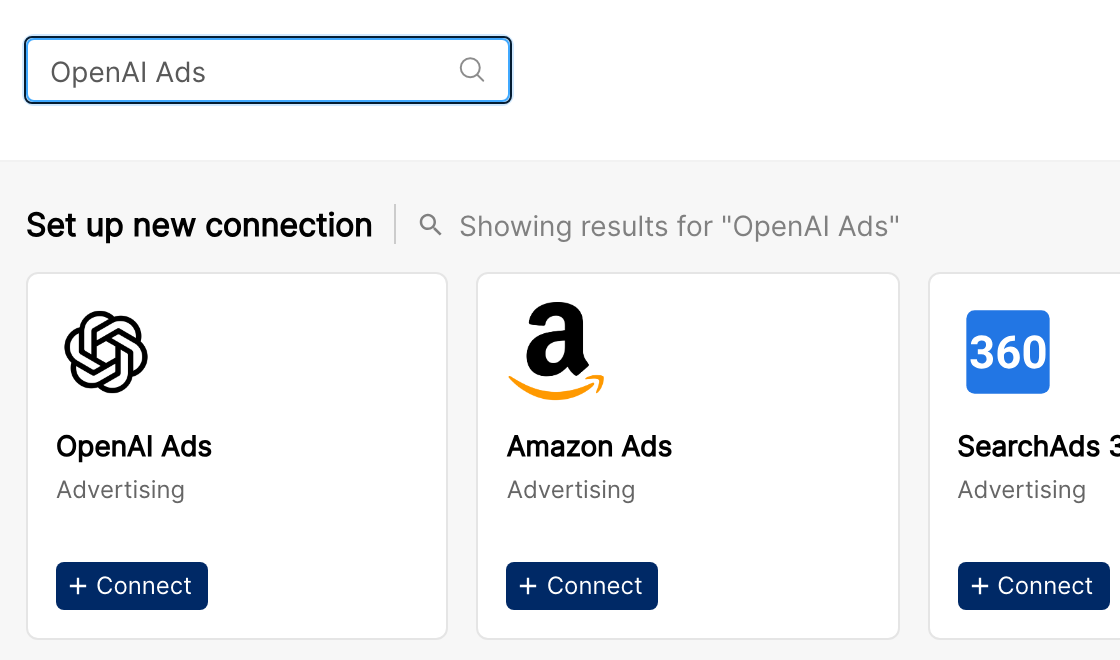
In Clarisights, click the Integrations icon in the left sidebar. Search for OpenAI Ads (or click See All under Set up new connection), then click + Connect on the OpenAI Ads card.
Step 3: Enter and validate your API key
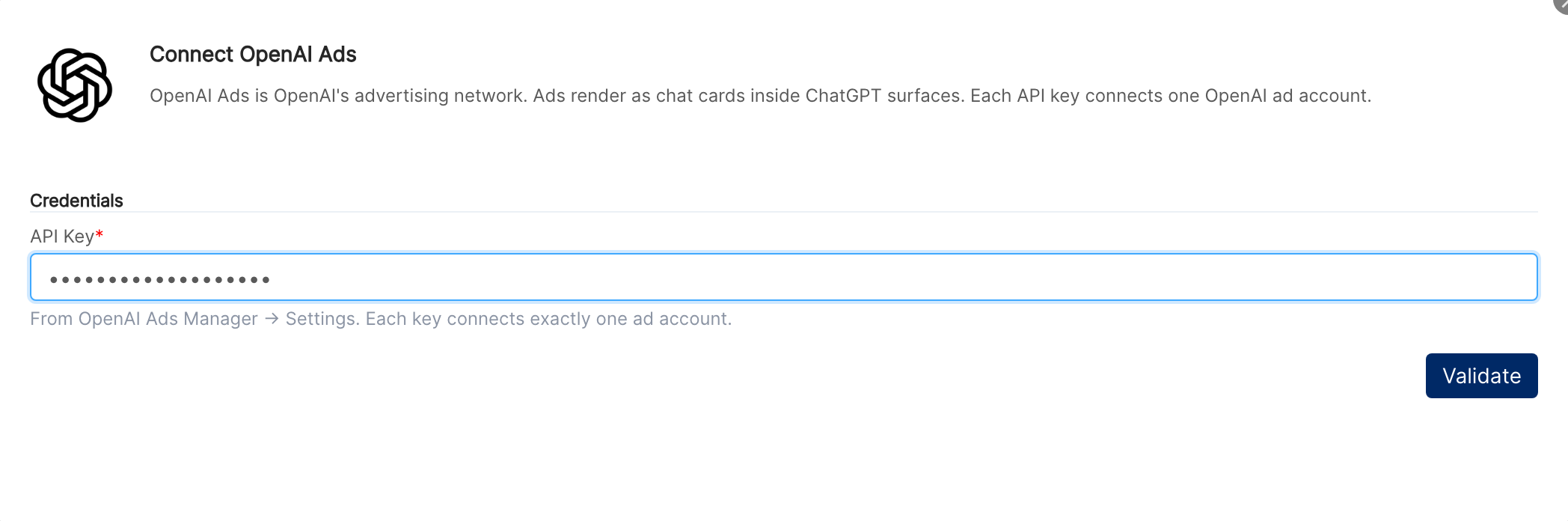
In the Connect OpenAI Ads window, paste your key into the API Key field and click Validate. Clarisights checks the key with OpenAI Ads. Nothing is saved at this point.
⚠ “OpenAI Ads rejected this API key. Check the key in OpenAI Ads Manager → Settings and try again.” → The key is wrong, incomplete or has been revoked. Copy the full key again from the Settings tab, or issue a new one.
⚠ “OpenAI Ads didn't return this ad account's currency and timezone. Try again in a few minutes, or contact support if it persists.” → The key works, but OpenAI Ads didn't send the account's currency or timezone (the message names whichever is missing). Clarisights needs both to report your data correctly. Wait a few minutes and try again. If it keeps happening, contact support.
Step 4: Confirm the ad account and connect
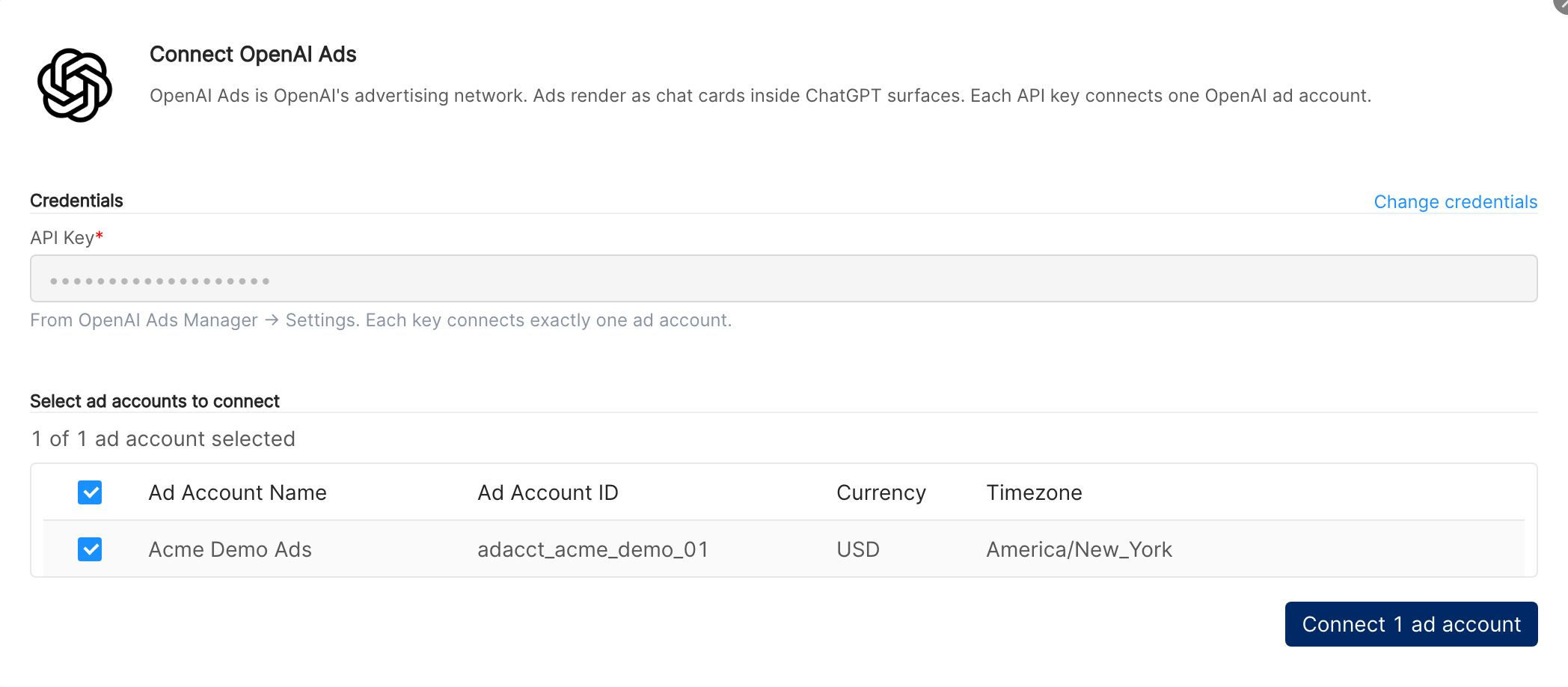
Once the key is accepted, the window lists the ad account it belongs to, with its Ad Account Name, Ad Account ID, Currency and Timezone. The currency and timezone come from OpenAI Ads and can't be changed here. Make sure the account is selected and click Connect 1 ad account. To use a different key instead, click Change credentials.
⚠ “Every ad account these credentials can see is already connected. Use Edit Credentials or Fetch New Accounts on the connected user instead.” → This ad account is already connected in your workspace. To replace its key, use Edit API Key on the OpenAI Ads Accounts page (see Operating notes).
⚠ “Something went wrong while connecting. Please try again or contact support.” → An unexpected error occurred while saving the connection. Try again. If it fails again, contact support with the time you tried.
To connect another OpenAI ad account later, click + Account on the OpenAI Ads Accounts page and repeat steps 3 and 4 with that account's API key.
Verify the connection
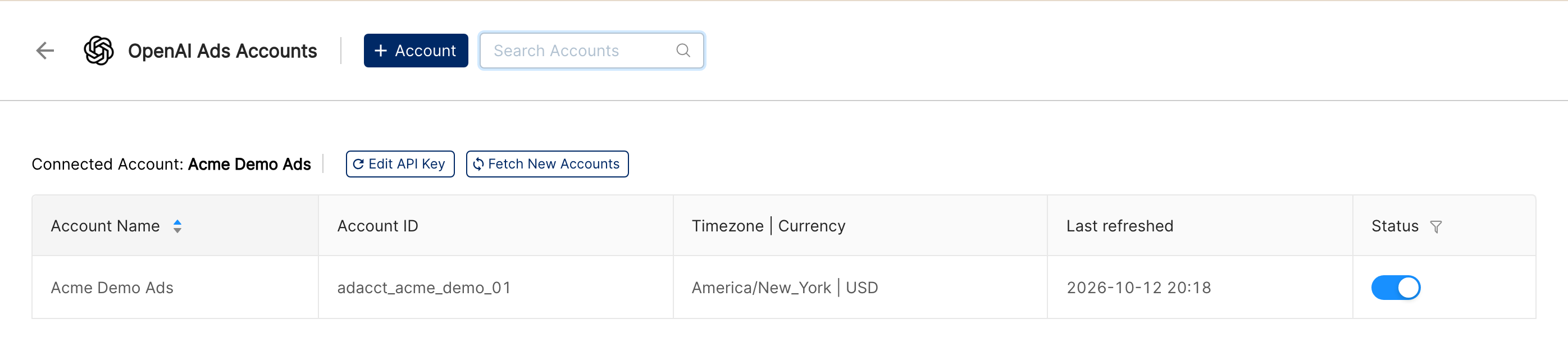
Go to Integrations → OpenAI Ads. Your ad account appears on the OpenAI Ads Accounts page with its Account Name, Account ID, Timezone and Currency.
First data appears within about 24 hours: the first scheduled run imports the last 30 days.
Quick start: create a new report, add OpenAI Ads as the data source, and add Campaign · Ad Group · Ad · Impressions · Clicks · Spend · Conversions.
Data available
Hierarchy
How OpenAI Ads maps to the standard Clarisights levels:
Native level (OpenAI Ads) | Clarisights level |
Ad account | Account |
Campaign | Campaign |
Ad group | Ad Group |
Ad | Ad |
Dimensions
Dimension | Level | Description |
Account / Account ID | Account | Ad account name and ID |
Campaign / Campaign ID | Campaign | Campaign name and ID |
Campaign Status | Campaign | The campaign's status in OpenAI Ads |
Campaign Mode | Campaign | The campaign's mode, as set in OpenAI Ads |
Bidding Type | Campaign | The campaign's bidding type |
Campaign Start Date / Campaign End Date | Campaign | The campaign's scheduled start and end dates (YYYY-MM-DD) |
Campaign Daily Budget / Campaign Lifetime Budget | Campaign | The campaign's daily and lifetime spend limits, in the account currency. Empty if the campaign has no such limit |
Ad Group / Ad Group ID | Ad Group | Ad group name and ID |
Ad Group Status | Ad Group | The ad group's status in OpenAI Ads |
Ad / Ad ID | Ad | Ad name and ID |
Ad Title / Ad Copy / Ad Link | Ad | The ad creative's title, body text and destination URL |
Ad Status | Ad | The ad's status in OpenAI Ads |
Ad Review Status | Ad | The result of OpenAI's review of the ad |
Metrics
Metric | Description |
Impressions | Number of times your ads were shown |
Clicks | Number of clicks on your ads |
Spend | Amount spent, in the account currency |
Conversions | Total conversions OpenAI Ads attributes to your ads |
Click-Through Conversions | Attributed conversions that followed a click on an ad |
View-Through Conversions | Attributed conversions that followed an ad view without a click |
Data is reported per day, per ad. Rates such as CTR, CPC, CPM and cost per conversion aren't imported: build them from these metrics with custom metrics.
Limitations & known constraints
One ad account per key: each OpenAI Ads API key gives access to exactly one ad account. Connect each ad account with its own key.
Conversion counts only: conversion value, revenue and ROAS are not imported. Conversions are counts.
Conversions keep updating: OpenAI Ads processes conversions daily and can attribute them to an ad interaction days later, so recent days can change. The 30-day lookback picks up these updates; see Integration data retrieval time range (lookback window).
Account timezone and currency: dates follow the ad account's timezone and amounts are in its currency, both as set in OpenAI Ads. You can't change them in Clarisights. If they change in OpenAI Ads, Clarisights picks up the new values automatically.
Budgets are dimensions: Campaign Daily Budget and Campaign Lifetime Budget are campaign attributes, not metrics, so they can't be summed or charted over time.
Daily data only: data is imported per day. Hourly data is not available.
Operating notes
Refresh schedule: data is imported once a day, and each run re-imports the last 30 days.
Credential rotation: if you issue a new API key or revoke the old one, go to Integrations → OpenAI Ads, click Edit API Key next to the connected account, paste the new key and click Update. The new key must belong to the same ad account. Until you update it, imports for that account stop.
Key for a different ad account: if you enter a key for another ad account in Edit API Key, Clarisights shows “These credentials can't access the connected account(s) …” and keeps the current key. Use + Account to connect the other ad account instead.
Fetch New Accounts: because each key belongs to one ad account, this normally shows “All accounts are already connected.” It also refreshes the account's timezone and currency from OpenAI Ads.
Need help?
When contacting support from the in-app messenger, please include:
The integration name and Account ID (Integrations → OpenAI Ads)
The exact error message or screenshot
The step where the issue occurred
When the issue started