
Connecting Google Search Console on Clarisights
Google Search Console (GSC) is your organic search performance data: how Google sees your site in search results. Connecting GSC to Clarisights blends organic search clicks, impressions, CTR, and average position alongside your paid search, attribution, and analytics data for a single, unified view of search performance.
At a glance
Property | Value |
|---|---|
Authentication | OAuth 2.0 (Google) with the Search Console scope |
Permissions needed | Owner, Full, or Restricted user role on each verified Search Console property |
Account discovery | Automatic on credential validation. Every property your Google user can access is offered |
Data freshness | Daily. Each refresh re-pulls the last 3 complete days |
Lookback window | Last 3 days on each refresh. Google keeps up to 16 months of history, which can be backfilled on request |
Backfill on connect | Last 3 days; longer historical backfills are available on request via Clarisights support |
Timezone | US/Pacific (GSC reports natively in PST) |
Currency | Not applicable (GSC has no monetary metrics) |
Levels supported | Property (Account) and Object, where Object holds Query, Page, Country, Device, and Search Type as dimensions |
Limited rollout | No |
Prerequisites
A verified Google Search Console property for each site you want to connect.
A Google account with at least Restricted user access on those properties (Owner and Full user also work).
Permission to authorize third-party apps on the Google account you'll connect with, as some Google Workspace admins block third-party OAuth.
Steps to Connect
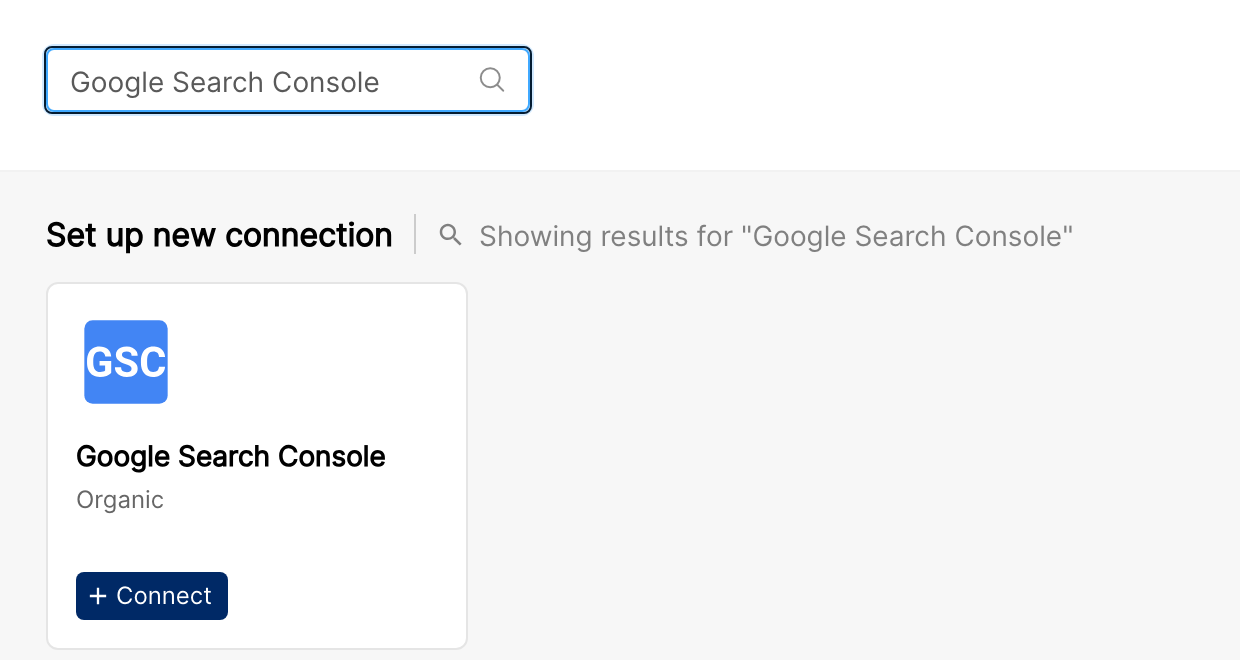
In Clarisights, open Integrations. Under Set up new connection, search for Google Search Console and click + Connect on its card.
A Google sign-in popup opens. Sign in with the Google account that has access to your Search Console properties and grant the requested Search Console permission.
To learn what Google shows before you share access with an app, see Google's guide: Share some access to your Google Account data with apps from other developers.
If you see "Permission denied" or the popup closes immediately: your Google Workspace admin may be blocking third-party apps. Ask them to allow Clarisights, or use a personal Google account that has been granted access to the Search Console properties.
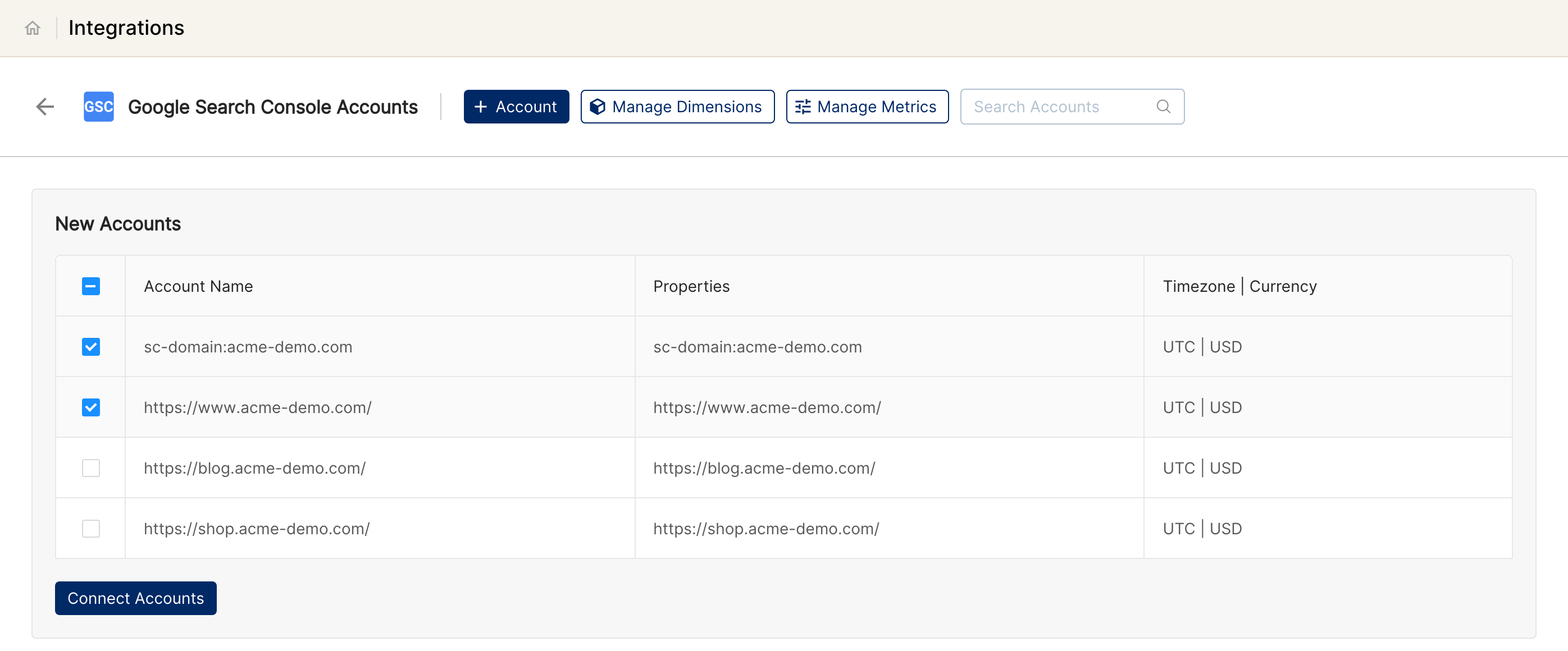
Clarisights validates the token and discovers every Search Console property your Google user can see. Select the properties you want to bring into Clarisights and click Connect Accounts.
If no properties are shown: the signed-in Google user does not have any role on any Search Console property. Open Search Console, confirm the user is added as Owner / Full / Restricted on the right properties, then re-run the integration.
Verify the connection
Open Integrations and select Google Search Console under Manage connected channels. Connected properties are listed with their status switched on.
First data appears within ~24 hours after the next scheduled sync.
Quick-start check: build a report with Account and Query and add GSC: Clicks, GSC: Impressions, GSC: CTR, and GSC: Avg Position. You should see rows for the last few days.
Data available
Hierarchy
GSC is an organic data source, so it does not have a Campaign / Ad Group / Ad hierarchy. In Clarisights, the property maps to Account, and everything else (queries, pages, countries, devices, search type) is stored at a single Object level and used as dimensions.
Native level (GSC) | Clarisights level |
|---|---|
Property (Site / URL) | Account |
Query | Object (search query as dimension) |
Page | Object (URL as dimension) |
Country | Object (geo as dimension) |
Device | Object (device as dimension) |
Search Type | Object (web / image / video as dimension) |
Dimensions
Account level
Account: the verified property (a URL-prefix property such as https://www.example.com/ or a domain property such as sc-domain:example.com).
Channel: the data source (Google Search Console).
Object level
Search Type: one of web, image, or video. The kind of search a user ran to see the search results page. News and Discover data are not included.
Country: country the search originated from, shown as the full country name (for example, Germany).
Device: one of Desktop, Mobile, or Tablet.
Page: the page on your site that appeared in the search results and that users landed on when they clicked.
Query: the search query that produced the impression.
Metrics
GSC: Impressions: number of times a result from your site was shown in Google search results.
GSC: Clicks: number of clicks on a result from your site in Google search results.
GSC: CTR: click-through rate, clicks × 100 ÷ impressions.
GSC: Avg Position: average rank of results from your site in Google search results, weighted by impressions. Lower is better.
Limitations & known constraints
Two levels only. Unlike paid channels (Account → Campaign → Ad Group → Ad), GSC has only Account and Object. Every dimension (query, page, country, device, search type) sits at the Object level.
Object structure varies by dimension combination. Clarisights pulls GSC data for each individual dimension (for example, just device) and for combinations of dimensions (for example, device & page), separately for each search type. Each combination creates differently-shaped Objects, and the totals will not match across them. See Google's note on Why do I lose data when asking for more detail?
Dimension-aware aggregation. To minimize this loss-of-detail effect, when you visualize a single dimension (e.g. device), Clarisights aggregates only Objects whose dimension combination exactly matches that selection. Different dimension combinations in different visualizations may therefore show different totals. This is by design.
Whitelisted dimension combinations. Some dimension combinations are restricted at the company level to keep volume and report performance manageable. If a particular slice doesn't return data, contact your CSM to enable that combination.
Account totals come straight from Google. Account-level metrics are pulled from GSC as property totals. They can be higher than the sum of Object rows, because Google leaves out anonymized queries when data is broken down by query or page.
Optional data reduction. To keep reports fast and meaningful, Clarisights can be configured for your company to:
Bucket long-tail queries and pages: queries (and, if enabled, pages) with fewer clicks than a set threshold in a calendar month are grouped into a single entry, for example "Clicks less than 50". During the current month, membership is recomputed on each refresh, so a query can leave the bucket mid-month once its clicks pass the threshold.
Exclude Country: if you run country-specific Search Console properties, country can be excluded entirely to cut data volume and speed up reports.
Restrict Search Type: if image or video search traffic is negligible, pulls can be restricted to web only.
16-month historical cap: Google's API does not return data older than 16 months.
2 to 3 day reporting delay: GSC data finalizes after 2 to 3 days. Today's metrics are not available, and the most recent days can still change.
~25,000 row cap per query: Google's API limit. Clarisights paginates and stitches automatically.
No revenue or cost metrics: GSC is impressions / clicks / position only.
Operating notes
Refresh schedule: daily. Each refresh re-pulls the last 3 complete days to handle GSC's 2 to 3 day finalization window.
Historical data: on connect, the last 3 days are loaded. Larger historical backfills (up to 16 months) are run on request via Clarisights support.
Adding new properties: re-open the Google Search Console integration in Clarisights to refresh the property picker and select newly-verified sites.
Credential rotation: OAuth tokens auto-refresh. Reconnect is only needed if the Google password changes, the user is removed, or access is revoked. If the connected Google user loses access to a property, that property stops refreshing until you reconnect it with a user that has access.
Bucketing, search types & dimension combinations: long-tail bucketing for queries and pages (threshold and label), the search types pulled, and the set of allowed dimension combinations are configured per company by Clarisights. Reach out via chat support to adjust.
Need help?
Reach out via the in-app chat support on the Clarisights platform, or email your Customer Success Manager.