
Connecting Google Sheets to Clarisights
Google Sheets is the lowest-friction connector in Clarisights. It's ideal for one-off datasets, target lists, manual KPIs, offline spend, or any small structured data your team already maintains in a spreadsheet, with no API access or developer setup required. You set it up yourself from the Integrations page.
At a glance
| Connector type | Spreadsheet (read-only) |
| Authentication | Sign in with a Google account that can open the sheet |
| Permissions needed | The Google account you connect needs at least view access to the sheet |
| Object support | One worksheet (tab) per channel |
| Refresh cadence | You choose it: every 1 to 24 hours |
| Limited rollout | No |
Authentication options
Clarisights reads the sheet through a Google account that you connect with Google sign-in. Any Google account that can open the sheet works. We recommend a shared team account rather than a personal one, so the channel keeps working if a team member leaves.
The connected account only needs to be able to view the sheet.
If the account loses access to the sheet, or its Google authorization is revoked, the channel stops updating until access is restored.
Setting up the connection
Step 1: Prepare the sheet
Open the Google Sheet you want to connect and confirm it's structured for ingestion:
The first row of the tab is the header row. Subsequent rows are data.
The tab has a date column. Every row needs a date so Clarisights can place it in time.
Data is contiguous, with no fully blank rows in the middle of the dataset.
If the tab contains computed columns using volatile formulas (
NOW(),TODAY(),RAND()), copy them and use Paste special → Values only so the values stop changing on every read.
Step 2: Open the Google Sheets connector
Click the Integrations icon (the database stack) in the left navigation bar. Under "Set up new connection", search for Google Sheets and click + Connect on its card. The setup form has three sections: 1. Channel Details, 2. Configure Dimensions, and 3. Configure Metrics. A preview of your sheet's data appears on the right once the source is selected.
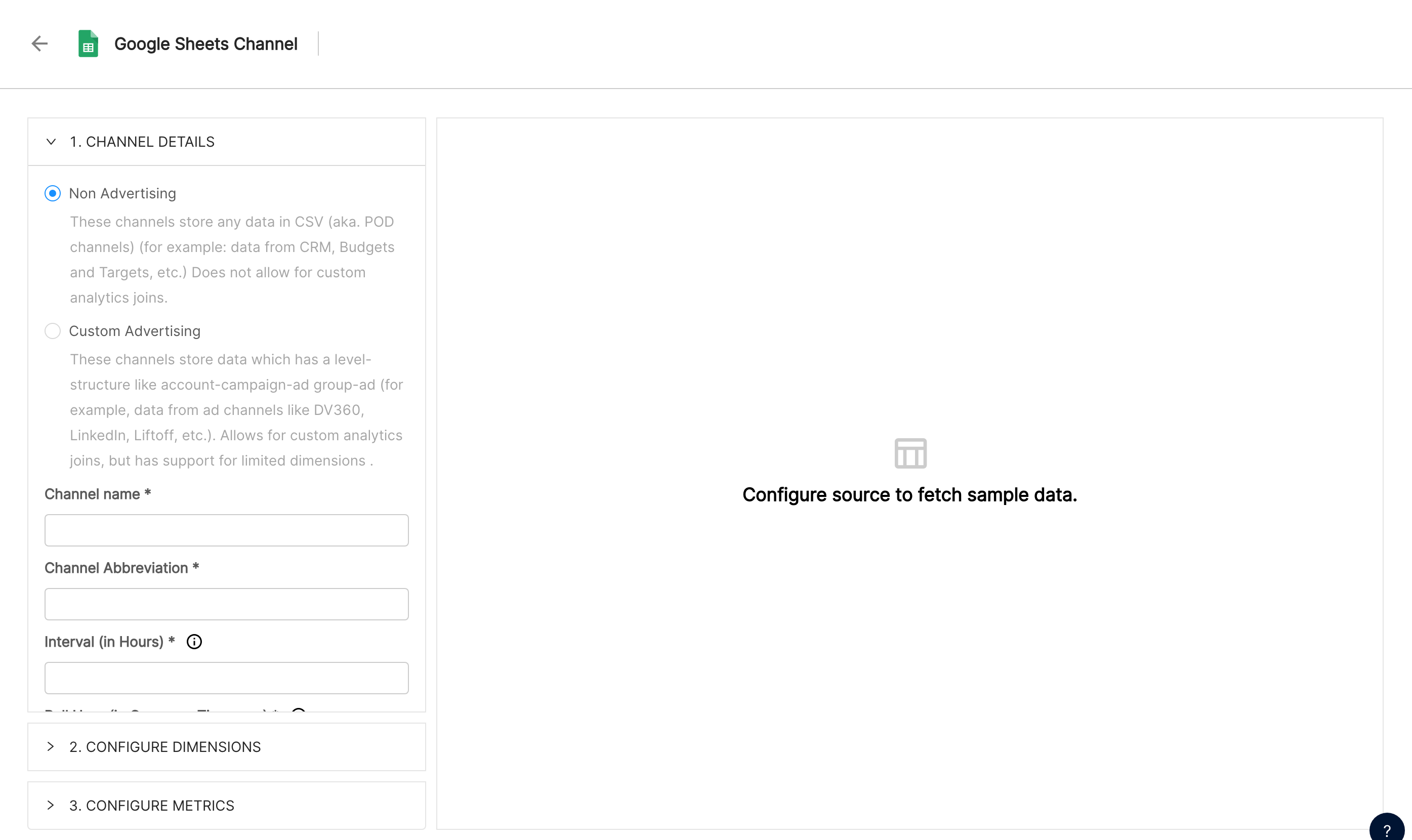
Step 3: Fill in the channel details
Channel type: choose Non Advertising for any data such as CRM data, budgets, or targets. Choose Custom Advertising for ad-channel data organized as account, campaign, ad group, and ad.
Channel name and Channel Abbreviation (up to 4 characters). These cannot be changed after the channel is created.
Interval (in Hours): how often Clarisights reads the sheet, from 1 to 24. Set it to 24 to read once a day at the Pull Hour (in Company Timezone) you choose.
Timezone of the data in the sheet.
Target Distribution (Non Advertising only): enable it if the sheet holds monthly or weekly values, such as budgets or targets, that should be spread across days.
Step 4: Connect the sheet
Under Connect Google Sheet, click Add a new user and sign in with Google, or pick an account you connected before in Select a Google User. Then choose the file in Select a Spreadsheet and the tab in Select a Worksheet. For Non Advertising channels you can also add Filters to load only some rows. Click Create Channel.
For help with sharing a sheet with the account you connect, see Google's guide: Share files from Google Drive.
⚠ Common error: the spreadsheet you want is not in the list → the selected Google account can't open it. Share the sheet with that account, or connect a different account with Add a new user.
Step 5: Map the date and dimensions
Open 2. Configure Dimensions. Under Map Date to a Column, pick the Date Column in CSV and set the Date Format so Clarisights reads your dates correctly (the preview shows the parsed result). Then map each sheet column you want to slice by to a dimension name in Clarisights, and click Save Dimensions.
Step 6: Map the metrics
Open 3. Configure Metrics. For each numeric column, choose the column, give the metric a name, and set it to Currency or Non Currency (tick Decimal Metric for non-currency values with decimals). Click Save Metrics. The first data pull starts after the channel is set up, and you can use Fetch Now on the channel page to pull data right away.
What we read
The first row of the tab is treated as the header row. Column names in row 1 are what you map to dimensions and metrics.
Each subsequent row is one record. Cells are read as their displayed values.
Multiple tabs within a single spreadsheet can each be connected as their own channel.
Connector specifics
10 million cell cap. This is Google's hard limit on a single spreadsheet. Sheets approaching this size become slow to read and may fail. Split the dataset across sheets, or use BigQuery or Snowflake for larger volumes.
Volatile formulas recompute on every read.
NOW(),TODAY(),RAND(), and similar will produce different values each time we read the sheet, which can cause unexpected diffs in your reports. Replace them with static values (Paste special → Values only) for any column you intend to ingest.Keep data contiguous. Trim trailing blank rows and avoid using blank rows as visual separators.
Header row is row 1. If you rename a header, update its mapping in the channel's dimension or metric settings.
Limitations & known constraints
10 million cells per sheet (Google's limit). Larger datasets need a different connector.
No nested data. Cells are flat values; arrays, JSON, and nested structures aren't supported.
No images. Images embedded in cells (via
=IMAGE()or paste) aren't ingested.Read-only. Clarisights never writes back to your sheet.
Operating notes
Refresh cadence follows the interval you set on the channel. Each refresh re-reads the recent date range, so edits to recent rows show up at the next refresh. For older dates, use Fetch Now or ask support for a refresh.
Access: to stop Clarisights reading the sheet, remove the connected account's access to it, or archive the channel with Archive Channel.
Renaming the tab or moving the file: if you rename the tab or replace the sheet, open the channel and select the spreadsheet and worksheet again.
Need help?
When contacting support from the in-app messenger, please include:
The channel name and the sheet URL and tab name
Which Google account is connected to the channel
The exact error message or screenshot
When the issue started