
Getting Started With Custom Advertising Channels
Many advertising channels don't have an API, so Clarisights can't connect to them with an API integration. You can still import data from these channels by sending it as CSV files to a Custom Advertising Channel.
Create a Custom Advertising Channel
Click the Integrations icon (the database stack) in the left sidebar.
Find Custom Advertising under Set up new connection (use Search or click See All) and click + Connect. If you already have Custom Advertising channels, you can also open it from Manage connected channels. Then click + Channel to open the Custom Advertising Channel creation page.
Enter the Name and the Abbreviation of the channel.
Select the source type: CSV, Mail, Mail - DV360, Google Sheets or Google BigQuery. For how to connect each source, see Importing Data to Custom Advertising Channels from Different Sources.
Select the Currency and Timezone of this Advertising Channel.
Click Connect Source to create the Custom Advertising Channel.


The channel is now created, but there are a couple of things to do before you send files through your selected source.
Add custom dimensions and metrics
In Custom Advertising Channels, you define your own dimensions and metrics. They are the column headers of your CSV file. Columns whose headers are not defined as a dimension or a metric are not imported.
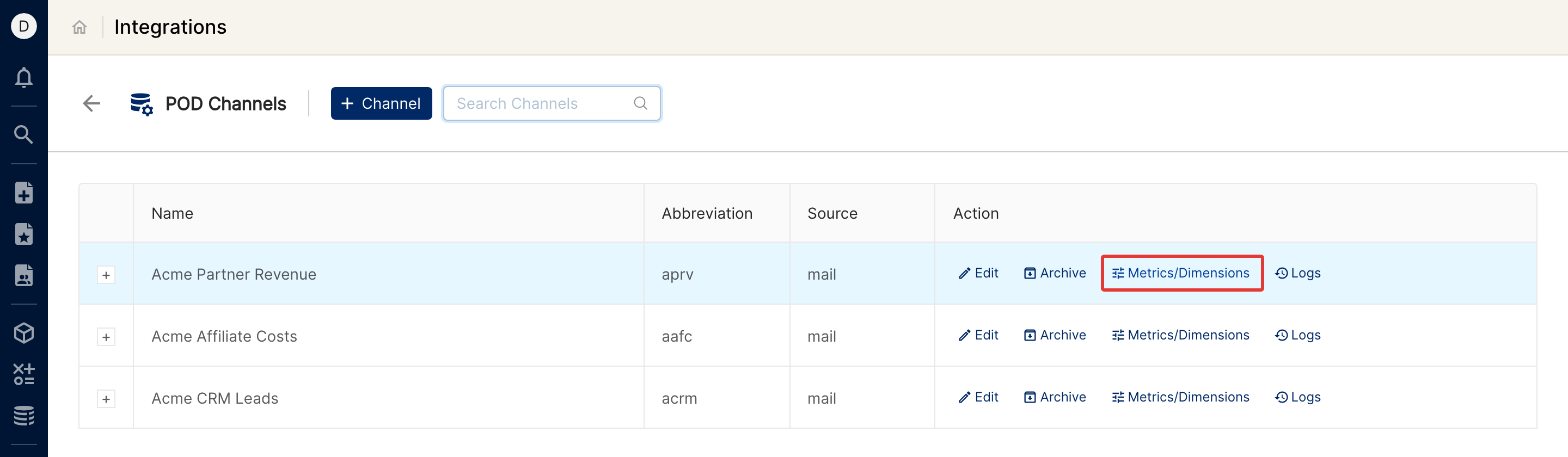
After you create the channel, you are redirected to the Custom Advertising Channels page. Click Metrics/Dimensions for the channel you created.
Choose what to add:
+ Header Map: define the dimensions for your Custom Advertising Channel.
+ Metric: add metrics.
+ Dimension: add other dimensions.
When you click + Header Map, two text fields appear. In the left field, enter the column header as it appears in the CSV. In the right field, enter the name of the dimension that column maps to. In a Custom Advertising Channel, you can only map CSV column headers to the standard dimensions: Account, Campaign, Ad group or Ad. Then click Apply.
When you click + Metric or + Dimension, a dialog box appears, as shown below:
For a metric, enter its name (the column header that corresponds to the metric), select the metric type (Integer or Float) and the format (Currency or Non Currency), then click Create.
For a custom dimension, select the dimension format: String or Image.



Once you have defined the dimensions and metrics, you can start sending CSV files through your selected source.
Import logs
After you start sending CSV files, you can track the import status in Logs.
The Import Log page shows, for each CSV received at a given date and time, how many rows were imported and how many failed. You can download any import log as a CSV file that lists every processed row with its import status.

If you need any help with Custom Advertising Channels, write to us at support@clarisights.com.