
Creating a POD data source
If you have data reported via email or CSVs, or other custom data (CRM, OMS, Budgets & Targets) that you want to get into Clarisights, you can create a POD data source.
Introduction to POD
The POD data source lets you import any flat file format into Clarisights. We strongly suggest reading the Guide to POD data source (linked at the end of this article) before you continue.
Create a POD data source
Step 1: On the Integrations page, under Set up new connection, search for "POD" (or click See All) and click + Connect on the POD card. If you already have POD channels, open the POD card under Manage connected channels to add another.

Step 2: Enter a name and abbreviation and choose the source type, which is how the data is imported into Clarisights.
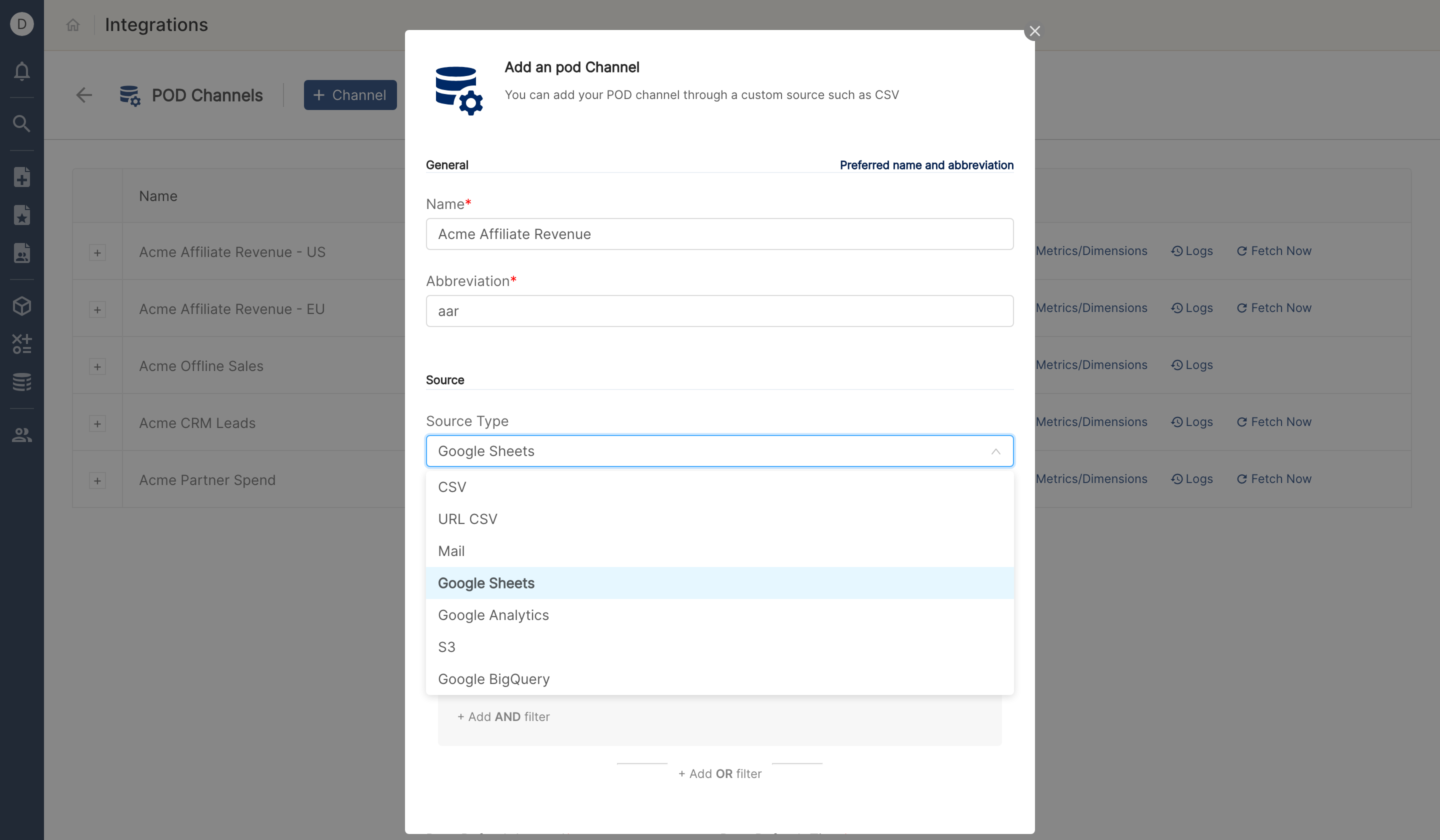
The available source types are:
CSV: upload a regular CSV file.
URL CSV: fetch a CSV from a URL (for example, a file on an SFTP server).
Mail: import data from the attachment in a scheduled email.
Google Sheets: read a worksheet from a Google spreadsheet.
S3: enter the bucket name, region and file path of an AWS S3 bucket to fetch data from.
Google BigQuery: enter the project, dataset and table to read.
Data in Google Cloud Storage, Azure Blob Storage, Snowflake or Databricks can also be loaded into a POD channel. These sources are set up by Clarisights, so contact your CSM.
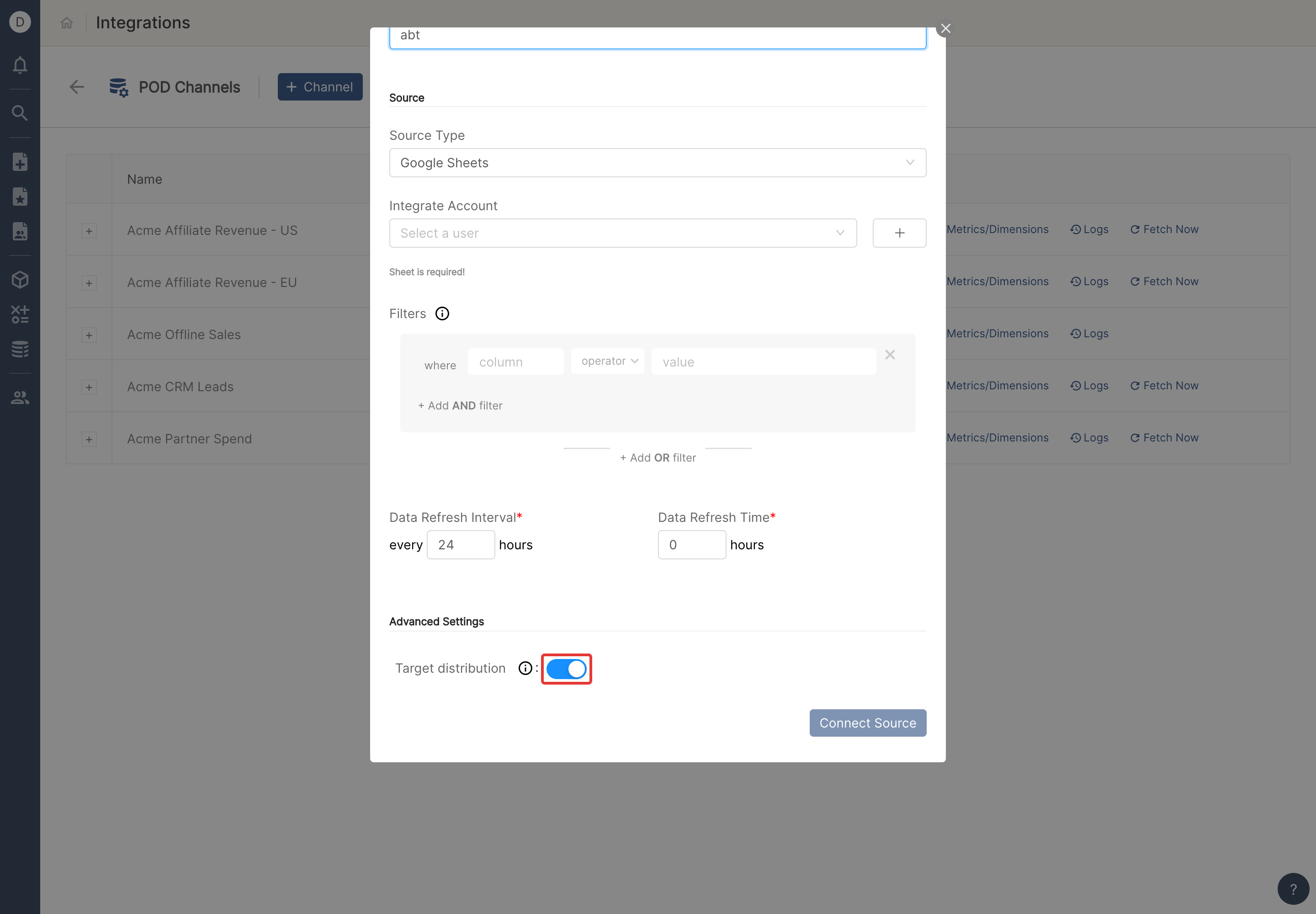
Step 3: If your data is at month or week level (common for budgets and targets), enable Target distribution to spread it evenly across the days of the week or month.
Step 4: Under Metrics/Dimensions, list the dimensions and metrics you are uploading, that is, the header row of your data source. Use exactly the same names as in the header row.

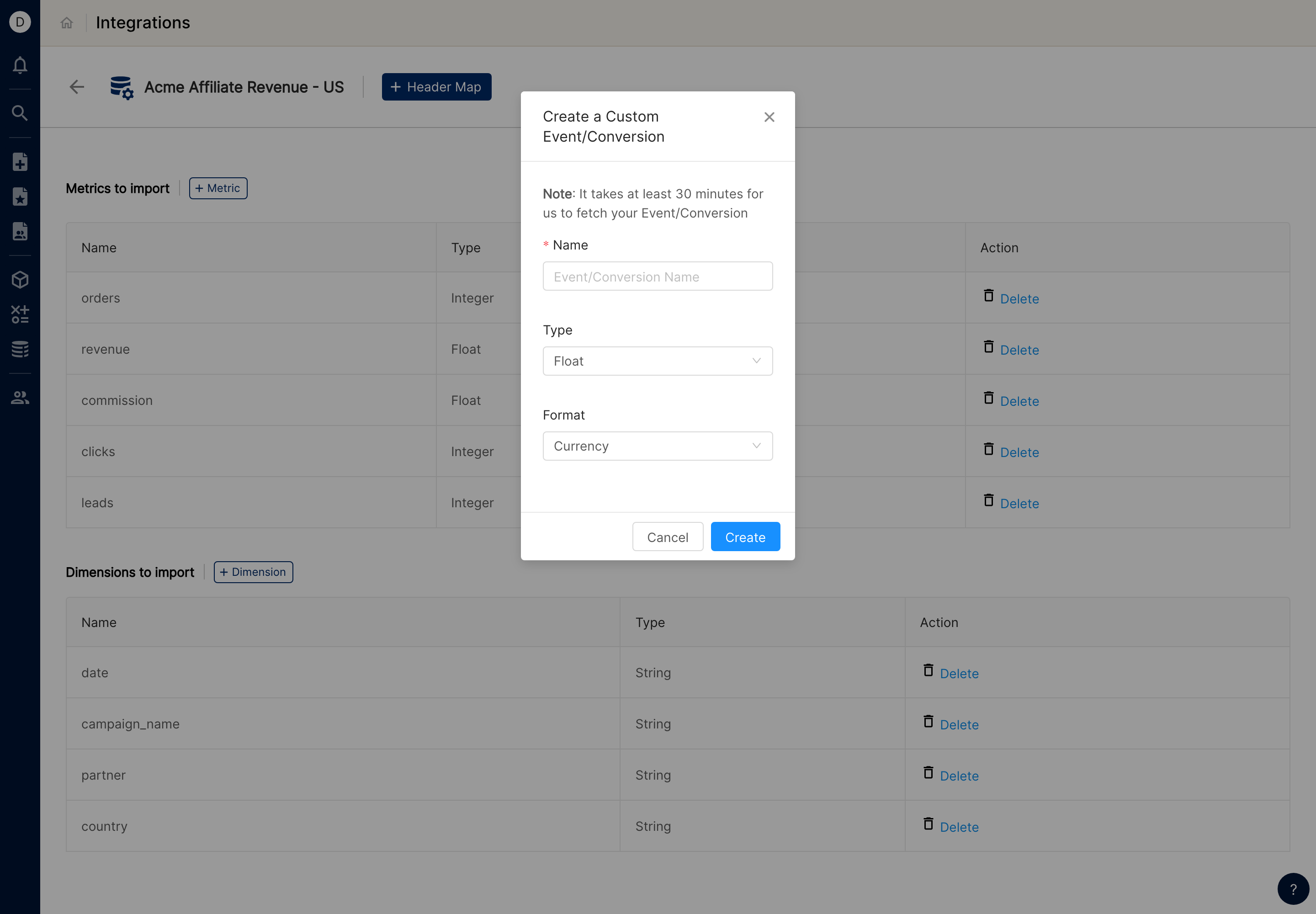
Step 5: To use different names in Clarisights for some headers (for example, campaign_name as Campaign), add the aliases to the list of metrics and dimensions. Then map the column headers in your file to those aliases with the + Header Map button next to the channel name at the top of the Metrics/Dimensions page.
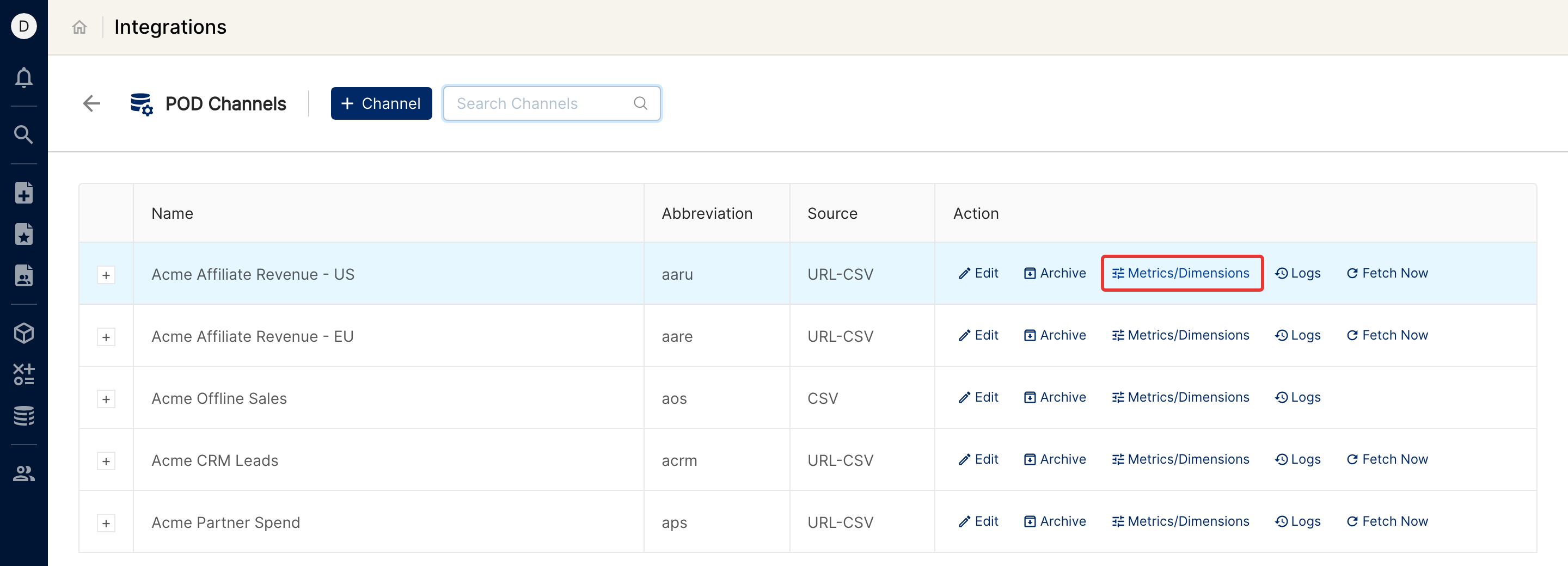
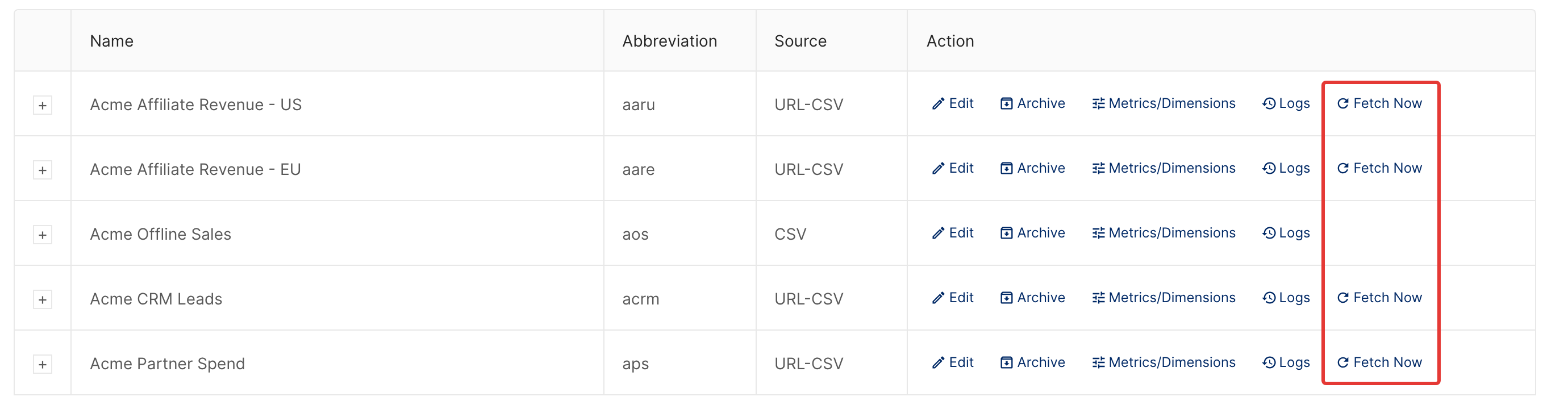
Step 6: Once you have specified the metrics and dimensions, click Fetch Now to pull data right away. This is available for URL CSV, Google Sheets, Google Cloud Storage, S3, BigQuery and Azure Blob sources.
Verify the import
Once any data is imported, a new data source is created in Clarisights. Depending on the amount of data, it may take up to a couple of hours before you can see all of it. To build reports on it, select this data source in the report.
To check that data was imported successfully, look at the import logs for the channel: click Logs, expand the period you want to check and click the download button on the right.

Data still not showing up, or seeing errors or failed rows in the logs? Write to us at support@clarisights.com.
Go back to Guide to POD data source.