
Choose the metrics and dimensions for your report
Every report you build is meant to answer a specific question. For example:
How are our major KPIs, such as spends, installs, acquisitions and revenue, trending over time?
What kind of creatives resonate best with our customers and give maximum ROI?
An Overview report with the dimensions Channel, Sub Channel and the metrics Total Spend, Installs, Acquisitions, Revenue answers the first question. The second question needs the dimensions Creative, Ad Type, Creative Size, Images, Video and the metrics CTR, CPC, Spends, Acquisitions. The two reports need different sets of dimensions and metrics.
To support this, you can choose the specific set of dimensions and metrics to use in a report. All other dimensions and metrics of the report segments are hidden.
Choosing dimensions and metrics
Here is how it works when building an Overview report. The option is in the Create New Report dialog, and in Report Settings for an existing report.
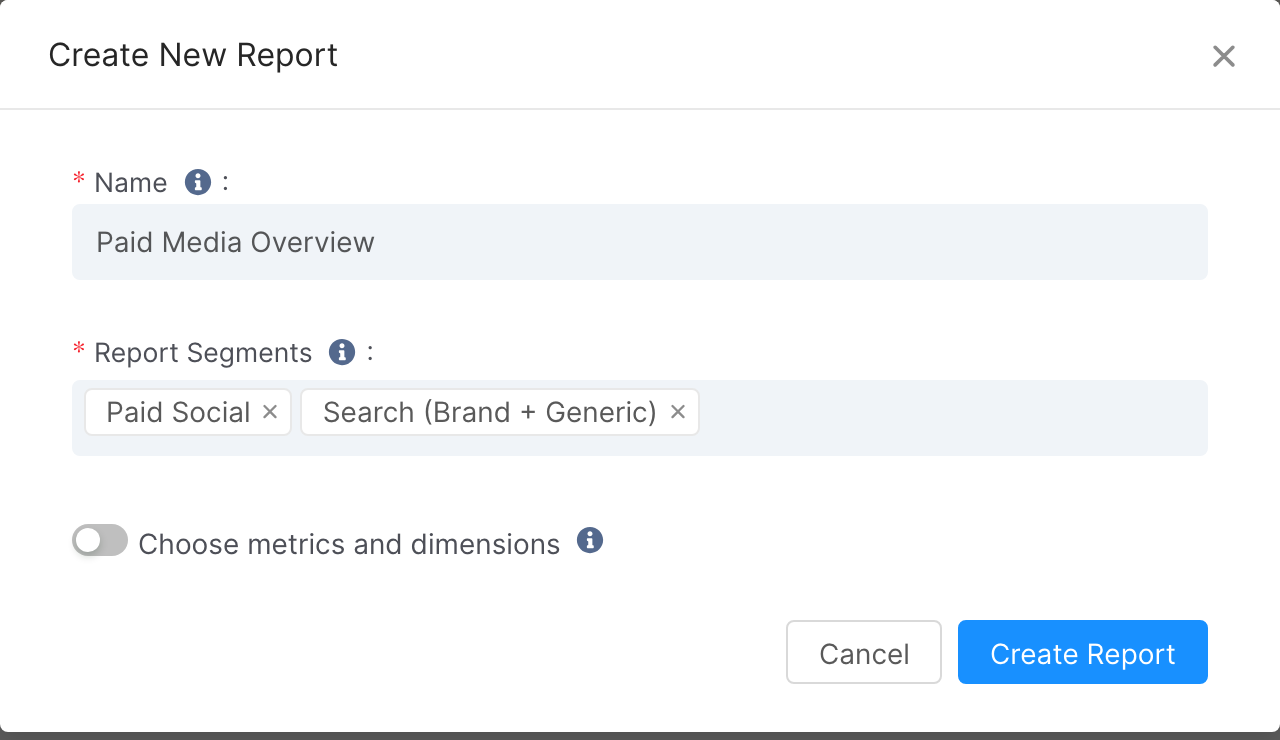
Turn on Choose metrics and dimensions. When this is off, all the dimensions and metrics of the report segments are visible in the report.
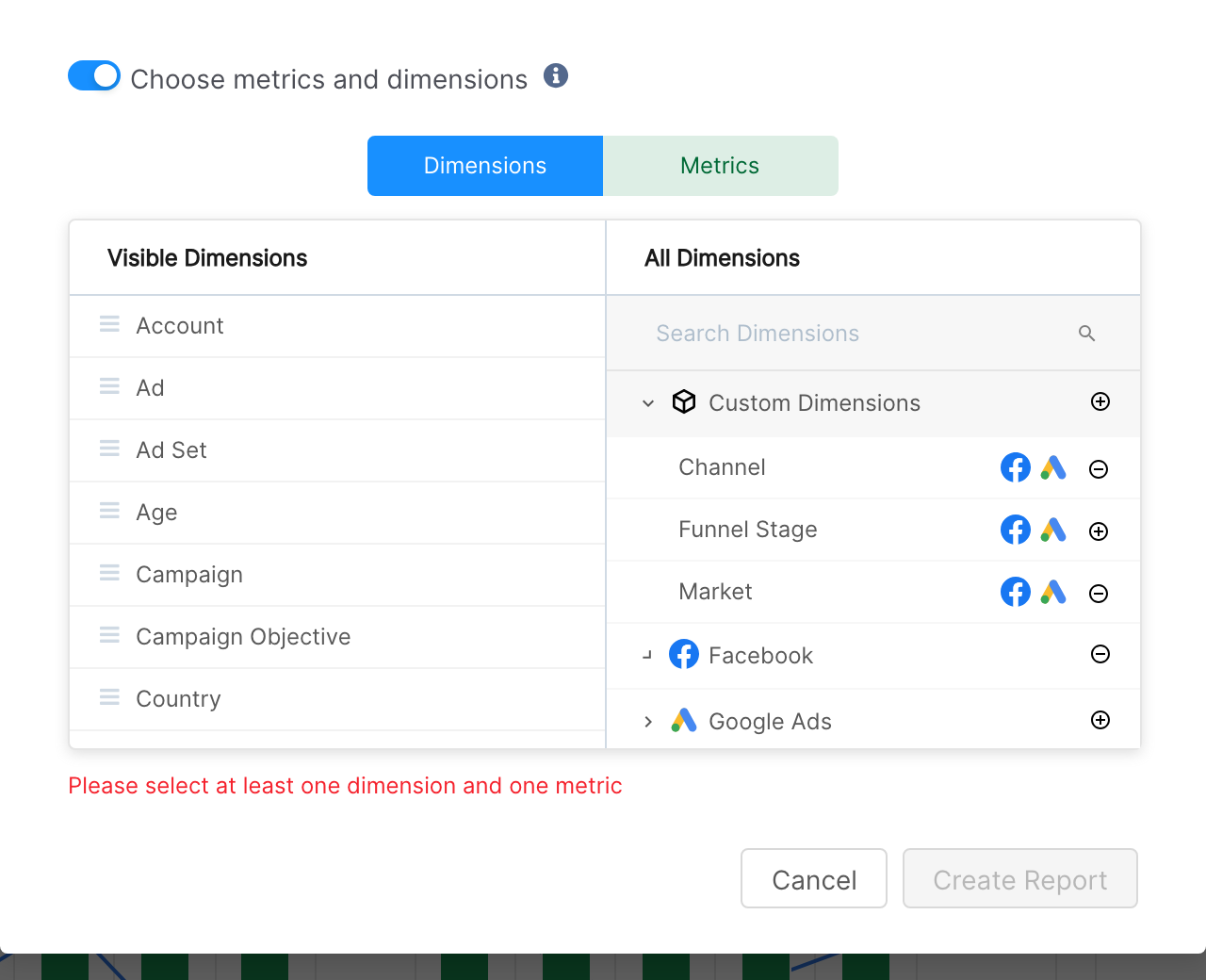
Choose at least one dimension and one metric. Find dimensions in the All Dimensions box on the right, either by searching or by expanding a group, and click the plus icon next to a dimension to add it to the Visible Dimensions box on the left.
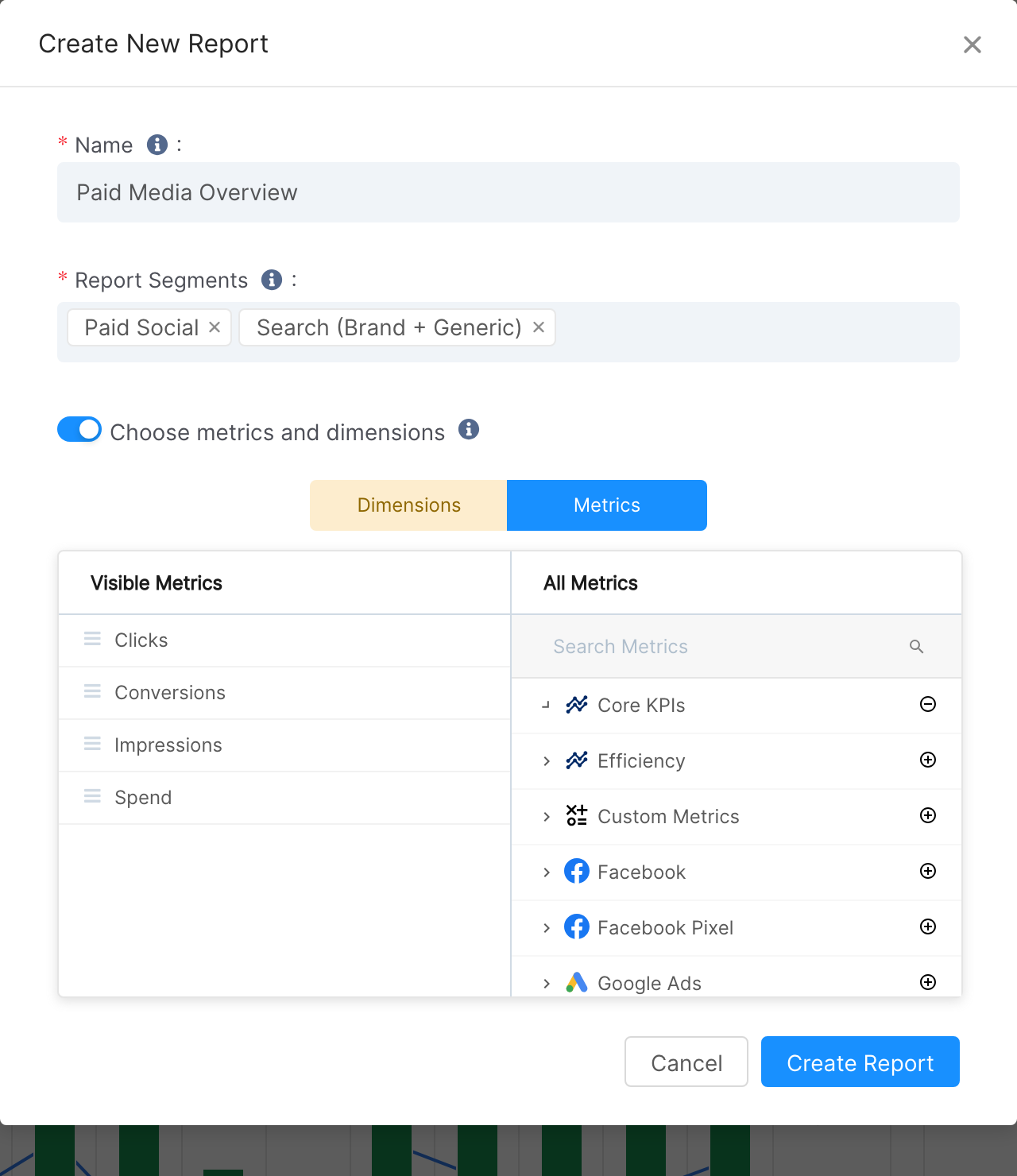
Open the Metrics tab and add metrics to the list of Visible Metrics in the same way.
Click Create Report (or Update Report in Report Settings).
Only the chosen dimensions and metrics will be available in the widgets of the report.
Choosing a complete metric or dimension group
Instead of choosing individual metrics and dimensions, you can choose a complete group by clicking the plus icon next to it. Any new dimension or metric added to that group then becomes available in the report automatically. For example, in the dimensions image above, the whole Facebook group is chosen along with the Channel and Market custom dimensions.
You can also choose a complete metric group, both standard ones such as Google Ads or Custom Metrics and user-defined metric groups such as Core KPIs (see the image below). Once selected, the metrics in that group are shown on the left. Any metrics added to these groups later will be available in the report.
Best practices
Create metric groups and use them when choosing metrics and dimensions for a report. See Creating and using a metric group.
Choosing the right metrics and dimensions keeps new users in your team from being confused by irrelevant ones.
When you create a new custom metric or custom dimension, add it to the chosen list in the report settings.
Learn how to share and schedule a report on Clarisights, or go to the Help Center home page.