
Report Segments in Clarisights
What are Report Segments?
Report segments are collections of data sources, layered with filters, that you can use in your reports instead of plain data sources.
Previously, you could only choose whole data sources for a report. Any filter that needed to be pre-applied to a source had to be added as a tab-level filter in every tab. This caused two problems:
Shared data sources: one data source is often shared by several teams. For example, Google Ads is usually shared by the SEM, Display and Video teams.
Many data sources: a team that consistently looks at data from more than 5 sources had to make sure the same set of sources was added to every report it created.
Report segments solve both problems:
You can create collections of data sources with filters pre-added, save them as report segments, and use them in your reports instead of whole data sources.
When a new source is introduced for your team, you only need to add it to the relevant report segment. It then shows up automatically in all reports that include that segment.
How to create Report Segments?
Report segments are in Preferences. To open Preferences, click the people icon (tooltip Manage Users) in the left sidebar.
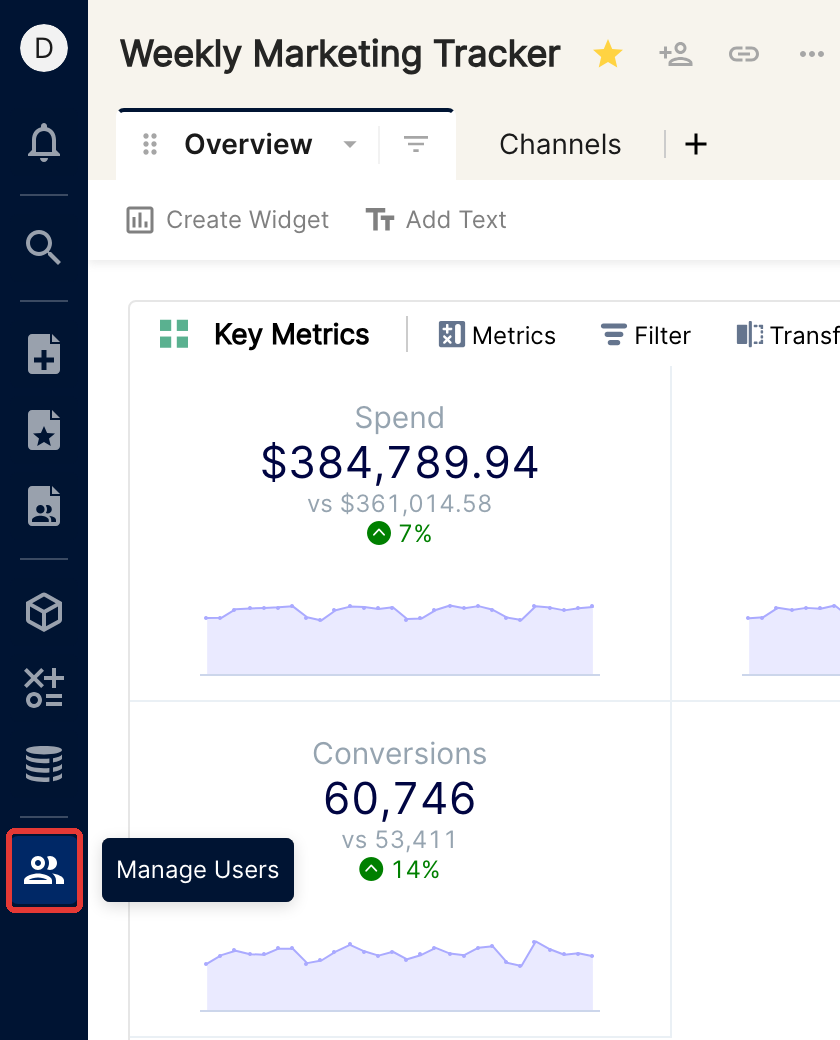
Click the Report Segments tab to see the list of available segments. To create a new segment, click + Segment.

In the form, give the report segment a name, choose the data sources to include, and add the filters you want to overlay on these data sources.
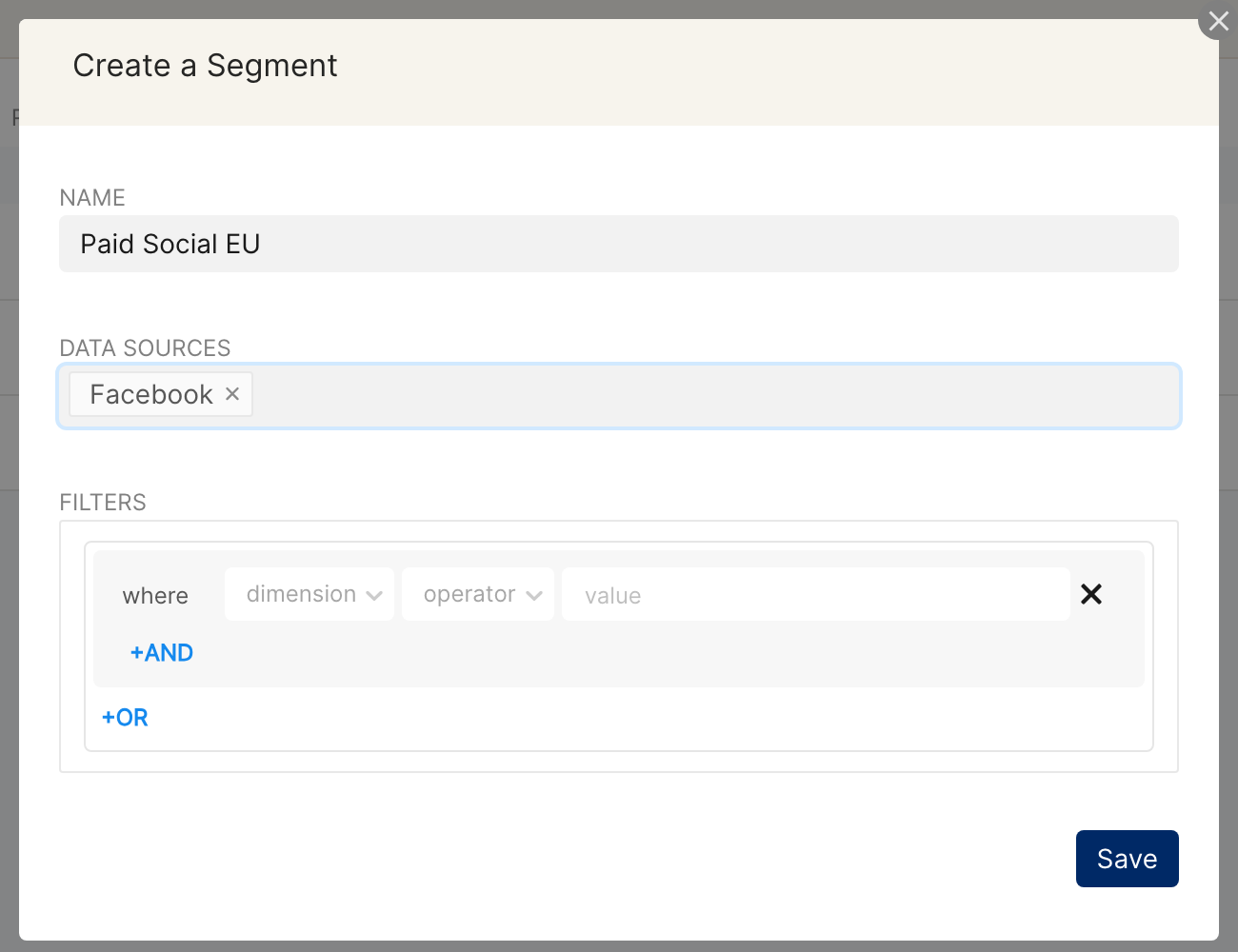
Click Save to create the report segment.
Now, whenever you create a new report, you can add your custom report segments directly, without adding specific data sources or tab-level filters.
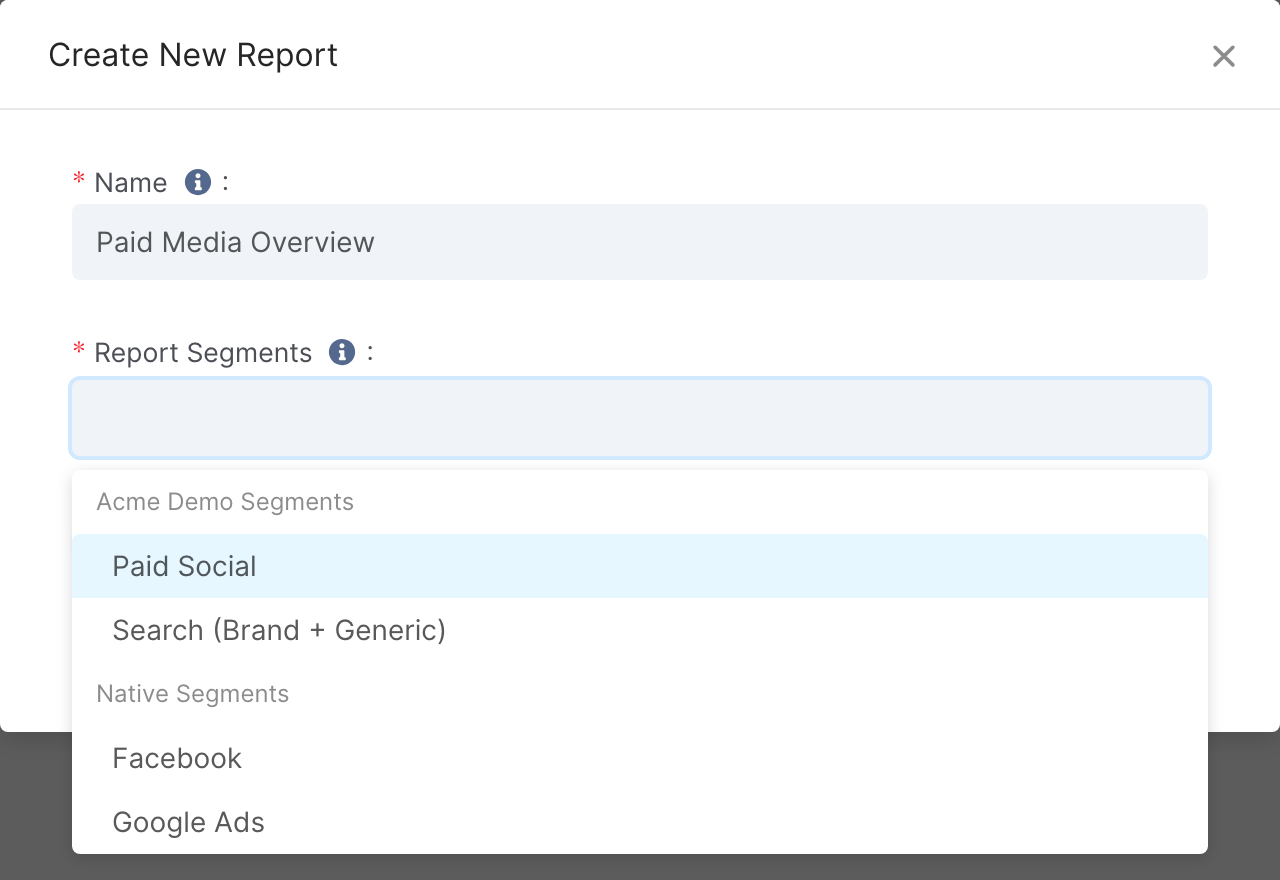
You can still include plain data sources in the report instead of custom segments. They are listed under Native Segments when you create a report, as shown above.
Things to know
Report segments can only be created and edited by users whose role allows managing report segments. For other users, the + Segment button is disabled.
Any user, whatever their role, can include existing report segments in their reports. Data access restrictions for specific users (especially Team Members) still apply.
After a report segment is edited, users who use it in their reports need to refresh it once to see the segment's new inclusions and exclusions.
When you delete a report segment, you can choose to automatically replace it with another segment in the reports that were using it.
If a report includes both a custom segment and a data source (native segment) that is already part of that custom segment's definition, the custom segment's filters still take precedence over the inclusion of the whole data source.