
Creating, duplicating and deleting tabs
Creating a New Tab
To create a new tab, click the + button in the tab navigation bar. A new tab with the default name "Tab" is created.
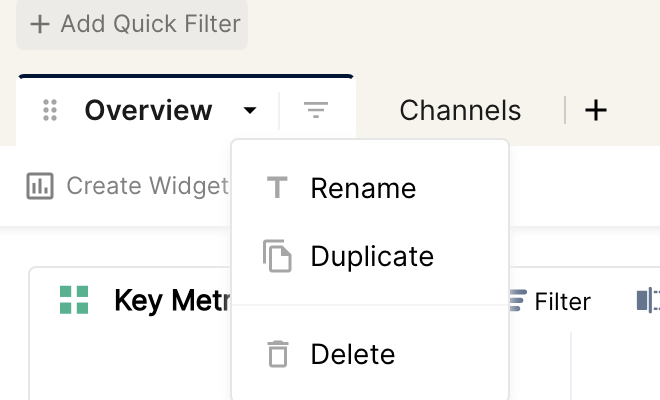
To rename a tab, click the tab's name, then click the arrow to the right of it. Click Rename, enter the new name and press Enter to save it.
You can also rename a tab by double-clicking its name and entering the new name.
Duplicating a Tab
Open the tab you want to duplicate and click the arrow to the right of the tab name.
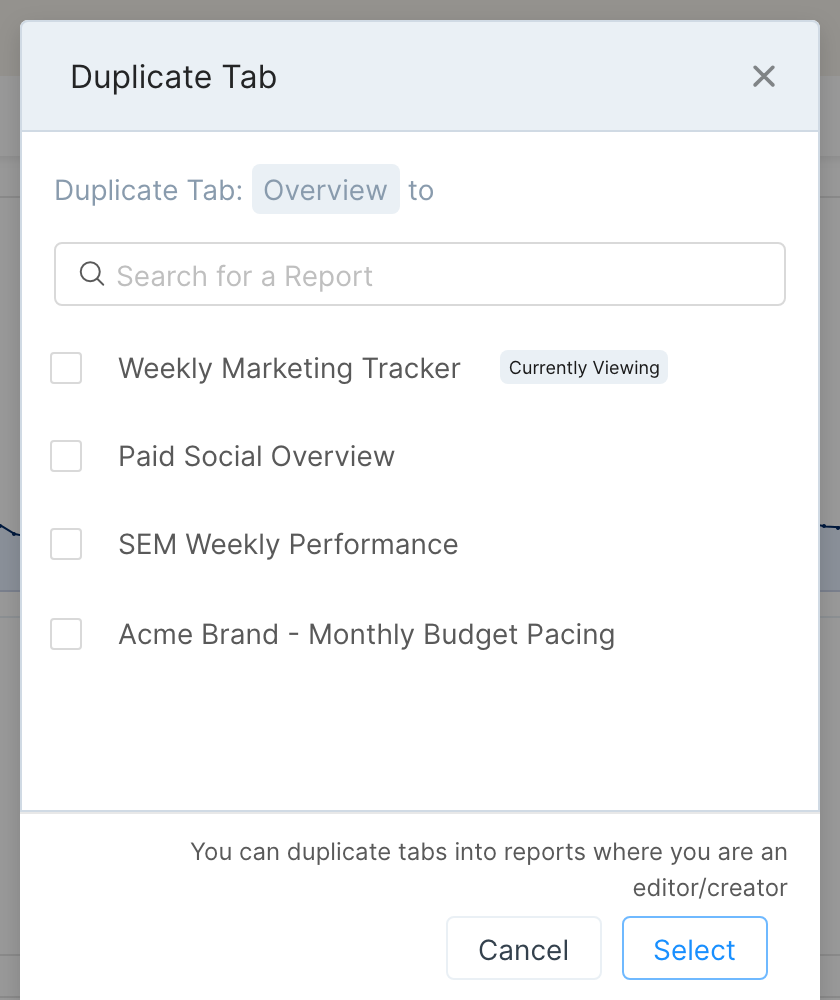
Click Duplicate. A dialog box with a list of your reports pops up.
Choose the report(s) you want to duplicate your tab to and click Select.
A duplicate of the tab, with the default name "Tab Name - Copy", is created and added to the selected report.
Note:
All widgets are copied over with the tab, but the data might be different depending on the data sources of the report the tab was duplicated to.
You can only duplicate tabs to reports where you are an editor or creator.
Deleting a Tab
To delete a tab, open it and click the arrow to the right of the tab name. Click Delete. When asked to confirm, click Yes, I'm sure.
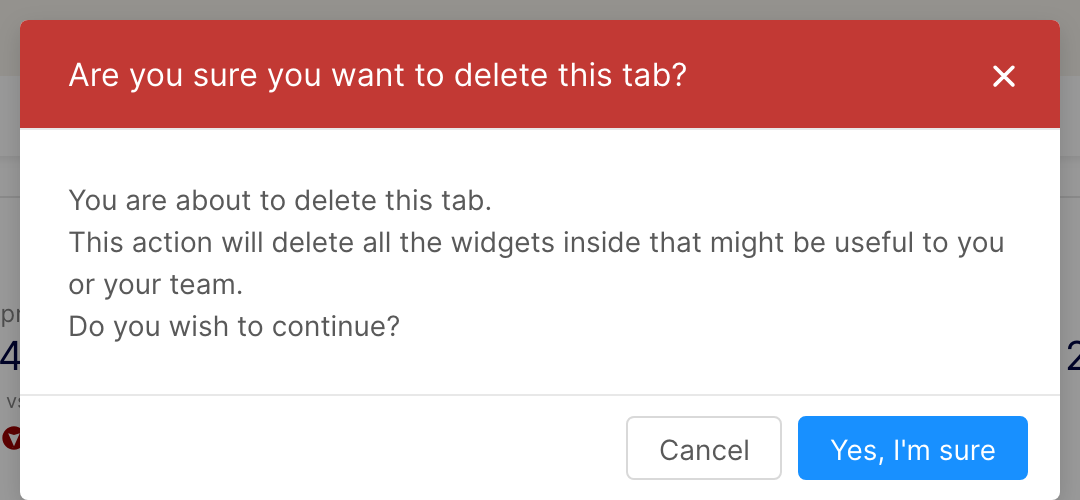
Important: deleted tabs cannot be recovered.