
Creating, duplicating and deleting widgets
Creating a widget
Before creating widgets in your reports, you might want to look at the types of widgets in Clarisights.
In the tab navigation bar, select the tab where you want to add, duplicate or delete widgets.
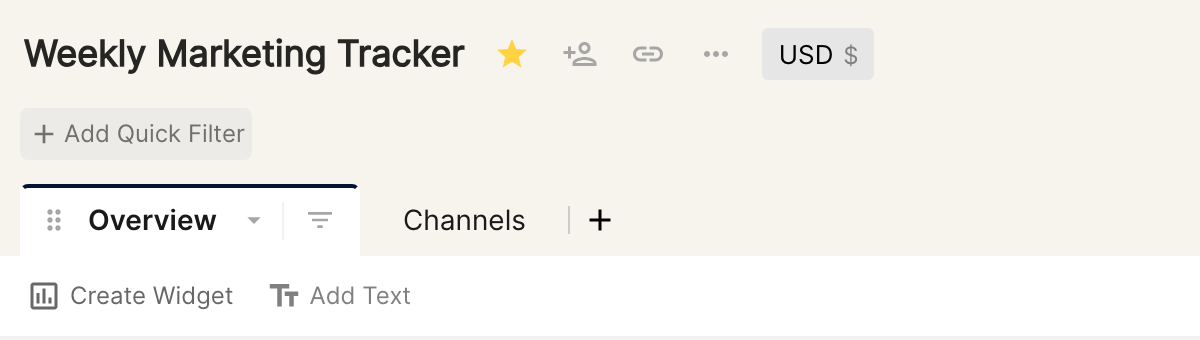
Click Create Widget below the tab bar. The new widget creation screen opens.
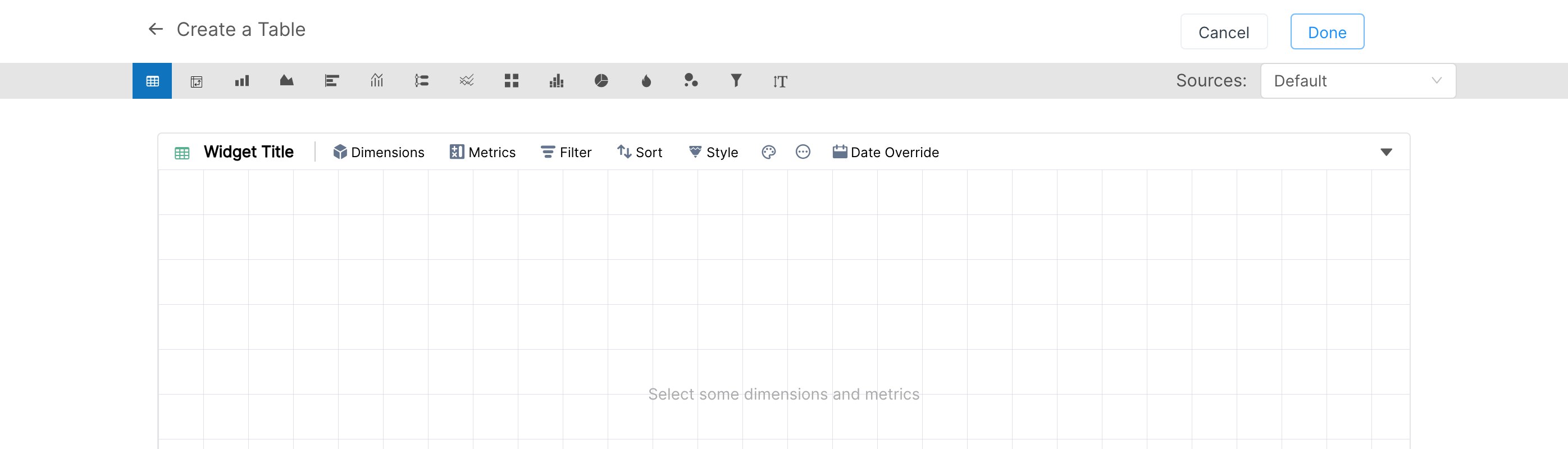
The new widget is a table by default. To pick a different widget type, use the icon bar at the top.
When you're done editing the widget, click Done to add it to the report.
Duplicating a widget
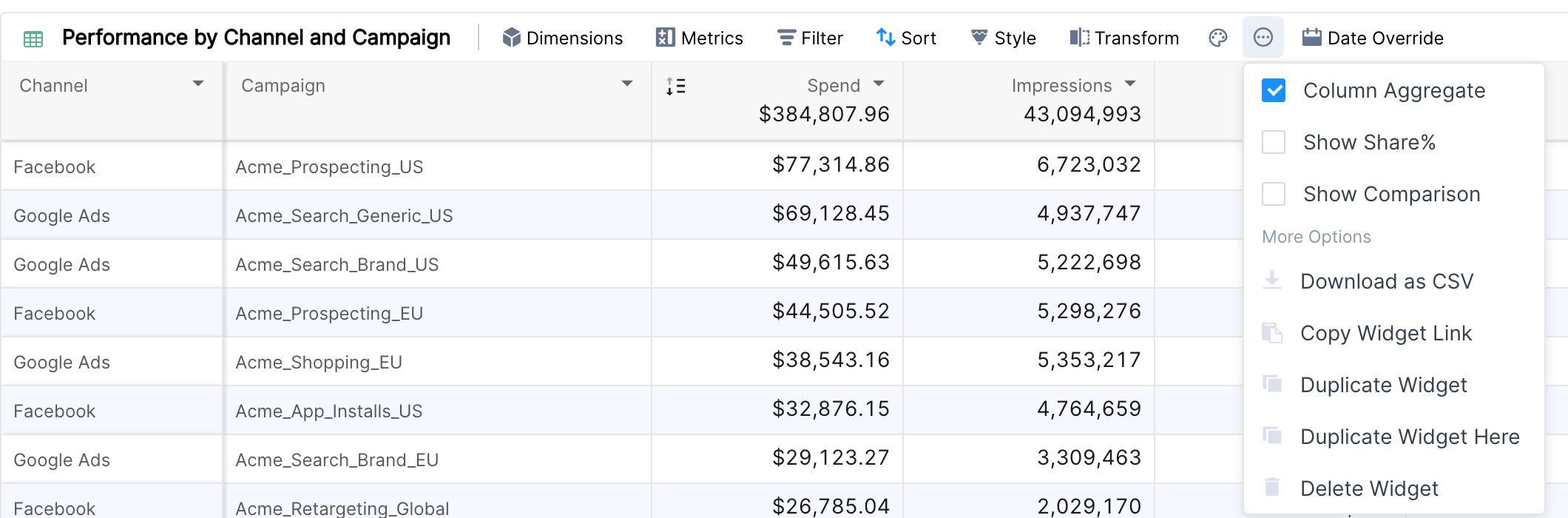
To duplicate a widget, click the more options icon in the widget toolbar and choose Duplicate Widget, then choose the report and tab to duplicate into. A copy of the widget, named after the original with "-duplicate" at the end, is added to the bottom of the selected tab. To make a copy in the same tab straight away, choose Duplicate Widget Here.
Deleting a widget
To delete a widget, click the more options icon on the widget, then click Delete Widget (see the menu above).
Learn more about resizing, transforming and adding filters to a widget.