
Widget types overview
On Clarisights, a visualization is called a widget, and each widget type suits a specific purpose. This article explains each type with sample use cases and its constraints.
Almost all widget types support these data exploration features:
Transform in the widget toolbar, to change a widget from one type to another. Clarisights prompts you for any missing metric or dimension requirements.
A limit on the number of items shown, set with the downward arrow at the top-right corner of most widgets, to keep the visualization clean.
Table
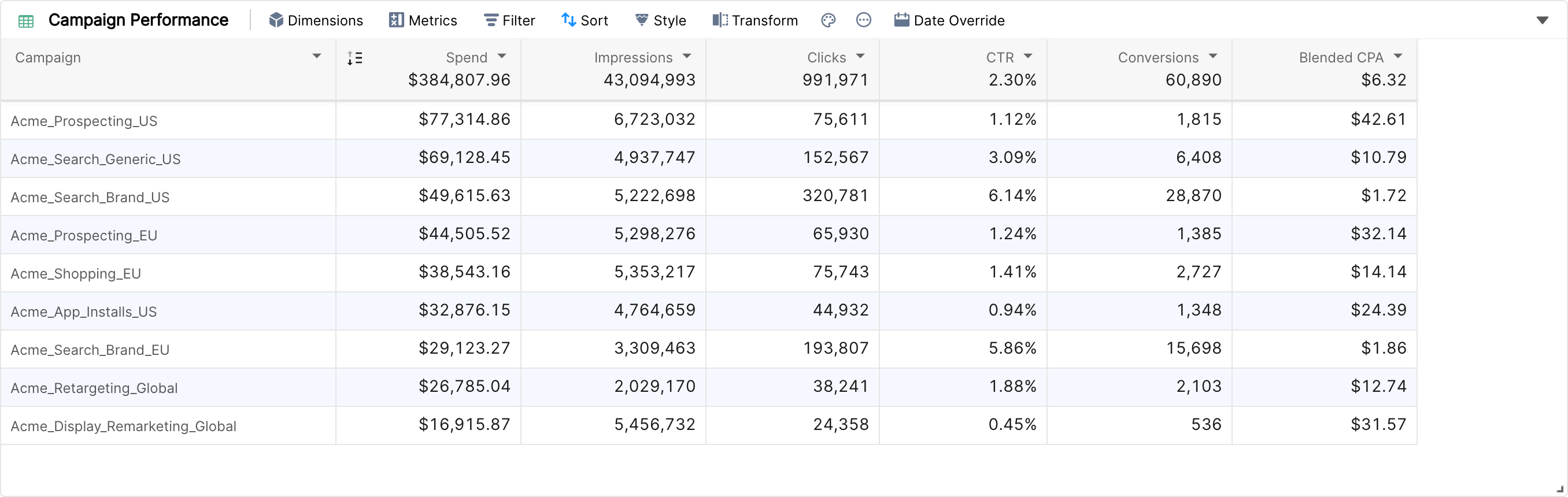
The table is one of the most used widgets in Clarisights. It shows data in rows and columns and is best for seeing a snapshot of a large volume of data at once.
Supports any number of metrics, dimensions and breakdowns. If you add more than one dimension, you can't add breakdowns.
Supports data enhancements such as breakdowns, trends, and aggregate, %-share and comparison.
Rows are shown in alternate colours and sized automatically, and Style has an Auto Resize option for the columns.
Tip: enable trends on any metric column with the arrow on the column header to show a sparkline in each cell.
Pivot Table

The pivot table shows a summary of your data, so you can report on and explore trends. It is particularly useful when you have long rows or columns whose sums you need to track and compare.
Style options let you adjust the number of columns, row size and alternate row colors.
More options let you turn trendlines, row and column aggregates and comparison on or off.
Column chart
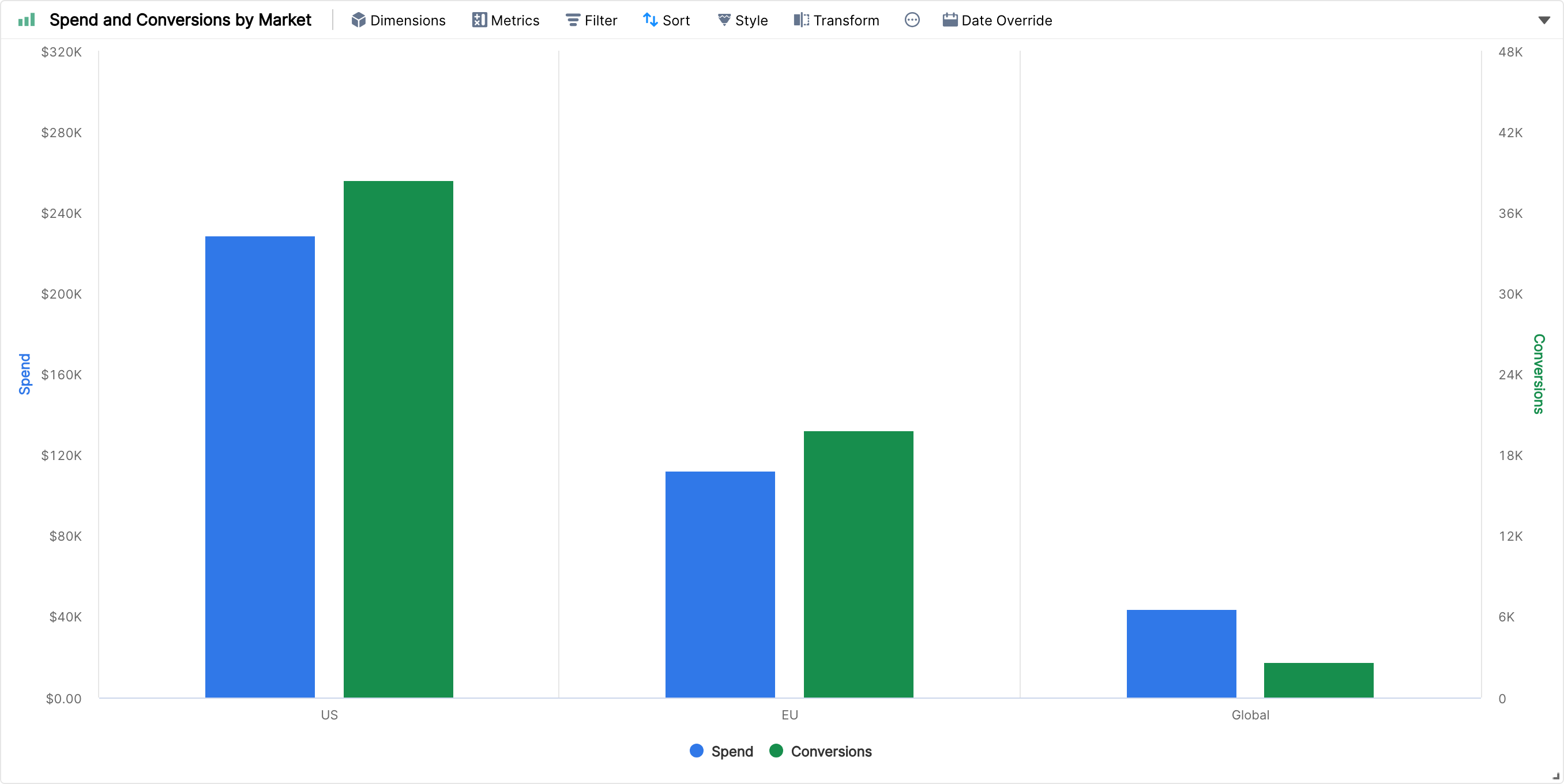
A column chart shows data as vertical bars. Dimensions are on the horizontal axis and metrics on the vertical axes. Column charts are great for visualizing overall trends in aggregate metrics.
Supports multiple metrics, with style options such as different colors for each metric, showing or hiding labels and moving metrics into separate axes.
With more than one dimension, each combination of the dimensions is a separate value on the horizontal axis.
Breakdowns are not supported.
Area Chart
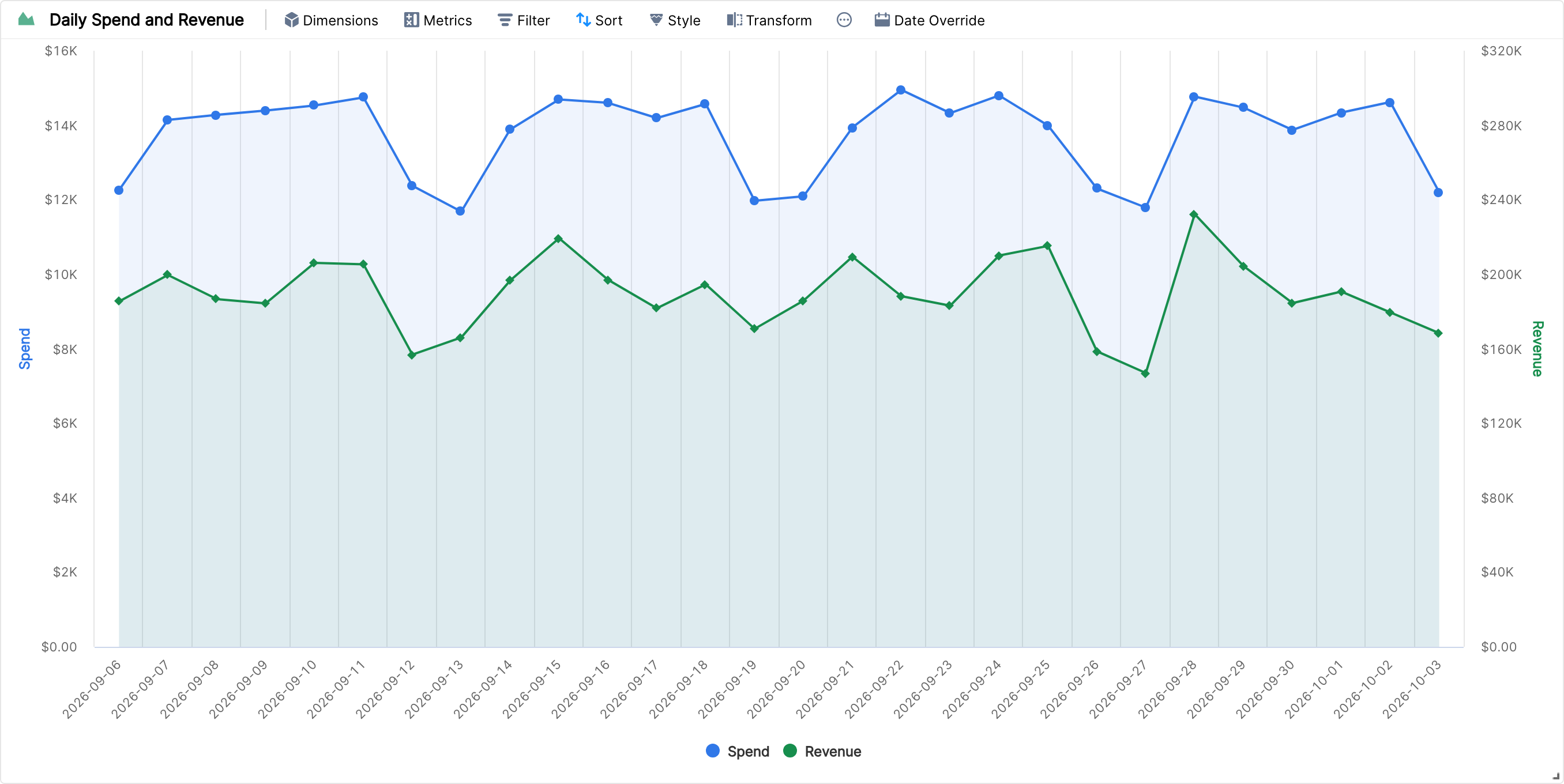
Area charts show data as the area below lines. They are recommended for comparing one metric with another over time, for example cost vs revenue.
Dimensions and metrics work the same way as in a column chart.
Supports multiple metrics, with various style options.
Breakdowns are not supported.
Horizontal chart
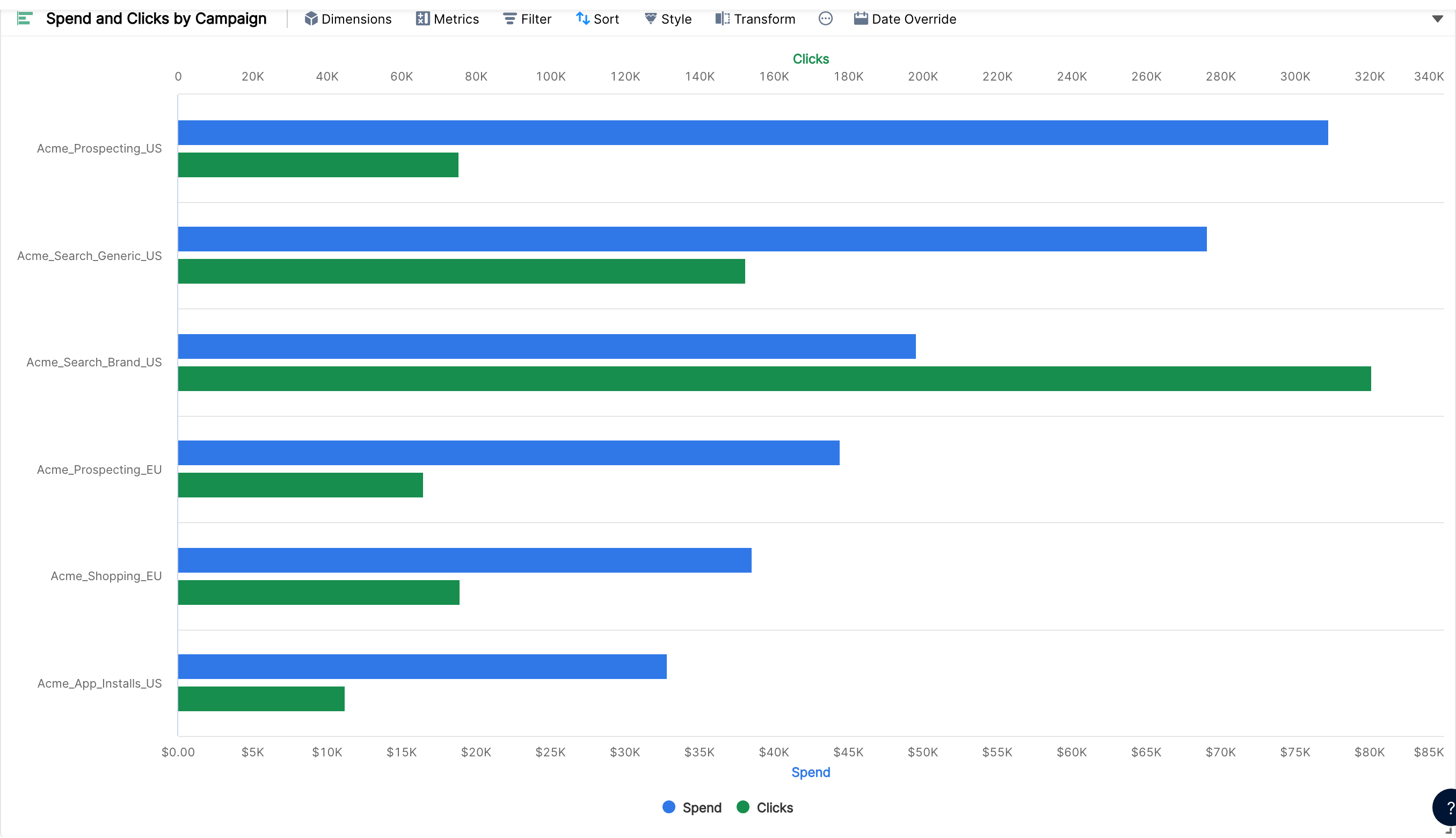
A horizontal chart is like a column chart with the axes swapped: dimensions are on the vertical axis and metrics on the horizontal axis.
Like a column chart, you can style metrics with different colors and axes.
Breakdowns are not supported.
Combo chart
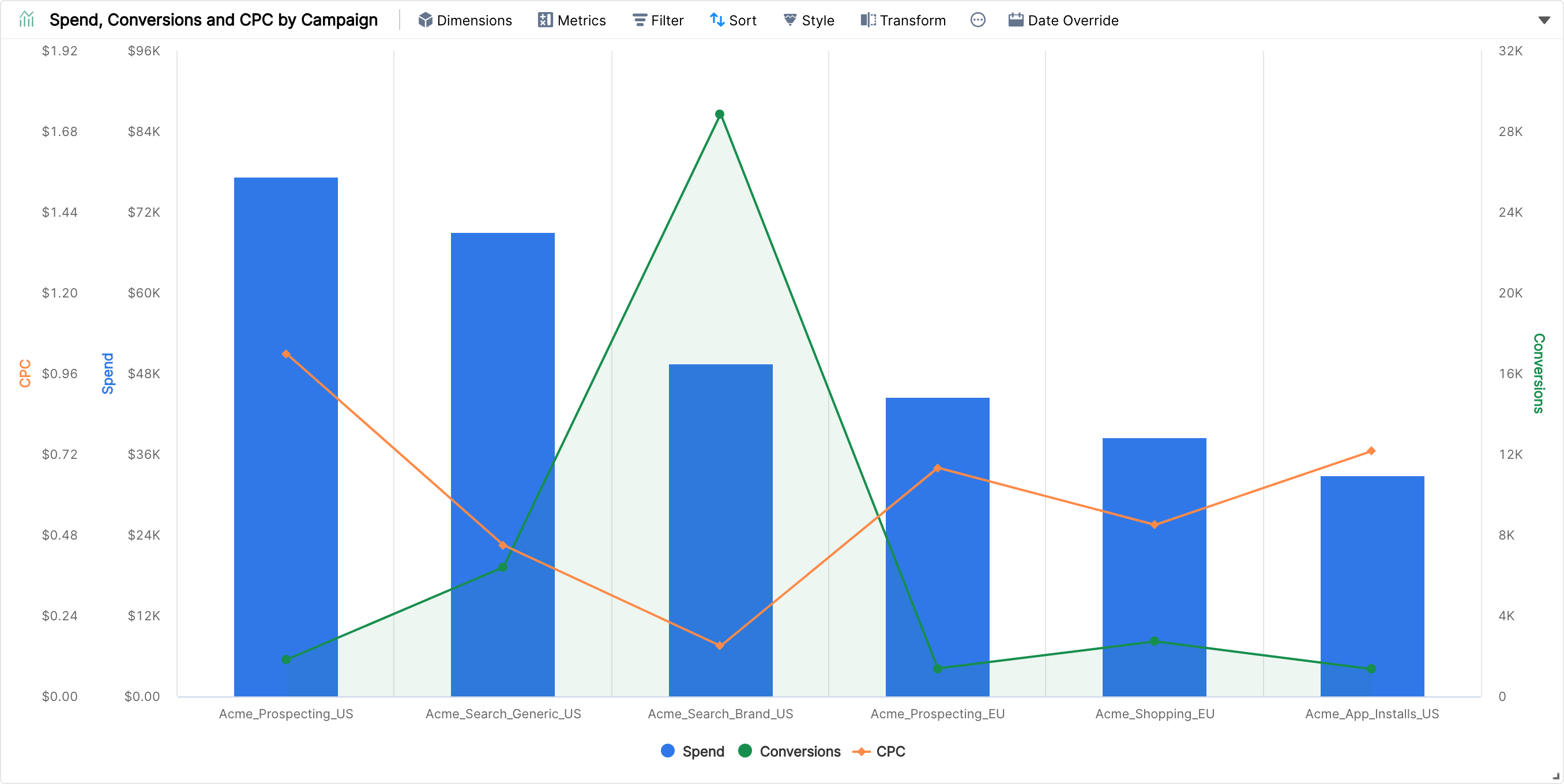
Combo charts show lines, areas and columns in the same widget. They are best for putting dissimilar metrics in the same graph to look for correlations, for example a ratio metric like CPC and a cumulative metric like Spend or Clicks.
Style options include the axes, the type of visualization (line, area, column) and colors.
Dimensions and metrics work the same way as in a column chart.
Breakdowns are not supported.
Timeline Chart
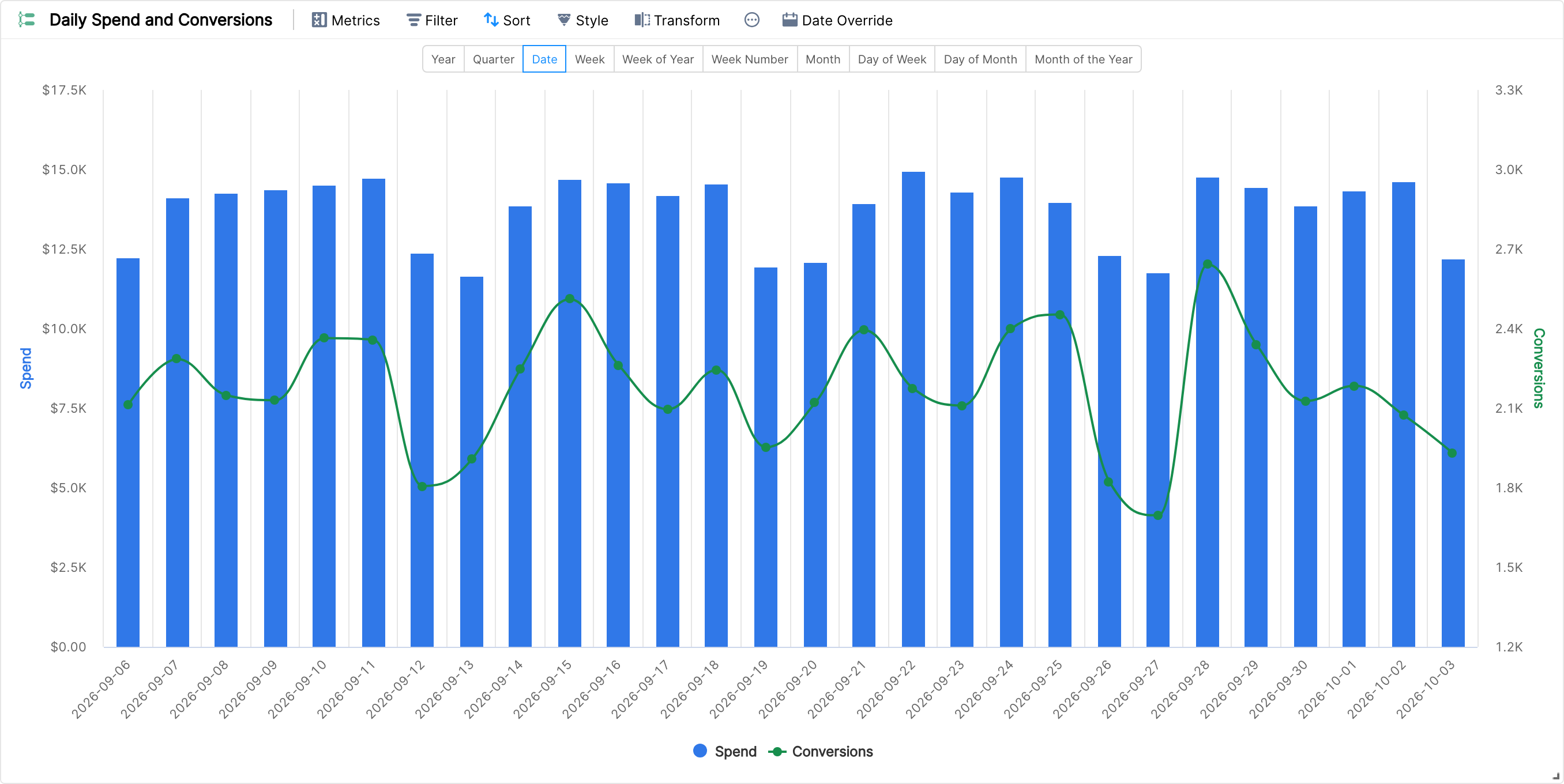
Timeline charts are recommended for visualizing metrics over time. You don't need to add or remove dimensions, and you can quickly switch between daily, weekly, monthly and other views.
Add metrics and filters, and style the metrics the same way as in a combo chart.
The chart follows the order of the chosen time unit.
Breakdown Chart
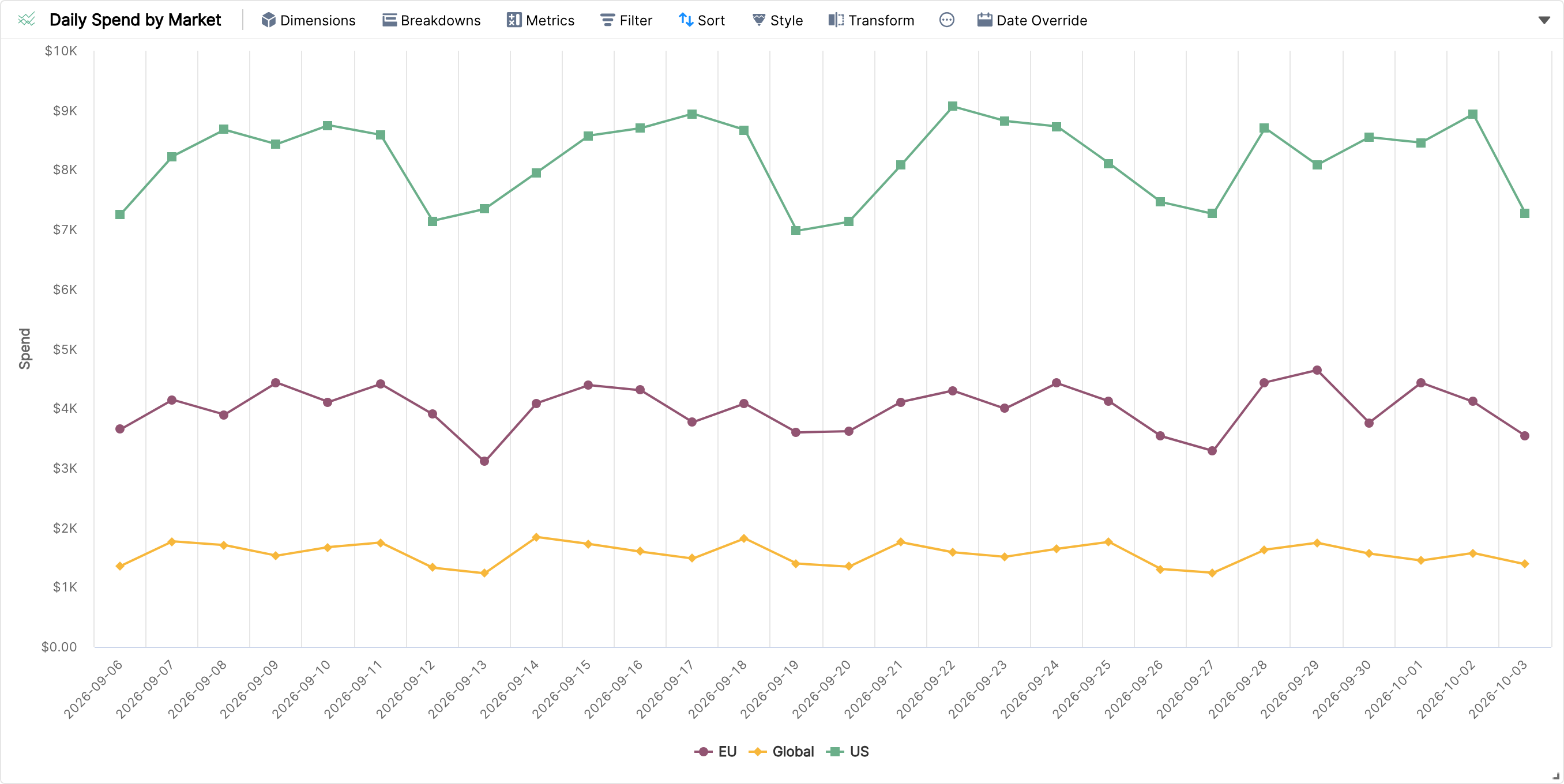
Breakdown charts break down a metric by the values of a dimension and show these values over another dimension. A common example is CTR broken down by Channel over Weeks, Countries or Product Categories.
Needs exactly one dimension, one metric and one breakdown.
Filters and sorting are supported.
Style lets you customise the axes and show labels.
Stacked Chart
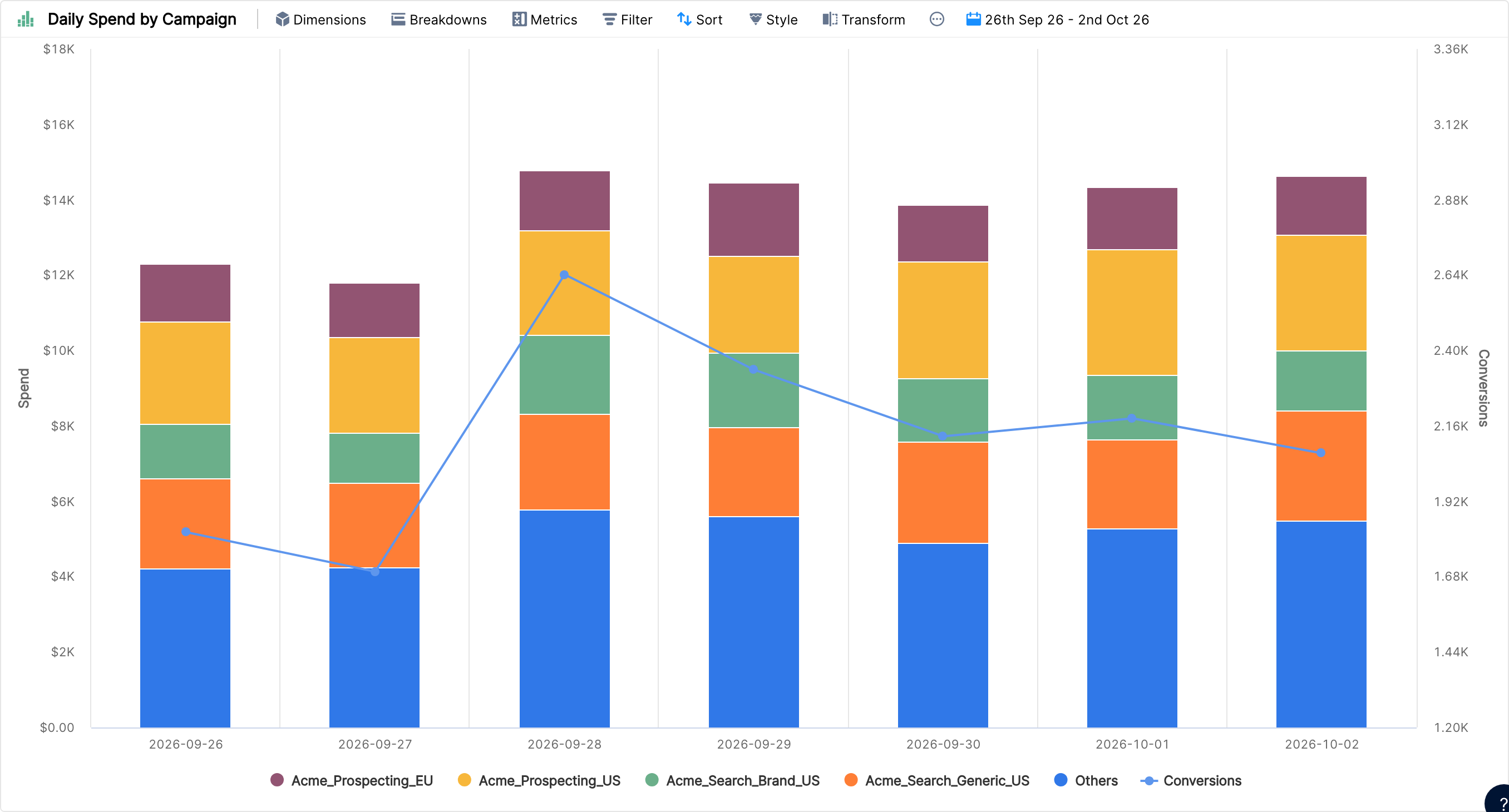
Stacked charts are very similar to breakdown charts: they show the value of a metric broken down across a dimension. Each breakdown value has its own color in the stack. Stacked charts are useful for cases like breaking down orders or leads by channel over time.
You can add a second metric, shown as a line across the dimension.
Filters and sorting are supported.
Style options let you limit the number of stacks. All additional stacks are grouped under "Others" to keep the visualization clean.
Tip: use 100% Column View to compare the percentage share of each stack across the main dimension.
Tiles

Tiles show aggregate values of KPIs at a glance. They work best for a quick overview of the performance of a channel or campaign type, such as web vs app or brand vs non-brand.
You can add filters and comparisons, but dimensions and breakdowns are not supported.
Turn on trends in the tile widget's more options to show a sparkline in each tile with the metric's values over days, weeks or months.
Pie Chart
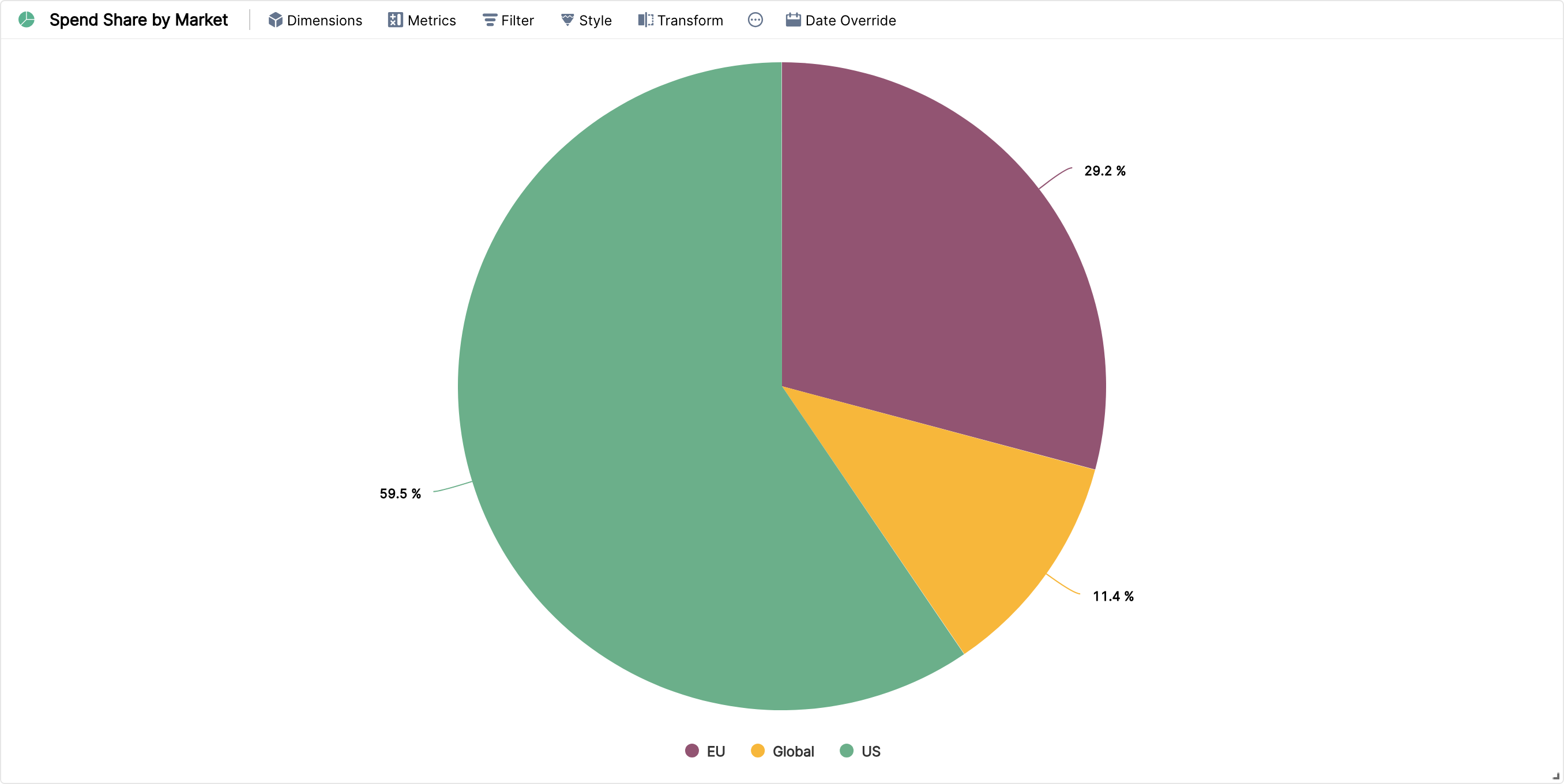
Pie charts are the classic way to show how a metric splits across dimension values. They give a quick view of the distribution of spend, conversions or revenue across segments like channel, city or device.
Add one metric and one dimension, and filter out data you don't need.
The slices are sorted by the metric by default.
Change the number of slices in style options. All other slices are grouped under "others".
Heat Map
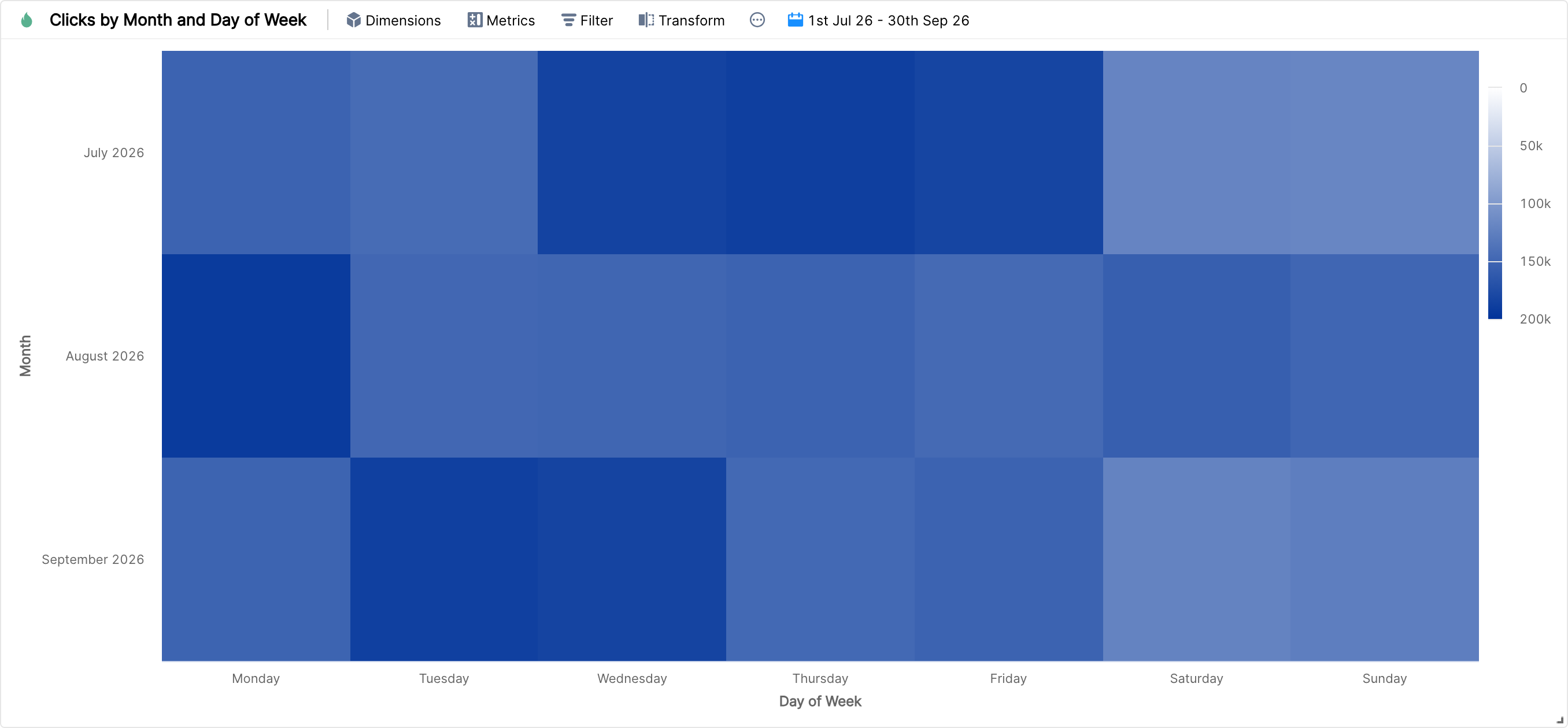
A heat map shows a metric with different color intensities representing its values. Heat maps are most often used to see the highs and lows of a metric across two dimensions.
Needs two dimensions and one metric.
The scale next to the chart shows how color darkness relates to the metric's value.
Filtering is supported, but sorting and breakdowns aren't.
See Heat Map widget and its uses.
Bubble Chart
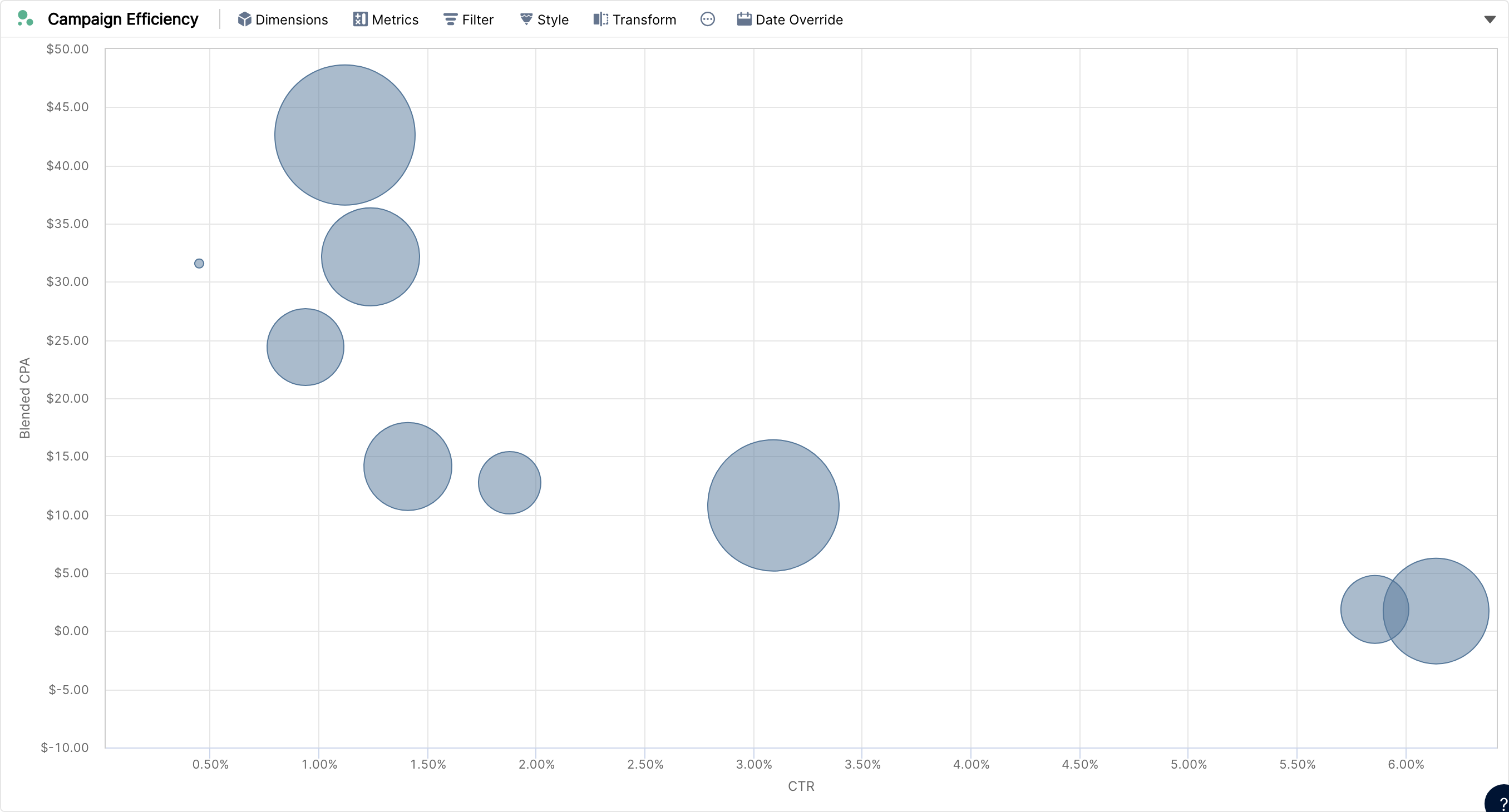
A bubble chart shows up to 3 metrics in one chart. Each bubble is a dimension value, plotted by the values of two or three selected metrics (the two axes and the bubble radius).
By default, the first two metrics in order are the horizontal and vertical axes, and the last metric sets the bubble radius.
See What is a bubble chart and how does it work?
Funnel Chart
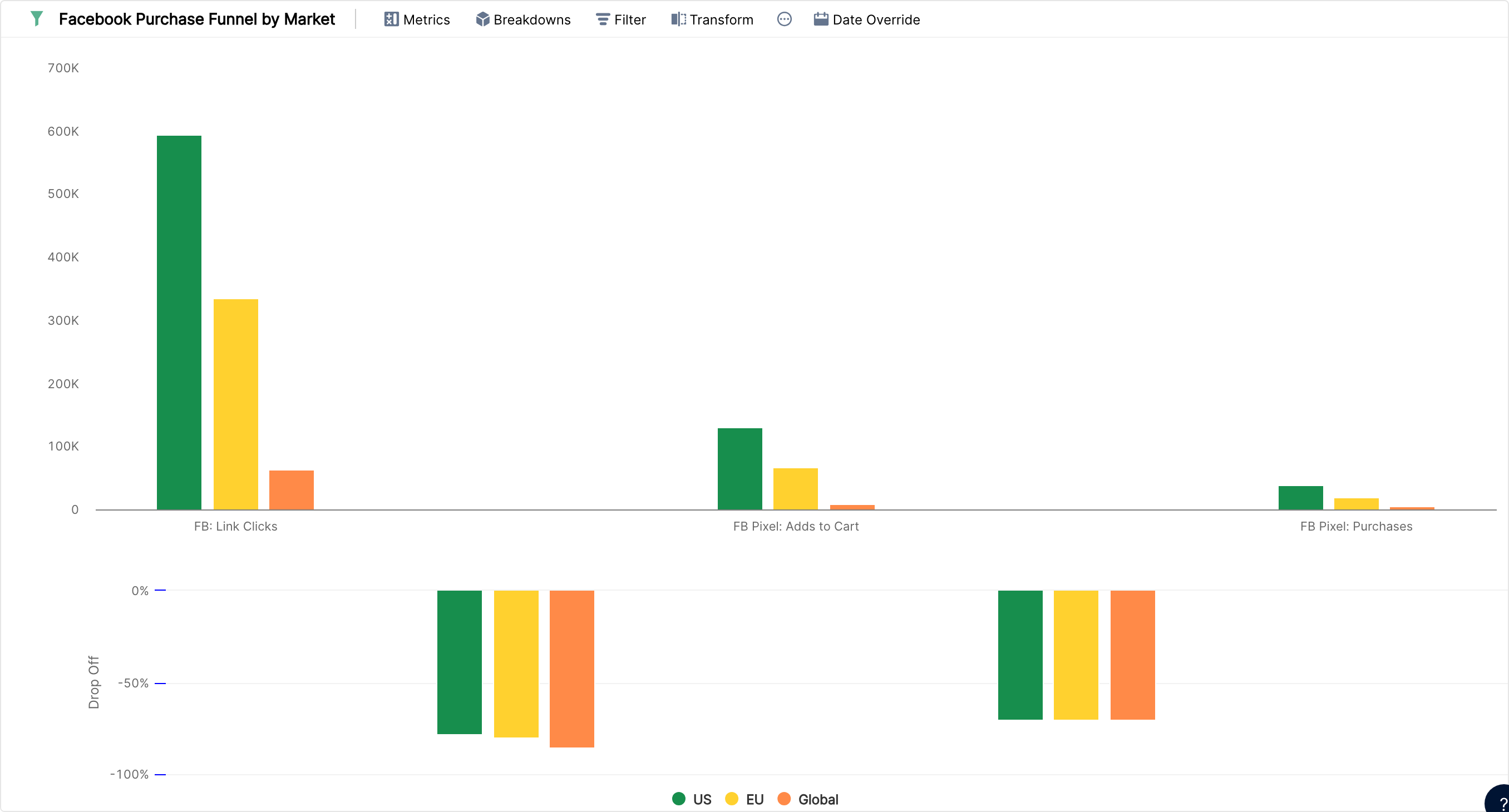
The funnel widget shows the progressive reduction of data as it passes from one phase to the next. Use one dimension and two or more metrics of the same type (number, currency and so on).
The drop in the vertical values shows the percentage reduction in a dimension value as it passes to the next phase.
Text

Use a text widget to add instructions for using a report, point out highlights or note specific observations. See Taking notes on report using Text widget.