
Filtering a widget
Filters focus a widget on the data that matters for your analysis. You set conditions on dimensions and metrics, and the widget shows only the data that matches.
Note: if you have edit access to a report, filters you apply to a tab or widget are saved and stay until an editor removes them. With view access you can still apply filters to explore the data, but they aren't saved when you leave the report.
Applying a filter
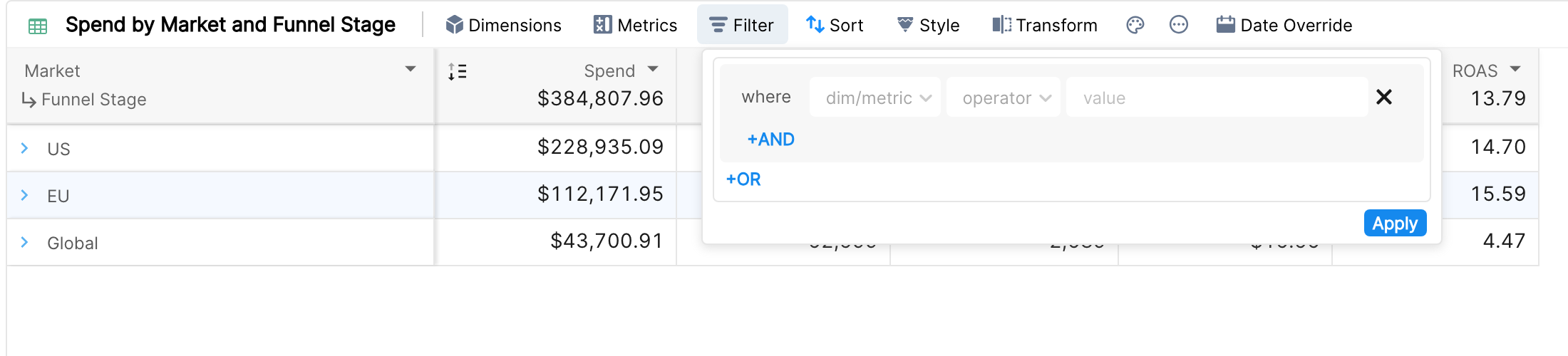
Click Filter in the widget toolbar.
Pick the dimension or metric to filter on, then the operator.
Enter or pick the value and click Apply.
For example, to see only the brand campaigns in Google Ads and the retargeting campaigns in Facebook, create two blocks joined with OR:
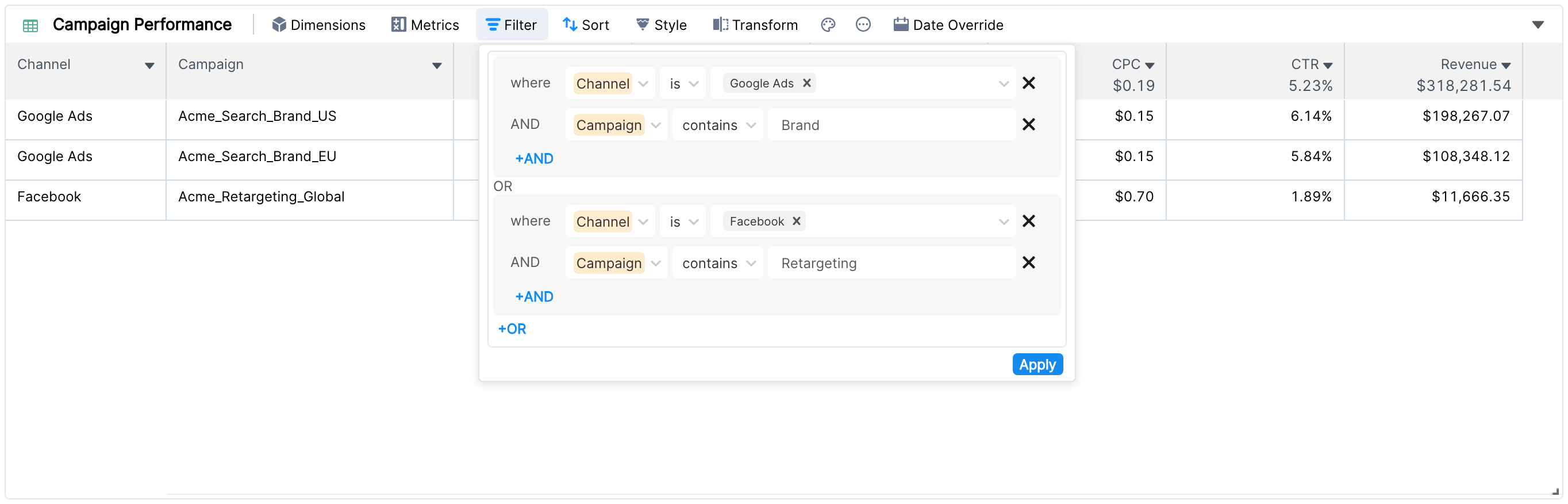
The widget updates immediately, and the aggregate in the column headers reflects the filters.
Operators
Filter on | Operators |
Dimensions | is, is not, contains, contains (regex), does not contain, does not contain (regex), starts with |
Metrics | greater than, less than, equals, not equals |
Text filters are case insensitive. The regex operators let you match patterns, see Using regex in widget filters.
Combining filters
Click +AND to add a condition to the same block. All conditions in a block must be true.
Click +OR to add another block. A row is shown if it matches any block.
Metric conditions can only be combined with AND.
Filters set at tab level and quick filters apply to every widget on the tab. They are shown, read-only, at the top of the widget filter and are combined with the widget filters using AND.