
Custom and reversed chart axes
Charts on Clarisights have two built-in axis features:
Customise axes start and end values
Reverse axes
Customise axes
Say you're analysing spend by country market. If spend in your primary market is much higher than in markets you've just entered, the chart appears skewed.
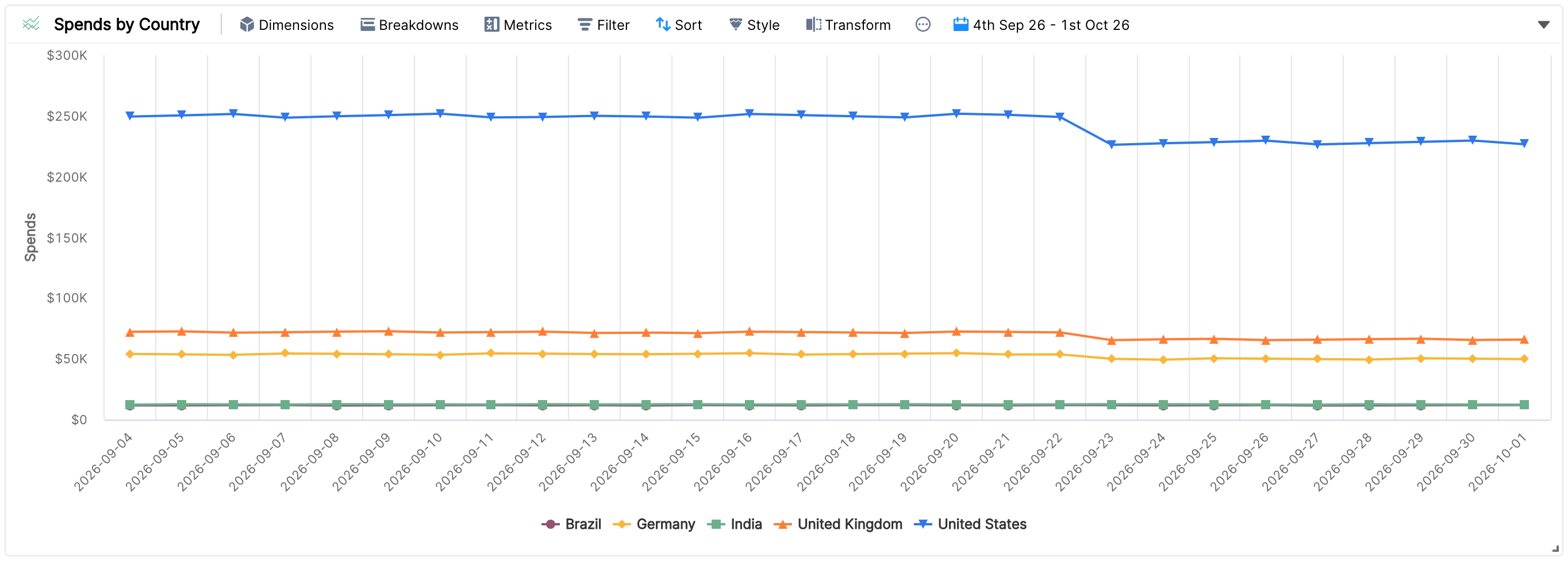
This breakdown chart shows that spend in the primary market, France, is at least 5x that of the other markets. That makes it hard to zoom in on the secondary markets.
You can customise your axes based on the nature of the data. The feature is available in seven chart types:
Column chart
Area chart
Horizontal chart
Combo chart
Timeline chart
Breakdown chart
Stacked chart
Where do you find it?
The option is in the styling options of the chart widgets: Style > Axes > Customise Axis.
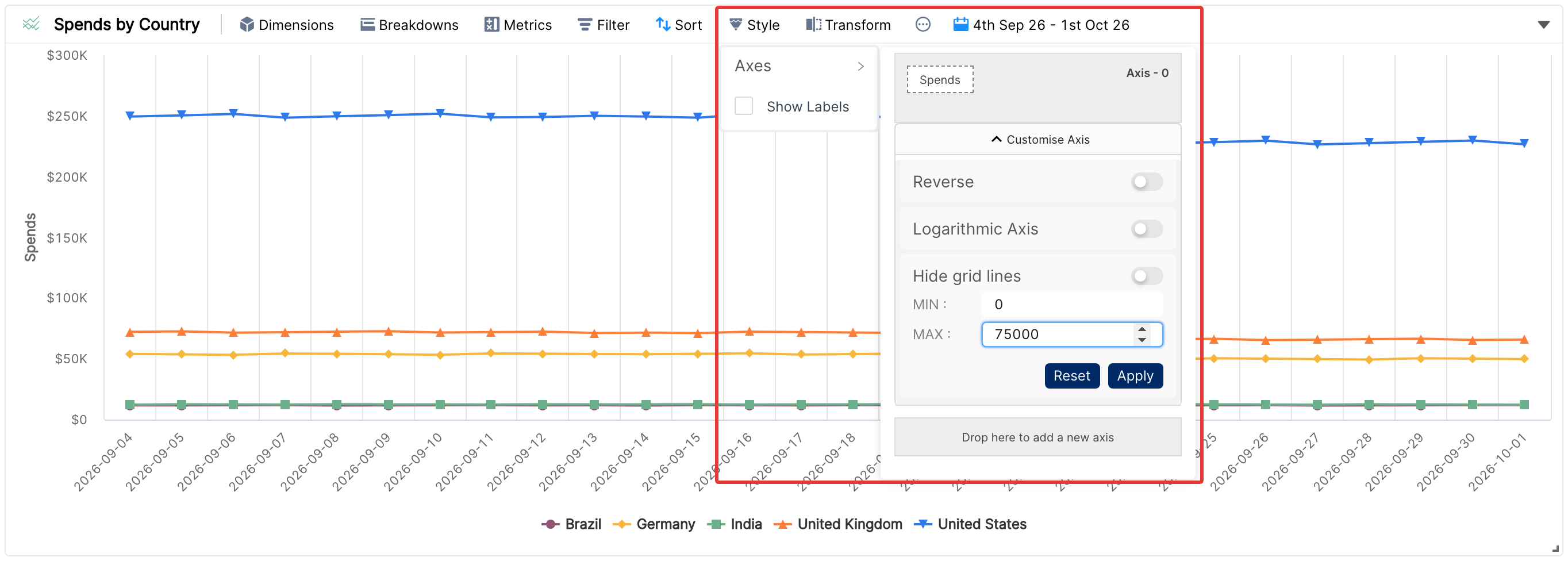
Enter custom values for the axis you want to customise. In this example, spend for the secondary markets lies between 0 and $75,000. Click Apply.
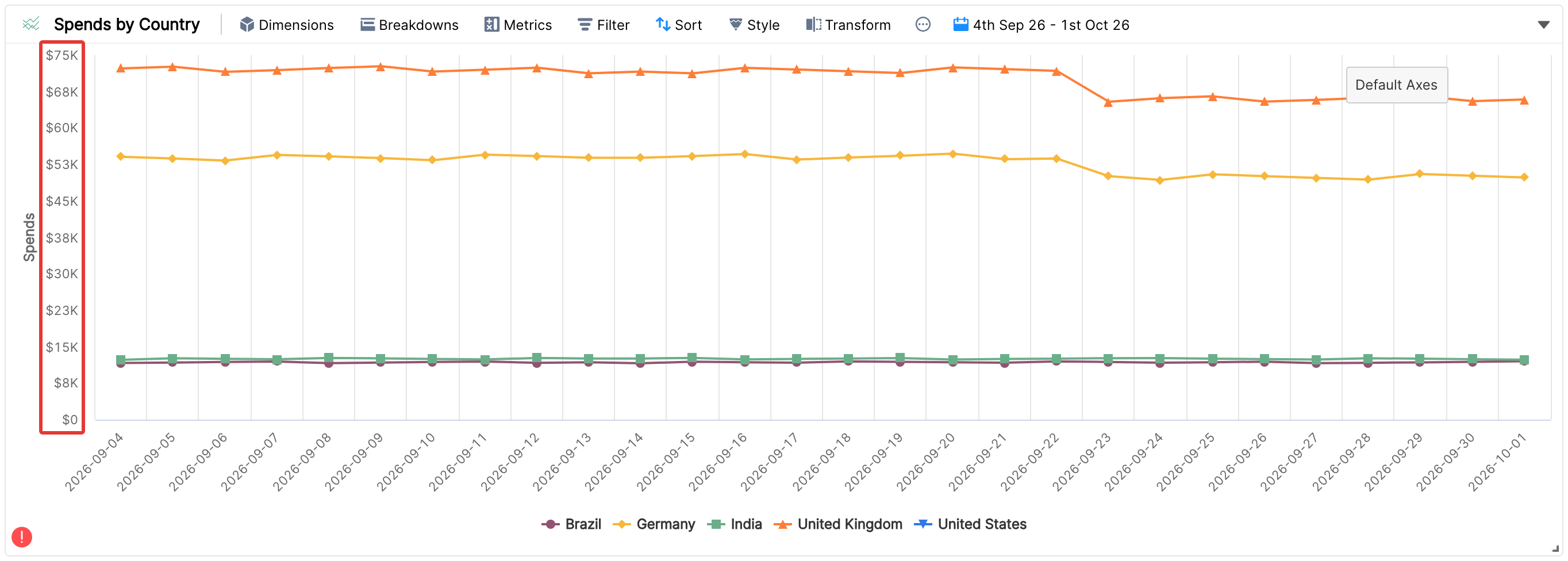
The Y-axis now runs from 0 to $75,000, which gives a better view of the secondary markets: Brazil, US, UK and India.
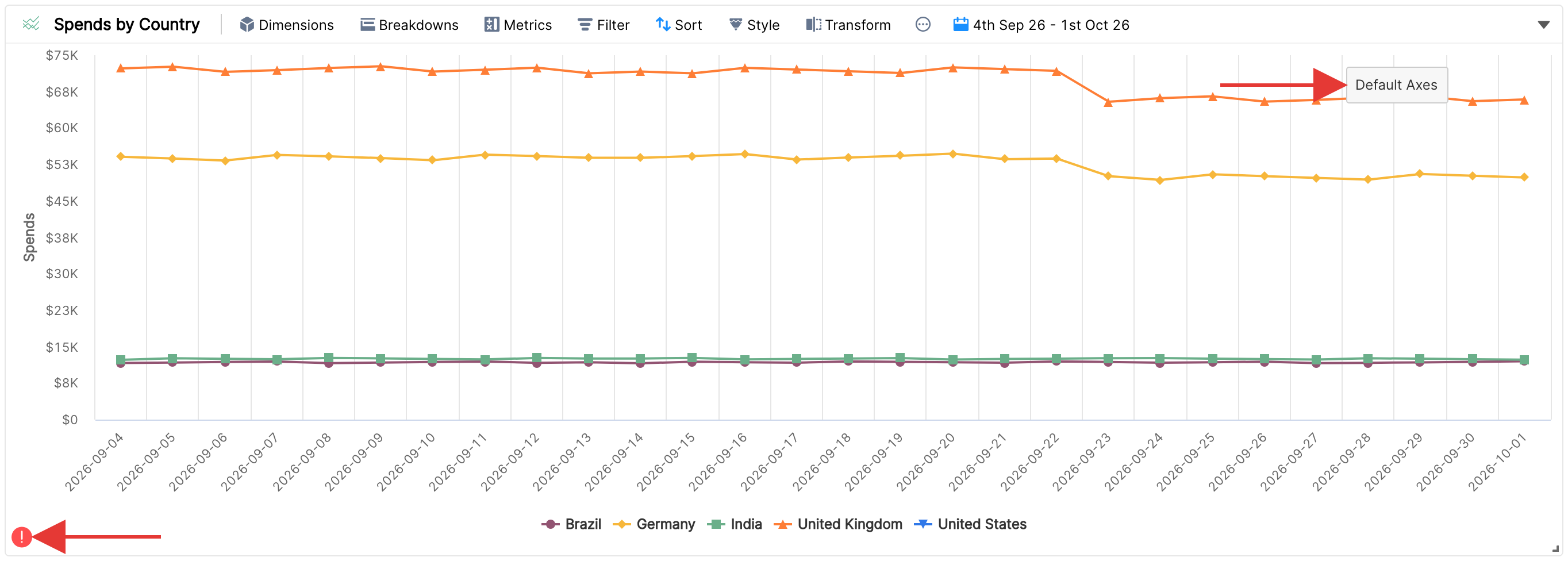
Note: since the customisation excludes France from the view, the widget shows a caution in its bottom left. This tells viewers who don't know about the customisation that some values may be excluded.
To go back to the original axes, click the Default Axes button at the top right. Once custom axes are defined, this button is a quick toggle between the original and customised axes.
Reverse axes
Spend and conversion metrics are positive metrics: a higher value ranks higher. An inherently negative metric, such as losses, works the other way. Markets with the highest losses should rank below markets where losses are minimal.
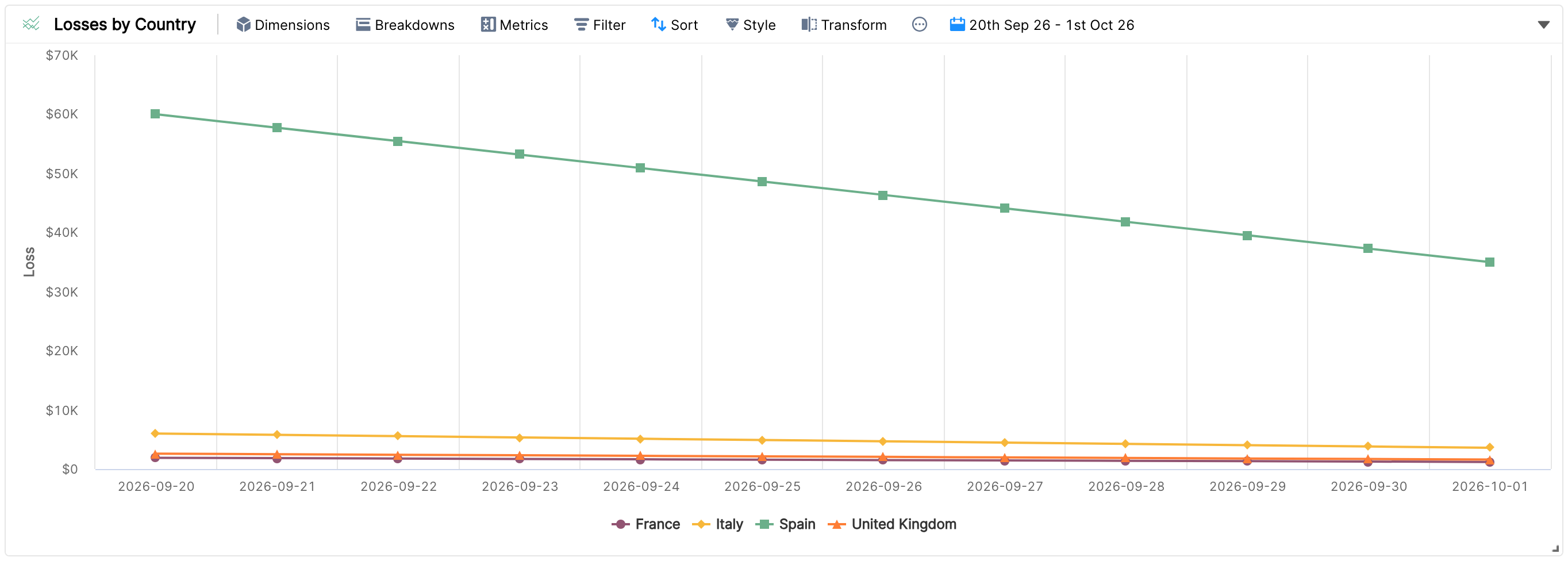
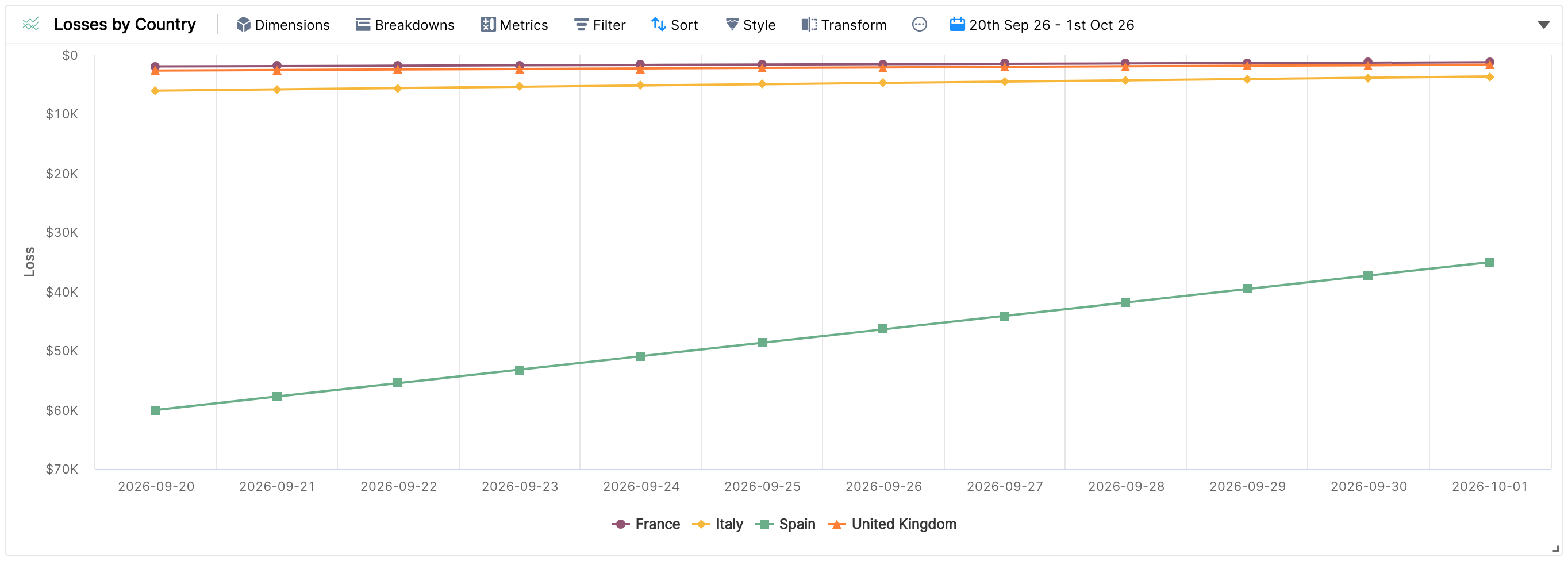
Here it would be better to see the Y-axis reversed, from 0 up to $70,000, so that the countries with the smallest losses are on top.
Customise Axis has a Reverse switch for this: Style > Axes > Customise Axis > Reverse.
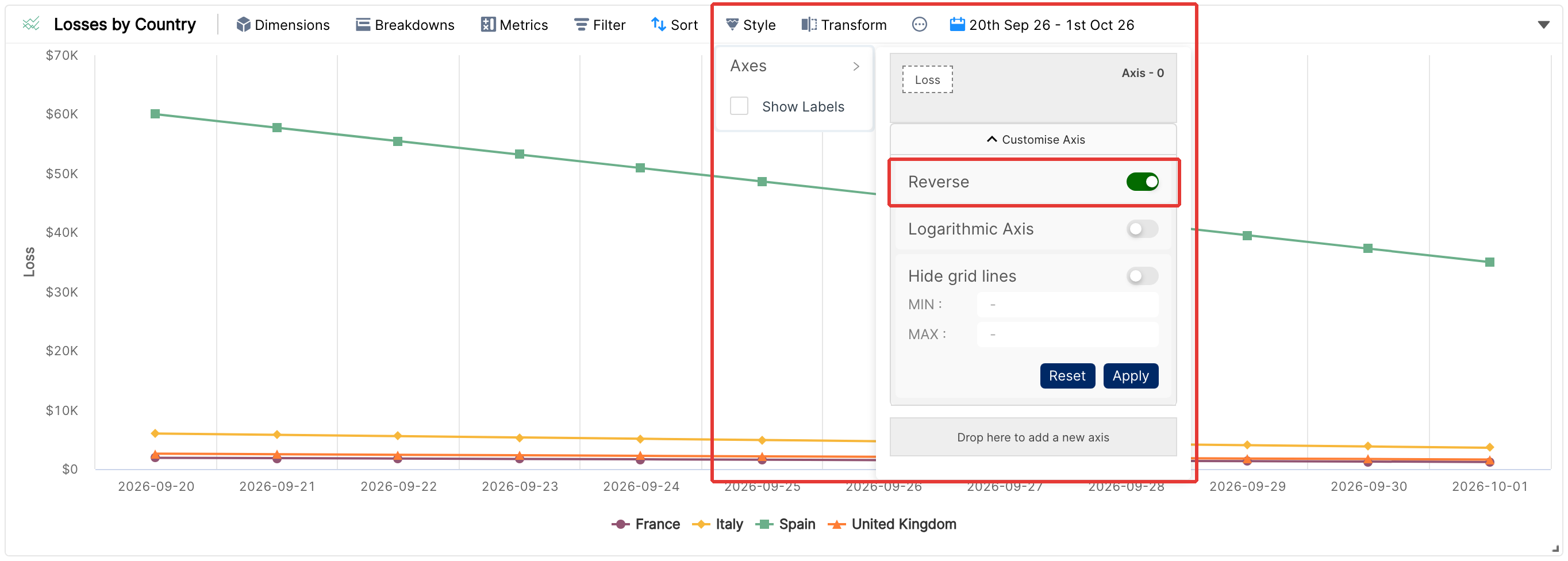
Turn on the switch and click Apply.
For more ways to style your widgets, see Styling widget components.