
Trend sparklines in tables
Trends add a small line chart (sparkline) to every cell of a metric column, so you can see how each row developed over the selected date range.
Adding a trend
Click the arrow on the header of a metric column.
Next to Trends, pick a granularity:
A (auto): daily for date ranges up to 30 days, weekly up to 196 days (28 weeks), and monthly for longer ranges.
D: daily trends.
W: weekly trends.
M: monthly trends.
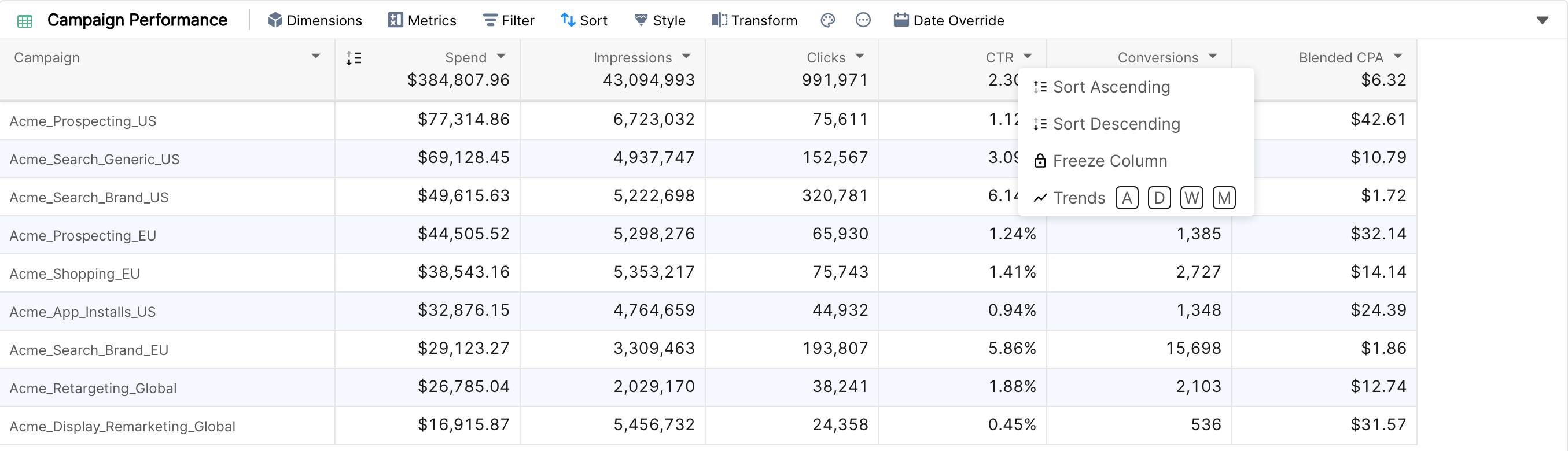
To remove the trend, open the column menu and click the selected letter again. Each metric column has its own trend setting, so you can show daily CTR next to weekly Spend.

Things to know
A column shows either a trend or a marginal comparison, not both.
When a column has a trend, its comparison values are shown only in the column header.
Trends are available for metric columns, not for dimension columns.
In a pivot table, trends are set for the whole widget in the more options menu, and you can hide them for one column with Hide Trends.
Tile widgets can show trends too, from their more options menu.