
Totals, share and comparison in tables
The more options menu (the "..." icon) of a table has three checkboxes that add data to the table: Column Aggregate, Show Share% and Show Comparison.
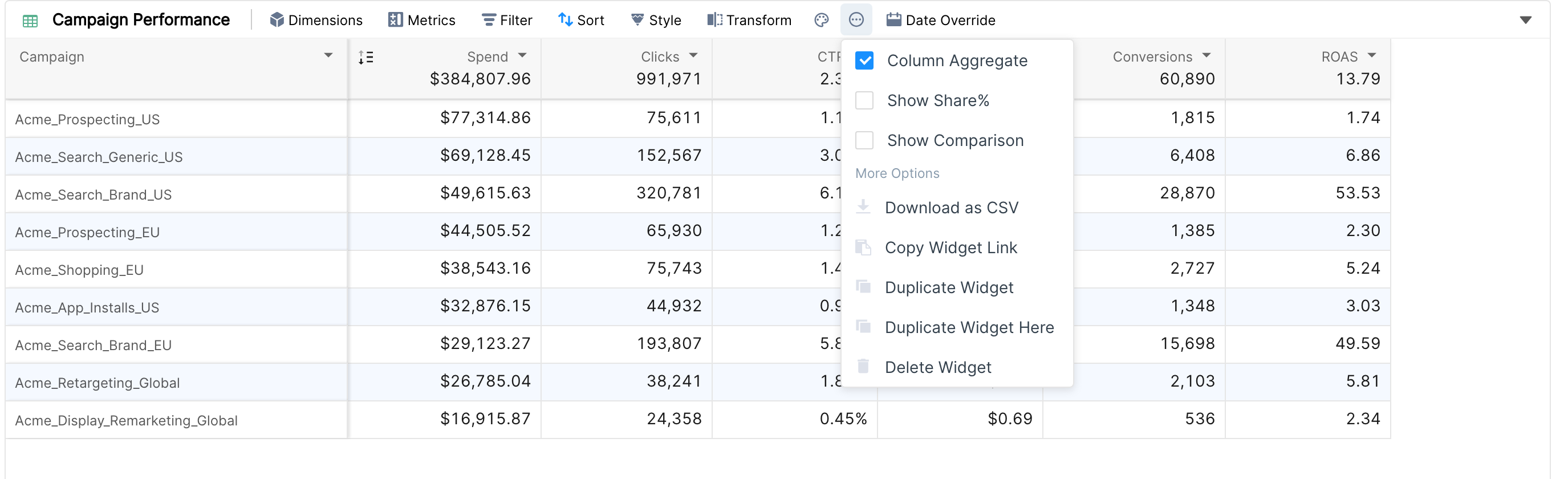
Column Aggregate
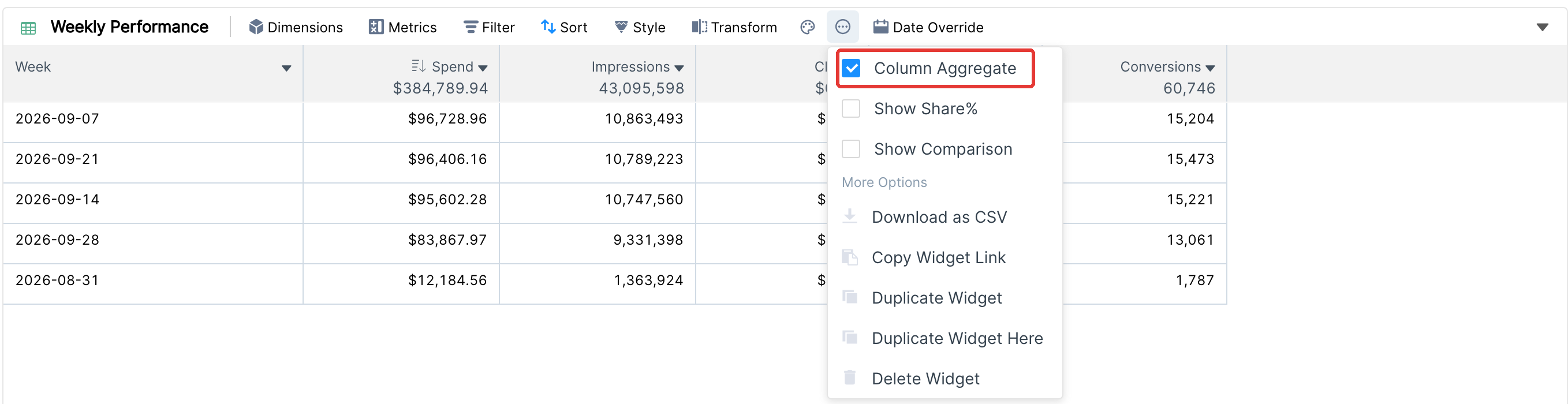
Column Aggregate shows the total of each metric in the column header, above the rows. It is on by default.
For summable metrics such as Spend or Clicks, it is the sum of all rows.
For ratio metrics such as CTR or ROAS, it is the metric calculated over all the data (for example total clicks divided by total impressions), not an average of the rows.
The aggregate covers all the data that matches the filters, not only the rows that are loaded.
Pivot tables also have Row Aggregate, which adds a Total column. See How to create a pivot table.
Share
Show Share% shows each row's share of the column total next to its value. For example, if total spend of $100 is split across three campaigns as $50, $40 and $10, their shares are 50%, 40% and 10%.
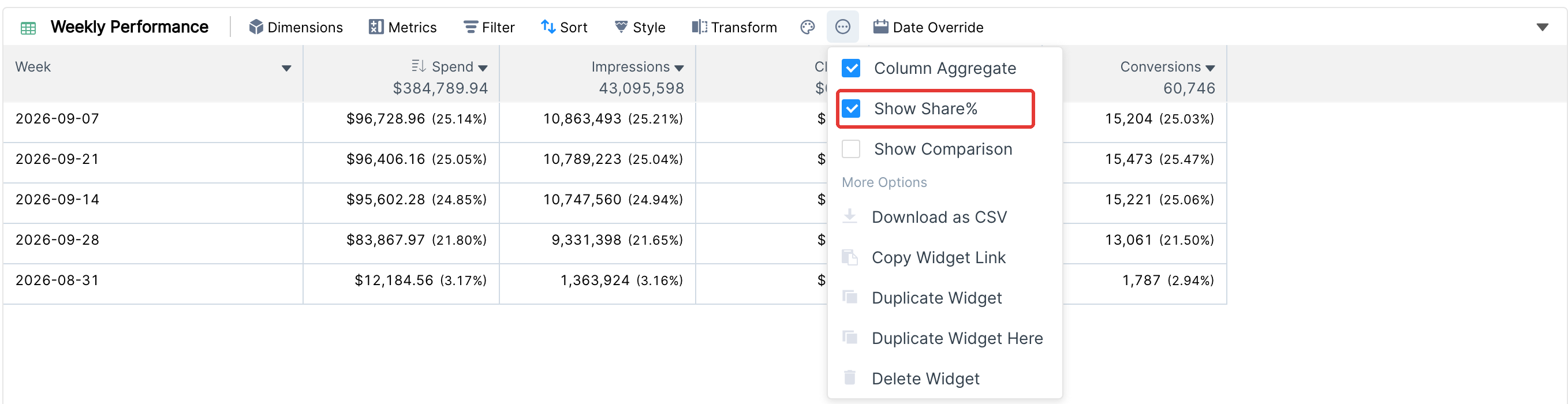
Share is shown for summable metrics only. Ratio metrics, projections and marginal values have no share.
Share needs the aggregate, so turning on Show Share% also turns on Column Aggregate.
Show Share% is available in the table widget.
Comparison
Comparison shows each metric for a second date range and the % change between the two.
Open the date selector at the top right of the report. When you pick a primary date range, the comparison range is filled in automatically, for example Last month for This month. You can choose another range, such as Previous Period or Same Period Previous Year, or a custom range.
Click Apply.
In the table, check Show Comparison in the more options menu. Turning on Compare With in the date selector does the same.
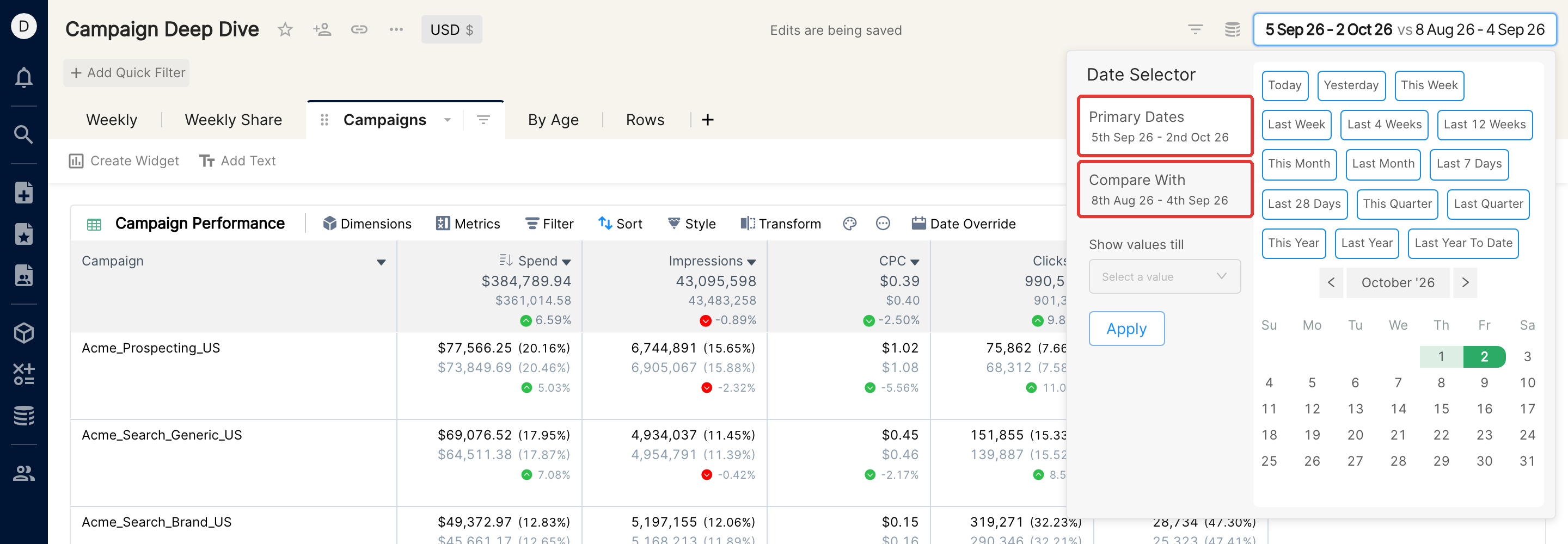
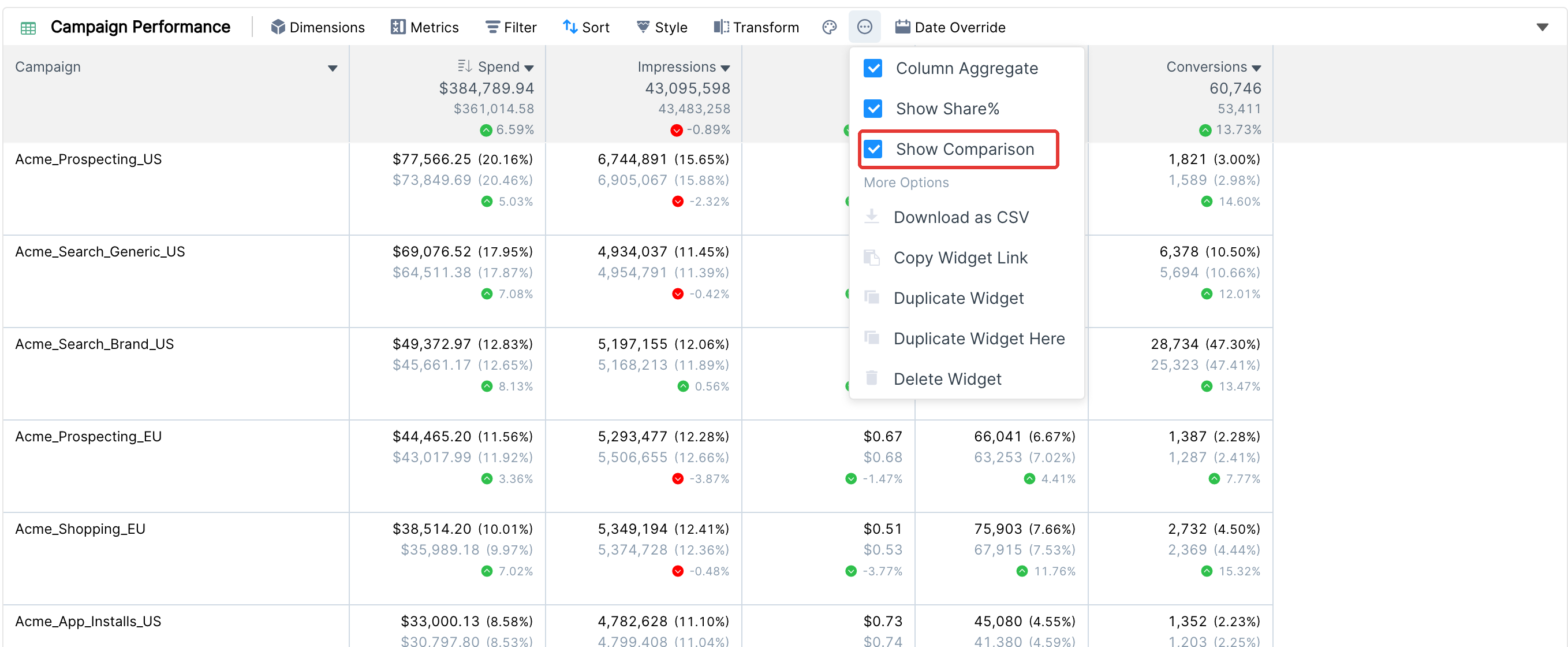
Each cell then shows three lines: the value for the primary range, the value for the comparison range, and an arrow with the % change. The column aggregate and the share (if Show Share% is on) are compared too.
A green arrow means the change is good and a red arrow means it is bad. For metrics where lower is better, such as CPC or CPA, a decrease is shown in green.
Show Comparison is available in Table, Pivot Table and Tile widgets.
If a column has trends, the comparison for that column is shown only in the header. Marginal comparison also replaces the regular comparison in its column.
To compare one widget with a different range than the rest of the report, set a date override on it.