
Table column menu
Every column of a table has a menu with options for that column. Click the arrow on the column header to open it.
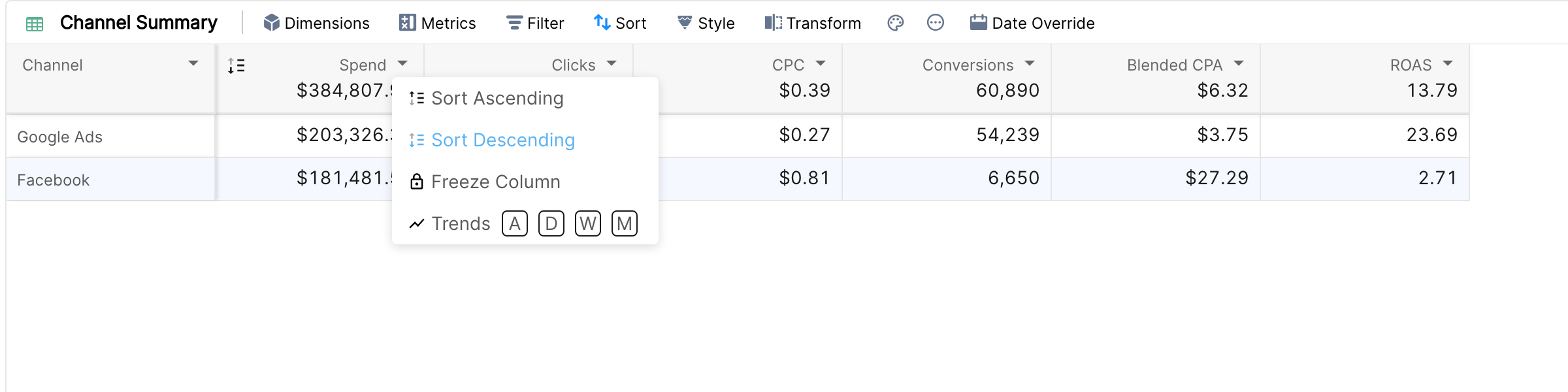
Menu options
Option | Columns | What it does |
Sort Ascending / Sort Descending | All | Sorts the table by this column and replaces the current primary sort. Afterwards, click the sort icon in the header to switch the direction. |
Freeze Column / Unfreeze Column | All, except metric columns with breakdown sub-columns | Keeps the column in view while you scroll sideways. Dimensions freeze on the left, metrics on the right. |
Trends A / D / W / M | Metrics | Adds a sparkline to each cell: auto, daily, weekly or monthly. Click the selected letter again to remove it. |
Show Marginal Comparison | Custom ratio metrics with marginal comparison enabled | Shows the incremental value of the metric between the two date ranges. |
Slice Column | Metrics, if metric slices are enabled for your account | Adds a column with the metric for a filtered part of the data. |
Edit Slice Definition, Duplicate Slice, Delete Slice | Slice columns | Change, copy or remove a metric slice. |
Other column actions
Resize: drag the right edge of the header. Style > Auto Resize fits all columns at once.
Reorder: change the order of dimensions and metrics in the Dimensions and Metrics panels.
Collapse sub-columns: in a table with a metric breakdown, click the icon in a metric header to collapse its sub-columns into one column.