
Freezing and resizing table columns
Two table options make wide tables easier to read: freezing a column and auto-resizing all columns.
Freeze a column
A frozen column stays in view while you scroll left and right, so you never lose track of which row you are looking at.
Click the arrow on the column header.
Choose Freeze Column.
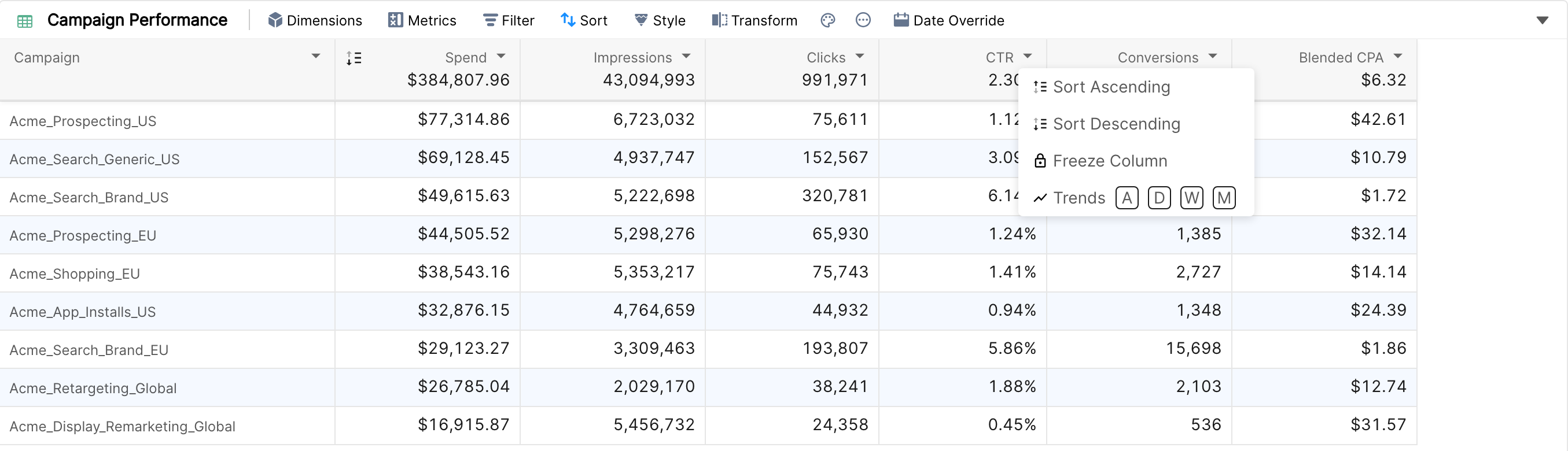
To undo it, choose Unfreeze Column from the same menu.
Frozen dimension columns stick to the left edge of the table.
Frozen metric columns stick to the right edge, so a key metric such as ROAS stays visible next to the scrolling columns.
You can freeze several columns.
The parent column of a metric breakdown can't be frozen.
Auto resize columns
Click Style in the widget toolbar, then Auto Resize. Every column is resized to fit its content, which lets you fit more metrics without scrolling and tidies up columns that have been resized unevenly.

To resize one column, drag the right edge of its header. Column widths are saved with the widget.
Note: Auto Resize is the only style option of the table widget. Pivot tables have their own style options (row color, row size and number of columns) instead.