
Conditional formatting in tables
Conditional formatting colors the cells or rows of a table that meet rules you define. Use it to spot anomalies, flag campaigns that need attention, or show a whole column as a heat scale.
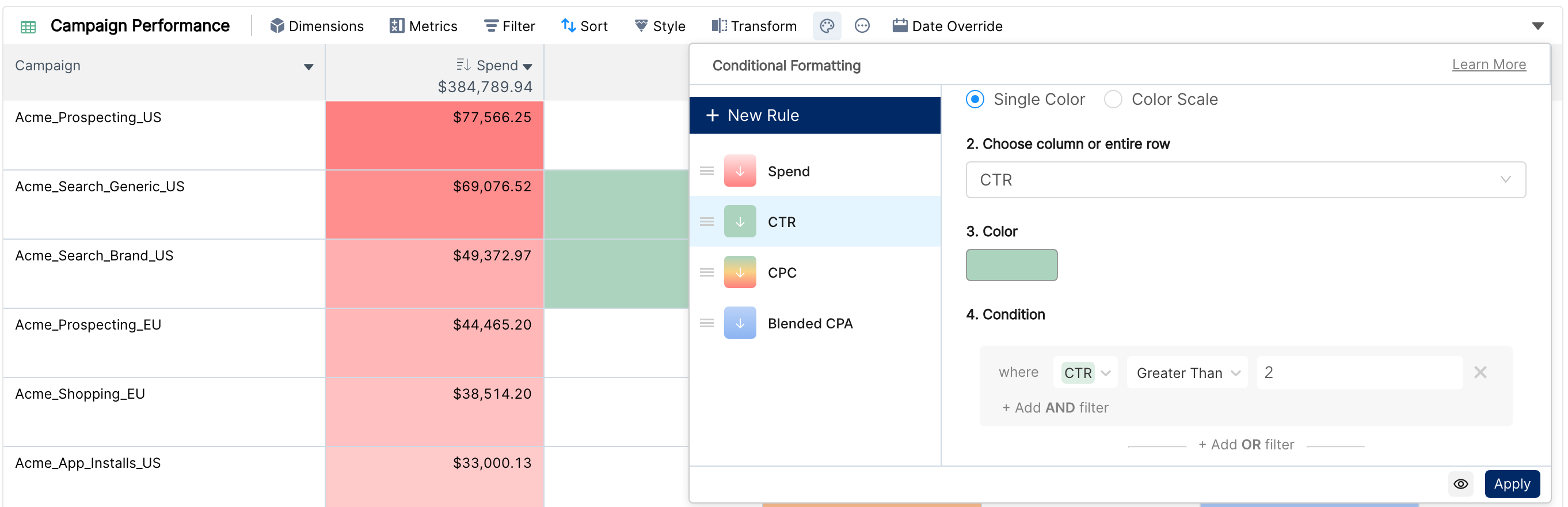
There are two types of rules:
Single Color: one color for the cells or rows that match one or more conditions.
Color Scale: a color gradient across a metric column, from its lowest to its highest values.
Conditional formatting is available in the table widget. It is not available in pivot tables or charts.
Getting started
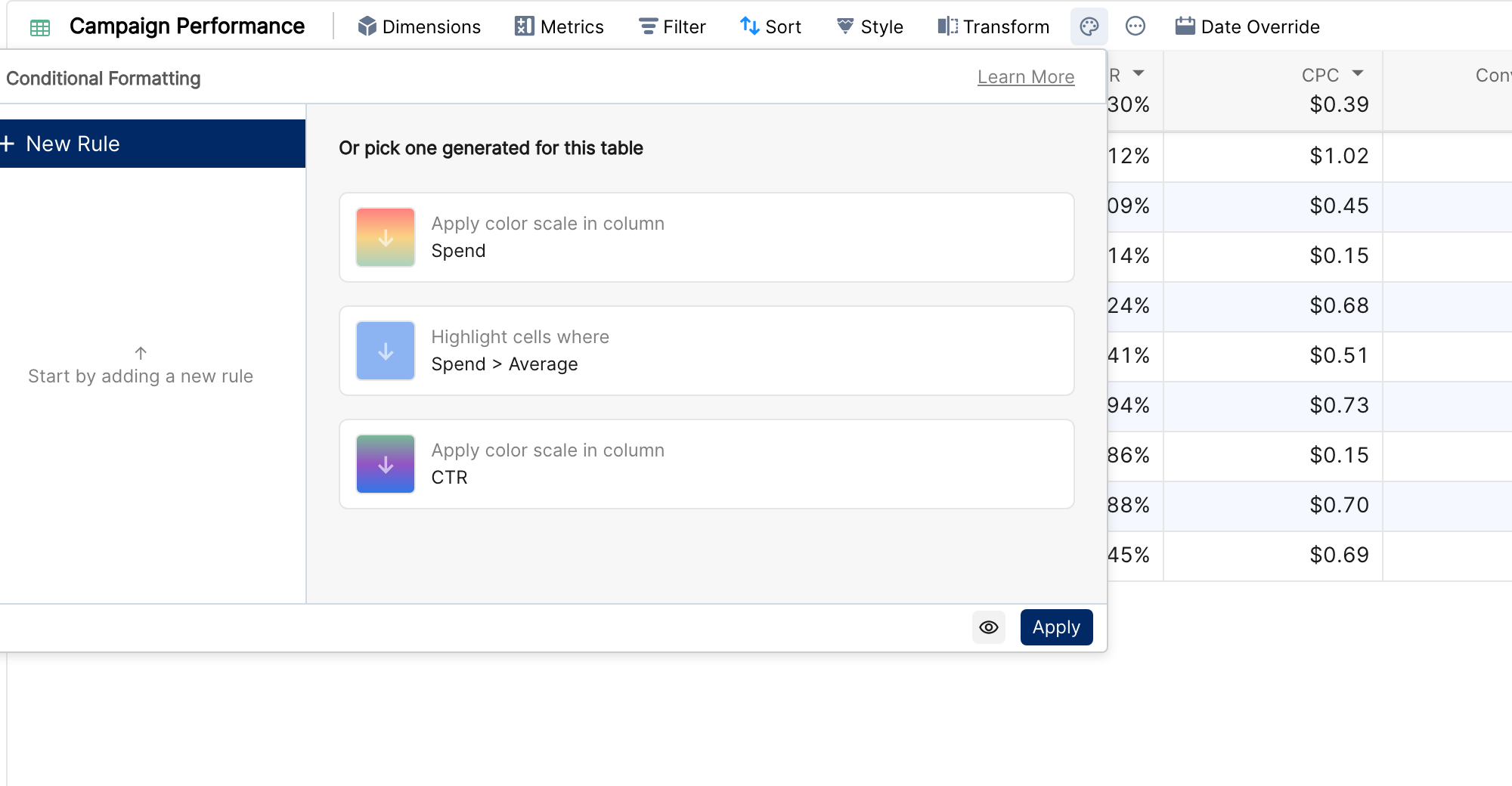
Click the Conditional Formatting icon (the palette) in the table toolbar. You can then:
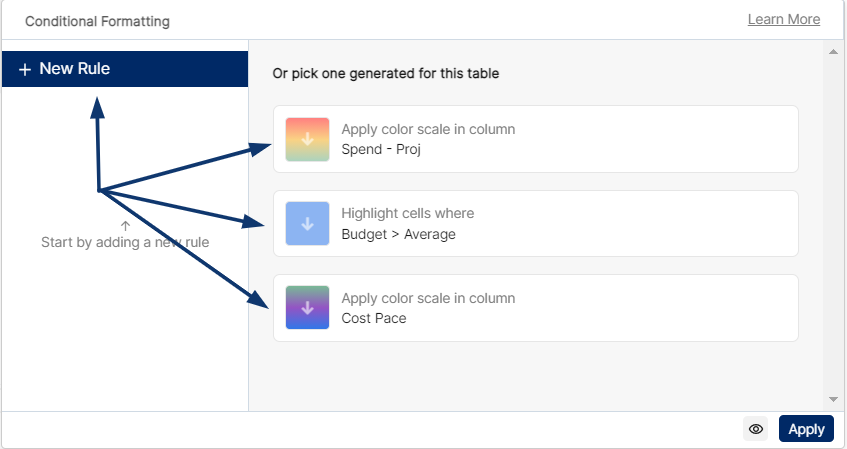
click New Rule to create a rule from scratch, or
pick one of the suggestions under Or pick one generated for this table, such as Apply color scale in column Spend or Highlight cells where Spend > Average, and adjust it.
Rule settings
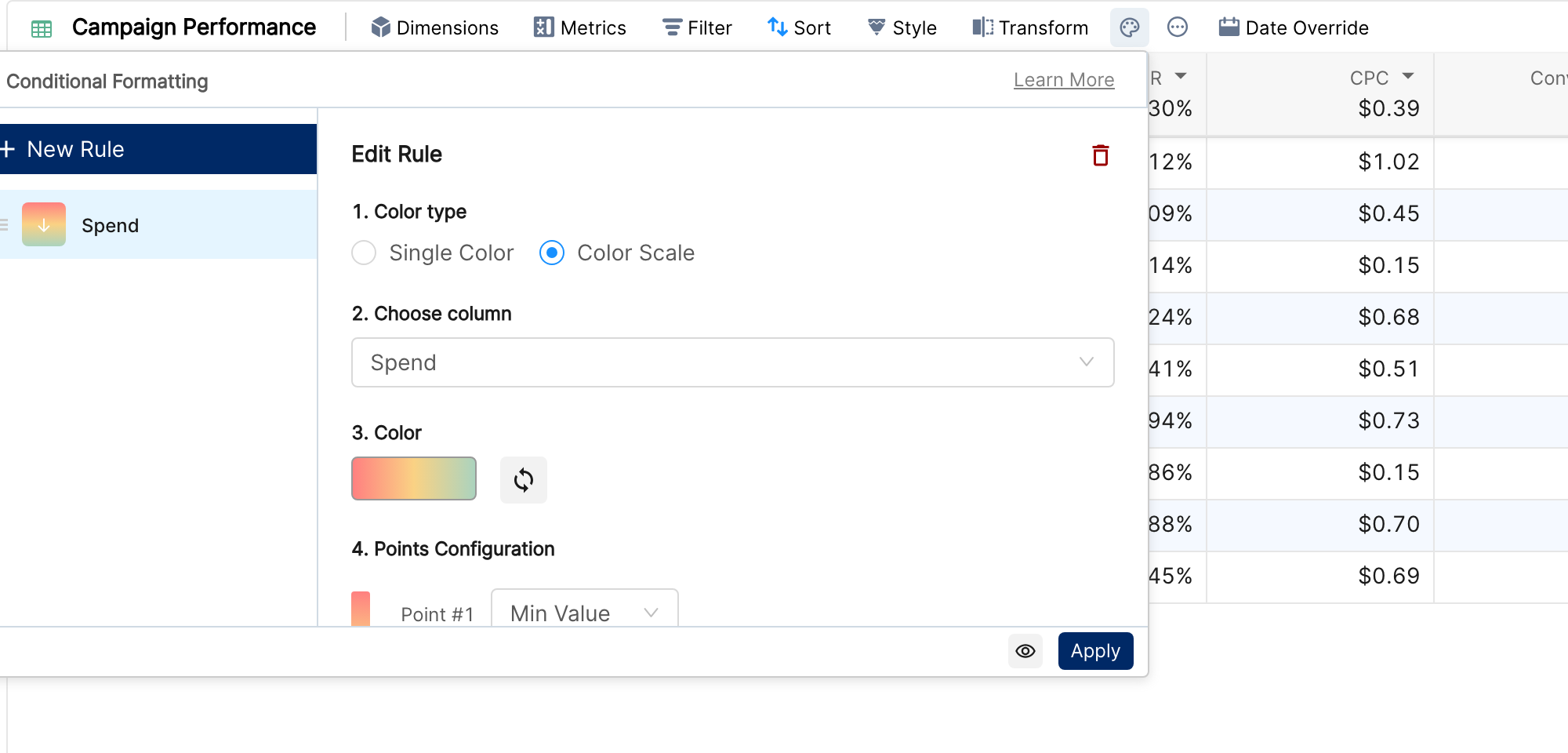
Each rule has four steps in the Edit Rule panel:
Step | Single Color | Color Scale |
1. Color type | Single Color | Color Scale |
2. Choose column | Any column, or Entire Row. Dimension columns can be chosen too. | One metric column. Color scales can't be applied to rows. |
3. Color | One of six preset colors, or your own hex code. This is the background color of the matching cells. | One of nine gradients. Invert Color Scale reverses it, for metrics where lower is better. |
4. Condition / Points Configuration | Conditions on metrics or dimensions, combined with AND and OR (see below). | Point #1 (Min Value, Number or Percentage) and the last point (Max Value, Number or Percentage). Click + to add a middle point (Mid Value, Number or Percentage). |
Condition operators
Metrics: Greater Than, Greater Than or Equal To, Less Than, Less Than or Equal To, Equal To, Not Equal To. Compare with a number, with another metric in the table (for example Spend > Budget) or with Average (the column average).
Dimensions: Equals, Not equals, Contains, Does not Contain.
Use + Add AND filter for conditions that must all be true, and + Add OR filter for alternatives.
Click Apply to save the rules. The eye icon next to Apply toggles a preview of the rules without closing the panel.
Example 1: highlight campaigns that are over budget
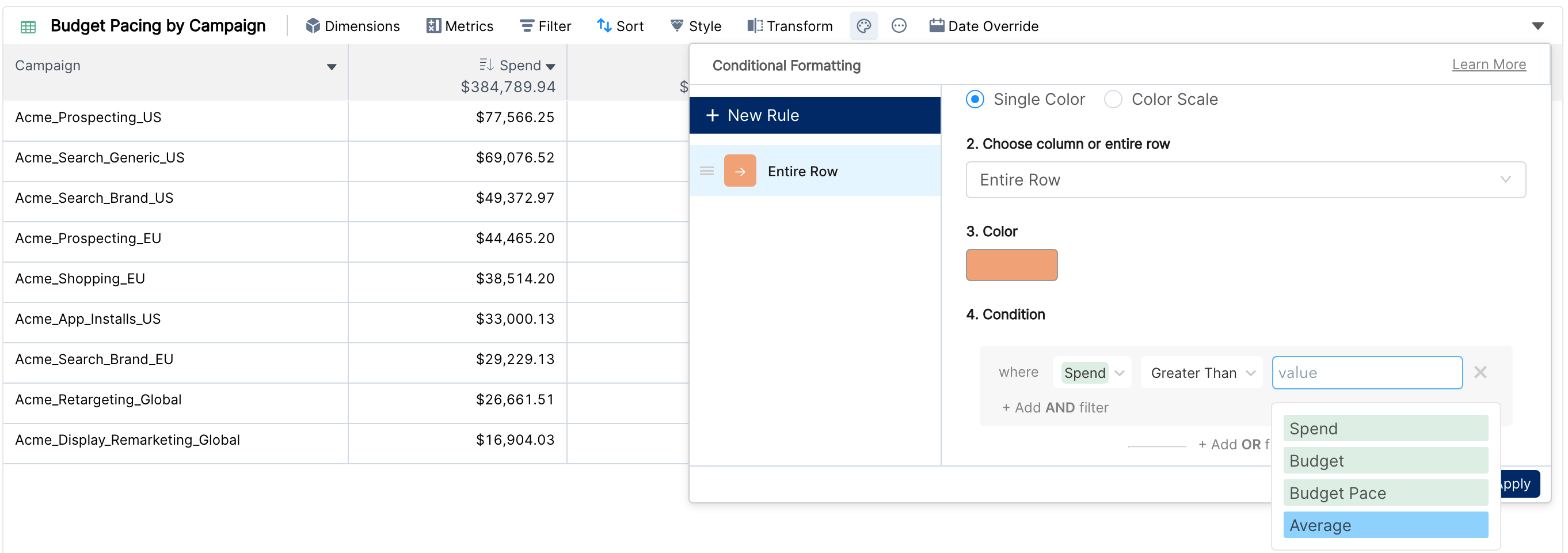
Click New Rule and choose Single Color.
In Choose column or entire row, pick Entire Row.
Pick a color, for example orange.
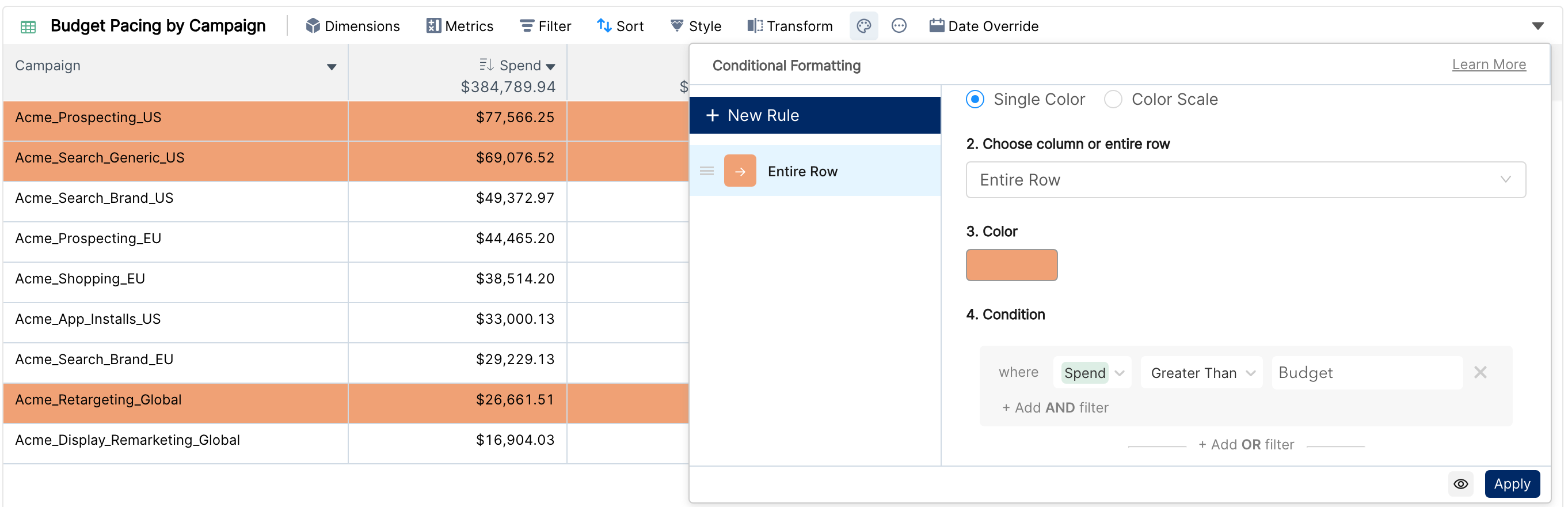
Set the condition Spend Greater Than Budget.
Note: if your table contains projection metrics, each appears twice in the condition: with the suffix -proj (projected value) and without it (actual value).
Click Apply. Every campaign that spent more than its budget is highlighted.
Example 2: a color scale on CPC
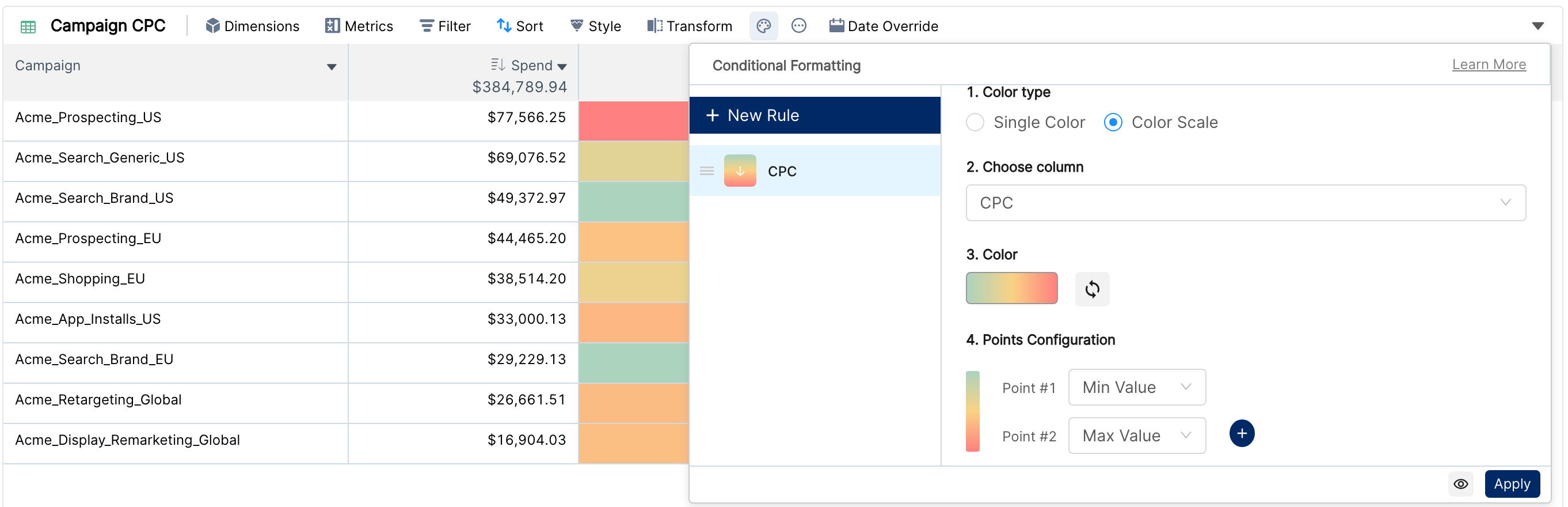
Click New Rule and choose Color Scale.
Choose the CPC column.
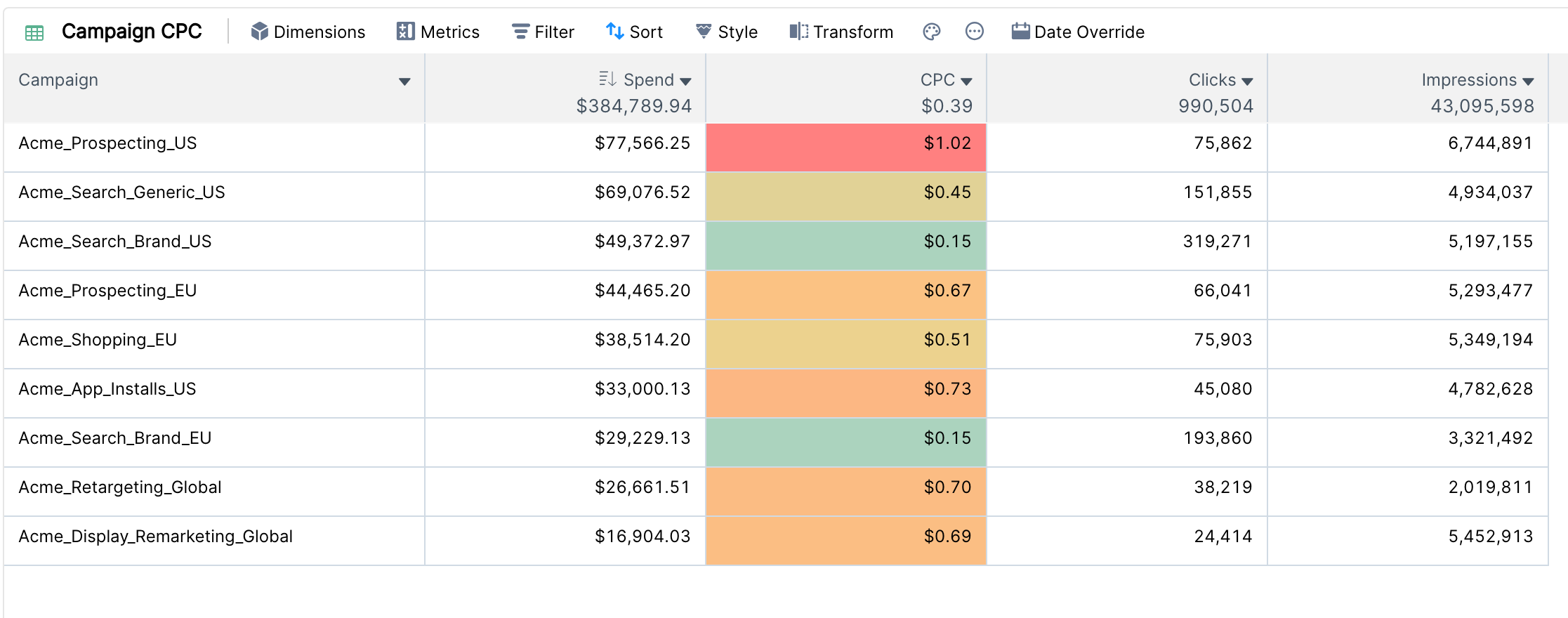
Pick a red-to-green gradient. Because a lower CPC is better, turn on Invert Color Scale if needed so that low values are green.
In Points Configuration, keep Min Value and Max Value, or set a Number or Percentage for each point. Values beyond a point get that point's color.
Example 3: creatives with low CTR and high spend
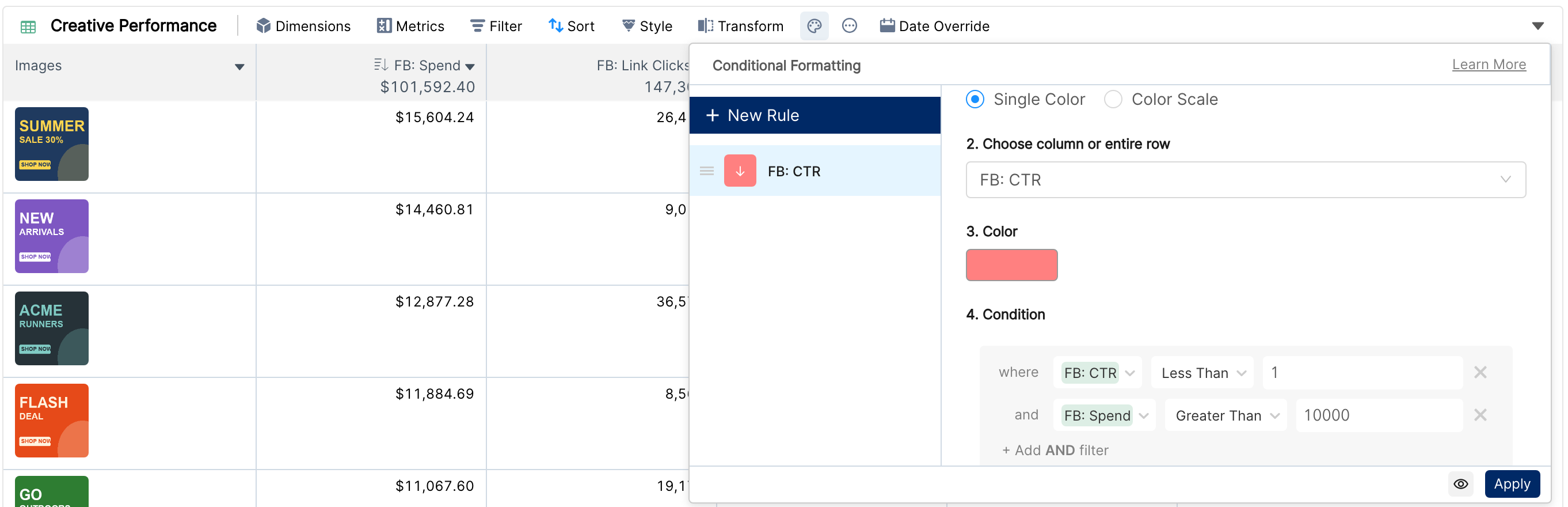
Choose Single Color and the FB: CTR column, so that only the CTR cell is colored.
Pick red.
Add two conditions joined with AND: FB: CTR Less Than 1, and FB: Spend Greater Than 10000.
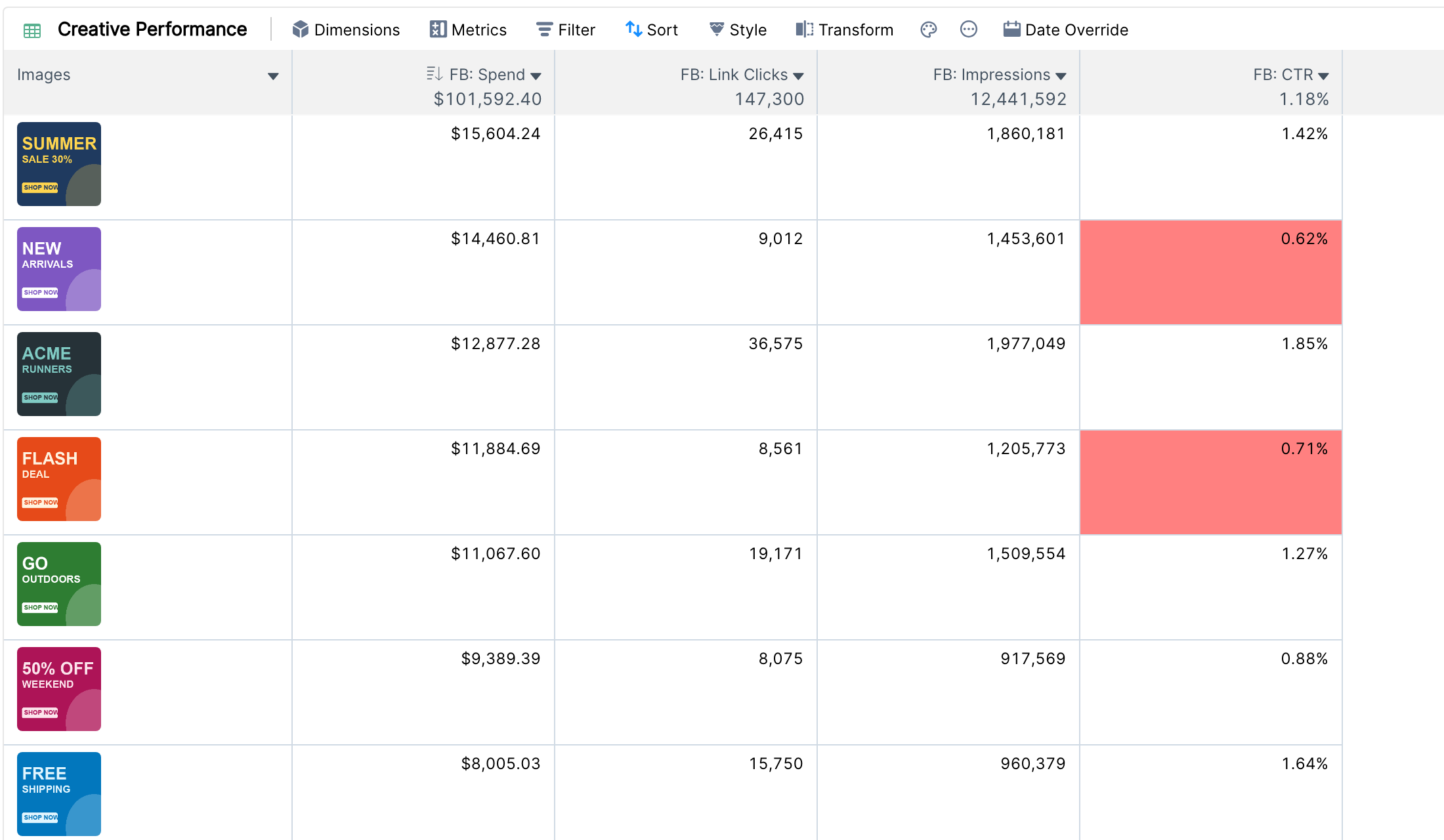
The highlighted creatives received a lot of spend but few clicks, so they are candidates to pause.
Order of rules

Drag rules in the list to change their order. If two rules apply to the same cell, the rule higher in the list wins. To delete a rule, open it and click the delete icon.
Things to know
Rules follow the columns: if you remove a metric that a rule uses, the rule is marked as invalid ("This rule is invalid because relevant metric is no longer present").
The Others row and column created by breakdowns are never colored.
Rules change the background color only. The text color stays the same.
There is no limit on the number of rules.