
Sorting data in a widget
Sorting sets the order of the rows in a widget, by a dimension, a metric or both. This article uses the table widget, which has the most sort options. Charts use the same Sort panel.
Primary sort
Click Sort in the widget toolbar. Under Primary Sort:
In Sort by, pick a dimension or a metric.
Choose the direction: A→Z or Z→A for dimensions, 1→9 or 9→1 for metrics.
Click Apply.

A new table is sorted by its first dimension if you added dimensions first, or by its first metric if you added metrics first.
Sorting by several columns
When the table has more than one dimension, a +Sort button appears in the panel. Each extra row is a "then by" sort, so you can sort by Channel and then by Spend, for example. Drag the rows to change their order. The first row can't be removed.
Sorting breakdowns
When the table has breakdowns, the panel has extra sections:
Dimension Breakdown Sort: one section per dimension breakdown, which sorts the sub-rows inside each row. For a breakdown with manually picked values, the order is the order you picked them in ("Manual Selection - Manage in Breakdown Options").
Metric Breakdown Sort: sorts the sub-columns of a metric breakdown. It applies to all metrics.
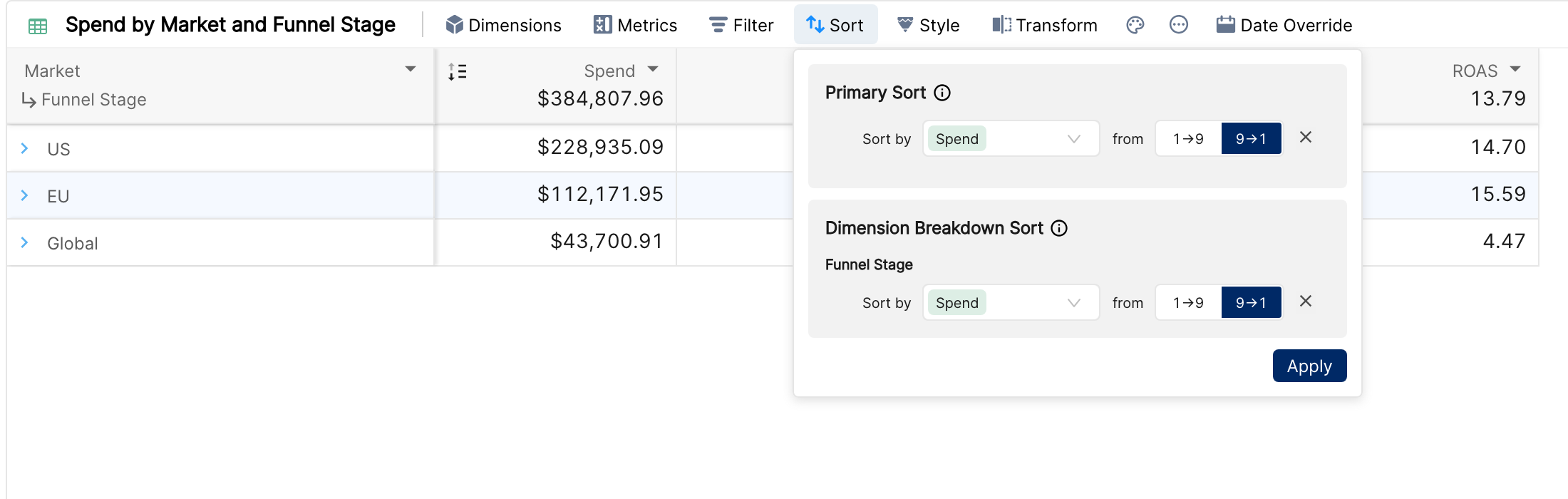
Primary Sort always sorts the top-level rows. Changing the primary sort resets the breakdown sorts so that they stay consistent.
Sorting from the column header
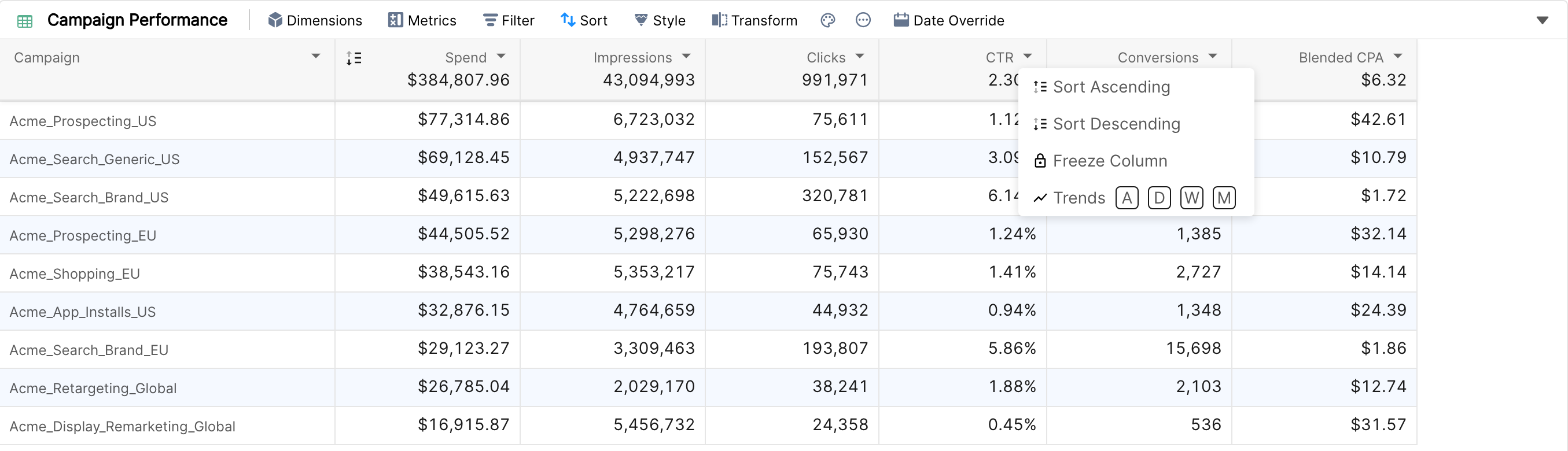
Click the arrow on a column header and choose Sort Ascending or Sort Descending. This replaces the current primary sort. Once a column is sorted, click the sort icon in its header to switch the direction.
Things to know
Removing a dimension or metric that a sort uses also removes that sort.
The sort decides which rows are loaded. A table showing 25 items sorted by Spend 9→1 shows the 25 rows with the highest spend.
Time dimensions such as Week or Month are not sorted by date automatically. Pick the time dimension in Sort by to show rows in date order.