
Breaking down rows (dimension breakdowns)
Dimension breakdowns split each row of a table into sub-rows by another dimension. For example, you can break down each campaign by the age of the people it reached, or each market by funnel stage.
Adding a breakdown
Make sure the table has exactly one dimension, for example Campaign. Breakdowns are not possible with more than one dimension.
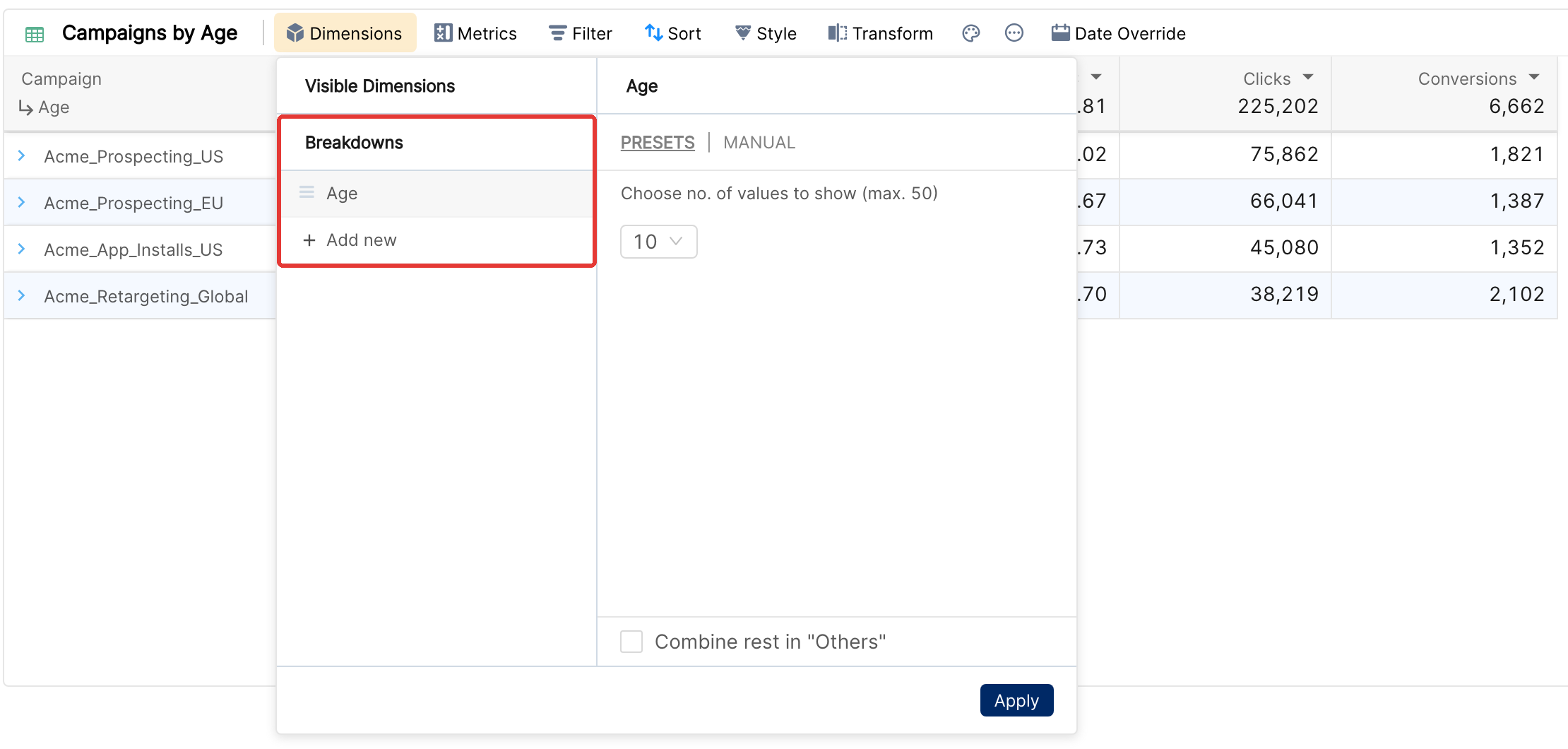
Click Dimensions. In the Breakdowns section, add the dimension to break down by, for example Age.
Choose which values to show (see below) and click Apply.
Click the arrow to the left of a row to see its sub-rows.
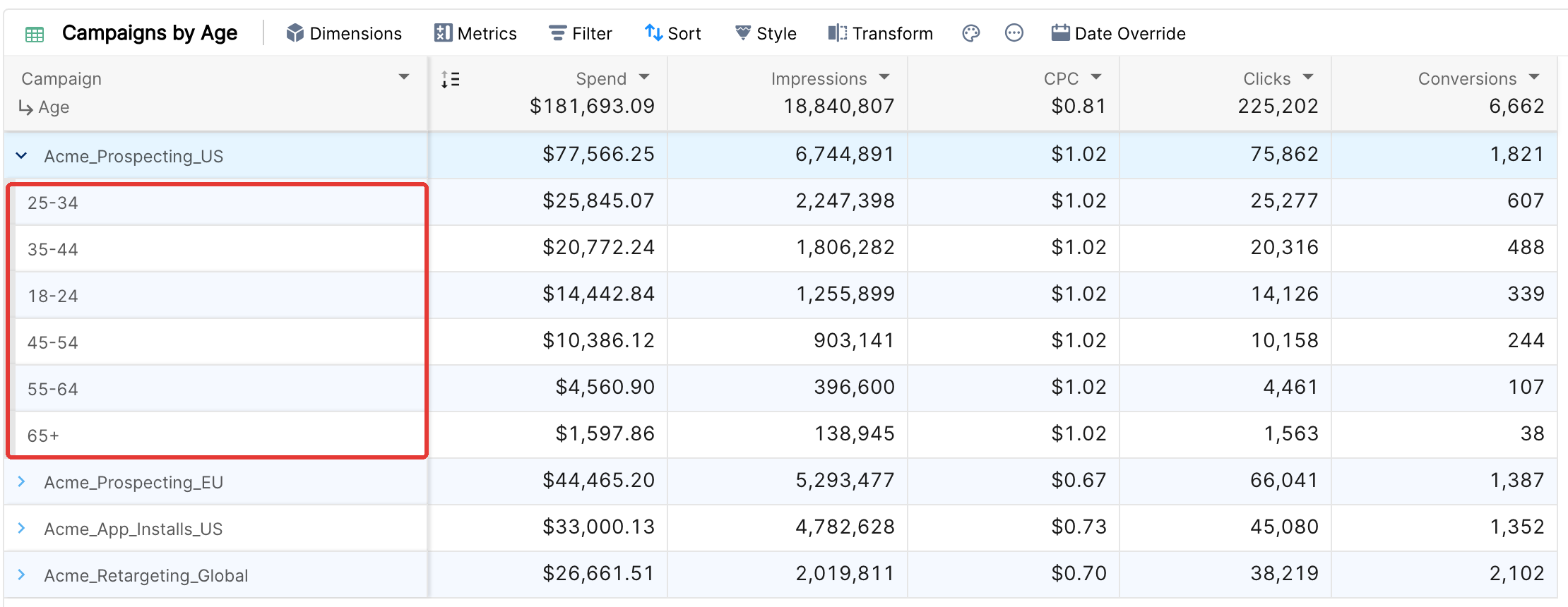
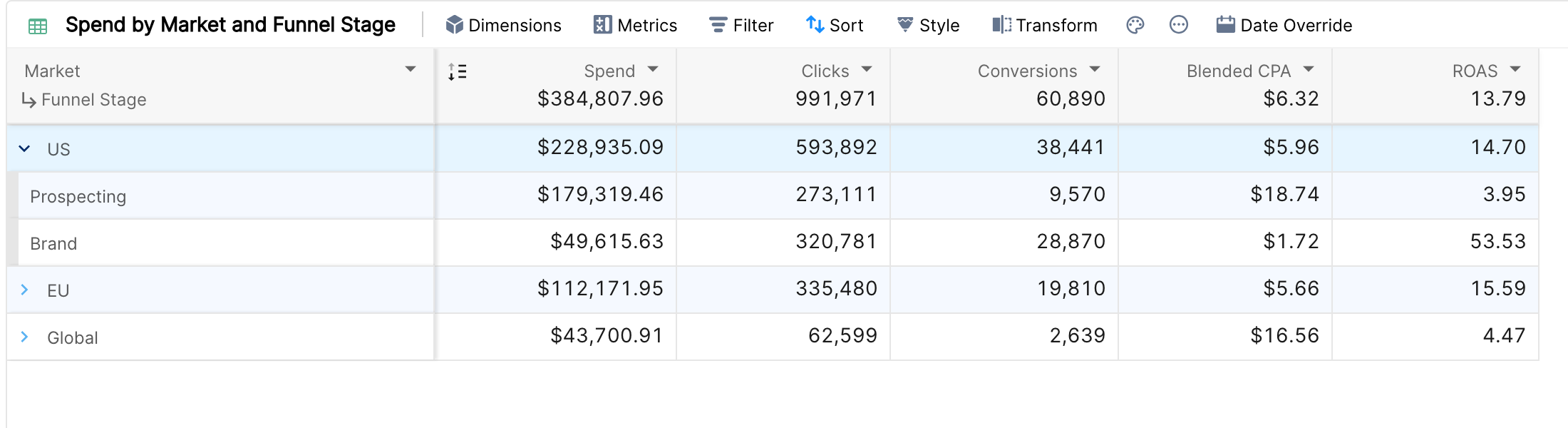
The breakdown dimensions are listed under the main dimension in the first column header.
Choosing which values to show
Click a breakdown in the Breakdowns section to see its options:
Presets: show the top 5, 10, 15, 20, 25 or 50 values of each sub-level (50 by default), according to the breakdown sort.
Manual: search for and pick up to 10 values, for example two key creative concepts. Manual selection isn't available for image and video dimensions, or for time dimensions other than Day of Week, Day of Month, Month of Year and Week of Year.
Combine rest in "Others" (on by default): the values that are not shown are added up in an Others row, so the sub-rows still add up to the parent row.
Several levels
Add more breakdowns to split the data further, up to 10 levels. For example Campaign, then Age, then Gender. Drag the breakdowns to change their order.
Sorting
Each breakdown has its own Dimension Breakdown Sort in the Sort panel, which orders the sub-rows. See Sorting the data in a widget.
Note: dimension breakdowns add sub-rows. To split metric columns into sub-columns instead (for example Spend by Market), use metric breakdowns, which are set in the Metrics panel.