
Changing a widget's type (Transform)
Transform changes a widget into another type of visualization, keeping its dimensions, metrics and filters.
Click Transform in the widget toolbar.
Pick the new type: Table, Pivot Table, Column chart, Area chart, Horizontal chart, Combo chart, Timeline chart, Breakdown chart, Tile, Stacked Chart, Pie chart, Heat map, Bubble chart or Funnel Chart.
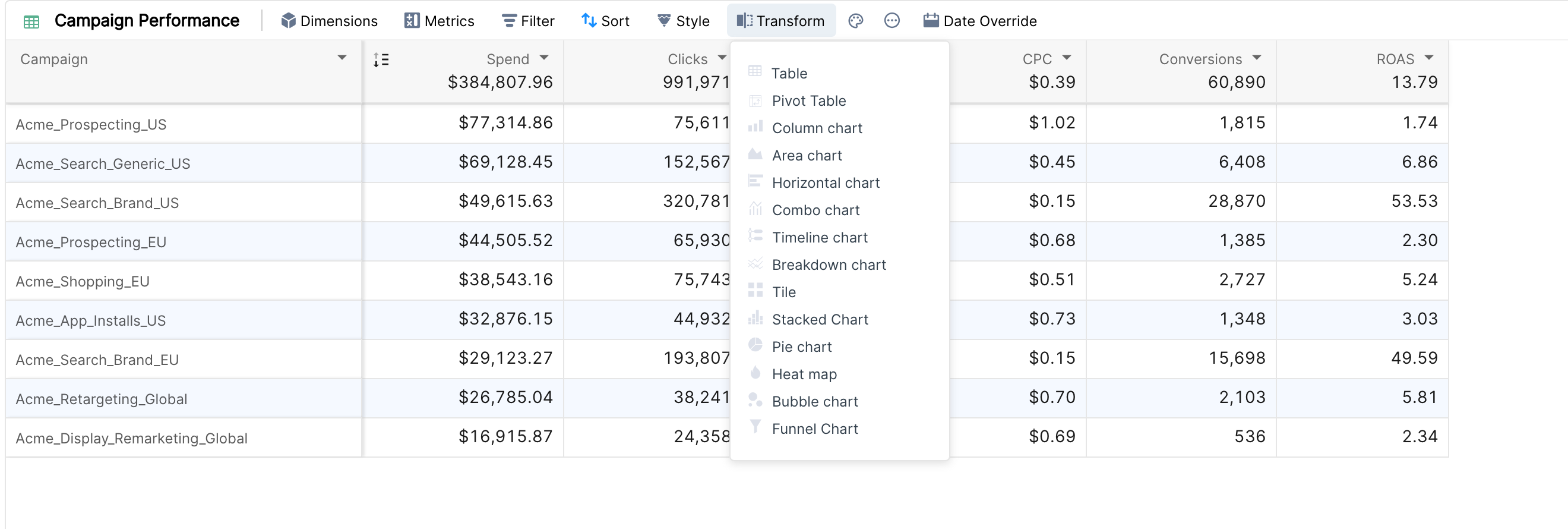
For example, a table with Google Ads Impressions and Clicks for every week of a month can become a column chart:
Note: some widget types need a specific set or number of dimensions and metrics. If the current data doesn't fit, the widget tells you what is missing. Once you add it, the visualization appears.
For example, to split the Google Ads data above by day of week, transform the column chart into a stacked chart. A stacked chart needs a breakdown, so add Day of Week as the breakdown:
What is kept when you transform
Dimensions, metrics and filters carry over.
The comparison date range is kept only when the new type supports comparison: Table, Pivot Table and Tile.
Settings that exist only in one type, such as table breakdowns, metric breakdowns, metric slices, conditional formatting or chart styles, don't carry over. Metric breakdowns and metric slices are removed when a widget is transformed into a table, so check them after transforming.
A widget transformed into a table shows 100 items, and into a pivot table 500 items. Adjust the count in the drop-down at the top right.