
How do I choose/change dates for my data?
The date picker is one of the most important parts of any reporting platform. Clarisights reports have date pickers in two places:
Global Date picker (top right): the primary way to change the date range of a report. The date chosen in the Global Date picker isn't saved on the report.
Date Override on widgets (in the widget options): an optional override. If added, the widget always shows data from the overridden date range.
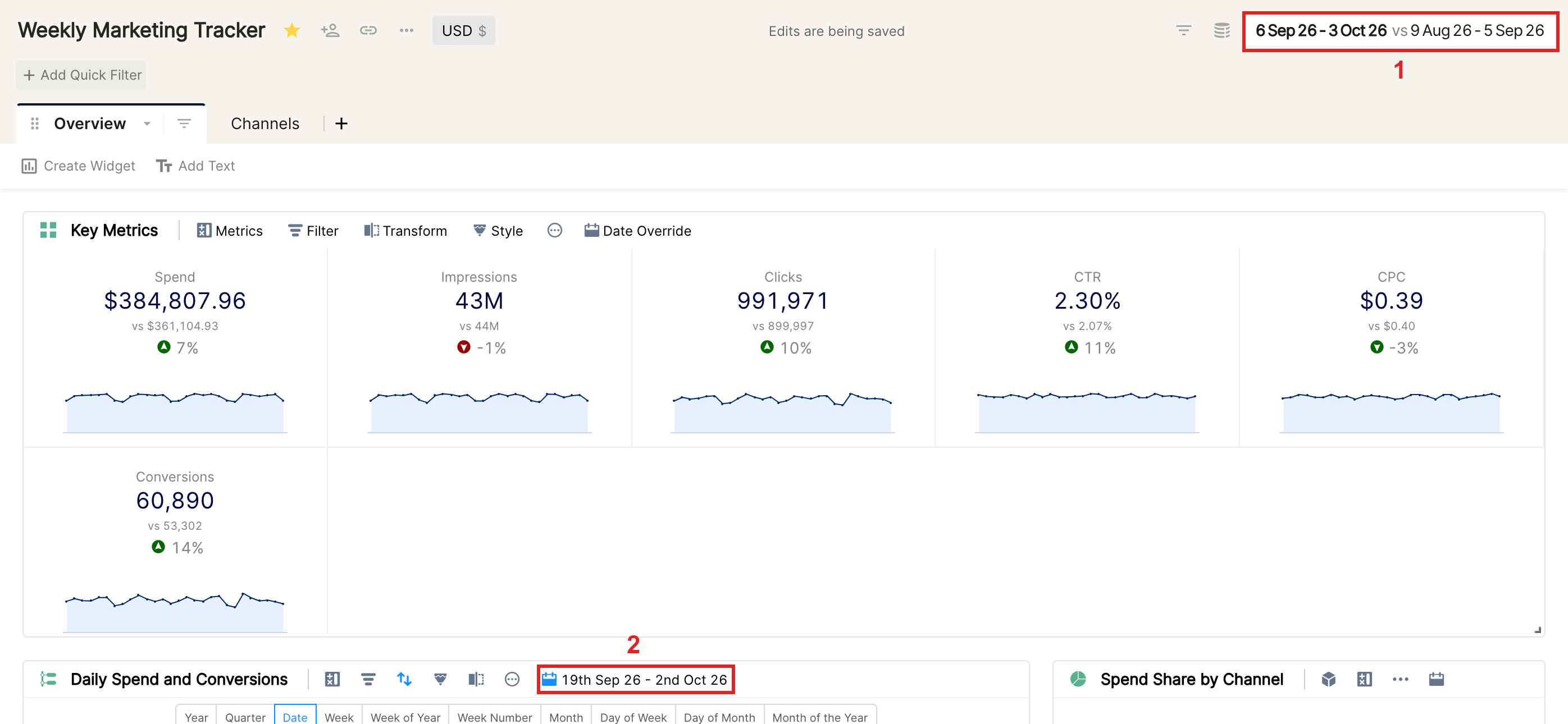
The date chosen in the Global Date picker (1 in the image above) applies to all widgets in the report except those with a date override (2).
Choosing a date range in the date picker
The image below shows the sections of the date picker, explained after it.
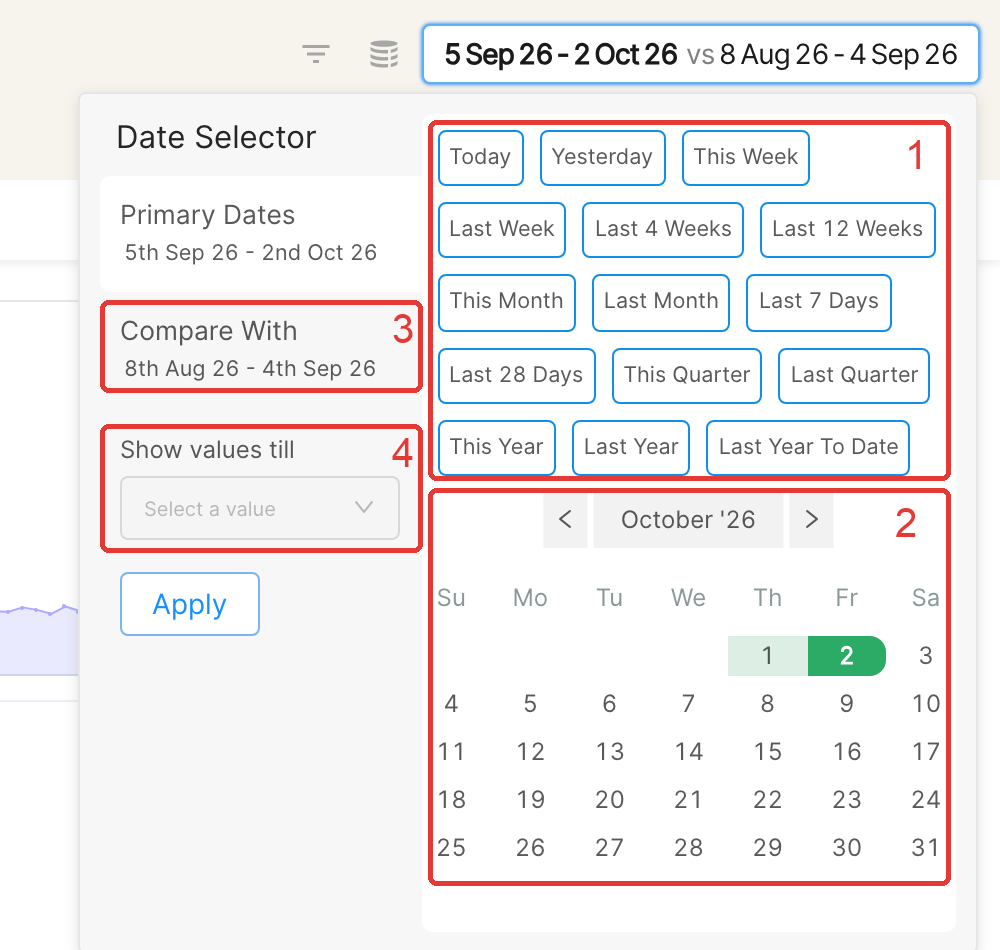
Presets: handy for choosing a standard date range such as This Month or Last 7 days.
Custom date picker: choose dates here, and move to the previous or next month with the arrow icons next to the month name.
Compare With: sets the date range for comparison. This only applies to widgets that have Show Comparison enabled in their options. Currently, only 3 types of widgets support comparison: Tile, Pivot Table and Table.
Show values till: sets the last day included in the preset you choose. Depending on the preset, you can show values till Yesterday, till Today (current day) or for the Complete Period. For example, with the This Month preset you can include or exclude the current day. For most presets, values are shown till yesterday by default.
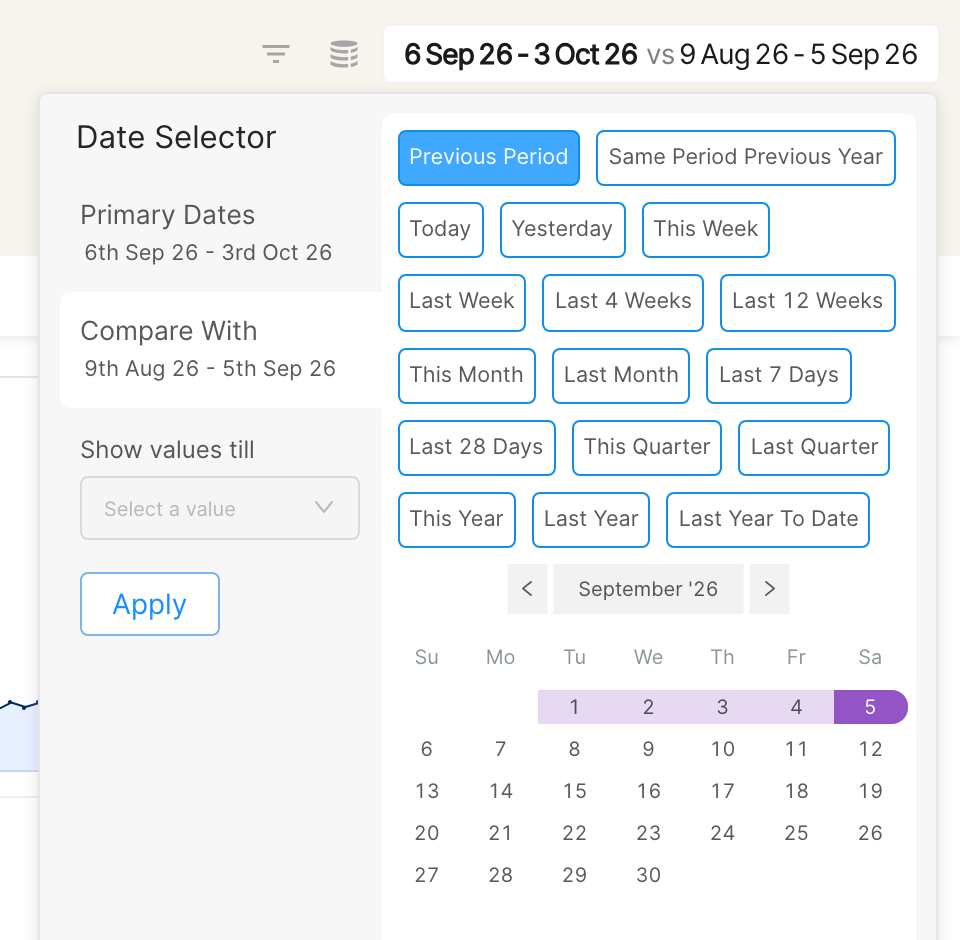
Same Period Previous Year
The Same Period Previous Year comparison preset compares the selected date range against the exact same dates from the previous year, which makes year-over-year (YoY) analysis easy without picking comparison dates manually. The Previous Period preset compares against the period of the same length just before your selected range.
To use it, select your primary date range, click Compare With, choose Same Period Previous Year and click Apply.
FAQs
Is the date chosen in the Global Date picker saved on the report?
No. The date chosen in the Global Date picker gives a temporary view of the report for that date range. To save a date on a widget, use a Date Override on the widget.
Why doesn't comparison show up in widgets after I choose a comparison date range?
Comparison only shows up in widgets where the Show Comparison option is enabled. To enable it, click the more options icon in the widget toolbar and tick Show Comparison.
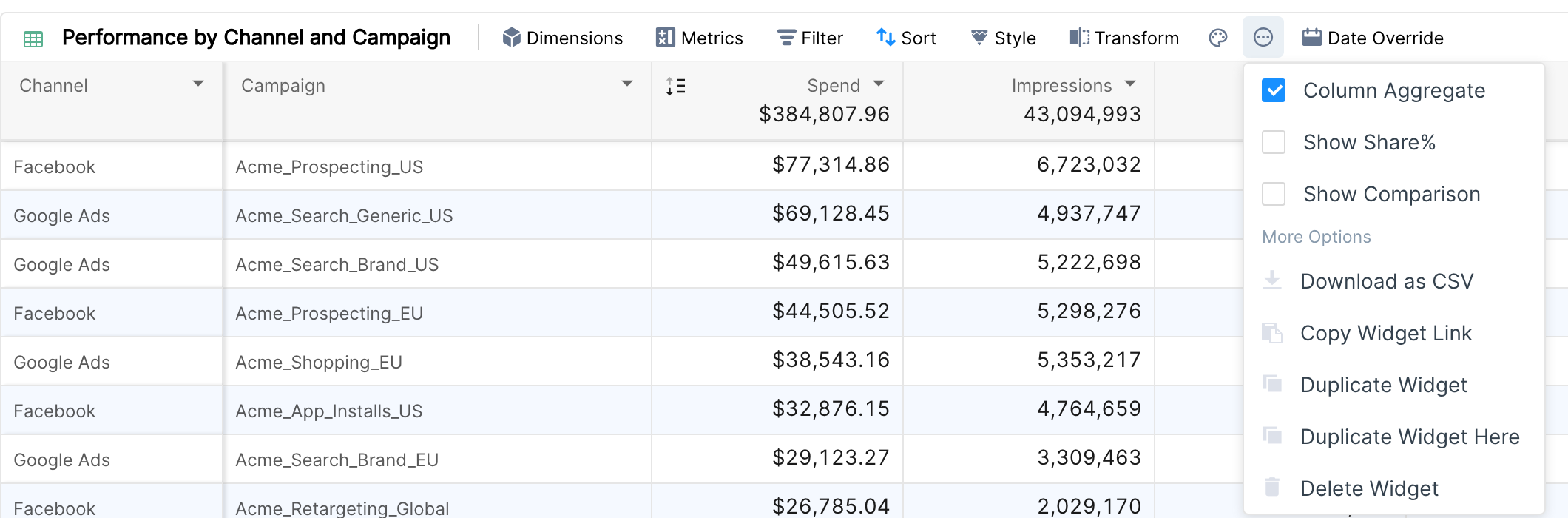
Note: comparison is only supported in Tile, Pivot Table and Table widgets.
Next, learn how to configure Quick filters in your reports.