
Report Glossary
Reports help you organize and make sense of your marketing data visually, with tables, charts and other graphics. This article explains the different parts of a Clarisights report.
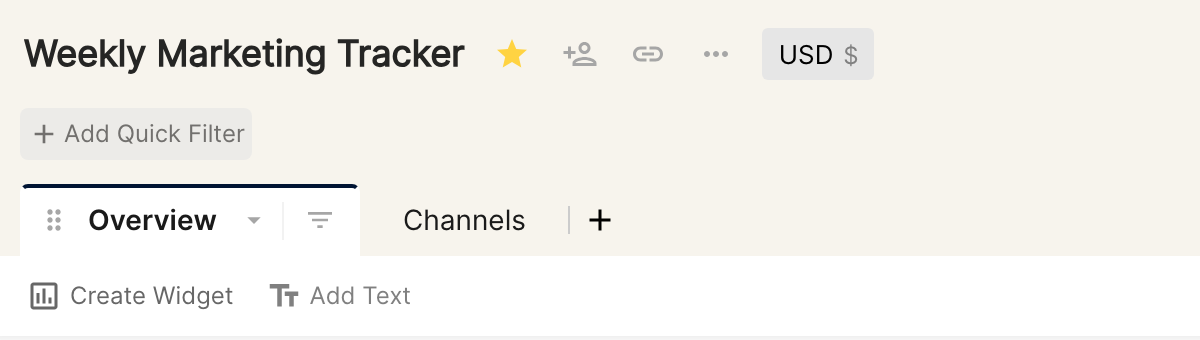
Report title
This is the name of the report. It is unique across your organisation's Clarisights workspace.

Tip: a clear name helps you find the report. Use a naming convention, for example a suffix such as
[SEM]or[App], to make searching the list of reports easy.
Report options
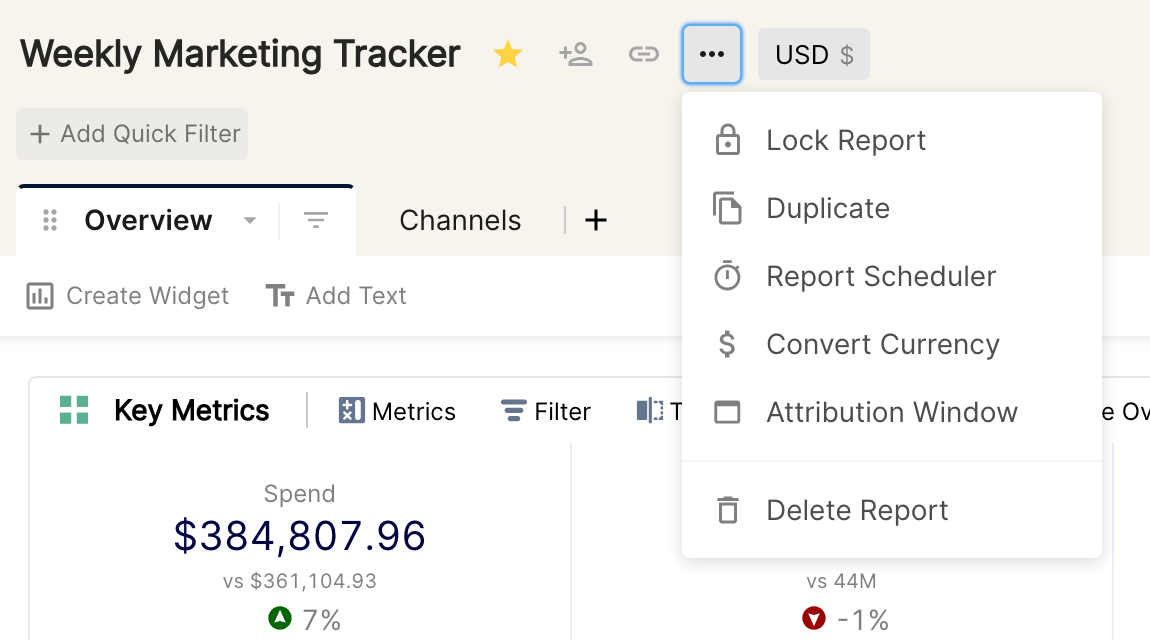
The icons next to the report title and the more options (...) menu give you various options for a report. The most important ones are:
Star: bookmark your most used reports. See Starring reports to bookmark them.
Share: share reports with your teammates and company. See Sharing a report with a team.
Snapshot: generate a snapshot of the report, especially useful for sharing a monthly audit with internal and external teams. See Sharing a snapshot of a report.
Lock: restrict changes on important reports. See Locking a report.
Report Scheduler: schedule a daily or weekly email with a link to a report snapshot. See Scheduling your reports.
Convert Currency: view the report in a different currency. See Currency Conversion.
The more options menu also lets you duplicate or delete the report.
Tabs
Tabs help you organize and structure your reports. Common examples are tabs for countries, channels or product categories. To add a tab, click the + icon.
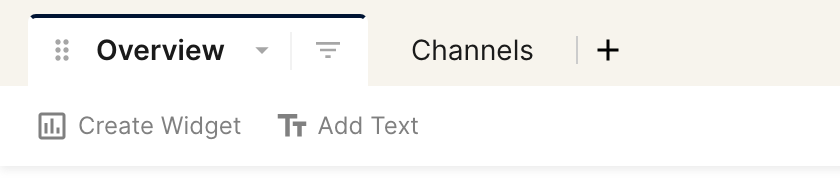
The options to rename, duplicate and delete a tab are under the small inverted triangle icon.
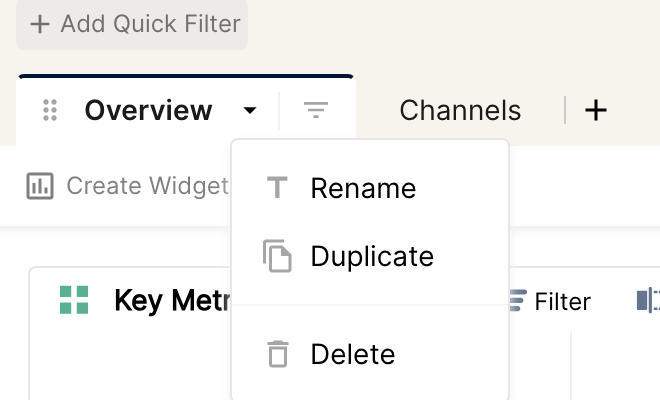
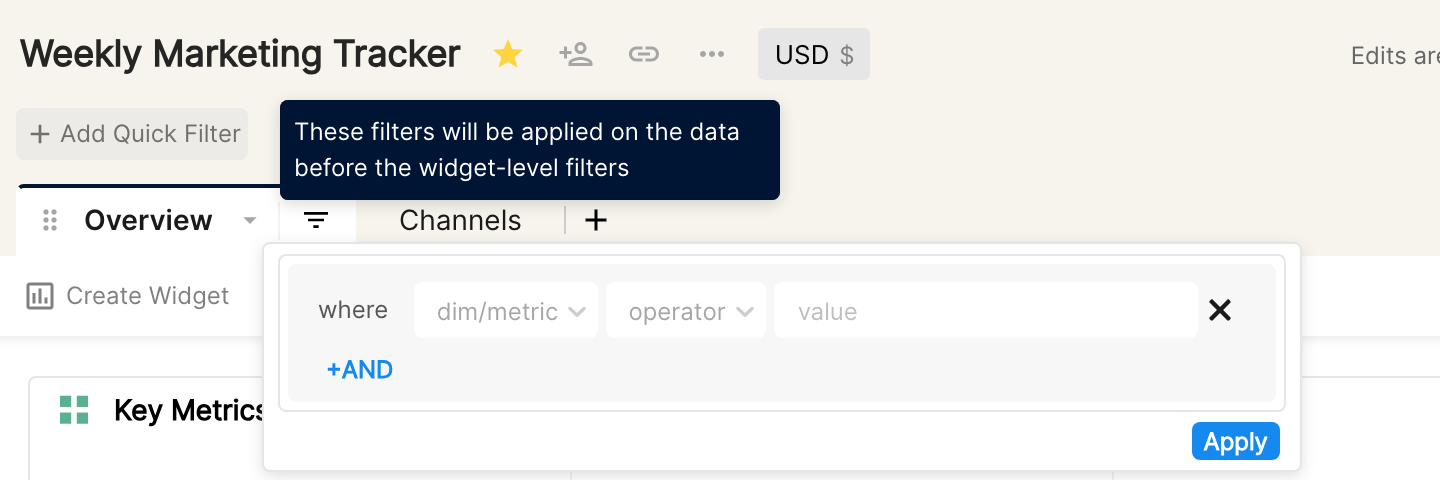
Tip: create a template tab with all the widgets you need, then duplicate it and add tab filters to create tabs for different verticals.
Widgets
Widgets are the tables, charts and other graphics that make up your report. There are various widget types, such as Table, Bar chart and Timeline chart. See Types of widgets in Clarisights for all the widget types you can choose from.
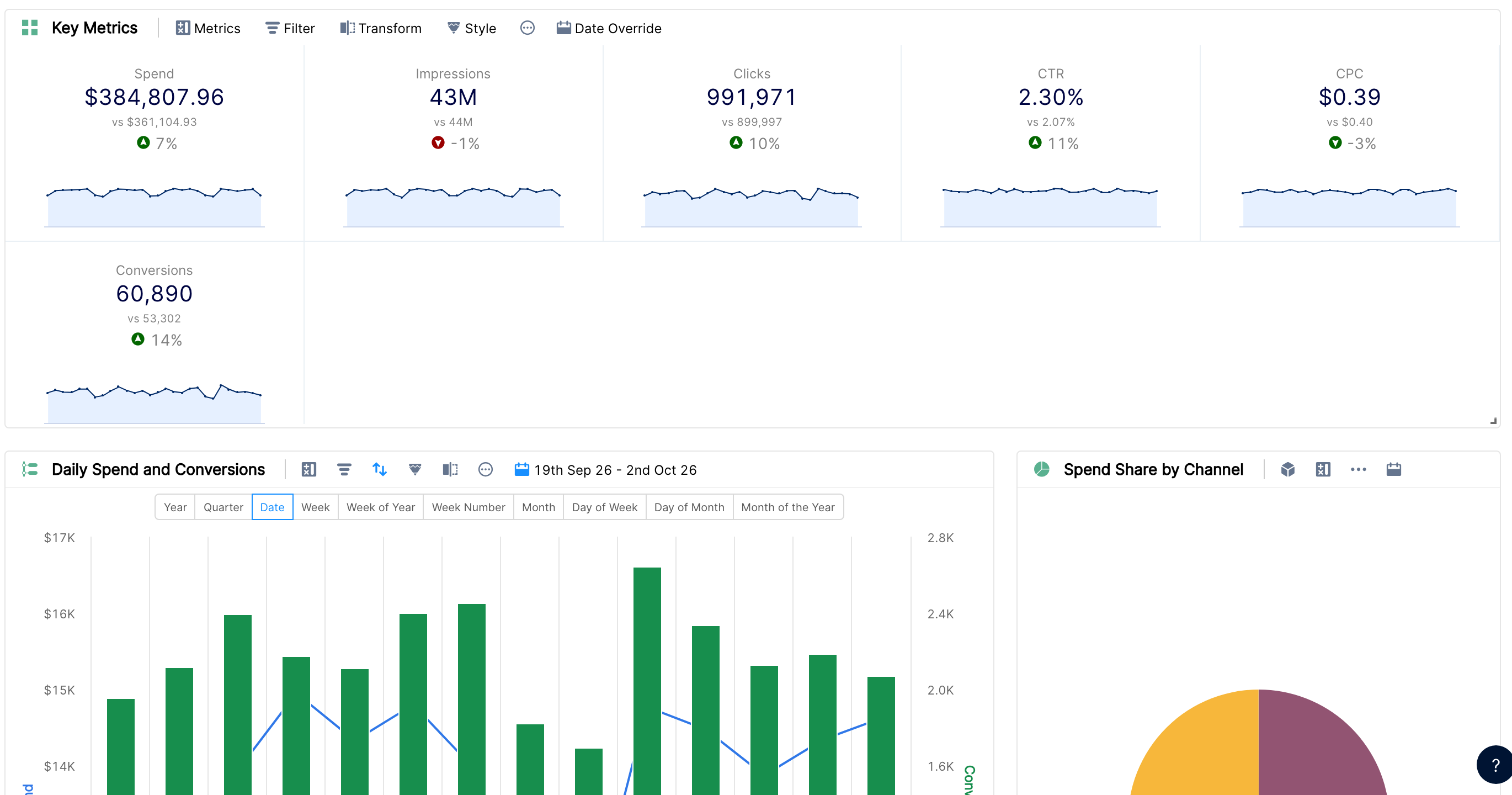
To create a new widget, click Create Widget just below the tab bar.
Widget options
You can configure a widget to choose its dimensions and metrics, and add filters and sorting.

Date Picker and Date Override
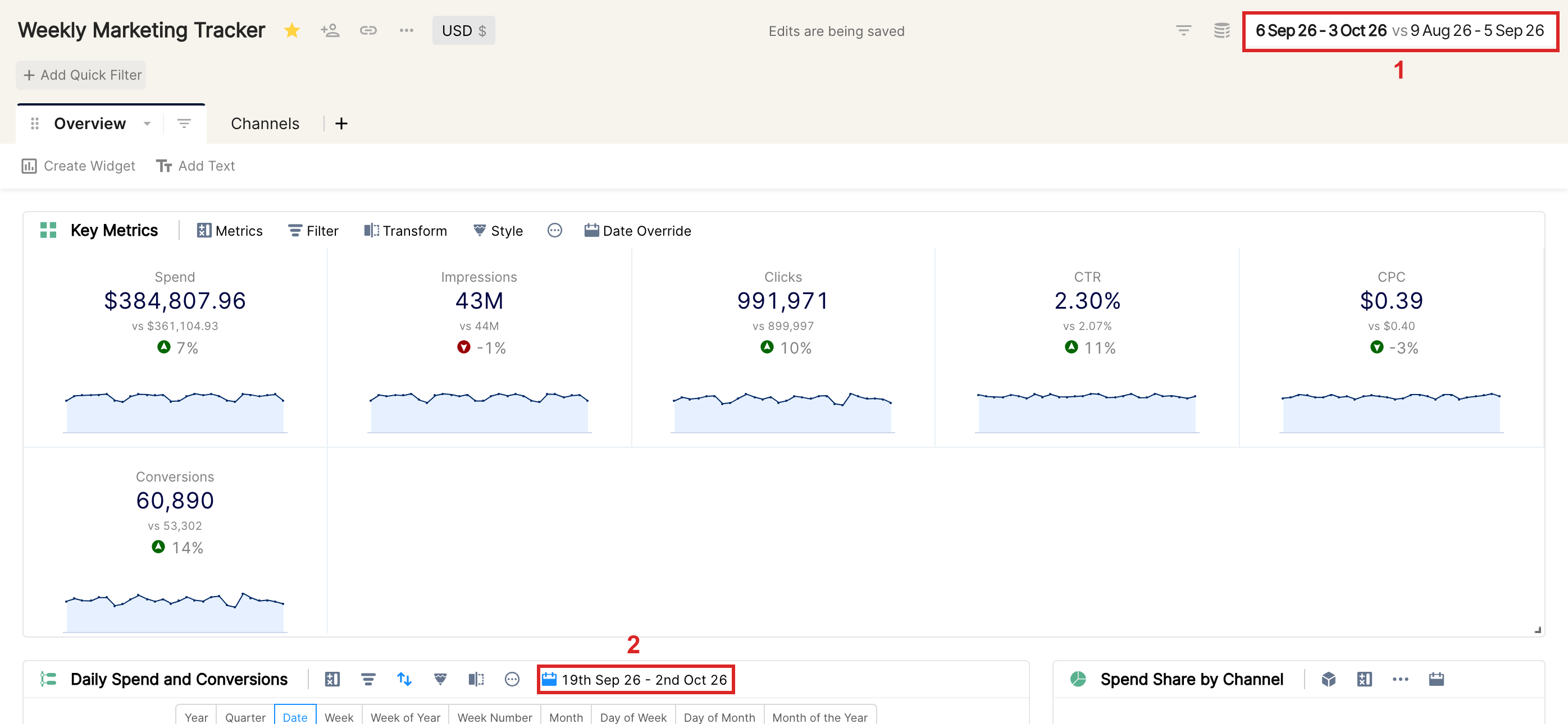
Choosing the right dates is essential when reporting data. There are 2 ways to choose the dates in a report (labeled in the screenshot above):
User-level Date Picker: the data in all widgets is filtered for the dates chosen in this date picker.
Widget Date Override: the widget shows data for the overridden dates, regardless of the User-level Date Picker. This is optional, and particularly useful to make sure the top widget shows data for
This MonthorThis Week.
Now that you know the basic elements of a Clarisights report, build your weekly performance report.