
Overview of User Access Control
Access control in Clarisights has three parts:
Roles: what each user is allowed to do.
Data Groups: slices of your data, defined by accounts.
Teams: groups of users, each given one or more data groups.
Roles decide what a user can do. Teams and data groups decide which data Team Members and Viewers can see.
Roles
Each user has exactly one role. You set it when you invite the user and can change it later, but users can't change their own role. See Adding users and managing their roles.
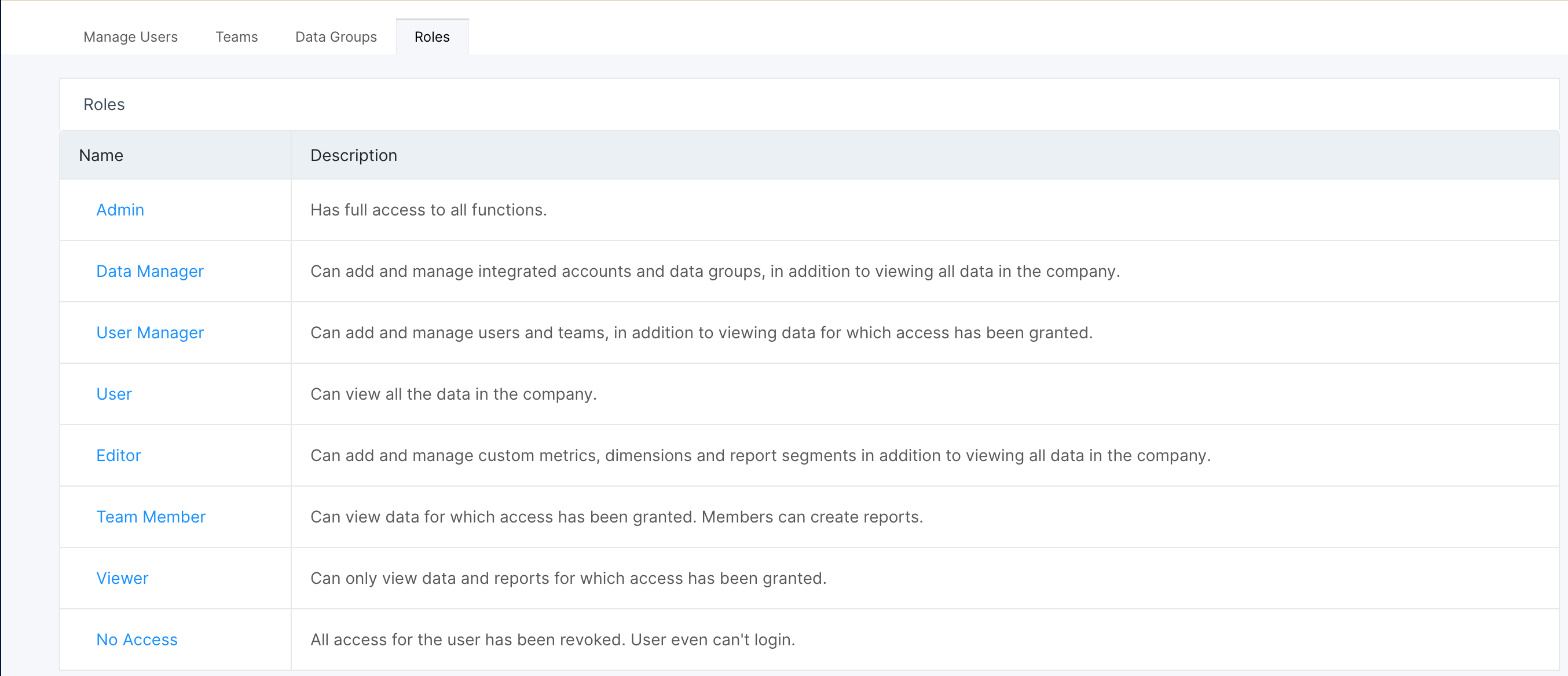
Role | Data they can see | What they can do |
Admin | All company data | Add and remove users and control their data access; create and edit custom dimensions, custom metrics, integrated data sources and report segments |
Data Manager | All company data | Add and manage integrated accounts and data groups |
User Manager | All company data | Add and remove users; create and manage teams and data groups. Cannot change an Admin's role |
Editor | All company data | Create and edit custom dimensions, custom metrics, integrated data sources and report segments |
User | All company data | Create and use reports |
Team Member | Only the data of their teams | Create and use reports |
Viewer | Only the data of their teams | Open reports shared with them. Cannot create reports |
No Access | None | Cannot use Clarisights. Use this to block someone without deleting their account |
The full list of permissions for each role is in the Roles tab of Preferences. Click a role name to see what it can create, manage and view.
Roles and report access
Access to each report is set separately and doesn't depend on the role:
Anyone except Viewers can create a report.
Anyone can be given access to view or edit a report. Users with the Viewer role can only be given Explorer or Viewer access.
When several people open the same report, each one sees only the data they have access to. Team Members and Viewers see the combined data of all their teams.
Data Groups
A data group is a set of accounts, which can come from several data sources. You use data groups to decide which data each team can see. For example, you could create:
One data group per country, so each country team sees only its own accounts.
One data group per channel type (Search, Social, Display, Mobile), so each channel team sees only its own data.
Things to know:
Data groups are built from account-level filters only. While you create one, you see a preview of the accounts it will include.
You can't filter below account level. If one account runs campaigns for several countries, you can't split it into country data groups.
A data group can be assigned to several teams, and a team can have several data groups. A team sees all the accounts in all of its data groups.
See Creating and Managing Data Groups.
Teams
Teams control which data Team Members and Viewers can see. A team can have any number of members, and a user can be in any number of teams.
Users with other roles already see all company data, so adding them to a team doesn't change their data. It can still be useful, because you can share a report with a whole team at once.
Example: teams by region and country
A company has accounts in six countries: US, UK, Germany, Canada, Australia and New Zealand. It wants regional teams (Americas, Europe, Oceania) and country teams.
It only needs six data groups, one per country. Each team then gets the data groups it needs:
Team | Data groups |
Americas | US, Canada |
Europe | UK, Germany |
Oceania | Australia, New Zealand |
US | US |
UK | UK |
Germany, Canada, Australia, New Zealand | The matching country |
Each user is then added to the teams that match the data they need. See Creating and Managing Teams.
What each user sees in a shared report
Three users open the same report, which contains all company data:
User | Teams | Data they see |
X | Team A (data groups 1, 2, 3, 5) | Data groups 1, 2, 3, 5 |
Y | Team B (data groups 4, 5, 6) | Data groups 4, 5, 6 |
Z | Team A and Team B | Data groups 1 to 6 |
Each user sees only the data they have access to, even though the report itself covers everything.
Note: changes to a user's teams, or to a team's data groups, can take up to an hour to appear in that user's reports.