
How to Request Access to Clarisights
There are three kinds of access you might need in Clarisights: access to your company's workspace, access to a specific report, and access to more data. This article explains how to get each of them.
Getting access to your company's workspace
Clarisights workspaces are invite-only. To join your company's workspace, ask someone in your company with the Admin or User Manager role to invite you. If you don't know who that is, ask a colleague who already uses Clarisights: they can see each user's role on the Manage Users page in Preferences (the people icon in the left sidebar).
When they invite you, they enter your name and email address, pick your role and, optionally, your teams.
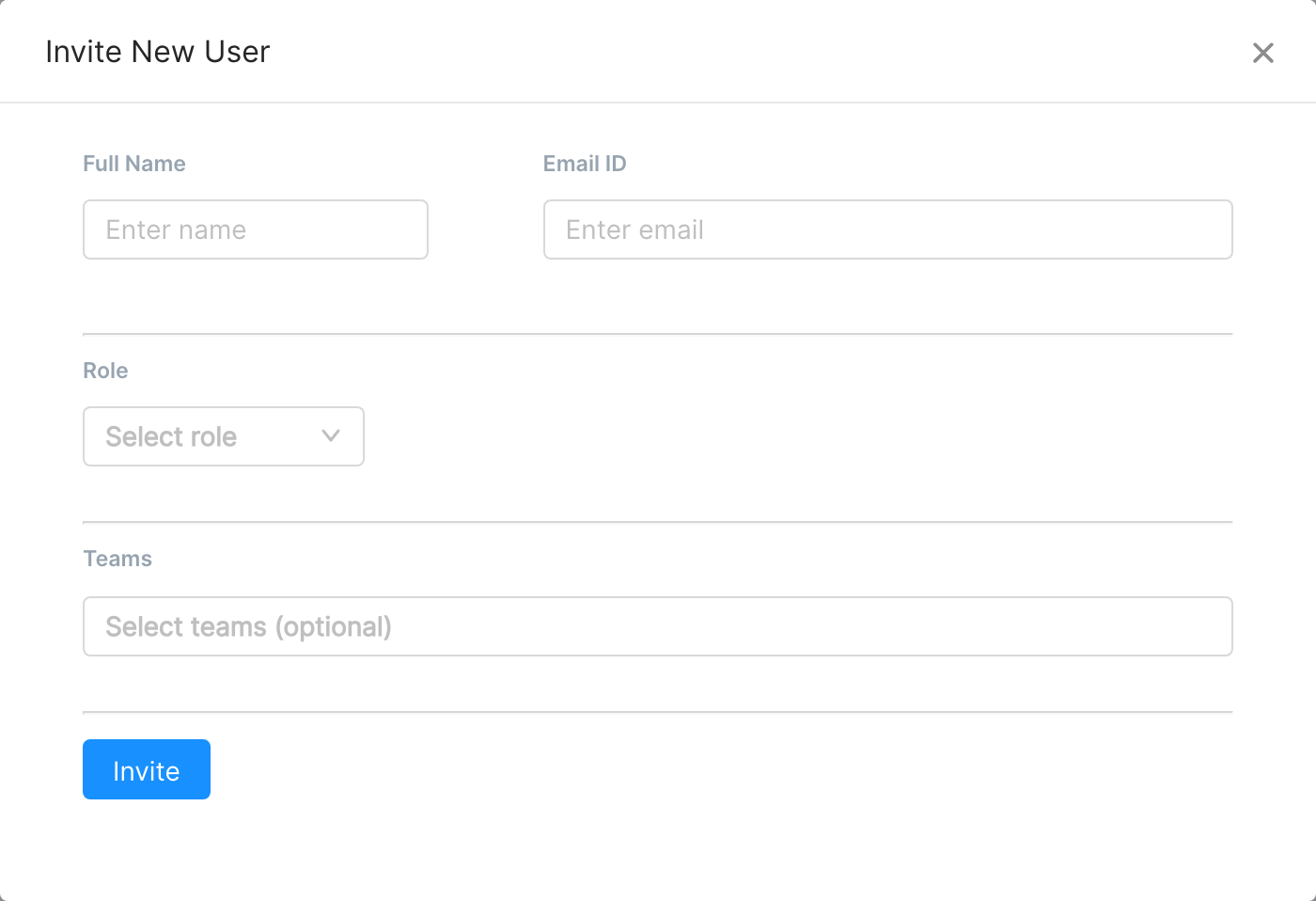
You then receive an email inviting you to Clarisights. Depending on how your company signs in:
Password: the email contains a link to set your password. The link is valid for 7 days. If it has expired, go to the sign-in page, click "Forgot password" and request a new link.
Google: click "Sign in with Google" on the sign-in page and choose the Google account with the email address you were invited with.
SSO (for example Okta): your company's identity provider controls who can sign in. Ask your IT team to give you access to the Clarisights application, then click "Sign in with SSO" and enter your company domain. You don't need an invite from Clarisights in this case.
Note: Do not sign up for a new account on the Clarisights website if your company already uses Clarisights. Signing up creates a separate, empty workspace that is not connected to your company's data.
Admins can find step-by-step instructions in Adding users and managing their roles.
Requesting access to a report
If someone sends you a link to a report that hasn't been shared with you, Clarisights shows the message "You do not have access to this report" with a "Request Access" button.
Choose the access level you need from the dropdown: Creator, Editor, Explorer or Viewer. See How to Share Reports for what each level allows.
Click "Request Access".
The report's creators are notified by email and in Clarisights, and can grant the access from the link in that notification. You can send one request per report every 24 hours.
Getting access to more data
If you can open reports but don't see the data you need, your access to data is the issue, not your access to reports. Users with the Team Member or Viewer role only see the data of the teams they belong to. Ask your Clarisights Admin or User Manager to add you to the right team, or to change your role. See Why Do I See 'No Data Available' on My Dashboards? and Overview of User Access Control.
If you get stuck, reach out to us via the chat widget and tell us your email address and what you are trying to access.