
Adding users and managing their roles
This article walks you through inviting a new user to Clarisights, choosing their role and team, changing the role of an existing user, and deleting a user.
The role and teams you choose decide which data a user can see, if any. If a new user can't see any data in a report, they most likely have the wrong role or team membership.
Before you start
Only users with the Admin or User Manager role can invite users and manage their roles. If you don't have either role, ask an Admin in your company to add the new user.
Admins and User Managers can't change their own role.
A User Manager can't change the role of an Admin.
There always needs to be at least one Admin in the company.
Inviting a user and assigning a role
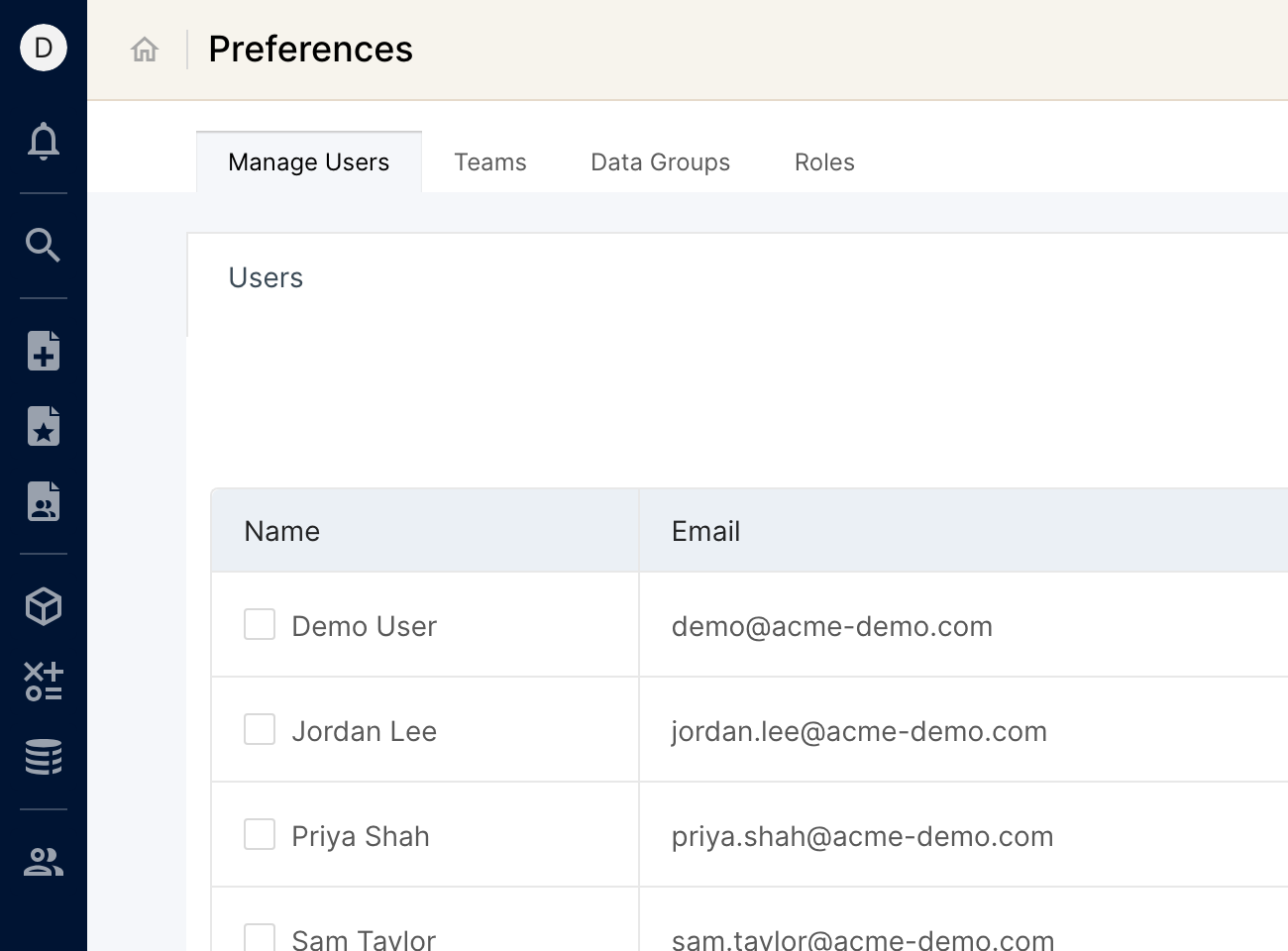
Click the people icon (tooltip Manage Users) in the left sidebar to open Preferences.
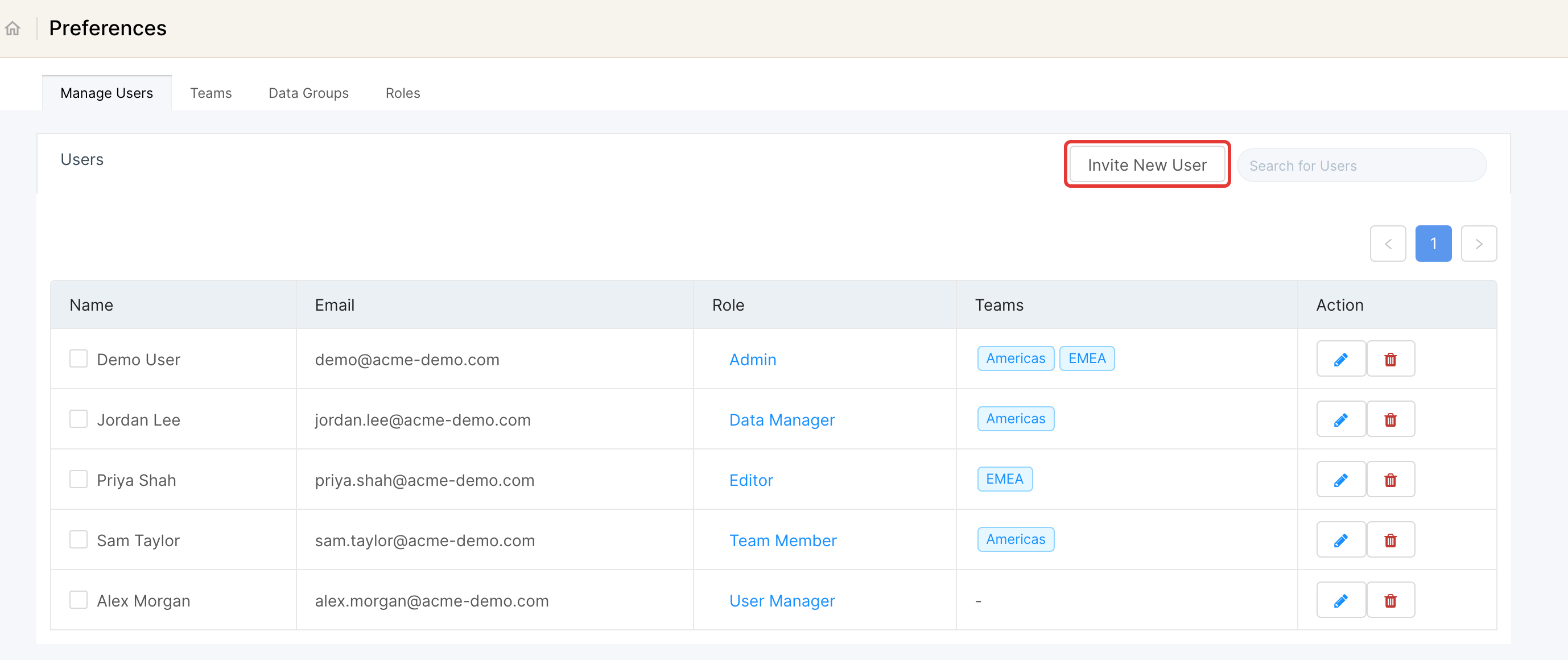
Preferences opens on the Manage Users list. Click Invite New User and enter the details of the user you want to invite.
In the role selector, choose the user's role. Hover over a role to see a summary of its permissions. Each user has exactly one of these roles:
Admin
Data Manager
User Manager
Editor
User
Team Member
Viewer
No Access
For what each role can do, see Overview of User Access Control.
Choose which teams to add the user to. You can use teams to:
Quickly share reports with all members of a team.
Define the data users can see in Clarisights, based on their team membership.
Important: a user with the Team Member or Viewer role can't see any data until you add them to at least one team (step 4).
The user now gets an email inviting them to Clarisights. By default, the email contains a link to set a password, which is valid for 7 days.
Depending on the sign-in methods enabled for your workspace, they can also use Sign in with Google (with the same email address you invited) or Sign in with SSO. If you want to allow only Google or SSO sign-in for your workspace, reach out to our support team.
Modifying the role of an existing user
Open the users list in Preferences, as described above.
Search for the user you want to edit, and click the pencil (edit) icon in the Action column next to their name.
Choose the new role. You can also add the user to teams or remove them from teams here.
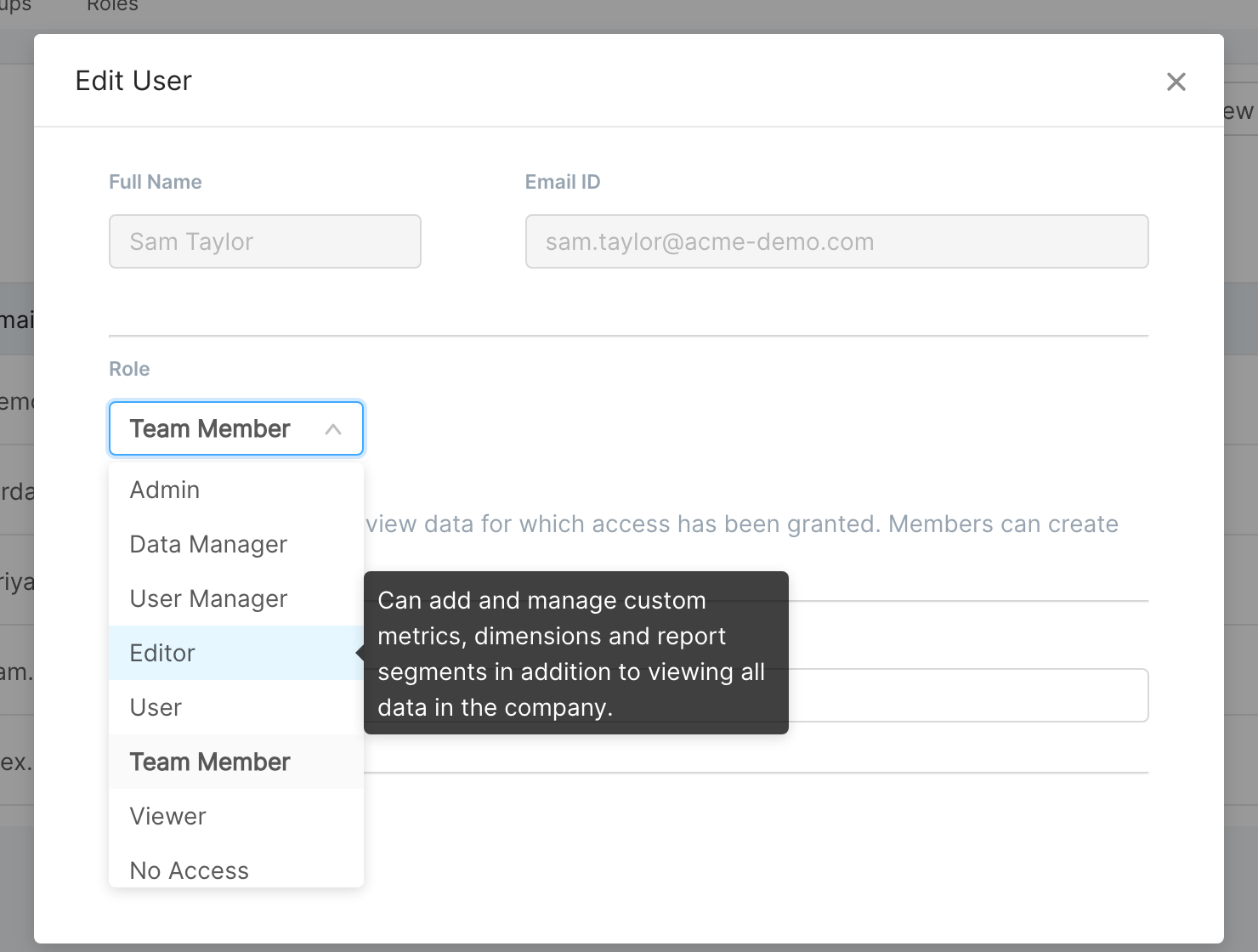
Note: you can't change a user's name or email address after they have been invited. Changes to a user's teams can take up to an hour to show up in their reports.
Deleting a user from Clarisights
Open the users list in Preferences, as described above.
Search for the user you want to remove, and click the trash (delete) icon in the Action column next to their name.
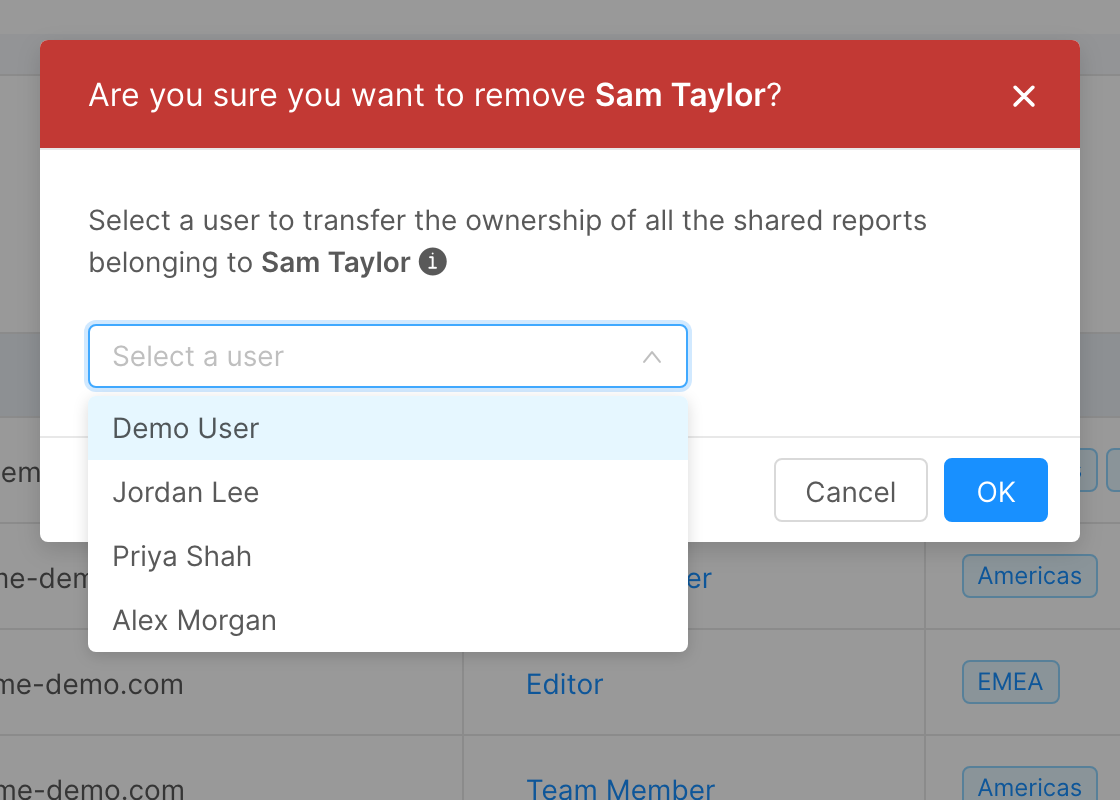
A dialog asks you to "Select a user to transfer the ownership of all the shared reports belonging to" the user you are removing. Choose who should take over their reports, then click OK.
This makes sure no report is left without an owner, because only a report's creator can edit its data sources and viewing permissions.
The user is deleted from Clarisights and can no longer access your reports.