
Creating and Managing Data Groups
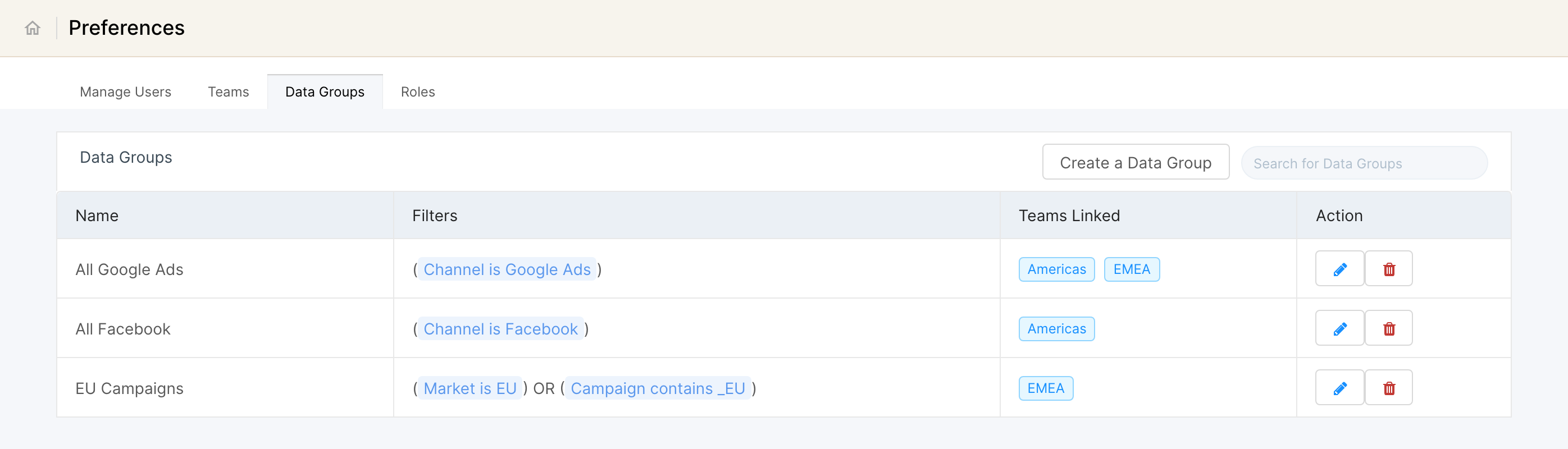
Data groups are the slices of data you use to control what each team member in your company can see. Each team can be assigned one or more data groups, and all members of that team can then access the combined data of those data groups.
For how user management and data access work together, see Overview of User Access Control.
Note: a data group is a group of accounts from different channels. You can't currently create a data group at campaign level or lower.
Creating a Data Group
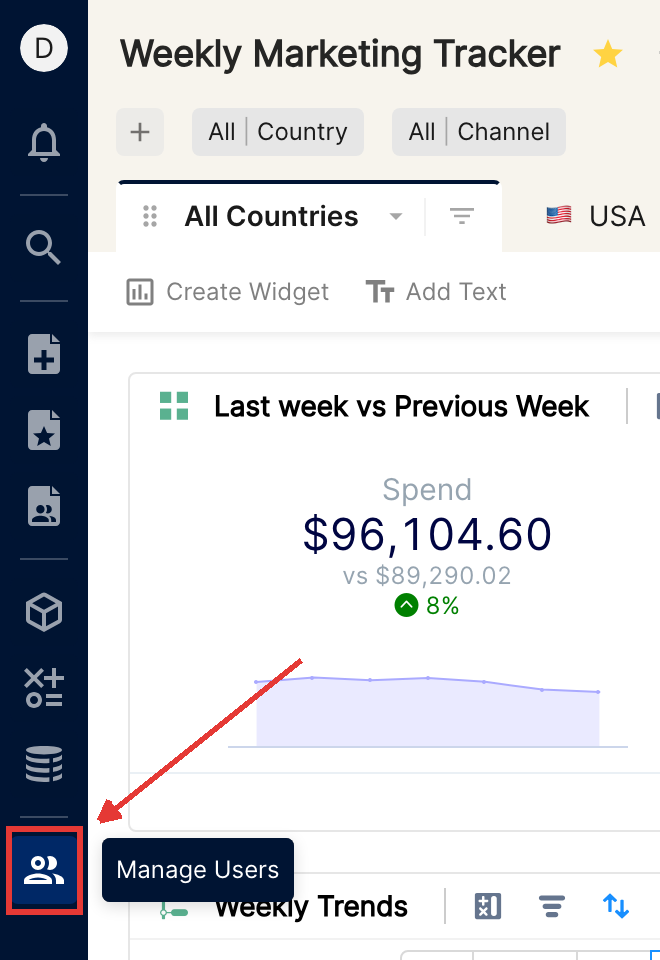
Click the Manage Users icon (people icon) at the bottom of the left sidebar to open Preferences.
Open the Data Groups tab and click Create a Data Group.
Enter a name for the data group, and choose the filters to apply to your accounts. Only account-level filters are available here.
Click Apply to preview the accounts, across channels, that match your filters and will be part of the data group.
If needed, change the filters and click Apply again to refresh the list of matching accounts.
Click Save.
Modifying an existing data group
Open the Data Groups tab in Preferences, as described above.
Search for the data group you want to edit, and click the edit button next to it.
Edit the filters, and click Apply to check that the list of matching accounts is what you need. You can also rename the data group.
Click Save.
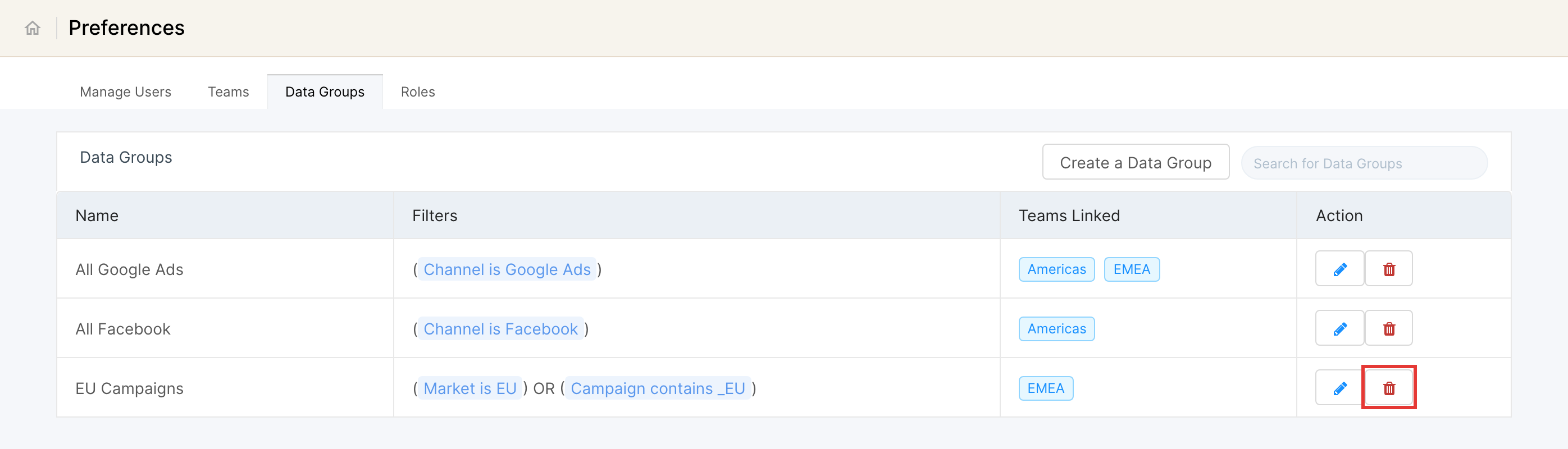
To delete a data group, click the delete button next to it and confirm.
After you edit a data group, users in teams that have this data group get access based on the new filters. This can take up to an hour to show up in their reports.