
Creating and Managing Teams
Teams decide which data groups a set of users can access. A team brings together two things:
Members: one or more users.
Data groups: one or more data groups assigned to the team.
Every member of a team has access to the data in the data groups assigned to it.
There is no hierarchy in teams: all members are equal. Members can't invite other members to their team, leave a team or join other teams. Only Admins and User Managers can make these changes.
Creating a Team
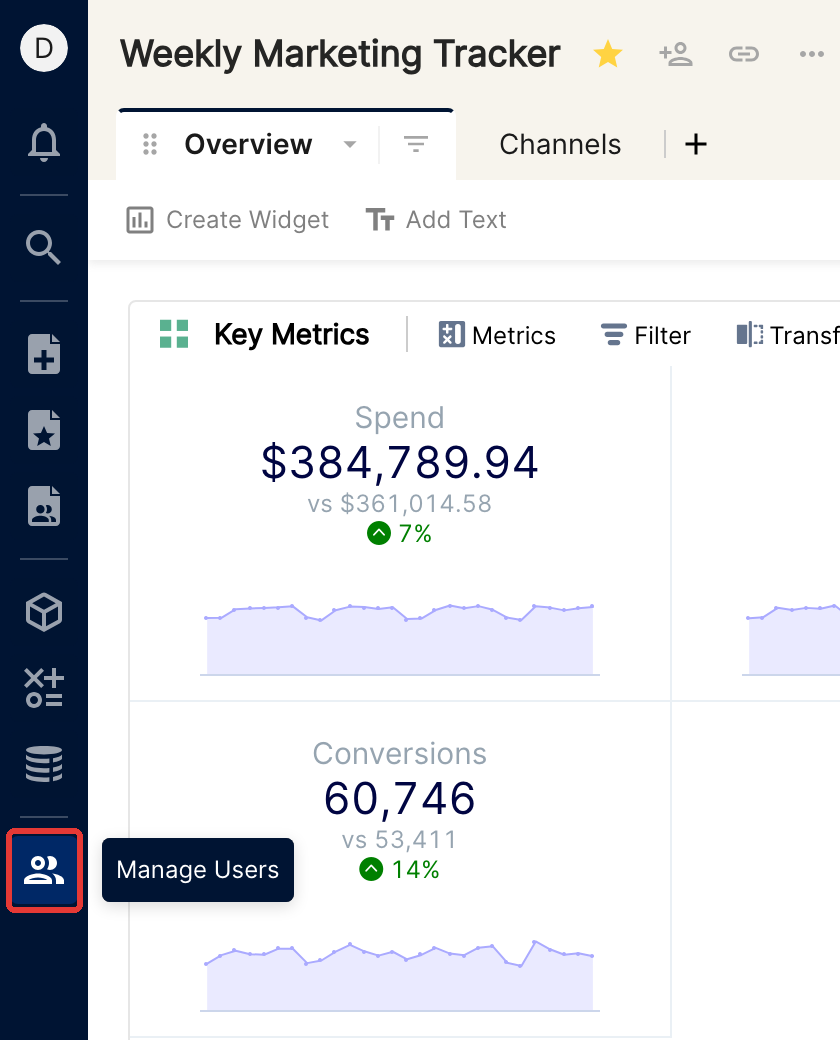
Click the people icon (tooltip Manage Users) in the left sidebar to open Preferences.
Go to Teams and click Create a Team.
Enter a name and a description for the team.
In the next steps, add existing users to the team, then assign existing data groups to it.
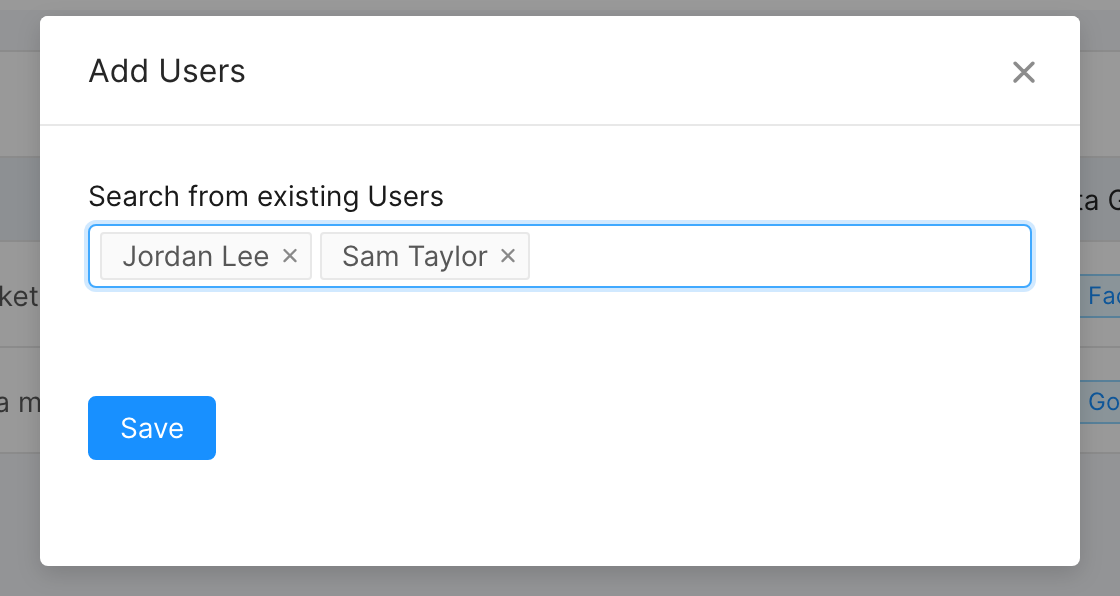
The team is created.
Editing a team
Open the Teams section in Preferences, as described above.
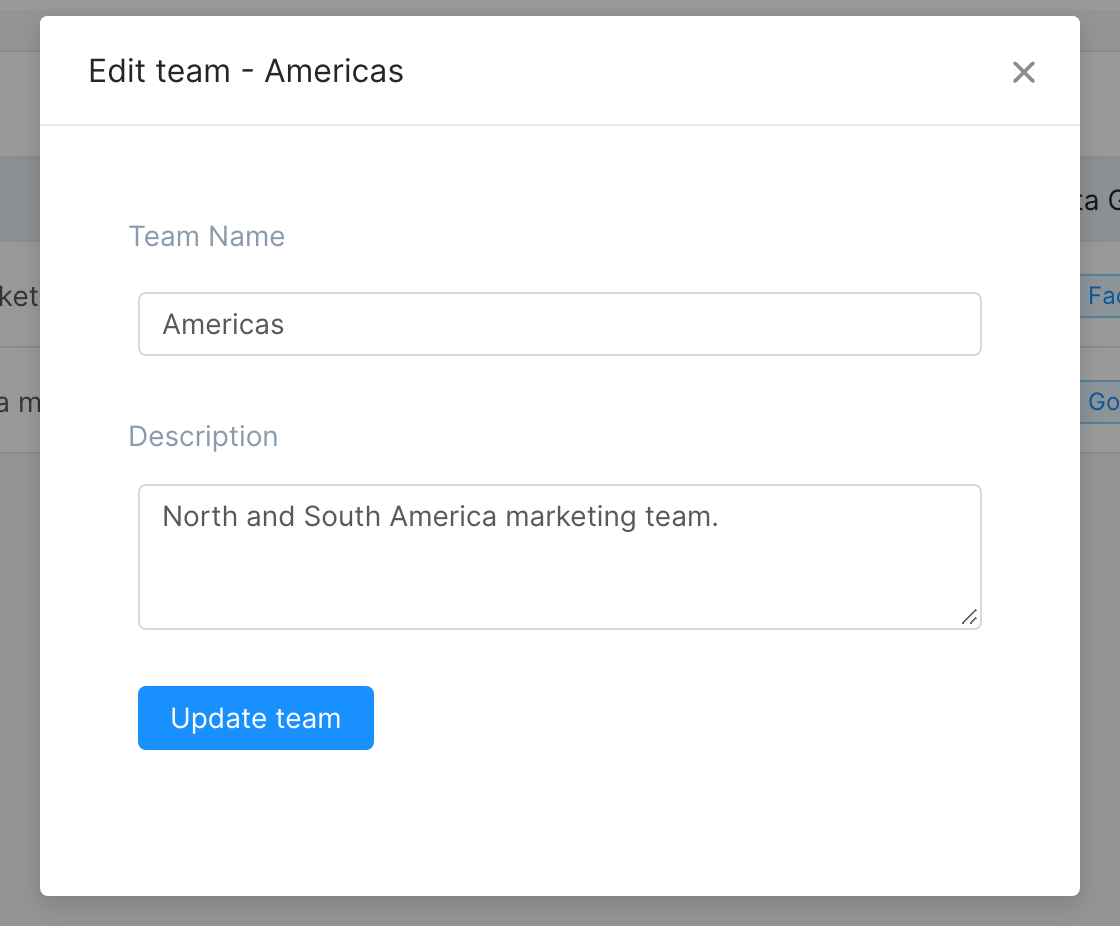
Search for the team you want to edit, and choose Edit Team from the ... menu in the Action column.
Change the name or description of the team.
Changing members in a team
Open the Teams section in Preferences, as described above.
Search for the team you want to edit, and choose Add/Remove Members from the ... menu in the Action column.
Remove existing members from the team, or add new ones.
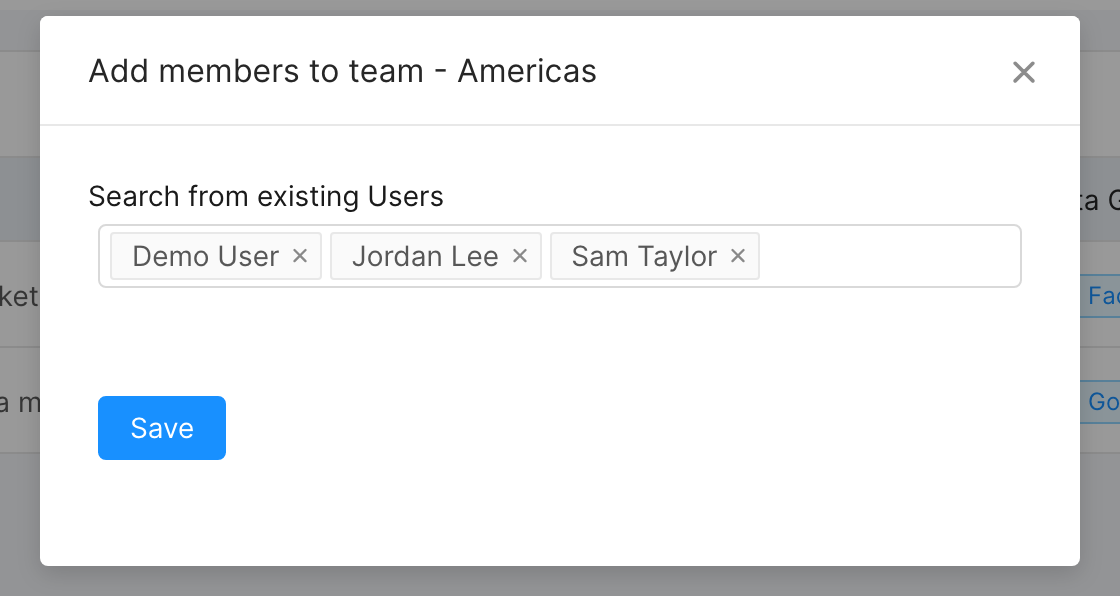
Note: you can't invite new users to Clarisights from here. Search for members to add by their name, not their email address.
Adding data groups to a team
Open the Teams section in Preferences, as described above.
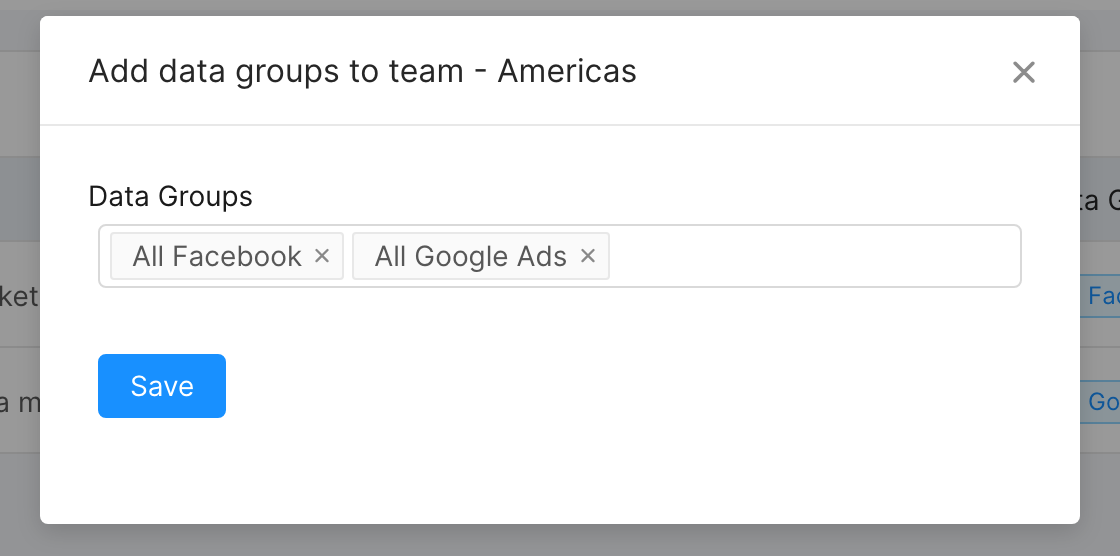
Search for the team you want to edit, and choose Add Data Groups from the ... menu in the Action column.
Unassign data groups from the team, or assign new ones. All members of the team get the combined access of all these data groups.
Deleting a team
Choose Delete Team from the same ... menu, then confirm.