
Understanding Permissions: Edit vs. View Access
What you can see and change in Clarisights is decided by two separate things:
Your role in the workspace (for example Admin, Editor, Team Member or Viewer). It decides which data you can see and which company-wide settings you can manage, such as users, integrations and custom metrics.
Your access level on each report (Creator, Editor, Explorer or Viewer). It decides what you can change in that specific report.
The two are independent. For example, someone with the "Editor" role can be only an "Explorer" on a report a colleague shared with them, and a "Team Member" can be the "Creator" of their own reports.
Your role in the workspace
Each user has exactly one role. Your Admin or User Manager sets it when they invite you, and can change it later. You can see all roles and their permissions in the "Roles" tab of Preferences (the people icon in the left sidebar).
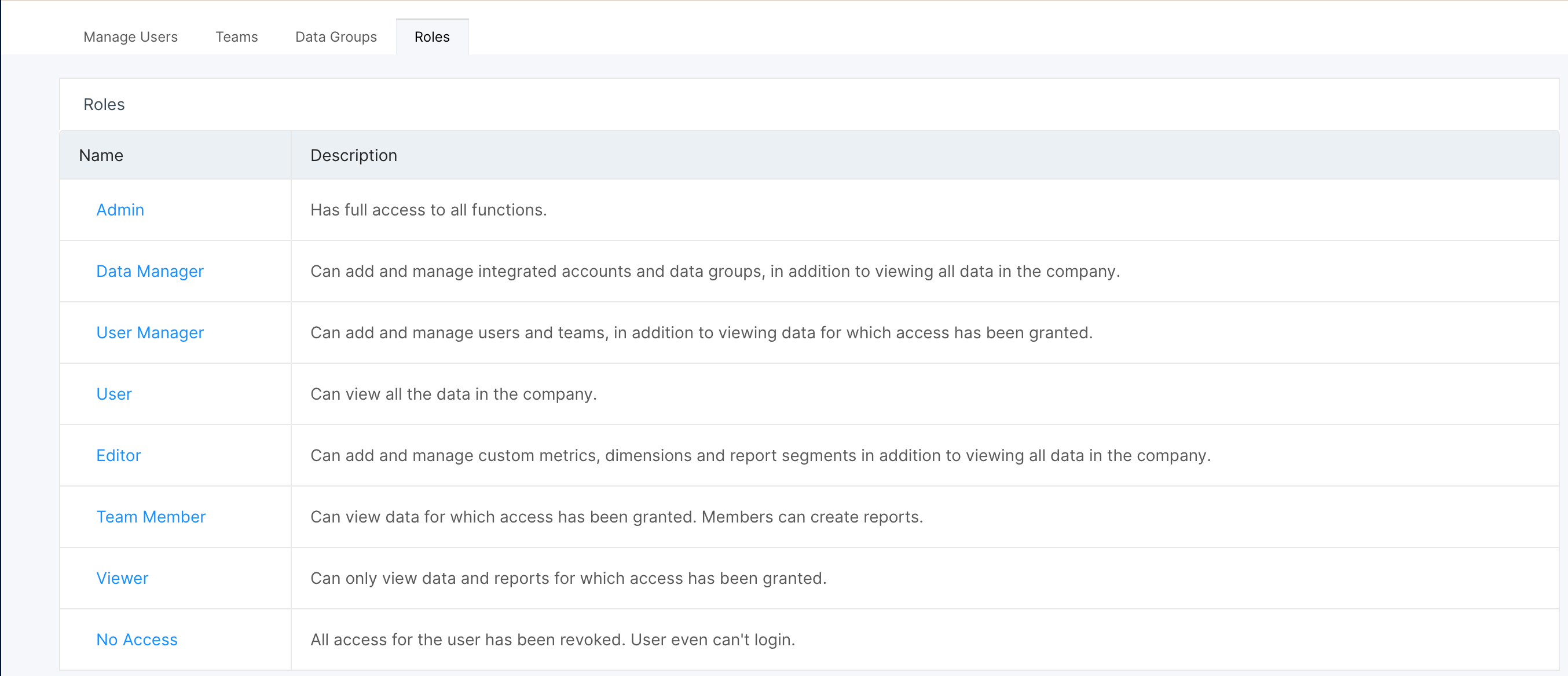
Role | Data you can see | What you can manage |
Admin | All data in the company | Everything: users, teams, data groups, integrations, custom metrics and dimensions, report segments |
Data Manager | All data in the company | Integrations and data groups |
User Manager | All data in the company | Users (except Admins), teams and data groups |
Editor | All data in the company | Integrations, custom metrics, custom dimensions and report segments |
User | All data in the company | Their own reports only |
Team Member | Only the data of their teams | Their own reports only |
Viewer | Only the data of their teams | Nothing. Viewers cannot create reports and can only open reports shared with them |
No Access | None | Nothing. All access has been revoked |
Every role except Viewer and No Access can create reports. Nobody can change their own role. For more details, see Overview of User Access Control.
Your access level on a report
When a report is shared with you, you get one of four access levels on it:
Access level | What you can do |
Creator | Fully configure and edit the report, including its name, data sources, metrics and dimensions. Only creators can lock a report and turn on "Share within the company". |
Editor | Edit widgets and tabs, but not the report settings |
Explorer | Change widgets to explore the data, but the changes are not saved |
Viewer | Only change dates and download widgets as CSV |
A few rules to keep in mind:
When you share a report, you can give others your own access level or a lower one.
Reports shared with a whole team, or with the whole company through "Share within the company", give Explorer access.
Users with the Viewer role can only get Explorer or Viewer access on a report, even if someone tries to make them an Editor.
A locked report cannot be edited by anyone until a creator unlocks it. See Locking a report.
To share a report or change someone's access level, see How to Share Reports. If you cannot open a report at all, use the "Request Access" button shown on it. If you need a higher access level on a report you can already open, ask its creator.
Why two people see different numbers in the same report
Report access controls what you can change, not which data you see. The data in a report always depends on the role of the person looking at it: Team Members and Viewers only see the accounts of their teams' data groups, while all other roles see all data. So a Team Member and an Admin can open the same report and see different numbers. If you see "No Data Available" everywhere, see Why Do I See 'No Data Available' on My Dashboards?