Setting up Clarisights integration on Okta
To sign in with Okta, login with SSO must be enabled on your Clarisights workspace. Contact your CSM if you'd like to use this feature.
To provide sign-in with Okta as a feature, Clarisights uses an authentication plugin called Descope. Descope is a SOC2 certified and ISO 27001 compliant authentication plugin that allows us to integrate with multiple SSO providers.
To use Okta as an SSO option on Clarisights, your company needs to add Clarisights as an application in its Okta workspace. Follow the steps below.
Setting up the Okta application
Step 1: Select Create App Integration in the Applications section of Okta

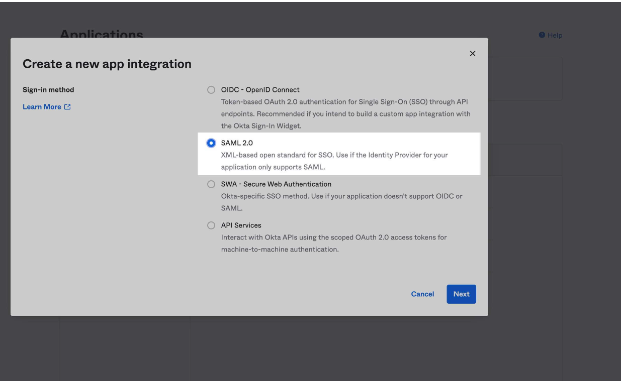
Step 2: Select SAML 2.0 and click Next
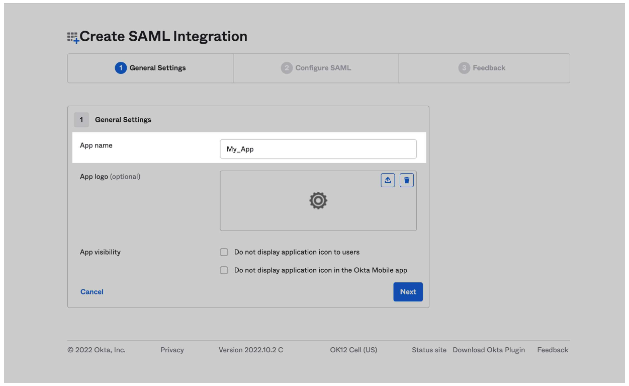
Step 3: Enter Clarisights as the App Name
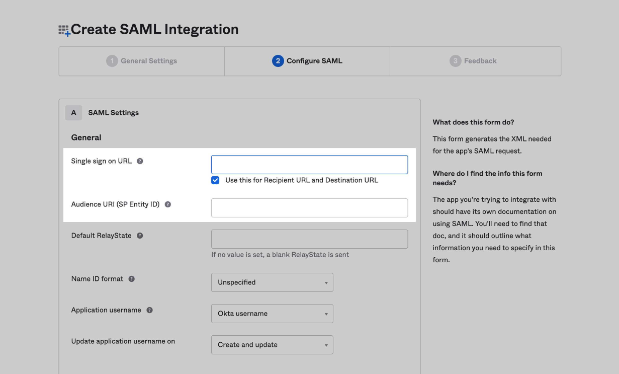
Step 4: Enter the SSO configuration values
Single Signon URL: the Descope ACS URL (
https://api.descope.com/v1/auth/saml/acs?projectId={descope_project_id}&tenantId={descope_tenant_id}). Your CSM will share thedescope_project_idanddescope_tenant_idwith you before you start the setup.Audience URI (SP Entity ID):
{descope_project_id}-{descope_tenant_id}
Step 5: Create the attribute statements
Clarisights reads three attributes from Okta: name, email and groups.
name:
String.join(" ", user.firstName, user.lastName)(the user's full name)email:
user.email
Add a group attribute statement named groups. It tells Clarisights which workspace (and, optionally, which role) each user gets. Use the filter Starts with followed by your Clarisights workspace name, which your CSM will share with you (in the examples below, the workspace name is acme).
Then create groups in Okta that follow one of these patterns, depending on where you want to manage roles (your CSM will set this up with you):
Roles managed in Clarisights: one group named after your workspace, for example
acme. Everyone in this group can sign in. New users join with the "Team Member" role, and an Admin or User Manager can change their role in Clarisights.Roles managed in Okta: one group per role, named
<workspace>__<role>with two underscores, for exampleacme__admin,acme__editororacme__viewer. The available roles areadmin,data_manager,user_manager,editor,user,member(Team Member) andviewer. The role is updated from Okta every time the user signs in.
If a user is removed from these groups, their Clarisights access is revoked the next time they try to sign in.

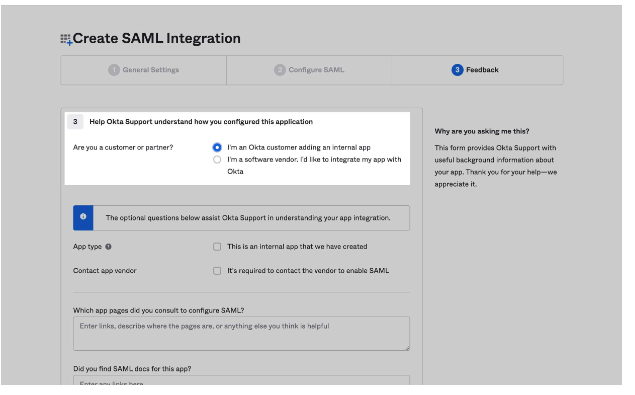
Step 6: Click Next, select I’m an Okta customer adding an internal app, then click Finish
Step 7: Copy the metadata URL and share it with your Clarisights CSM

This completes the setup. You can now add users to the Clarisights groups in your Okta workspace and assign them to the Clarisights application.
Signing in with SSO
Once your CSM confirms that SSO is enabled for your workspace, your users can sign in like this:
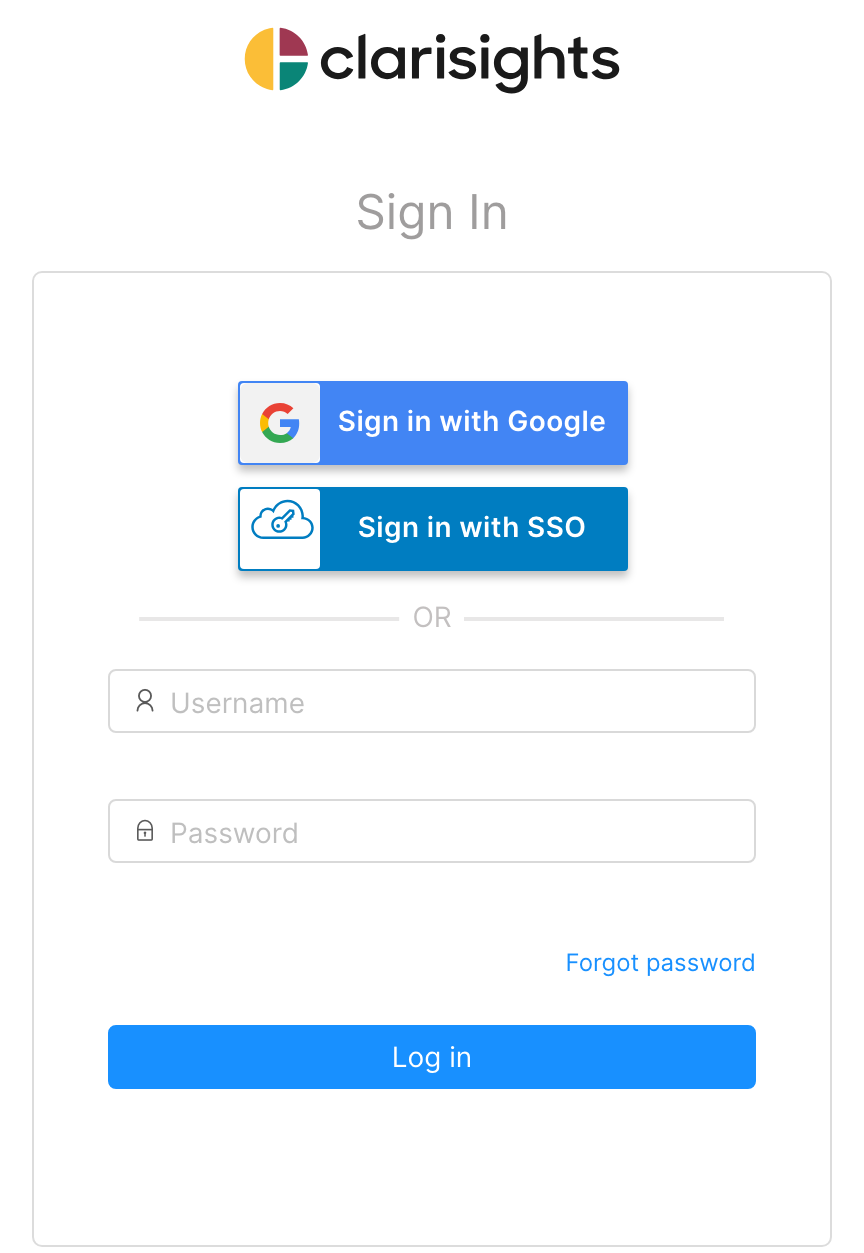
Go to app.clarisights.com/login and click Sign in with SSO.
Enter your company domain (your CSM will share it with you) and click Login.
Sign in with your Okta account. You are then taken back to Clarisights. If you have access to more than one workspace, choose the one you want to open.
Users who sign in with SSO for the first time are added to the workspace automatically, so you do not need to invite them from Clarisights.