
Connecting Google Analytics 4 on Clarisights
Google Analytics 4 (GA4) is Google's property-based, event-driven analytics platform that replaced Universal Analytics on 1 July 2023. Connecting GA4 to Clarisights pulls session, engagement, and conversion data (including event-level revenue and custom events) through the GA4 Data API, so you can blend on-site behaviour with paid media performance in the same report.
This article covers the Google Analytics 4 integration. Universal Analytics (UA) is retired and can no longer be connected; see Integrating Google Analytics on Clarisights for what that means for existing UA connections.
At a glance
| Authentication | Google OAuth 2.0 with read-only access to your Google Analytics data |
| Permissions needed | Viewer role or higher on every GA4 property you want to connect |
| Account discovery | After you sign in, your Clarisights CSM completes the setup: the GA4 accounts and properties your Google user can access are then listed under that user, each with its own on/off status |
| Data freshness | Daily |
| Lookback window | Today plus the previous 3 days on every refresh; deeper backfills available on request |
| Backfill on connect | Last 3 days by default; contact support for a longer historical backfill |
| Timezone | Property-level timezone (configured in GA4 admin) |
| Currency | Property reporting currency (configured in GA4 admin); revenue is also available converted to your reporting currency |
| Levels supported | Account / Property · Source · Medium · Campaign · Ad Group (sessionManualTerm) · Ad (sessionManualAdContent) |
| Limited rollout | No. Signing in with Google is self-serve; your CSM completes the property setup and the mapping to your ad channels |
Prerequisites
An active GA4 property in Google Analytics with a numeric property ID (visible under Admin → Property Settings)
A Google account with at least Viewer access on every GA4 property you want to connect
Permission on your Google account to authorize third-party apps (some Workspace policies block this)
Pop-ups allowed for Clarisights in your browser (Google sign-in opens in a pop-up window)
UTM tagging on your paid traffic if you want Clarisights to dereference GA4 sessions back to Campaign / Ad Group / Ad in your ad-channel reports
Steps to Connect
Step 1: Sign in with Google from Clarisights
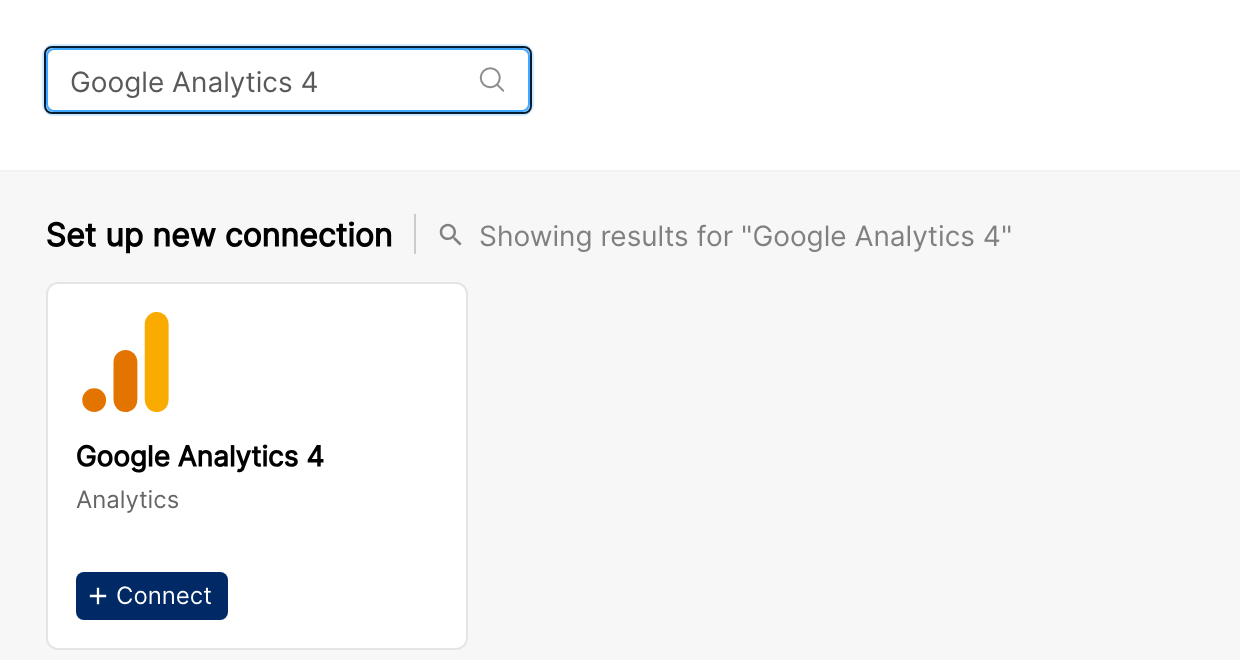
In Clarisights, open Integrations from the left sidebar. Under Set up new connection, find the Google Analytics 4 card and click + Connect. A Google sign-in pop-up opens. Sign in with the Google account that has access to the GA4 properties you want to connect.
Step 2: Authorize Clarisights
Google shows a permission screen asking for read-only access to your Google Analytics data. Click Allow. The pop-up closes and Clarisights confirms that the user was integrated successfully.
⚠ "Access blocked" / "This app is blocked" → Your Google Workspace admin restricts third-party apps. Ask the admin to allowlist Clarisights, or sign in with a Google account whose organisation permits OAuth to external apps.
⚠ Nothing happens after clicking + Connect → Your browser blocked the pop-up. Allow pop-ups for Clarisights and click + User on the Google Analytics 4 Users page to try again.
Step 3: Ask your CSM to complete the integration
Reach out to your Clarisights CSM once you have signed in. They finish the setup with you: they load the GA4 accounts and properties your Google user can access and configure which source / medium values map to each ad channel (for example google / cpc → Google Ads, facebook / paid → Facebook Ads). This mapping is what lets Clarisights dereference GA4 sessions and conversions back to your paid-media campaigns and ads.
Step 4: Review your properties
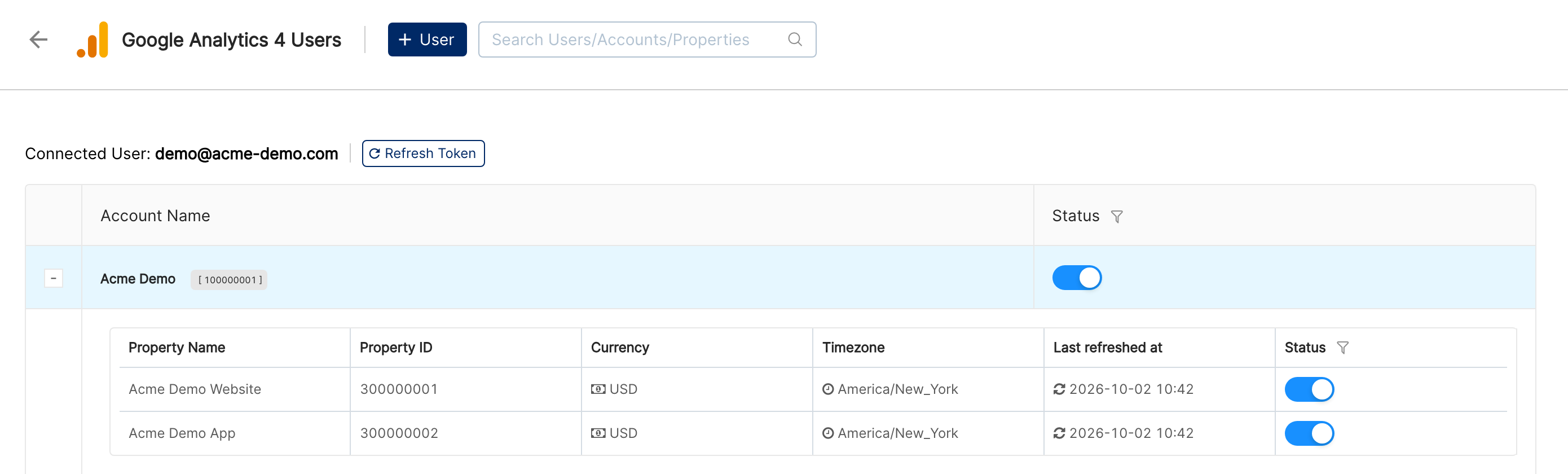
Go to Integrations → Google Analytics 4. The Google Analytics 4 Users page lists each Connected User with their GA4 accounts. Expand an account to see its properties with Property Name, Property ID, Currency, Timezone, Last refreshed at, and a Status switch. Turn off any property you don't want in your reports.
⚠ Property missing from the list → The Google user does not have access to that GA4 property. Ask the property's admin to grant the Viewer role, then ask your CSM to refresh the property list.
Verify the connection
Go to Integrations → Google Analytics 4. Each property you want reported should have its Status switched on, and Last refreshed at should update after each daily refresh.
First data appears at the next scheduled refresh (within ~24 hours of your CSM completing the setup).
Quick start: GA4 data is joined onto your ad channels. Create a report on an ad channel you mapped (for example Google Ads), then add metrics from the GA4 Base Metrics group such as Sessions and Total Revenue next to Spend.
Data available
Hierarchy
GA4 doesn't have ad-style account / campaign / ad group / ad levels natively; data is event-based. Clarisights uses GA4's session-level traffic dimensions to map onto the standard Clarisights levels:
Native field (GA4) | Clarisights level |
Property (numeric ID) | Account |
| Source |
| Medium |
| Campaign |
| Ad Group |
| Ad |
Event Name (e.g. | Event-level metric in event reports |
Because GA4 uses session-scoped attribution, dereferencing back to your paid campaigns relies on accurate UTM tagging in your ad URLs.
Dimensions
Dimension | Level | Description |
Property ID / Property Name | Account | GA4 numeric property ID and configured name |
Date | All | Day of session |
Session Source | Source |
|
Session Medium | Medium |
|
Session Campaign Name | Campaign |
|
Session Manual Term | Ad Group |
|
Session Manual Ad Content | Ad |
|
Event Name | Event report | Event identifier (standard GA4 events plus your custom events) |
Additional dimensions | Custom data sources | Any GA4 Data API dimension, in a custom GA4 data source (see below) |
Metrics
Base session metrics
Shown in the GA4 Base Metrics group:
Metric | Description |
Sessions |
|
Engaged Sessions |
|
New Users |
|
Total Revenue |
|
Total Revenue (Local) | The same revenue in the GA4 property's own currency |
Transactions |
|
Event-level metrics
Shown in the GA4 Event Metrics group, one set per event name you track:
Metric | Description |
Event Count |
|
Event Value |
|
Custom GA4 data sources
The standard integration above uses a fixed set of metrics and joins them onto your ad channels. If you need other GA4 metrics, or want GA4 dimensions (such as deviceCategory, country, or landingPage) available as columns you can group and filter on, for example to report on organic or SEO traffic, your CSM can set up a separate GA4 data source with the metrics and dimensions you choose.
Dimensions: only Date is included automatically. Session Source and Session Medium are included only if you ask for them, so a custom source is not split by source / medium unless you want it to be.
Metrics: any GA4 Data API metric. The API allows 10 metrics per request; Clarisights batches larger metric sets automatically.
Properties: a custom GA4 data source imports the properties it is set up with even if their Status is switched off on the Google Analytics 4 page. That lets you keep a property out of the metrics joined onto your ad channels while still reporting on it in its own data source. Imports stop if the GA4 account itself is switched off or the Google user loses access.
Limitations & known constraints
GA4 only: this connector works with GA4 numeric property IDs. Universal Analytics views (
UA-...) are retired and can no longer be connected.Setup completed by Clarisights: signing in is self-serve, but loading properties and mapping source / medium to ad channels is done by your CSM.
10 metrics per Data API request: the GA4 Data API limits each request to 10 metrics. Clarisights splits larger metric sets into multiple calls; this can extend import time on custom data sources with many metrics.
API quotas: GA4 limits how many requests can run at once per property. Clarisights paces its requests to stay within quota, so large backfills can take a while.
Data sampling and thresholding: GA4 may sample or apply thresholds (especially when Google Signals is enabled or for low-volume queries). Sampled rows are returned as GA4 reports them.
UTM tagging required for dereferencing: GA4 attribution to paid-media campaigns / ad groups / ads relies on
utm_source,utm_medium,utm_campaign,utm_term, andutm_content. Untagged or auto-tagged-only traffic won't dereference reliably.Token revocation: revoking the Clarisights connection in your Google account stops all syncing until you re-authenticate.
Operating notes
Refresh schedule: daily, covering today plus the previous 3 days to catch late-attributed events.
Lookback: 3 days on every run.
Adding new properties: when a new GA4 property is created in Google Analytics, ask your CSM to add it. Use + User on the Google Analytics 4 page if the property belongs to a different Google user.
Source / medium mapping: if you launch a new ad channel or change your UTM conventions, ask your CSM to review the source / medium → ad-channel mapping so GA4 sessions keep dereferencing correctly.
Currency conversion: revenue and event values are available both in the GA4 property's reporting currency and converted to your Clarisights reporting currency.
Credential rotation: OAuth tokens auto-refresh. If you change your Google password or revoke the Clarisights connection, click Refresh Token next to the connected user and sign in again.
Need help?
When contacting support from the in-app messenger, please include:
The integration name and GA4 property ID (Integrations → Google Analytics 4)
The exact error message or screenshot
The step where the issue occurred
When the issue started