
Integrating Google Analytics on Clarisights
Universal Analytics has been retired. Google stopped processing data in standard Universal Analytics properties on 1 July 2023 and in Universal Analytics 360 properties on 1 July 2024, and has since shut down access to Universal Analytics data and its API. Clarisights no longer offers Universal Analytics as a new connection and does not import any new Universal Analytics data. Use Google Analytics 4 instead.
This article explains what happens to an existing Universal Analytics (UA) connection in Clarisights and how to move your reporting to Google Analytics 4 (GA4).
At a glance
Status | Retired. Replaced by the Google Analytics 4 integration |
New connections | Not available. Universal Analytics is no longer shown under Set up new connection |
Existing connections | Read-only view on the Integrations page; properties, views and the primary view can no longer be changed |
Data freshness | No new data. Google no longer provides Universal Analytics data |
Historical data | Data imported before the shutdown stays in Clarisights under the GA: metrics |
Limited rollout | No longer applicable (retired) |
What an existing connection shows
If your workspace connected Universal Analytics in the past, it still appears under Manage connected channels on the Integrations page. Opening it shows the Universal Analytics Accounts page with the message "Universal Analytics is deprecated. Please use Google Analytics 4 instead. This is a read-only view." You can still see each property, its views, and which view was the primary view, but you can't add properties, change views, or change the primary view.
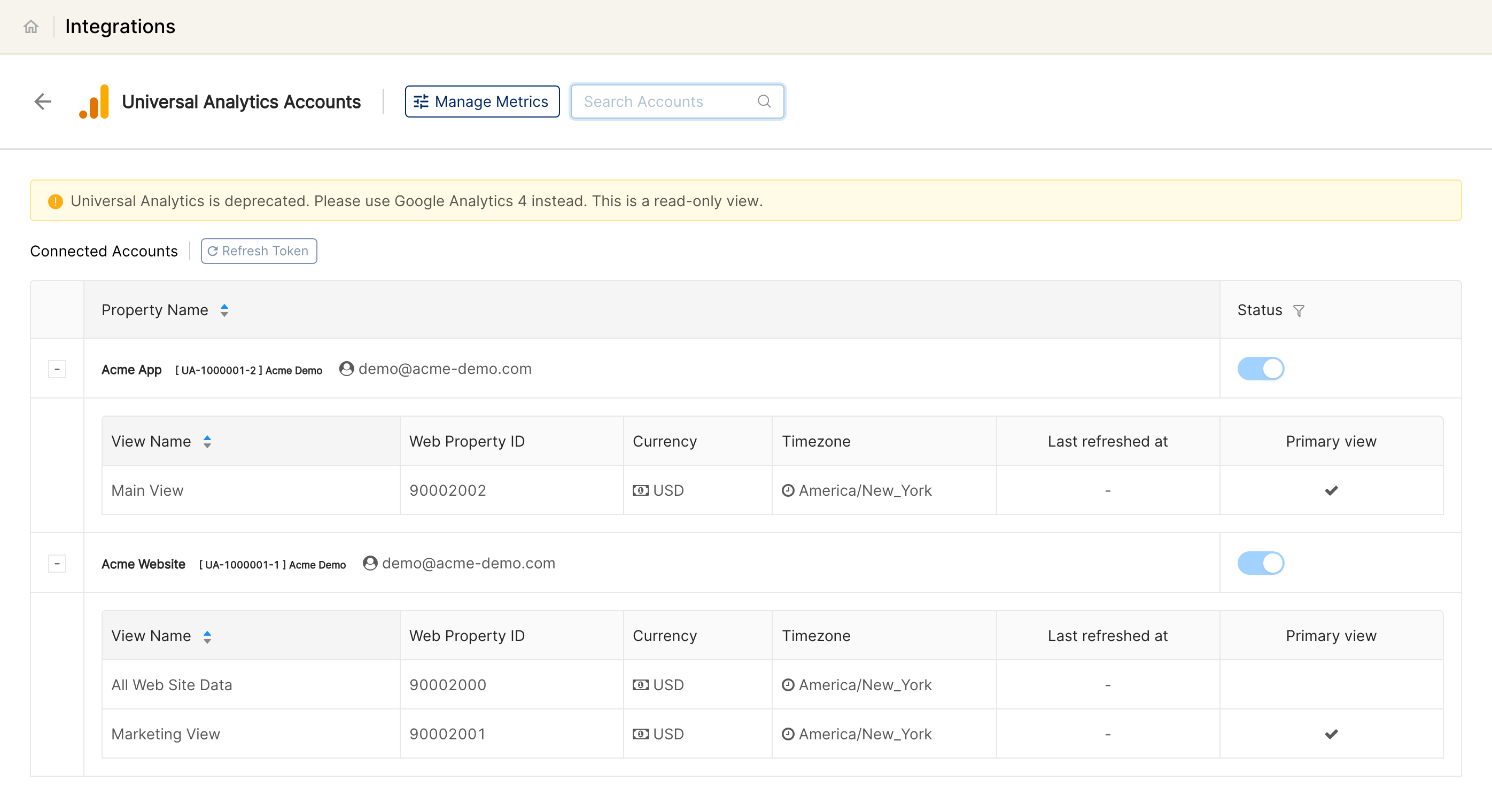
Universal Analytics data that Clarisights imported before the shutdown remains available in reports that use it. Because no new data arrives, those metrics are empty for any date after your property stopped collecting data.
How historical data was joined
Universal Analytics data was keyed by these traffic dimensions on the primary view. They were used to join the data onto your ad channels rather than being stored as report columns:
Dimension | Description |
Date | Hit date in the view's timezone |
Source | Traffic source ( |
Medium | Traffic medium ( |
Campaign | UTM campaign name ( |
Ad Content | UTM content ( |
Keyword | UTM term / search keyword ( |
Device Category | Desktop / Mobile / Tablet |
Country / Region / City | Geographic dimensions |
Timeline
Date | What happened |
1 July 2023 | Standard Universal Analytics properties stopped processing new data |
1 July 2024 | Universal Analytics 360 properties stopped processing new data, and Google began shutting down access to Universal Analytics reports and the API |
Now | Universal Analytics is read-only in Clarisights; GA4 is the supported Google Analytics integration |
Historical metrics
Universal Analytics data was joined onto your ad channels by matching UTM parameters (Source, Medium, Campaign, Ad Content, Keyword) on the property's primary view. The historical metrics are:
Metric | Description |
GA: Visit | Total number of sessions |
GA: New Users | First-time users in the period |
GA: Bounces | Single-page sessions |
GA: Bounce Rate | Bounces / Visits |
GA: Leads | Lead conversions reported by Universal Analytics |
GA: Revenue | Ecommerce revenue (in view currency) |
GA: Transactions | Ecommerce transactions count |
GA: RPV | Revenue per Visit (Revenue per Session) |
GA: CVR | Conversion Rate |
GA: CPL | Cost per Lead |
GA: Avg Order Value | Average ecommerce order value |
GA × Facebook joined metrics
Universal Analytics data joined to Facebook ad data produced these metrics:
Metric | Description |
GA-FB: CPT | Cost per Transaction of the Facebook ad elements |
GA-FB: CPV | Cost per Visit of the Facebook ad elements |
GA-FB: CTR | Click-through Rate (Visits / Impressions) of the Facebook ad elements |
GA-FB: ROAS | Return on Ad Spend (GA: Revenue / FB: Spend) of the Facebook ad elements |
GA-FB: RPC | Revenue per Click (GA: Revenue / Clicks) of the Facebook ad elements |
GA × AdWords joined metrics
Metric | Description |
GA-AW: CPT | Cost per Transaction of the AdWords ad elements |
GA-AW: CPV | Cost per Visit of the AdWords ad elements |
GA-AW: CTR | Click-through Rate (Visits / Impressions) of the AdWords ad elements |
GA-AW: ROAS | Return on Ad Spend (GA: Revenue / AW: Spend) of the AdWords ad elements |
GA-AW: RPC | Revenue per Click (GA: Revenue / Clicks) of the AdWords ad elements |
Universal Analytics goals
Each goal configured in the primary view was imported as a separate metric:
Metric | Description |
GA: Goal-1 … GA: Goal-14 | Each numbered goal as configured in the Universal Analytics view (Goal 1 through Goal 14, excluding Goal 13 which is reserved internally) |
All of these follow the same rule: historical values only.
Moving your reporting to GA4
Connect GA4. In Clarisights, open Integrations, find the Google Analytics 4 card under Set up new connection and click + Connect. Sign in with the Google account that has access to your GA4 properties, then ask your CSM to complete the setup. See Connecting Google Analytics 4 on Clarisights for the full steps.
Swap metrics in your reports. GA4 metrics appear in the GA4 Base Metrics and GA4 Event Metrics groups. Replace UA metrics with their GA4 counterparts, for example GA: Visit with Sessions, GA: Revenue with Total Revenue, and GA: Transactions with Transactions. Goals become GA4 events (for example
purchaseorsign_up).Update custom metrics. Any custom metric built on GA: metrics (for example a cost per visit) stops updating. Recreate it with the GA4 metric and click Create Custom Metric.
Keep UTM tagging consistent. GA4 joins to your ad channels on session source, medium, campaign, term and content, so the same UTM hygiene applies.
Tip: by default GA4 data in Clarisights starts a few days before your CSM completes the setup. If your GA4 property has been collecting data for longer, ask for a historical backfill so your GA4 trend lines cover the months before you switched, back to when the property started collecting data.
UA metrics and their closest GA4 counterparts
GA4 measures traffic differently from Universal Analytics (sessions are counted differently, and bounce rate is replaced by engagement), so expect numbers to differ even for equivalent metrics.
Universal Analytics metric | Closest GA4 metric | Notes |
GA: Visit | Sessions | GA4 does not restart a session at midnight or when campaign parameters change, so session counts are usually lower |
GA: New Users | New Users | Counted per GA4 property |
GA: Bounces / GA: Bounce Rate | Engaged Sessions | GA4 reports engagement instead of bounces; a session that is not engaged is roughly a bounce |
GA: Revenue | Total Revenue | Also available in the property currency as Total Revenue (Local) |
GA: Transactions | Transactions | Requires GA4 ecommerce purchase events |
GA: Goal-1 … GA: Goal-14, GA: Leads | Event metrics in GA4 Event Metrics | Mark the matching events (for example |
GA-FB / GA-AW joined metrics (ROAS, CPV, CPT, RPC) | Custom metrics | Rebuild them as custom metrics, for example Total Revenue divided by Spend for ROAS |
POD-GA channels
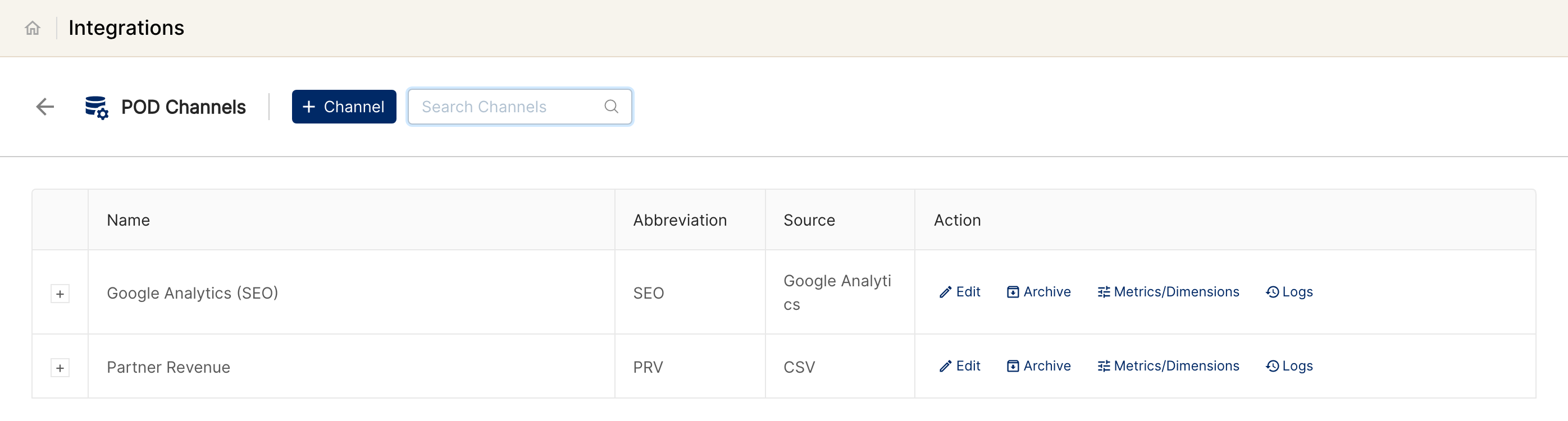
Some workspaces also used POD-GA: POD channels with Source Type = Google Analytics. Unlike the joined integration above, POD-GA brought Google Analytics in as a primary data source, with GA dimensions (Source / Medium, Landing Page, Device Category and so on) stored as columns you could group, filter, and pivot on. That made it useful for organic, SEO, influencer and other traffic that doesn't come from a paid ad channel.
POD-GA channels read from Universal Analytics views, so they no longer receive new data. Existing POD-GA channels and their historical data stay listed under Integrations → POD.
Primary vs Secondary data, in one example
When Clarisights imports a primary data source (e.g. an ad channel like Google Ads), we keep all of its metrics and dimensions. A row in Clarisights might look like:
Account | Campaign | Country | Device | Spend | Clicks |
Google Ads (DE) | Holiday Sale | DE | Mobile | 1,200 | 5,400 |
For a secondary source like Google Analytics, we drop the GA-side dimensions and use them as join keys instead. The same row, after GA is joined, looks like:
Account | Campaign | Spend | Clicks | GA: Visit | GA: Revenue |
Google Ads (DE) | Holiday Sale | 1,200 | 5,400 | 4,300 | 9,500 |
The GA dimensions (utm_source, utm_medium, Landing Page, Device, etc.) are no longer columns, because they were consumed during the join. The standard Google Analytics 4 integration works the same way, while a custom GA4 data source keeps the dimensions as columns, like POD-GA did.
GA4 options compared
Google Analytics 4 integration | Custom GA4 data source | |
Replaces | The Universal Analytics integration | POD-GA channels |
Source type | Secondary, joined onto your ad channels | Primary, its own data source in the report builder |
GA4 dimensions stored | No, used as join keys only | Yes, the dimensions you choose |
Metrics | Fixed base metrics plus event metrics | The GA4 metrics you choose |
Captures organic / SEO / influencer / untracked traffic | No | Yes |
Set up by | You sign in; your CSM completes the setup | Your CSM |
For the same kind of dimension-rich reporting on GA4, ask your CSM to set up a custom GA4 data source with the metrics and dimensions you need. See Custom GA4 data sources.
Frequently asked questions
Can I reconnect Universal Analytics or add another view?
No. Google no longer provides Universal Analytics data, so new connections and changes to existing ones are switched off in Clarisights.
Why are my GA: metrics empty for recent dates?
Your Universal Analytics property stopped collecting data when Google retired it. Switch those widgets to GA4 metrics as described in Moving your reporting to GA4.
Will my historical Universal Analytics numbers match GA4 for the same period?
Usually not exactly. The two products count sessions and users differently. If you need a continuous trend across the switchover, compare periods within the same product, or annotate the switchover date in your report.
Can GA4 and my old Universal Analytics data sit in the same report?
Yes. Historical GA: metrics and the GA4 metric groups can be added to the same widget, which helps while you transition.
Need help?
When contacting support from the in-app messenger, please include:
The Universal Analytics property / view ID you used and the GA4 property ID you are moving to
The reports or custom metrics that still use GA: metrics
Any POD-GA channels you want to replace with GA4