
Connecting an Adobe Analytics Source
Adobe Analytics is an enterprise web and customer-experience analytics product. Connecting Adobe Analytics to Clarisights brings session, conversion, and segment data into the same reports as your paid media so you can answer questions like "how is paid traffic converting on-site?" and "which segments drive the most revenue?" alongside the rest of your marketing stack.
At a glance
| Authentication | OAuth 2.0 Server-to-Server (Adobe Developer Console) |
| Permissions needed | System Administrator or Developer in Adobe Admin Console; access to all required Report Suites, Metrics, Dimensions, and Segments |
| Account discovery | Login Companies and Report Suites are auto-discovered after credentials validate; you select which Report Suites to connect |
| Data freshness | Daily |
| Lookback window | 30 days |
| Backfill on connect | Last 30 days; longer historical backfills available on request |
| Timezone | Report Suite timezone (set in Adobe Analytics) |
| Currency | Report Suite currency; converted to your reporting currency by Clarisights |
| Levels supported | Account (Report Suite) · Primary dimension · Breakdown dimension |
| Limited rollout | No |
Prerequisites
An active Adobe Analytics 2.0 deployment
System Administrator or Developer access in the Adobe Admin Console
Access to the Adobe Developer Console to create an OAuth Server-to-Server credential
Knowledge of which Report Suites, Metrics, Dimensions, and Segments you want available in Clarisights
Why OAuth Server-to-Server? This is a service-account style credential decoupled from any individual user's Adobe login. Your personal Adobe Analytics access (building reports, calculated metrics, etc.) is unaffected. Clarisights uses only the credentials you create below.
Steps to Connect
Step 1: Create a Product Profile in Adobe Admin Console
In Adobe Admin Console, go to Products → Adobe Analytics and create a new Product Profile for Clarisights.
Edit the profile and enable Auto-include: On for:
Report Suites covering all marketing data you want in Clarisights
Metrics you want exposed
Dimensions you want exposed
For an explanation of each product profile permission tab, see Adobe's guide: Product profiles for Adobe Analytics.
At minimum the profile must include one Report Suite, one Metric, and one Dimension. Save the profile when you're done.
Step 2: Attach the profile to your developer account
In Adobe Admin Console → Users → Developers, confirm your account has Developer access, then attach the Product Profile you just created.
Step 3: Create a project in the Developer Console
Open the Adobe Developer Console, confirm you're in the same organization as your Product Profile, and follow Adobe's Create a project guide.
Step 4: Add the Adobe Analytics API and choose OAuth Server-to-Server
Inside your project, click Add API and pick Adobe Analytics. When prompted for an authentication type, choose OAuth Server-to-Server (this is the only type Clarisights supports).
Assign the Product Profile from Step 1 and click Save.
For steps to create a project and add the Adobe Analytics API, see Adobe's guide: Getting started with the Analytics API.
⚠ Profile not visible at this stage → Re-check Step 2: the Product Profile must be attached to the developer account that's logged into the Developer Console.
Step 5: Copy your credentials
Inside Credentials → OAuth Server-to-Server, copy:
Client ID
Client Secret
Technical Account Email (you'll use this to share custom calculated metrics and segments with Clarisights)
Step 6: Connect in Clarisights
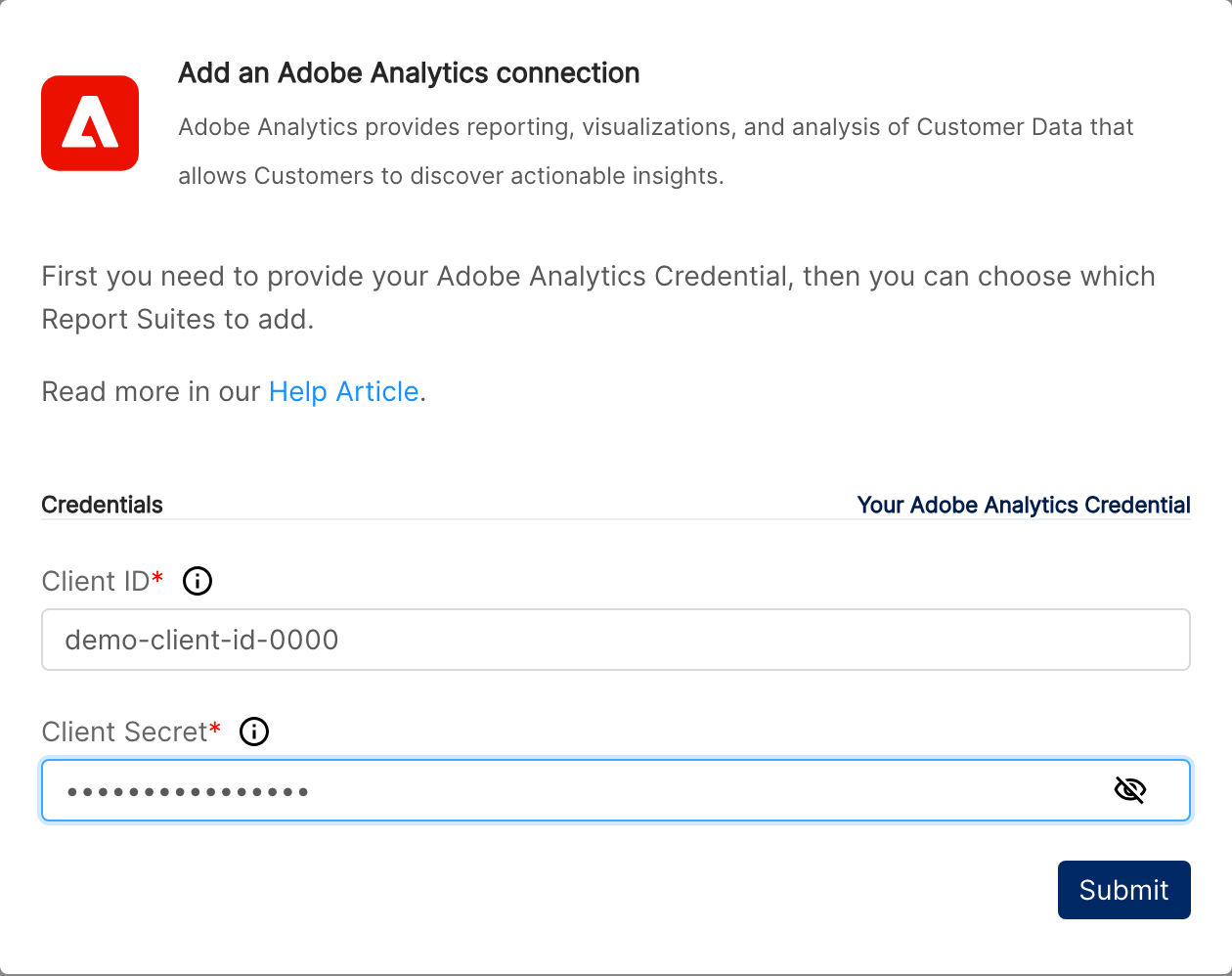
In Clarisights, open Integrations from the left sidebar. Under Set up new connection, find the Adobe Analytics card and click + Connect. In the Add an Adobe Analytics connection dialog, paste your Client ID and Client Secret and click Submit.
Clarisights validates the credential with Adobe and lists the Login Companies and Report Suites it has access to.
⚠ "Authentication failed" on submit → Re-check that you copied the Client ID and Client Secret exactly (no leading/trailing whitespace) and that the credential has not been revoked in the Developer Console.
Step 7: Select Report Suites
On the Add new Report Suites page, tick the Report Suites you want to connect and click Connect. Each selected Report Suite is created as a Clarisights account.
Step 8: Share custom Metrics and Segments with the Technical Account
For any calculated metrics or custom segments you want available in Clarisights, share them in Adobe Analytics with the Technical Account Email from Step 5. Without this, custom assets won't be visible to Clarisights.
After connecting, reach out to your Clarisights CSM to confirm the dimensions, metrics, and segments you want pulled into reports.
Verify the connection
Go to Integrations → Adobe Analytics. The Adobe Analytics Connections page lists your credential with its Login Companies and connected Report Suites.
First data appears within ~24 hours of the next scheduled sync.
Quick start: once your CSM has confirmed the metric and dimension setup, create a new report, pick the Adobe Analytics data source, and add Account, Visits, Page Views and Orders.
Data available
Hierarchy
How Adobe Analytics' native hierarchy maps to the standard Clarisights levels:
Native level (Adobe Analytics) | Clarisights level |
Login Company | Workspace context (one set of credentials per Login Company) |
Report Suite | Account |
Primary dimension (e.g., Marketing Channel, Campaign, Page) | Campaign (configured per channel by your CSM) |
Breakdown dimension (e.g., Tracking Code, Last Touch Channel) | Ad Group / Ad (configured per channel by your CSM) |
Segment (filter applied to metrics) | Metric variant (each segment-filtered metric appears as its own column) |
Note on dimensions: Adobe's Analytics 2.0 API only allows two dimensions per request (one primary + one breakdown). Clarisights handles this transparently by issuing one request per breakdown value per day, but it does mean the Clarisights mapping has fewer levels than channels like Facebook or Google Ads.
Dimensions
Dimensions are configured per Report Suite by your CSM, drawn from the dimensions exposed by your Product Profile. Common choices include:
Dimension | Adobe query | Description |
Account | (Report Suite + Login Company) | Combined Suite ID and Global Company ID assigned by Clarisights |
Marketing Channel | variables/marketingchannel | First or last touch marketing channel attribution |
Campaign / Tracking Code | variables/campaign | Campaign tracking code captured by Adobe |
Page | variables/page | Page name as set in your s.pageName implementation |
Page URL | variables/server | URL or server hostname |
Last Touch Channel | variables/lasttouchchannel | Marketing channel that drove the most recent visit |
First Touch Channel | variables/firsttouchchannel | Marketing channel of the first recorded visit |
Country / Region | variables/geocountry | Visitor country |
Mobile Device Type | variables/mobiledevicetype | Phone, tablet, etc. |
eVar / prop (custom) | variables/evar1, variables/prop1, … | Any eVar or prop exposed by your Product Profile |
Metrics
Metrics are configured per Report Suite by your CSM. Any metric exposed by your Product Profile (including calculated metrics shared with the Technical Account) can be added. Common choices:
Metric | Adobe ID | Description |
Visits | metrics/visits | Total visits |
Visitors | metrics/visitors | Unique visitors |
Page Views | metrics/pageviews | Total page views |
Bounce Rate | metrics/bouncerate | Visits with a single page view divided by total visits |
Time Spent per Visit | metrics/timespentvisit | Average time spent on site per visit |
Orders | metrics/orders | Completed transactions |
Revenue | metrics/revenue | Total revenue in Report Suite currency |
Units | metrics/units | Total units sold |
Cart Adds / Cart Views / Checkouts | metrics/cartadditions, metrics/carts, metrics/checkouts | Funnel events |
Custom Events (event1…eventN) | metrics/event1, metrics/event2, … | Any custom event exposed by your Product Profile |
Calculated Metrics | cm:… identifier | Any calculated metric shared with the Technical Account |
Segment-filtered metrics: Each metric can be paired with one or more shared segments. A metric "Orders" with a "Paid Search" segment surfaces as its own column, e.g. Orders (Paid Search). Configure this with your CSM.
Limitations & known constraints
Two dimensions per request: Adobe Analytics 2.0 API only allows one primary dimension and one breakdown dimension per request. Clarisights iterates breakdown values per day to work around this. The trade-off is that adding more breakdown values increases API call volume; let your CSM know if you need a high-cardinality breakdown.
One day per request: Date is treated as a dimension by the Adobe API and cannot be combined with two other dimensions. Data is fetched one day at a time; this is invisible to you but matters for backfills.
Profile coverage is required: any Report Suite, metric, dimension, calculated metric, or segment that isn't covered by the Product Profile (or shared with the Technical Account, for custom assets) will not be visible to Clarisights.
Calculated metrics and custom segments must be shared: with the Technical Account Email. Sharing only with named users won't work.
Silent metric drops: Adobe occasionally returns fewer metric values than requested without an error. Clarisights treats this as a hard failure rather than silently inserting nulls, to prevent corrupted data from reaching your reports.
Historical backfill: limited by your Adobe Analytics retention policy.
Operating notes
Refresh schedule: daily, with a 30-day rolling lookback to capture late-arriving data.
Lookback: 30 days.
Multi-account: a single OAuth Server-to-Server credential can connect every Report Suite covered by its Product Profile. Use separate credentials if you need to isolate Report Suites under different Login Companies or different governance policies.
Currency conversion: Report Suite currency is preserved on ingest and converted to your reporting currency by Clarisights.
Credential rotation: rotate the Client Secret in the Developer Console, then in Clarisights go to Integrations → Adobe Analytics, click + Report Suites and submit the same Client ID with the new Client Secret. Clarisights updates the stored credential.
Adding new Report Suites later: add the suite to the Product Profile in Adobe Admin Console, then in Clarisights go to Integrations → Adobe Analytics and click + Report Suites to discover and connect it.
Need help?
When contacting support from the in-app messenger, please include:
The integration name and Report Suite ID (Integrations → Adobe Analytics)
The Login Company / Global Company ID (visible in Adobe Analytics URL)
The exact error message or screenshot
The step where the issue occurred
When the issue started