
Creating and using custom dimensions
A Custom Dimension lets you group your Accounts, Campaigns or any other elements of advertising channels that share a common property, such as product category, location or brand.
For example, if you run different campaigns for different countries, Country or Geo is an important dimension for reporting. You have most likely included the country in your campaign names. To view reports grouped by country or market, create a custom dimension (for example Country, or Market as in the image below) and group your campaigns with it.
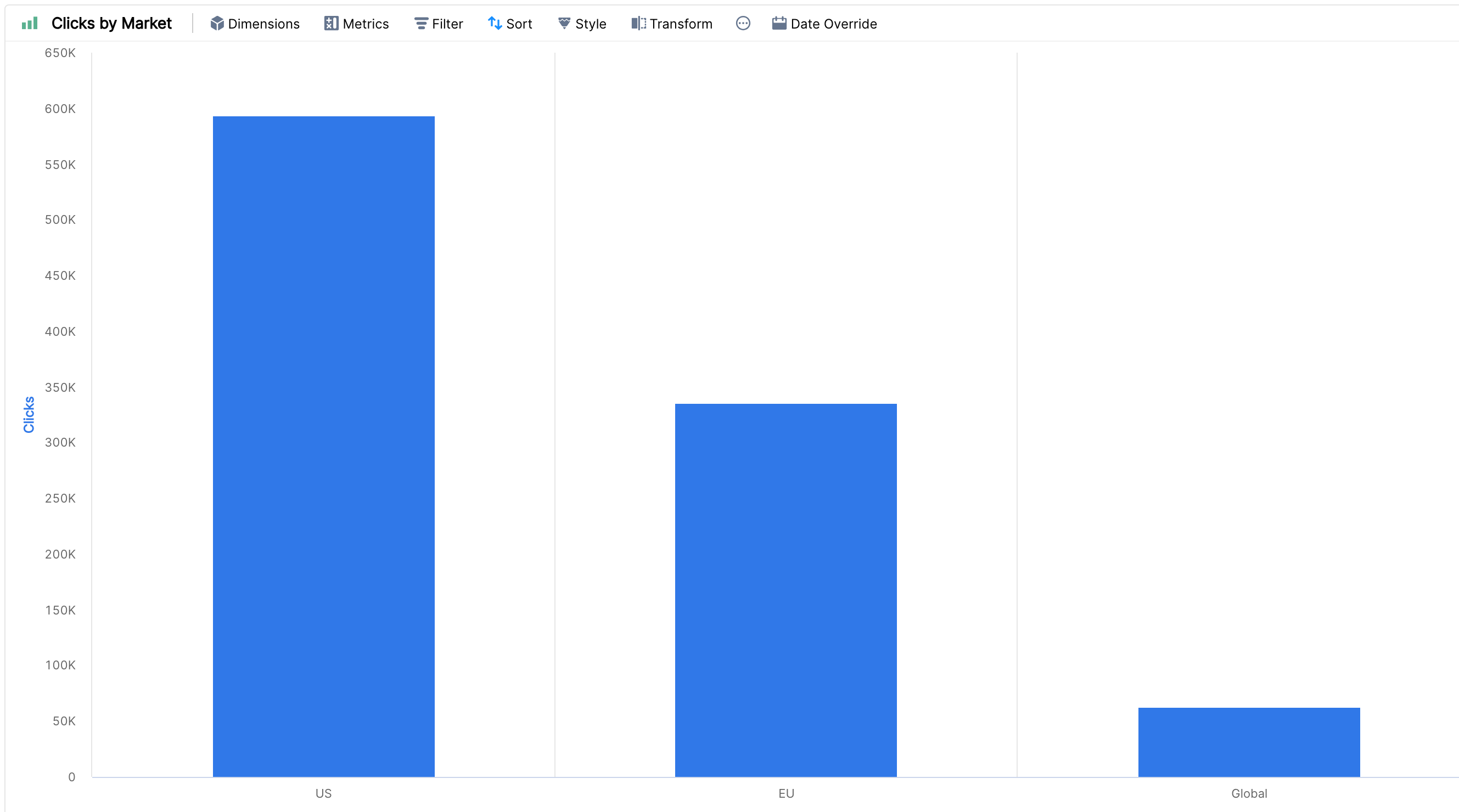
How to create a Custom Dimension on Clarisights?
Users with the Admin or Editor role can create and edit custom dimensions.
Step 1: Click the Custom Dimensions icon in the left sidebar (or open Custom Dimensions directly). On the Custom Dimensions page, click + Custom Dimension.

Step 2: Enter a relevant name and click Proceed to create the dimension.
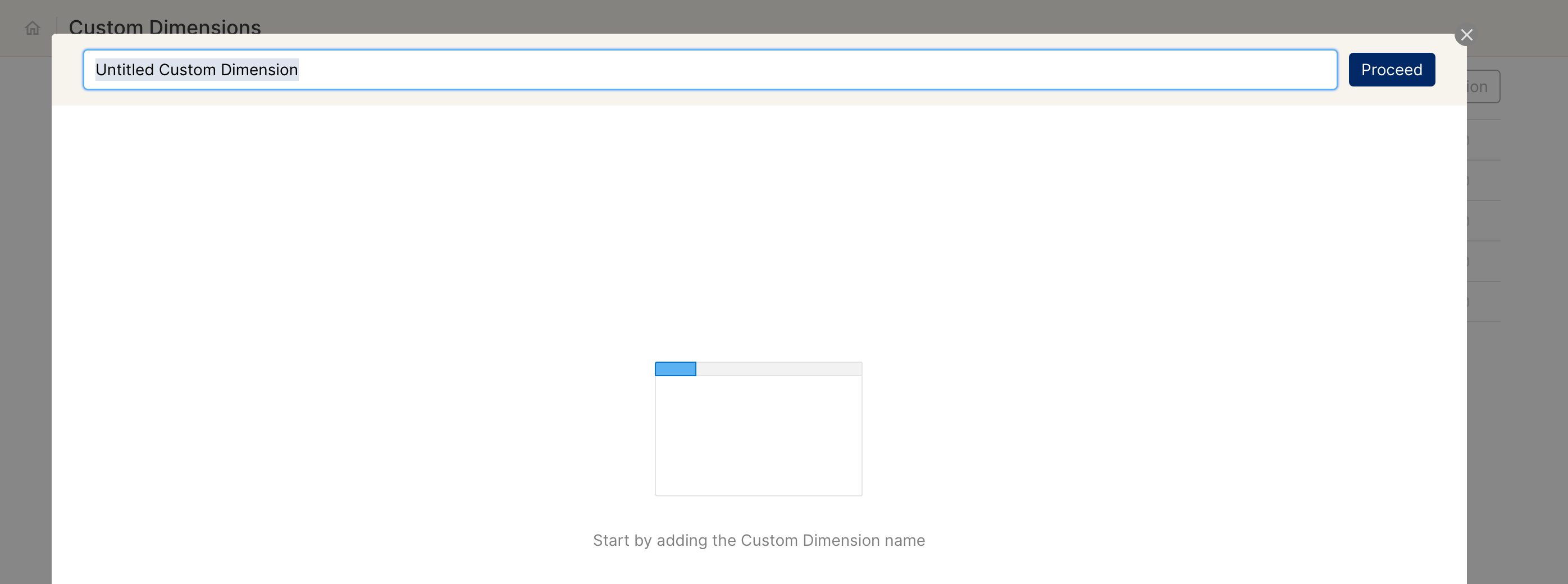
Next, add values to your custom dimension. Values decide how Clarisights groups your data. For example, values for the dimension Country could be Germany, USA and India.
Step 3: Click + New Value, choose Define Values and enter a name for the value.
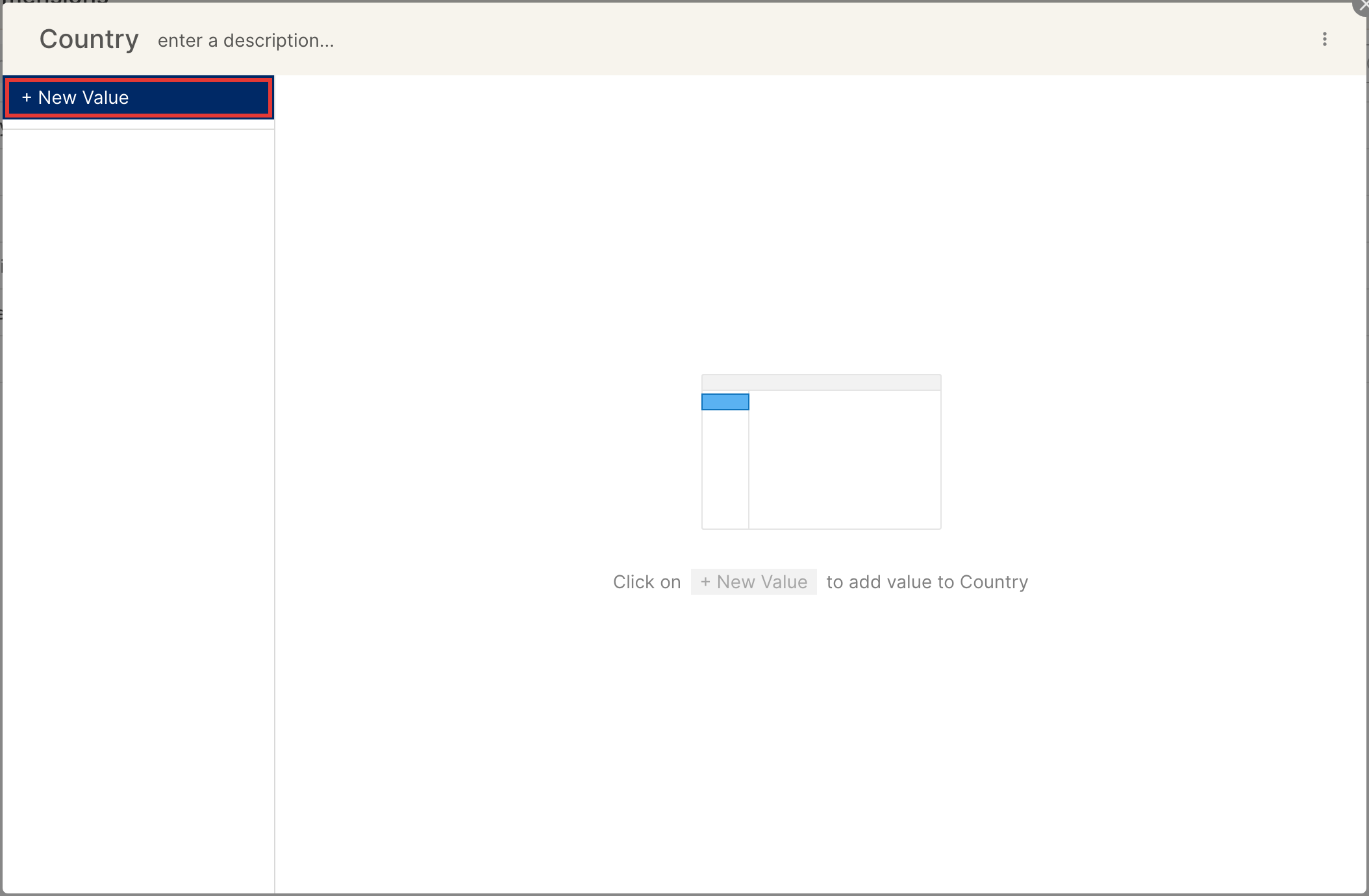
Step 4: Click + New Rule to add a rule that defines the conditions for this value, and select the relevant channels and filters.
You can define a rule for each channel for a value.
If the same rule applies to several channels, you can choose them all in one rule.
When you're done, click Apply, then Create Value. It usually takes a few hours for this data to be available.
Extracting values from an existing dimension
You can also extract values from an existing dimension: click + New Value and choose Extract Values. Read Extractor in Custom Dimensions to learn how extract rules work, or reach out to support@clarisights.com if you need help.
To learn how to create a custom metric, see Creating and using custom metrics.