
Connecting Impact Radius data in Clarisights
Overview
This integration automatically imports your Impact affiliate marketing data into Clarisights for unified reporting and analysis.
Impact requires a report to be set up in DataLab and then sent to a third party like Clarisights via SFTP. The steps below show what needs to be done on Impact and what needs to be done in Clarisights.
Step 1: Get SFTP Credentials from Your CSM
Before you can schedule reports from Impact, you need SFTP connection details from Clarisights. Ask your Customer Success Manager (CSM), or email support@clarisights.com, for the SFTP directory and connection details for your Impact integration.
Your CSM will send you a one-time link containing:
Server URL
Directory path
Port number
Username
Password
Keep these credentials secure. You will need them in Step 2.
Step 2: Create the Report on Impact
2.1 Access Impact DataLab
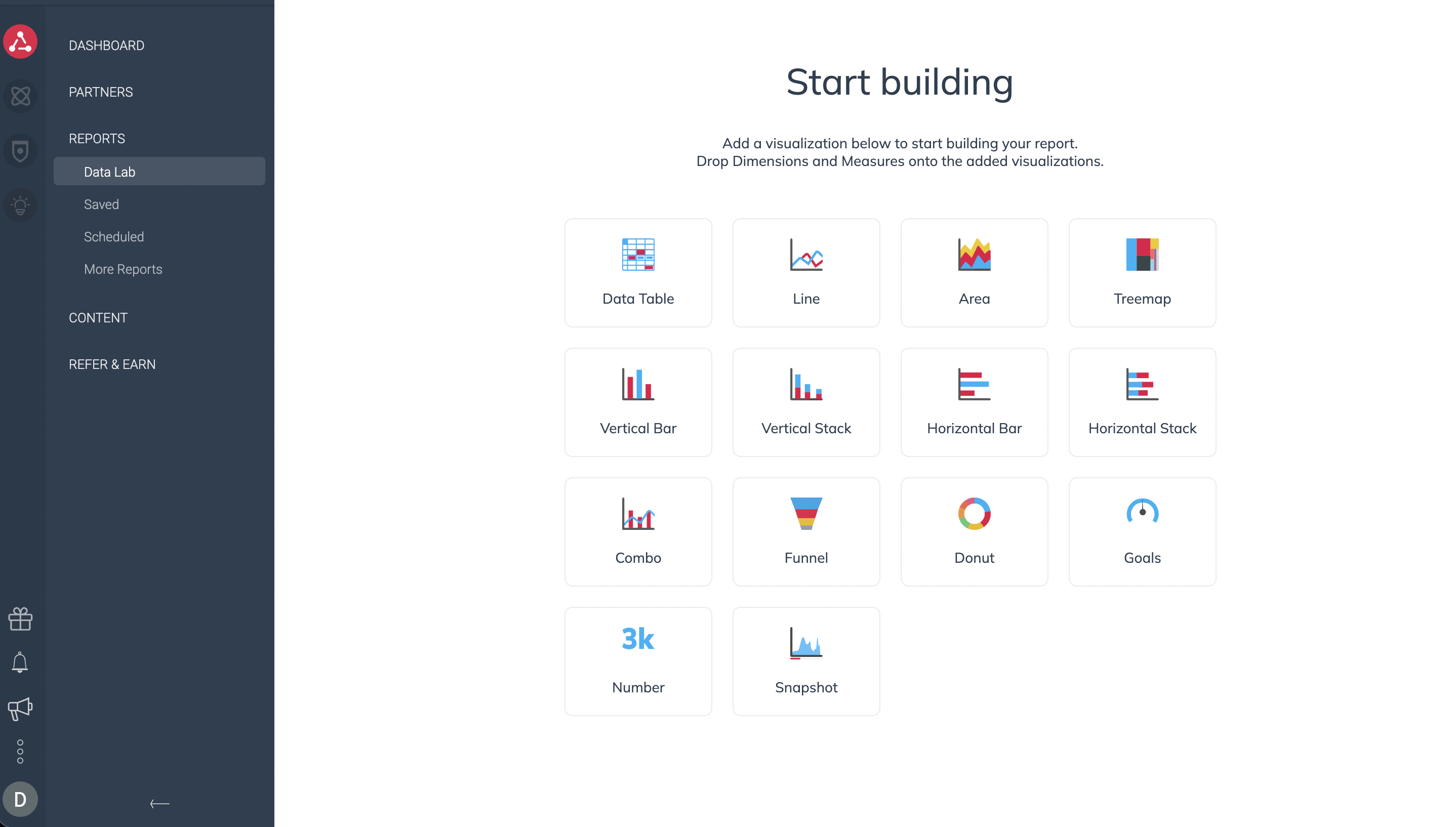
Log in to Impact and go to DataLab.
2.2 Create a Data Table
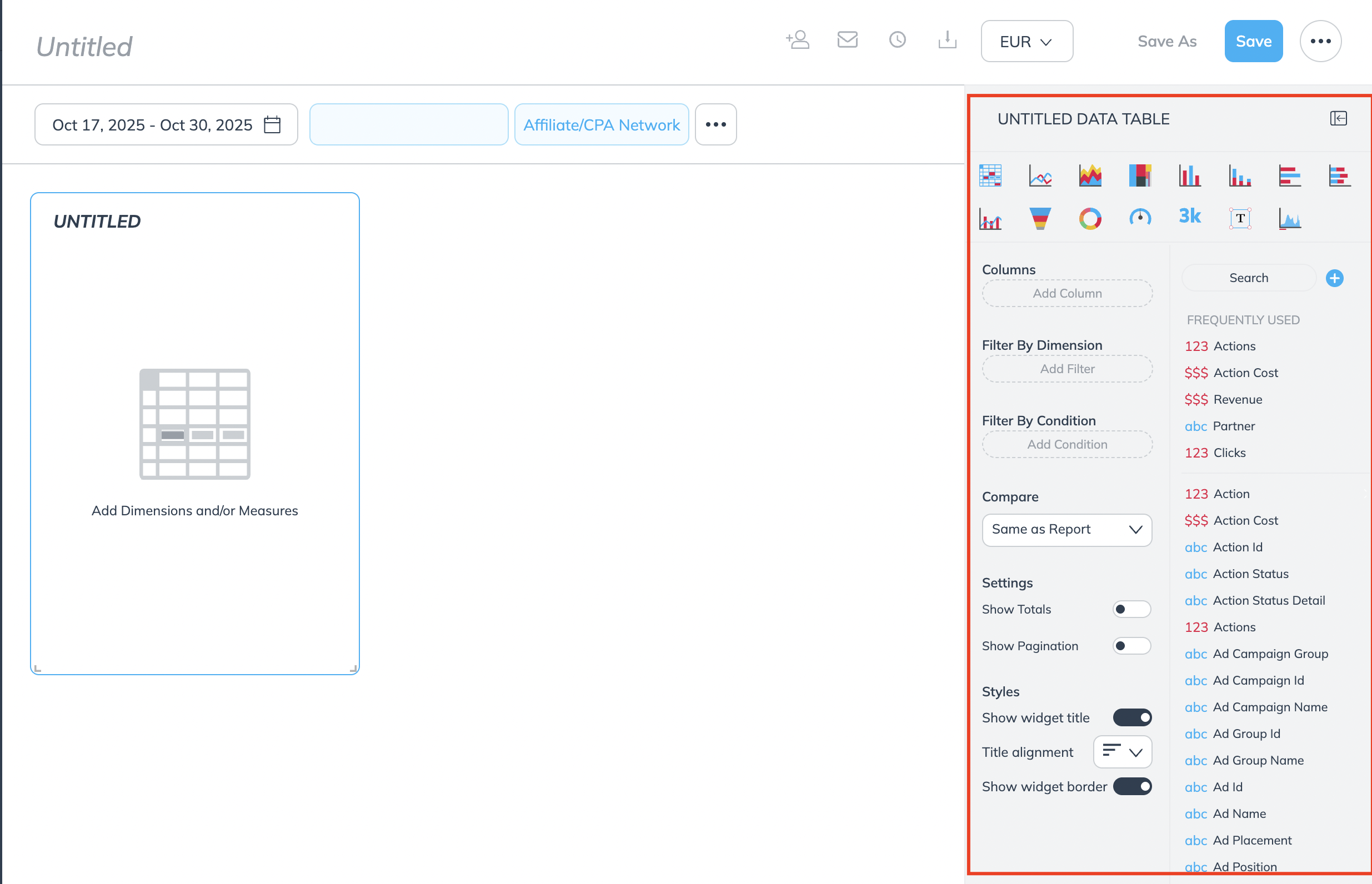
Create a new data table with the following dimensions and metrics, and select a date range (ideally a few days longer than your maximum corrections window).
Required dimensions:
Date
Country/Region
Partner
Partner ID
Ad Name
Ad ID
Ad Type
Ad Campaign Name
Operating System
Product Category
Event Type
Event Type Category
Event Type Id
Required metrics:
Clicks
Action Cost
Other Cost
Total Cost
All Revenue
Actions
Note: you can add other metrics and dimensions to the report, but certain dimensions in Impact (for example Partner Group) can "inflate" the metric values. The list above is validated by the Clarisights team.
2.3 Schedule the Report
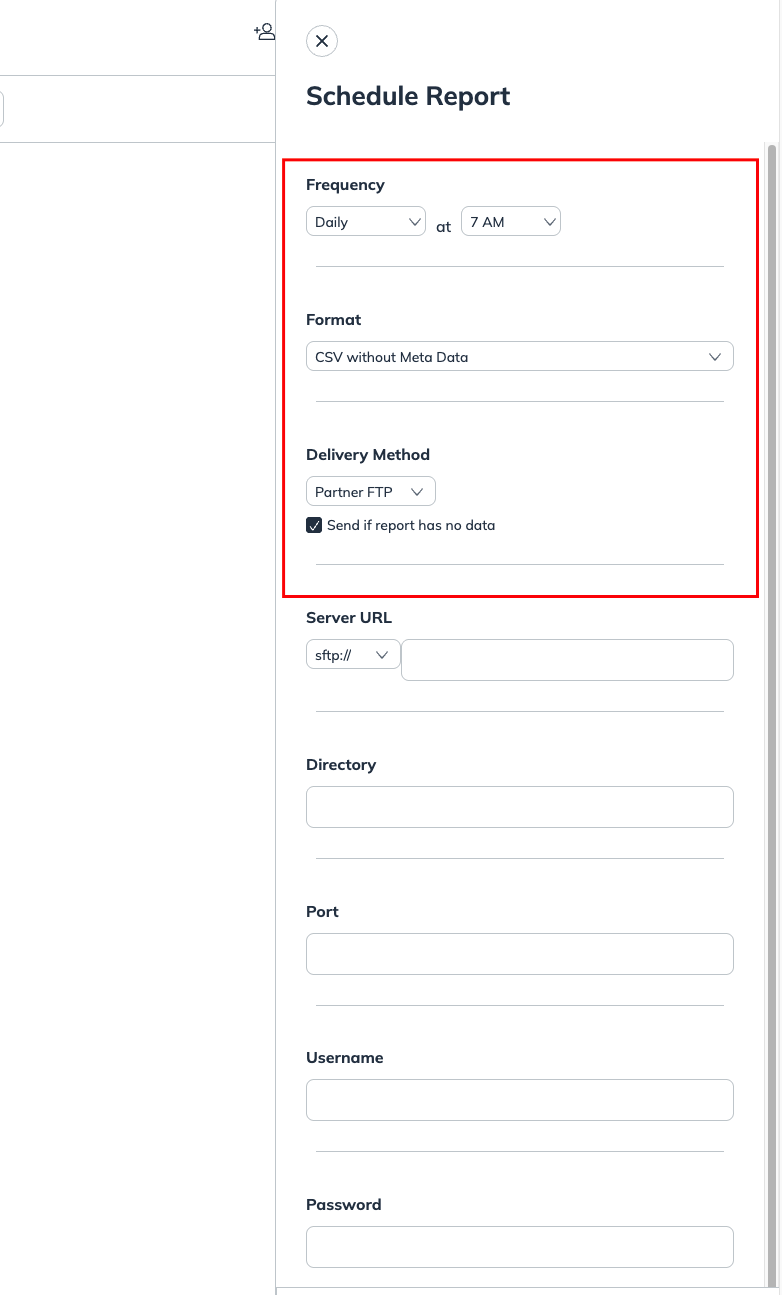
Configure the report schedule with these settings:
Frequency: Daily (at your preferred time)
Format: CSV without metadata
Delivery Method: Partner FTP
Connection Details: the SFTP credentials provided by your Clarisights CSM (Server URL, Directory, Port, Username and Password)
Step 3: Clarisights Configuration
Once your report is scheduled in Impact, your CSM configures the integration on the Clarisights side to continuously import your Impact data. No action is required from you.
Step 4: Backfill Historical Data (Optional)
To import historical data from before the integration was set up:
Run a manual export of the same Impact DataLab report with the date range you need. It is delivered via the same SFTP connection.
Tell your CSM that a backfill report has been sent.
Your CSM will process the historical data and make sure it is imported into Clarisights.
Summary
You | Your Clarisights CSM |
Obtain SFTP credentials from Clarisights | Provide SFTP connection details |
Create and schedule the daily report in Impact DataLab | Configure data mappings in Clarisights |
(Optional) Run backfill reports if historical data is needed | Process backfill data if required |
If you have any issues or questions, reach out to the Clarisights team at support@clarisights.com.